
- XAML 教程
- XAML - 首页
- XAML - 概述
- XAML - 环境设置
- 在 MAC OS 上编写 XAML 应用程序
- XAML 与 C# 代码
- XAML 与 VB.NET
- XAML - 构建块
- XAML - 控件
- XAML - 布局
- XAML - 事件处理
- XAML - 数据绑定
- XAML - 标记扩展
- XAML - 依赖属性
- XAML - 资源
- XAML - 模板
- XAML - 样式
- XAML - 触发器
- XAML - 调试
- XAML - 自定义控件
- XAML 有用资源
- XAML - 快速指南
- XAML - 有用资源
- XAML - 讨论
XAML - 按钮
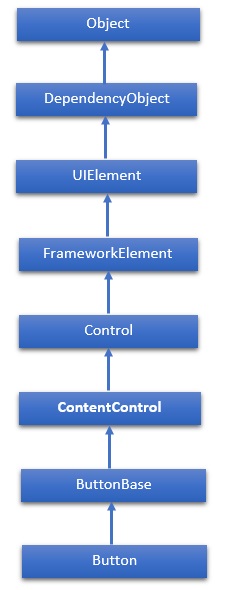
Button 类表示最基本的按钮控件类型。Button 类的层次继承如下:
属性
| 序号 | 属性及描述 |
|---|---|
| 1 | Background 获取或设置一个笔刷,提供控件的背景。(继承自 Control) |
| 2 | BorderBrush 获取或设置一个笔刷,描述控件的边框填充。(继承自 Control) |
| 3 | BorderThickness 获取或设置控件的边框粗细。(继承自 Control) |
| 4 | Content 获取或设置 ContentControl 的内容。(继承自 ContentControl) |
| 5 | ClickMode 获取或设置一个值,指示 Click 事件何时发生,以设备行为表示。(继承自 ButtonBase) |
| 6 | ContentTemplate 获取或设置用于显示 ContentControl 内容的数据模板。(继承自 ContentControl) |
| 7 | FontFamily 获取或设置用于在控件中显示文本的字体。(继承自 Control) |
| 8 | FontSize 获取或设置此控件中文本的大小。(继承自 Control) |
| 9 | FontStyle 获取或设置呈现文本的样式。(继承自 Control) |
| 10 | FontWeight 获取或设置指定字体的粗细。(继承自 Control) |
| 11 | Foreground 获取或设置一个笔刷,描述前景色。(继承自 Control) |
| 12 | Height 获取或设置 FrameworkElement 的建议高度。(继承自 FrameworkElement) |
| 13 | HorizontalAlignment 获取或设置当 FrameworkElement 在布局父级(如面板或项目控件)中组合时应用的水平对齐特征。(继承自 FrameworkElement) |
| 14 | IsEnabled 获取或设置一个值,指示用户是否可以与控件交互。(继承自 Control) |
| 15 | IsPressed 获取一个值,指示 ButtonBase 当前是否处于按下状态。(继承自 ButtonBase) |
| 16 | Margin 获取或设置 FrameworkElement 的外部边距。(继承自 FrameworkElement) |
| 17 | Name 获取或设置对象的标识名称。当 XAML 处理器从 XAML 标记创建对象树时,运行时代码可以通过此名称引用 XAML 声明的对象。(继承自 FrameworkElement) |
| 18 | Opacity 获取或设置对象的透明度。(继承自 UIElement) |
| 19 | Resources 获取本地定义的资源字典。在 XAML 中,您可以将资源项作为 frameworkElement 的子对象元素建立。Resources 属性元素,通过 XAML 隐式集合语法。(继承自 FrameworkElement) |
| 20 | Style 获取或设置一个 Style 实例,在布局和渲染期间应用于此对象。(继承自 FrameworkElement) |
| 21 | Template 获取或设置控件模板。控件模板定义 UI 中控件的视觉外观,并在 XAML 标记中定义。(继承自 Control) |
| 22 | VerticalAlignment 获取或设置当 FrameworkElement 在父对象(如面板或项目控件)中组合时应用的垂直对齐特征。(继承自 FrameworkElement) |
| 23 | Visibility 获取或设置 UIElement 的可见性。不可见的 UIElement 不会呈现,也不会将其所需的大小传达给布局。(继承自 UIElement) |
| 24 | Width 获取或设置 FrameworkElement 的宽度。(继承自 FrameworkElement) |
方法
| 序号 | 方法及描述 |
|---|---|
| 1 | ClearValue 清除依赖属性的局部值。(继承自 DependencyObject) |
| 2 | FindName 检索具有指定标识名称的对象。(继承自 FrameworkElement) |
| 3 | OnApplyTemplate 每当应用程序代码或内部进程(例如重建布局传递)调用 ApplyTemplate 时都会调用。简单来说,这意味着在 UI 元素在应用程序中显示之前会调用该方法。覆盖此方法以影响类的默认模板后逻辑。(继承自 FrameworkElement) |
| 4 | OnContentChanged 当 Content 属性的值发生更改时调用。(继承自 ContentControl) |
| 5 | OnDragEnter 在 DragEnter 事件发生之前调用。(继承自 Control) |
| 6 | OnDragLeave 在 DragLeave 事件发生之前调用。(继承自 Control) |
| 7 | OnDragOver 在 DragOver 事件发生之前调用。(继承自 Control) |
| 8 | OnDrop 在 Drop 事件发生之前调用。(继承自 Control) |
| 9 | OnGotFocus 在 GotFocus 事件发生之前调用。(继承自 Control) |
| 10 | OnKeyDown 在 KeyDown 事件发生之前调用。(继承自 Control) |
| 11 | OnKeyUp 在 KeyUp 事件发生之前调用。(继承自 Control) |
| 12 | OnLostFocus 在 LostFocus 事件发生之前调用。(继承自 Control) |
| 13 | SetBinding 使用提供的绑定对象将绑定附加到 FrameworkElement。(继承自 FrameworkElement) |
事件
| 序号 | 事件及描述 |
|---|---|
| 1 | Click 当单击按钮控件时发生。(继承自 ButtonBase) |
| 2 | DataContextChanged 当 FrameworkElement.DataContext 属性的值发生更改时发生。(继承自 FrameworkElement) |
| 3 | DragEnter 当输入系统报告以该元素作为目标的基础拖动事件时发生。(继承自 UIElement) |
| 4 | DragLeave 当输入系统报告以该元素作为原点的基础拖动事件时发生。(继承自 UIElement) |
| 5 | DragOver 当输入系统报告以该元素作为潜在放置目标的基础拖动事件时发生。(继承自 UIElement) |
| 6 | DragStarting 当启动拖动操作时发生。(继承自 UIElement) |
| 7 | GotFocus 当 UIElement 获得焦点时发生。(继承自 UIElement) |
| 8 | Holding 当在此元素的命中测试区域上发生其他未处理的 Hold 交互时发生。(继承自 UIElement) |
| 9 | IsEnabledChanged 当 IsEnabled 属性发生更改时发生。(继承自 Control) |
| 10 | OnKeyDown 当 UIElement 具有焦点时按下键盘键时发生。(继承自 UIElement) |
| 11 | OnKeyUp 当 UIElement 具有焦点时释放键盘键时发生。(继承自 UIElement) |
| 12 | LostFocus 当 UIElement 失去焦点时发生。(继承自 UIElement) |
| 13 | SizeChanged 当 FrameworkElement 上的 ActualHeight 或 ActualWidth 属性的值发生更改时发生。(继承自 FrameworkElement) |
示例
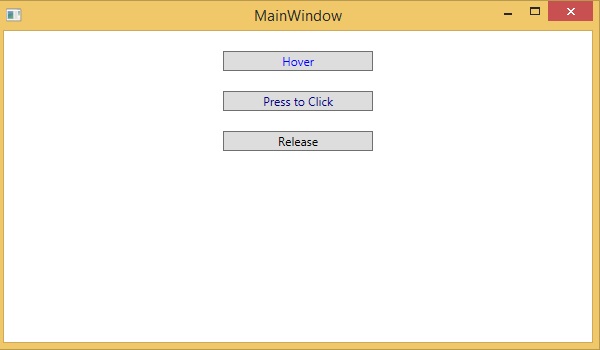
以下示例包含三个按钮,它们根据其 ClickMode 属性值的不同而做出不同的响应。
以下是创建三个按钮并设置一些属性和单击事件的 XAML 代码。
<Window x:Class = "XAMLButton.MainWindow"
   xmlns = "http://schemas.microsoft.com/winfx/2006/xaml/presentation"
   xmlns:x = "http://schemas.microsoft.com/winfx/2006/xaml"
   Title = "MainWindow" Height = "350" Width = "604">

   <Grid>
      <StackPanel Margin = "10">
         <Button x:Name = "button1"
            Content = "Hover"
            Click = "OnClick1"
            ClickMode = "Hover"
            Margin = "10"
            Width = "150"
            HorizontalAlignment = "Center"
            Foreground = "Gray"/>
			<Button x:Name = "button2"
            Content = "Press to Click"
            Click = "OnClick2"
            ClickMode = "Press"
            Margin = "10"
            Width = "150"
            HorizontalAlignment = "Center"
            Foreground = "DarkBlue"/>
			<Button x:Name = "button3"
            Content = "Release"
            Click = "OnClick3"
            ClickMode = "Release"
            Margin = "10"
            Width = "150"
            HorizontalAlignment = "Center"/>
      </StackPanel>
   </Grid>

</Window>
以下是 C# 中的单击事件实现。
using System;
using System.Windows;
using System.Windows.Controls;
using System.Windows.Media;

namespace XAMLButton {
   /// <summary>
      /// Interaction logic for MainWindow.xaml
   /// </summary>
	public partial class MainWindow : Window {
      public MainWindow() {
         InitializeComponent();
      }
      void OnClick1(object sender, RoutedEventArgs e) {
         button1.Foreground = new SolidColorBrush(Colors.Blue);
         MessageBox.Show("On Hover click event occurs.");
      }
      void OnClick2(object sender, RoutedEventArgs e) {
         button2.Foreground = new SolidColorBrush(Colors.Green);
         MessageBox.Show("On Press click event occurs.");
      }
      void OnClick3(object sender, RoutedEventArgs e) {
         button1.Foreground = new SolidColorBrush(Colors.Green);
         button2.Foreground = new SolidColorBrush(Colors.Blue);
         MessageBox.Show("On Release click event occurs.");
      }
   }
}
编译并执行以上代码后,将生成以下屏幕:
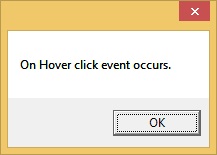
当鼠标进入第一个按钮区域时,将显示以下消息:
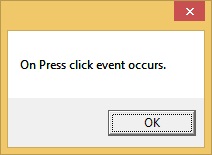
按下第二个按钮时,将显示以下消息:
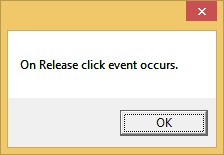
单击后释放最后一个按钮时,将显示以下消息:
建议您执行以上示例代码,并尝试一些其他属性和事件。