
- WPF 教程
- WPF - 首页
- WPF - 概述
- WPF - 环境设置
- WPF - Hello World
- WPF - XAML 概述
- WPF - 元素树
- WPF - 依赖属性
- WPF - 路由事件
- WPF - 控件
- WPF - 布局
- WPF - 布局嵌套
- WPF - 输入
- WPF - 命令行
- WPF - 数据绑定
- WPF - 资源
- WPF - 模板
- WPF - 样式
- WPF - 触发器
- WPF - 调试
- WPF - 自定义控件
- WPF - 异常处理
- WPF - 本地化
- WPF - 交互
- WPF - 2D 图形
- WPF - 3D 图形
- WPF - 多媒体
- WPF 有用资源
- WPF - 快速指南
- WPF - 有用资源
- WPF - 讨论
WPF - 网格面板
网格面板提供了一个灵活的区域,该区域由行和列组成。在网格中,子元素可以以表格形式排列。可以使用Grid.Row和Grid.Column属性将元素添加到任何特定的行和列。
默认情况下,网格面板创建一个一行一列的网格。多行多列通过RowDefinitions和ColumnDefinitions属性创建。行的高度和列的宽度可以通过以下三种方式定义:
固定值 - 为逻辑单位(1/96英寸)分配固定大小。
自动 - 它将占用该特定行/列中控件所需的空間。
星号 (*) - 当自动和固定大小的空間被填充后,它将占用剩余的空間。
Canvas类的层次继承如下。
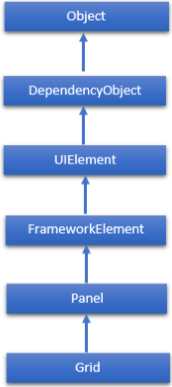
Grid 类常用属性
| 序号 | 属性及说明 |
|---|---|
| 1 | Background 获取或设置填充面板内容区域的画刷。(继承自 Panel) |
| 2 | Children 获取此 Panel 的子元素的 UIElementCollection。(继承自 Panel。) |
| 3 | ColumnDefinitions 获取在此 Grid 实例上定义的 ColumnDefinition 对象列表。 |
| 4 | Height 获取或设置元素的建议高度。(继承自 FrameworkElement。) |
| 5 | ItemHeight 获取或设置一个值,该值指定 WrapPanel 中包含的所有项目的高度。 |
| 6 | ItemWidth 获取或设置一个值,该值指定 WrapPanel 中包含的所有项目的宽度。 |
| 7 | Margin 获取或设置元素的外边距。(继承自 FrameworkElement。) |
| 8 | Name 获取或设置元素的标识名称。该名称提供了一个引用,以便代码隐藏(例如事件处理程序代码)可以在 XAML 处理器在处理过程中构造标记元素后引用该元素。(继承自 FrameworkElement。) |
| 9 | Orientation 获取或设置一个值,该值指定排列子内容的维度。 |
| 10 | Parent 获取此元素的逻辑父元素。(继承自 FrameworkElement。) |
| 11 | Resources 获取或设置局部定义的资源字典。(继承自 FrameworkElement。) |
| 12 | RowDefinitions 获取在此 Grid 实例上定义的 RowDefinition 对象列表。 |
| 13 | Style 获取或设置此元素呈现时使用的样式。(继承自 FrameworkElement。) |
| 14 | Width 获取或设置元素的宽度。(继承自 FrameworkElement。) |
Grid 类常用方法
| 序号 | 方法及说明 |
|---|---|
| 1 | GetColumn 从指定的 FrameworkElement 获取 Grid.Column XAML 附加属性的值。 |
| 2 | GetColumnSpan 从指定的 FrameworkElement 获取 Grid.ColumnSpan XAML 附加属性的值。 |
| 3 | GetRow 从指定的 FrameworkElement 获取 Grid.Row XAML 附加属性的值。 |
| 4 | SetColumn 设置指定的 FrameworkElement 上 Grid.Column XAML 附加属性的值。 |
| 5 | SetRow 设置指定的 FrameworkElement 上 Grid.Row XAML 附加属性的值。 |
| 6 | SetRowSpan 设置指定的 FrameworkElement 上 Grid.RowSpan XAML 附加属性的值。 |
示例
以下示例演示如何将子元素添加到 Grid 以指定表格形式。在以下 XAML 实现中,文本块添加到 Grid 的第一列,文本框添加到 Grid 的第二列。
<Window x:Class = "WPFGrid.MainWindow"
   xmlns = "http://schemas.microsoft.com/winfx/2006/xaml/presentation"
   xmlns:x = "http://schemas.microsoft.com/winfx/2006/xaml"
   xmlns:d = "http://schemas.microsoft.com/expression/blend/2008"
   xmlns:mc = "http://schemas.openxmlformats.org/markup-compatibility/2006"
   xmlns:local = "clr-namespace:WPFGrid"
   mc:Ignorable = "d" Title = "MainWindow" Height = "350" Width = "604">

   <Grid x:Name = "FormLayoutGrid" Background = "AliceBlue">
      <Grid.ColumnDefinitions>
         <ColumnDefinition Width = "Auto" />
         <ColumnDefinition />
      </Grid.ColumnDefinitions>

      <Grid.RowDefinitions>
         <RowDefinition Height = "*" />
         <RowDefinition Height = "*" />
         <RowDefinition Height = "*" />
      </Grid.RowDefinitions>

      <TextBlock Grid.Row = "0" Grid.Column = "0" Text = "Name" Margin = "10"
         HorizontalAlignment = "Left" VerticalAlignment = "Center" Width = "100" />
      <TextBox Grid.Row = "0" Grid.Column = "1" Margin = "10" />
      <TextBlock Grid.Row = "1" Grid.Column = "0" Text = "ID" Margin = "10"
         HorizontalAlignment = "Left" VerticalAlignment = "Center" Width = "100" />
      <TextBox Grid.Row = "1" Grid.Column = "1" Margin = "10" />
      <TextBlock Grid.Row = "2" Grid.Column = "0" Text = "Age" Margin = "10"
         HorizontalAlignment = "Left" VerticalAlignment = "Center" Width = "100" />
      <TextBox Grid.Row = "2" Grid.Column = "1" Margin = "10" />
   </Grid>

</Window>
编译并执行上述代码后,将生成以下窗口。
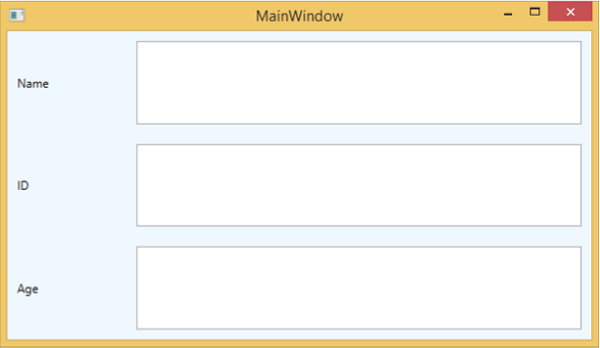
我们建议您执行上述示例代码,并尝试此类的其他属性。