
- GWT 教程
- GWT - 首页
- GWT - 概述
- GWT - 环境设置
- GWT - 应用
- GWT - 创建应用
- GWT - 部署应用
- GWT - CSS 样式
- GWT - 基本部件
- GWT - 表单部件
- GWT - 复杂部件
- GWT - 布局面板
- GWT - 事件处理
- GWT - 自定义部件
- GWT - UIBinder
- GWT - RPC 通信
- GWT - JUnit 集成
- GWT - 调试应用
- GWT - 国际化
- GWT - History 类
- GWT - 书签支持
- GWT - 日志框架
- GWT 有用资源
- GWT - 问答
- GWT - 快速指南
- GWT - 有用资源
- GWT - 讨论
GWT - 书签支持
GWT 使用 History 类支持浏览器历史管理,您可以参考GWT - History 类章节。
GWT 使用术语token,它只是一个字符串,应用程序可以解析它以返回到特定状态。应用程序会将此 token 作为 URL 片段保存到浏览器的历史记录中。
在GWT - History 类章节中,我们通过编写代码来处理 token 的创建和在历史记录中的设置。
在本文中,我们将讨论一个特殊的部件 Hyperlink,它可以自动为我们创建 token 并进行历史管理,并使应用程序具有书签功能。
书签示例
此示例将引导您完成简单的步骤,演示 GWT 应用程序的书签功能。
以下步骤用于更新我们在GWT - 创建应用章节中创建的 GWT 应用程序:
| 步骤 | 描述 |
|---|---|
| 1 | 创建一个名为HelloWorld的项目,位于com.tutorialspoint包下,如GWT - 创建应用章节中所述。 |
| 2 | 修改HelloWorld.gwt.xml、HelloWorld.css、HelloWorld.html和HelloWorld.java,如下所述。保持其余文件不变。 |
| 3 | 编译并运行应用程序以验证已实现逻辑的结果。 |
以下是修改后的模块描述符src/com.tutorialspoint/HelloWorld.gwt.xml的内容。
<?xml version = "1.0" encoding = "UTF-8"?>
<module rename-to = 'helloworld'>
   <!-- Inherit the core Web Toolkit stuff.                        -->
   <inherits name = 'com.google.gwt.user.User'/>

   <!-- Inherit the default GWT style sheet.                       -->
   <inherits name = 'com.google.gwt.user.theme.clean.Clean'/>

   <!-- Specify the app entry point class.                         -->
   <entry-point class = 'com.tutorialspoint.client.HelloWorld'/>
   <!-- Specify the paths for translatable code                    -->
   <source path = 'client'/>
   <source path = 'shared'/>

</module>
以下是修改后的样式表文件war/HelloWorld.css的内容。
body {
   text-align: center;
   font-family: verdana, sans-serif;
}

h1 {
   font-size: 2em;
   font-weight: bold;
   color: #777777;
   margin: 40px 0px 70px;
   text-align: center;
}
以下是修改后的 HTML 宿主文件war/HelloWorld.html的内容。
<html>
   <head>
      <title>Hello World</title>
      <link rel = "stylesheet" href = "HelloWorld.css"/>
      <script language = "javascript" src = "helloworld/helloworld.nocache.js">
      </script>
   </head>

   <body>
      <iframe src = "javascript:''"id = "__gwt_historyFrame"
         style = "width:0;height:0;border:0"></iframe>
      <h1> Bookmarking Demonstration</h1>
      <div id = "gwtContainer"></div>
   </body>
</html>
让我们使用以下 Java 文件src/com.tutorialspoint/HelloWorld.java的内容,我们将用它来演示 GWT 代码中的书签功能。
package com.tutorialspoint.client;

import com.google.gwt.core.client.EntryPoint;

import com.google.gwt.event.logical.shared.ValueChangeEvent;
import com.google.gwt.event.logical.shared.ValueChangeHandler;

import com.google.gwt.user.client.History;
import com.google.gwt.user.client.ui.HTML;
import com.google.gwt.user.client.ui.HorizontalPanel;
import com.google.gwt.user.client.ui.Hyperlink;
import com.google.gwt.user.client.ui.RootPanel;
import com.google.gwt.user.client.ui.TabPanel;
import com.google.gwt.user.client.ui.VerticalPanel;

public class HelloWorld implements EntryPoint {

   private TabPanel tabPanel;

   private void selectTab(String historyToken){
      /*  parse the history token */
      try {
         if (historyToken.substring(0, 9).equals("pageIndex")) {
            String tabIndexToken = historyToken.substring(9, 10);
            int tabIndex = Integer.parseInt(tabIndexToken);
            /* Select the specified tab panel */
            tabPanel.selectTab(tabIndex);
         } else {
            tabPanel.selectTab(0);
         }
      } catch (IndexOutOfBoundsException e) {
         tabPanel.selectTab(0);
      }
   }

   /**
    * This is the entry point method.
    */
   public void onModuleLoad() {
      /* create a tab panel to carry multiple pages */
      tabPanel = new TabPanel();

      /* create pages */
      HTML firstPage = new HTML("<h1>We are on first Page.</h1>");
      HTML secondPage = new HTML("<h1>We are on second Page.</h1>");
      HTML thirdPage = new HTML("<h1>We are on third Page.</h1>");

      String firstPageTitle = "First Page";
      String secondPageTitle = "Second Page";
      String thirdPageTitle = "Third Page";

      Hyperlink firstPageLink = new Hyperlink("1", "pageIndex0");
      Hyperlink secondPageLink = new Hyperlink("2", "pageIndex1");
      Hyperlink thirdPageLink = new Hyperlink("3", "pageIndex2");

      HorizontalPanel linksHPanel = new HorizontalPanel();
      linksHPanel.setSpacing(10);
      linksHPanel.add(firstPageLink);
      linksHPanel.add(secondPageLink);
      linksHPanel.add(thirdPageLink);

      /* If the application starts with no history token,
         redirect to a pageIndex0 */
      String initToken = History.getToken();

      if (initToken.length() == 0) {
         History.newItem("pageIndex0");
         initToken = "pageIndex0";
      }

      tabPanel.setWidth("400");
      /* add pages to tabPanel*/
      tabPanel.add(firstPage, firstPageTitle);
      tabPanel.add(secondPage,secondPageTitle);
      tabPanel.add(thirdPage, thirdPageTitle);

      /* add value change handler to History
       * this method will be called, when browser's Back button
       * or Forward button are clicked.
       * and URL of application changes.
       * */
      History.addValueChangeHandler(new ValueChangeHandler<String>() {
         @Override
         public void onValueChange(ValueChangeEvent<String> event) {
            selectTab(event.getValue());
         }
      });

      selectTab(initToken);

      VerticalPanel vPanel = new VerticalPanel();

      vPanel.setSpacing(10);
      vPanel.add(tabPanel);
      vPanel.add(linksHPanel);

      /* add controls to RootPanel */
      RootPanel.get().add(vPanel);
   }
}
完成所有更改后,让我们像在GWT - 创建应用章节中一样,在开发模式下编译并运行应用程序。如果您的应用程序一切正常,将会产生以下结果:
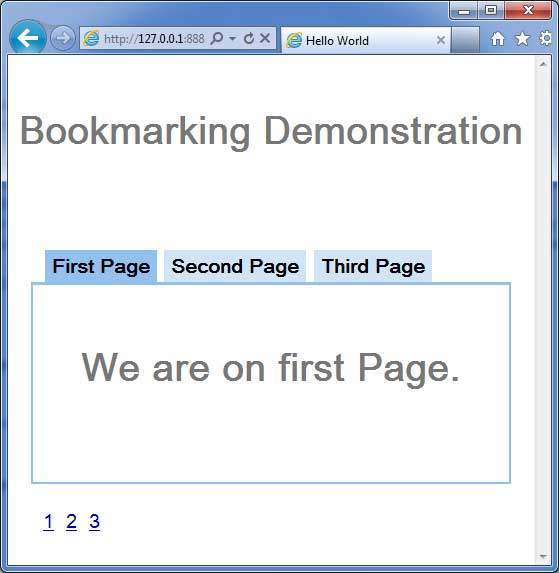
现在点击 1、2 或 3。您可以注意到选项卡会随着索引更改。
您应该注意到,当您点击 1、2 或 3 时,应用程序 URL 会更改,并且 #pageIndex 会添加到 URL 中。
您还可以看到浏览器的后退和前进按钮现在已启用。
使用浏览器的后退和前进按钮,您将看到不同的选项卡被相应地选中。
右键点击 1、2 或 3。您可以看到诸如打开、在新窗口中打开、在新标签页中打开、添加到收藏夹等选项。
右键点击 3。选择添加到收藏夹。将书签保存为页面 3。
打开收藏夹并选择页面 3。您将看到第三个选项卡被选中。