- GWT 教程
- GWT - 首页
- GWT - 概述
- GWT - 环境设置
- GWT - 应用
- GWT - 创建应用
- GWT - 部署应用
- GWT - 使用 CSS 样式
- GWT - 基本组件
- GWT - 表单组件
- GWT - 复杂组件
- GWT - 布局面板
- GWT - 事件处理
- GWT - 自定义组件
- GWT - UIBinder
- GWT - RPC 通信
- GWT - JUnit 集成
- GWT - 调试应用
- GWT - 国际化
- GWT - History 类
- GWT - 书签支持
- GWT - 日志框架
- GWT 有用资源
- GWT - 问答
- GWT - 快速指南
- GWT - 有用资源
- GWT - 讨论
GWT - 组合组件
介绍
组合组件是一种可以包装另一个组件的组件类型,它隐藏了被包装组件的方法。当添加到面板时,组合组件的行为与直接添加被包装组件完全相同。组合组件用于通过将多个其他组件包含在一个面板中来创建一个单个组件。
类声明
以下是com.google.gwt.user.client.ui.Composite类的声明:
public abstract class Composite
   extends Widget
类构造函数
| 序号 | 构造函数及描述 |
|---|---|
| 1 |
Composite() |
类方法
| 序号 | 函数名称及描述 |
|---|---|
| 1 |
protected Widget getWidget() 为子类提供访问定义此组合组件的最顶层组件的权限。 |
| 2 |
protected void initWidget(Widget widget) 设置要由组合组件包装的组件。 |
| 3 |
boolean isAttached() 确定此组件当前是否附加到浏览器的文档(即,此组件和底层浏览器文档之间存在不间断的组件链)。 |
| 4 |
protected void onAttach() 当组件附加到浏览器的文档时,将调用此方法。 |
| 5 |
void onBrowserEvent(Event event) 每当接收到浏览器事件时触发。 |
| 6 |
protected void onDetach() 当组件从浏览器的文档中分离时,将调用此方法。 |
| 7 |
protected void setWidget(Widget widget) 已弃用。请改用 initWidget(Widget)。 |
继承的方法
此类继承自以下类:
com.google.gwt.user.client.ui.UIObject
com.google.gwt.user.client.ui.Widget
java.lang.Object
组合组件示例
此示例将引导您完成简单的步骤,以展示在 GWT 中使用组合组件的方法。按照以下步骤更新我们在GWT - 创建应用章节中创建的 GWT 应用程序:
| 步骤 | 描述 |
|---|---|
| 1 | 按照GWT - 创建应用章节中的说明,创建一个名为HelloWorld的项目,放在com.tutorialspoint包下。 |
| 2 | 修改HelloWorld.gwt.xml、HelloWorld.css、HelloWorld.html和HelloWorld.java,如下所述。保持其余文件不变。 |
| 3 | 编译并运行应用程序以验证已实现逻辑的结果。 |
以下是修改后的模块描述符src/com.tutorialspoint/HelloWorld.gwt.xml的内容。
<?xml version = "1.0" encoding = "UTF-8"?>
<module rename-to = 'helloworld'>
   <!-- Inherit the core Web Toolkit stuff.                        -->
   <inherits name = 'com.google.gwt.user.User'/>

   <!-- Inherit the default GWT style sheet.                       -->
   <inherits name = 'com.google.gwt.user.theme.clean.Clean'/>

   <!-- Specify the app entry point class.                         -->
   <entry-point class = 'com.tutorialspoint.client.HelloWorld'/>

   <!-- Specify the paths for translatable code                    -->
   <source path = 'client'/>
   <source path = 'shared'/>

</module>
以下是修改后的样式表文件war/HelloWorld.css的内容。
body {
   text-align: center;
   font-family: verdana, sans-serif;
}

h1 {
   font-size: 2em;
   font-weight: bold;
   color: #777777;
   margin: 40px 0px 70px;
   text-align: center;
}
以下是修改后的 HTML 主机文件war/HelloWorld.html的内容。
<html>
   <head>
      <title>Hello World</title>
      <link rel = "stylesheet" href = "HelloWorld.css"/>
      <script language = "javascript" src = "helloworld/helloworld.nocache.js">
      </script>
   </head>

   <body>
      <h1>Composite Widget Demonstration</h1>
      <div id = "gwtContainer"></div>
   </body>
</html>
让我们看看 Java 文件src/com.tutorialspoint/HelloWorld.java的内容,它将演示组合组件的使用。
package com.tutorialspoint.client;

import com.google.gwt.core.client.EntryPoint;
import com.google.gwt.event.dom.client.ClickEvent;
import com.google.gwt.event.dom.client.ClickHandler;
import com.google.gwt.user.client.ui.CheckBox;
import com.google.gwt.user.client.ui.Composite;
import com.google.gwt.user.client.ui.DecoratorPanel;
import com.google.gwt.user.client.ui.RootPanel;
import com.google.gwt.user.client.ui.TextBox;
import com.google.gwt.user.client.ui.VerticalPanel;

public class HelloWorld implements EntryPoint {

   /**
   * A composite of a TextBox and a CheckBox that optionally enables it.
   */
   private static class OptionalTextBox extends Composite implements
   ClickHandler {

      private TextBox textBox = new TextBox();
      private CheckBox checkBox = new CheckBox();

      /**
      * Constructs an OptionalTextBox with the given caption
      * on the check.
      * @param caption the caption to be displayed with the check box
      */
      public OptionalTextBox(String caption) {
         // Place the check above the text box using a vertical panel.
         VerticalPanel panel = new VerticalPanel();
         // panel.setBorderWidth(1);
         panel.setSpacing(10);
         panel.add(checkBox);
         panel.add(textBox);

         textBox.setWidth("200");
         // Set the check box's caption, and check it by default.
         checkBox.setText(caption);
         checkBox.setValue(true);
         checkBox.addClickHandler(this);

         DecoratorPanel decoratorPanel = new DecoratorPanel();

         decoratorPanel.add(panel);
         // All composites must call initWidget() in their constructors.
         initWidget(decoratorPanel);
      }

      public void onClick(ClickEvent event) {
         if (event.getSource() == checkBox) {
            // When the check box is clicked,
            //update the text box's enabled state.
            textBox.setEnabled(checkBox.getValue());
         }
      }
   }

   public void onModuleLoad() {
      // Create an optional text box and add it to the root panel.
      OptionalTextBox otb = new OptionalTextBox("Check this to enable me");
      RootPanel.get().add(otb);
   }
}
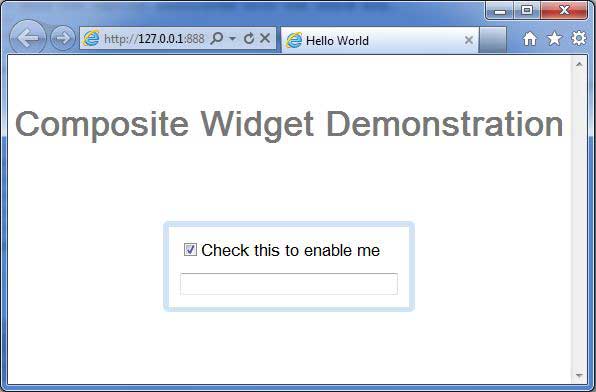
完成所有更改后,让我们像在GWT - 创建应用章节中一样,在开发模式下编译并运行应用程序。如果您的应用程序一切正常,这将产生以下结果: