
- WebdriverIO 教程
- WebdriverIO - 首页
- WebdriverIO - 简介
- WebdriverIO - 前提条件
- WebdriverIO - 架构
- WebdriverIO - 使用NodeJS入门
- WebdriverIO - NPM安装
- WebdriverIO - VS Code安装
- WebdriverIO - package.json
- WebdriverIO - Mocha安装
- Selenium Standalone Server安装
- WebdriverIO - 配置文件生成
- WebdriverIO - VS Code智能提示
- WebdriverIO - wdio.conf.js文件
- WebdriverIO - XPath定位器
- WebdriverIO - CSS定位器
- WebdriverIO - 链接文本定位器
- WebdriverIO - ID定位器
- WebdriverIO - 标签名称定位器
- WebdriverIO - 类名定位器
- WebdriverIO - 名称定位器
- 断言的Expect语句
- WebdriverIO - 正确流程
- WebdriverIO - 常用浏览器命令
- WebdriverIO - 处理浏览器大小
- WebdriverIO - 浏览器导航命令
- 处理复选框和下拉菜单
- WebdriverIO - 鼠标操作
- 处理子窗口/弹出窗口
- WebdriverIO - 隐藏元素
- WebdriverIO - 框架
- WebdriverIO - 拖放
- WebdriverIO - 双击
- WebdriverIO - Cookie
- WebdriverIO - 处理单选按钮
- Web元素上的Chai断言
- WebdriverIO - 多个窗口/标签页
- WebdriverIO - 滚动操作
- WebdriverIO - 警报
- WebdriverIO - 调试代码
- WebdriverIO - 捕获屏幕截图
- WebdriverIO - JavaScript执行器
- WebdriverIO - 等待
- WebdriverIO - 并行运行测试
- WebdriverIO - 数据驱动测试
- 从命令行参数运行测试
- 使用Mocha选项执行测试
- 从Allure生成HTML报告
- WebdriverIO有用资源
- WebdriverIO - 快速指南
- WebdriverIO - 有用资源
- WebdriverIO - 讨论
使用Mocha选项执行测试
specs文件夹中的测试文件包含describe和it块。describe块指的是测试套件,it块指的是测试用例。一个describe块可以包含多个it块。
关于如何创建describe和it块的详细信息在标题为“使用Webdriverio的正确流程”的章节中详细讨论。
为了验证从开发团队获得的新版本是否健康,我们不需要执行套件中的所有测试用例。一些测试用例被识别用于冒烟/健全性测试,一旦我们有了新的版本,就会执行它们。
我们可以使用名为Grep的Mocha选项来分组测试用例并一起运行它们。为此,我们必须添加一个关键字,例如在it描述中使用“Smoke”。然后在运行时,我们可以指示WebdriverIO测试只触发描述中包含“Smoke”的it块。
让我们以一个包含四个it块的测试文件为例。在这四个it块中,有两个it块的描述中包含关键字“Smoke”。
首先,请按照标题为“使用Webdriverio的正确流程”一章中的步骤1到5操作,步骤如下:
步骤1 - 安装NodeJS。如何在进行此安装的详细信息在标题为“使用NodeJS入门”的章节中详细说明。
步骤2 - 安装NPM。如何在进行此安装的详细信息在标题为“NPM安装”的章节中详细说明。
步骤3 - 安装VS Code。如何在进行此安装的详细信息在标题为“VS Code安装”的章节中详细说明。
步骤4 - 创建配置文件。如何在进行此安装的详细信息在标题为“配置文件生成”的章节中详细说明。
步骤5 - 创建一个spec文件。如何在进行此安装的详细信息在标题为“Mocha安装”的章节中说明。
步骤6 - 在创建的Mocha spec文件中添加以下代码。
//import chai library
const c = require('chai').expect
//library for parsing JSON file
const s =require('fs')
let h = JSON.parse(s.readFileSync('test/testData/test1.json'))
// test suite name
describe('Tutorialspoint application', function(){
   //iterate the test case
   h.forEach(  ({email,password})  =>{
      //test case
      it('Data Driven testing', function(){
         // launch url
         browser.url('https://www.linkedin.com/login')
         //identify the email field then enter key - email
         $("#username").setValue(email)
         //identify password field then enter key - password
         $("#password").setValue(password)
         //identify SSign in button then click
         $("button[type='submit']").click()
         //verify error message
         const e = $('#error-for-password')
         console.log(e.getText() + ' - Error Text')
         //verify Alert text with Chai assertion
         c(e.getText()).to.equal("The password must be provided.")
      });
   });
   // it is blocked with Smoke keyword
   it('Identify element with Id - Smoke', function(){
      // launch url
      browser.url('https://the-internet.herokuapp.com/redirector')
      //identify element with id then click
      $("#redirect").click()
      //obtain page title
      console.log('Page title after click: ' + browser.getTitle())
   });
   // it block with Smoke keyword
   it('Identify element with Tagname - Smoke', function(){
      // launch url
      browser.url('https://tutorialspoint.com/about/about_careers.htm')
      //identify element with tagname then obtain text
      console.log($("<h1>").getText() + " - is the text.")
   });
   //test case
   it('Identify element with Class Name', function(){
      // launch url
      browser.url('https://tutorialspoint.com/about/about_careers.htm')
      //identify element with Class Name then obtain text
      console.log($(".heading").getText() + " - is the text.")
   });
});
要仅触发与“Smoke”相关的it块,请使用以下命令运行配置文件 - wdio.conf.js文件:
npx wdio run wdio.conf.js --mochaOpts.grep Smoke
关于如何创建配置文件的详细信息在标题为“wdio.conf.js文件”和“配置文件生成”的章节中详细讨论。
您的计算机上将出现以下屏幕:
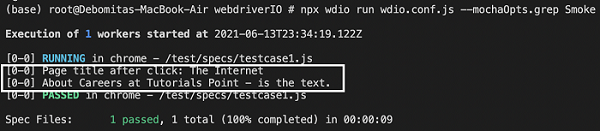
命令成功执行后,我们发现四个it块中,只有两个it块(描述中带有“Smoke”标签)被执行。