
- WebdriverIO 教程
- WebdriverIO - 首页
- WebdriverIO - 简介
- WebdriverIO - 预备条件
- WebdriverIO - 架构
- WebdriverIO - NodeJS入门
- WebdriverIO - NPM安装
- WebdriverIO - VS Code安装
- WebdriverIO - package.json
- WebdriverIO - Mocha安装
- Selenium 独立服务器安装
- WebdriverIO - 配置文件生成
- WebdriverIO - VS Code智能提示
- WebdriverIO - wdio.conf.js 文件
- WebdriverIO - XPath 定位器
- WebdriverIO - CSS 定位器
- WebdriverIO - 链接文本定位器
- WebdriverIO - ID 定位器
- WebdriverIO - 标签名定位器
- WebdriverIO - 类名定位器
- WebdriverIO - 名称定位器
- 断言的 Expect 语句
- WebdriverIO - 正常流程
- WebdriverIO - 通用浏览器命令
- WebdriverIO - 处理浏览器大小
- WebdriverIO - 浏览器导航命令
- 处理复选框和下拉菜单
- WebdriverIO - 鼠标操作
- 处理子窗口/弹出窗口
- WebdriverIO - 隐藏元素
- WebdriverIO - 框架
- WebdriverIO - 拖放
- WebdriverIO - 双击
- WebdriverIO - Cookie
- WebdriverIO - 处理单选按钮
- Web元素上的 Chai 断言
- WebdriverIO - 多个窗口/标签页
- WebdriverIO - 滚动操作
- WebdriverIO - 警报
- WebdriverIO - 调试代码
- WebdriverIO - 截取屏幕截图
- WebdriverIO - JavaScript 执行器
- WebdriverIO - 等待
- WebdriverIO - 并行运行测试
- WebdriverIO - 数据驱动测试
- 从命令行参数运行测试
- 使用 Mocha 选项执行测试
- 从 Allure 生成 HTML 报告
- WebdriverIO 有用资源
- WebdriverIO - 快速指南
- WebdriverIO - 有用资源
- WebdriverIO - 讨论
WebdriverIO - 名称定位器
导航到网页后,我们必须与页面上可用的网页元素进行交互,例如单击链接/按钮,在编辑框中输入文本等等,以完成自动化测试用例。
为此,我们的首要任务是识别元素。我们可以使用元素的 name 属性来识别它。此定位器现已弃用,仅与基于 JSONWireProtocol 或 Appium 的旧浏览器兼容。
在 WebdriverIO 代码中,我们可以使用以下格式指定元素的 name 属性值:
$('[name attribute=''value'']')
或者,我们可以将此表达式存储在一个变量中,如下所示:
const p = $('[name attribute=''value'']')
让我们识别下图中突出显示的编辑框并输入文本:
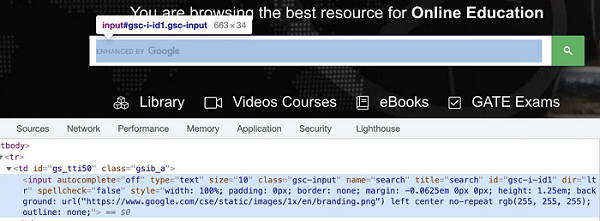
上图中突出显示的元素的 name 属性值为 search。
首先,请按照名为“使用 WebdriverIO 的正常流程”章节中的步骤 1 到 5 进行操作,步骤如下:
步骤 1 - 安装 NodeJS。有关如何执行此安装的详细信息,请参阅名为“NodeJS 入门”的章节。
步骤 2 - 安装 NPM。有关如何执行此安装的详细信息,请参阅名为“NPM 安装”的章节。
步骤 3 - 安装 VS Code。有关如何执行此安装的详细信息,请参阅名为“VS Code 安装”的章节。
步骤 4 - 创建配置文件。有关如何执行此安装的详细信息,请参阅名为“配置文件生成”的章节。
步骤 5 - 创建一个规范文件。有关如何执行此安装的详细信息,请参阅名为“Mocha 安装”的章节。
步骤 6 - 在创建的 Mocha 规范文件中添加以下代码。
// test suite name
describe('Tutorialspoint application', function(){
   //test case
   it('Identify element with Name', function(){
      // launch url
      browser.url('https://tutorialspoint.com/index.htm')
      //identify element with Name then input text
      $('[name="search"]').setValue('Selenium')
   });
});
运行配置文件 - wdio.conf.js 文件,使用以下命令:
npx wdio run wdio.conf.js
有关如何创建配置文件的详细信息,请参阅名为“wdio.conf.js 文件”和“配置文件生成”的章节。
广告