
- GWT 教程
- GWT - 首页
- GWT - 概述
- GWT - 环境搭建
- GWT - 应用
- GWT - 创建应用
- GWT - 部署应用
- GWT - 使用 CSS 样式
- GWT - 基本组件
- GWT - 表单组件
- GWT - 复杂组件
- GWT - 布局面板
- GWT - 事件处理
- GWT - 自定义组件
- GWT - UIBinder
- GWT - RPC 通信
- GWT - JUnit 集成
- GWT - 调试应用
- GWT - 国际化
- GWT - History 类
- GWT - 书签支持
- GWT - 日志框架
- GWT 有用资源
- GWT - 常见问题解答
- GWT - 快速指南
- GWT - 有用资源
- GWT - 讨论
GWT - 按钮组件
简介
按钮组件代表一个标准的按钮。
类声明
以下是com.google.gwt.user.client.ui.Button类的声明:
public class Button
   extends ButtonBase
CSS样式规则
以下默认CSS样式规则将应用于所有按钮组件。您可以根据需要覆盖它。
.gwt-Button { }
类构造函数
| 序号 | 构造函数及说明 |
|---|---|
| 1 |
Button() 创建一个没有标题的按钮。 |
| 2 |
protected Button(Element element) 子类可以使用此构造函数显式使用现有元素。 |
| 3 |
Button(java.lang.String html) 创建一个具有给定HTML标题的按钮。 |
| 4 |
Button(java.lang.String html, ClickListener listener) 创建一个具有给定HTML标题和点击监听器的按钮。 |
类方法
| 序号 | 函数名称及说明 |
|---|---|
| 1 |
click() 用户点击按钮的编程等效项。 |
| 2 |
static Button wrap(Element element) 创建一个包装现有<a>元素的Button组件。 |
继承的方法
此类继承自以下类的方法:
com.google.gwt.user.client.ui.UIObject
com.google.gwt.user.client.ui.Widget
com.google.gwt.user.client.ui.FocusWidget
com.google.gwt.user.client.ui.ButtonBase
java.lang.Object
按钮组件示例
此示例将引导您完成简单的步骤,以演示如何在GWT中使用按钮组件。请按照以下步骤更新我们在GWT - 创建应用章节中创建的GWT应用程序:
| 步骤 | 说明 |
|---|---|
| 1 | 按照GWT - 创建应用章节中的说明,创建一个名为HelloWorld的项目,放在com.tutorialspoint包下。 |
| 2 | 修改HelloWorld.gwt.xml、HelloWorld.css、HelloWorld.html和HelloWorld.java,如下所述。保持其余文件不变。 |
| 3 | 编译并运行应用程序以验证已实现逻辑的结果。 |
以下是修改后的模块描述符src/com.tutorialspoint/HelloWorld.gwt.xml的内容。
<?xml version = "1.0" encoding = "UTF-8"?>
<module rename-to = 'helloworld'>
   <!-- Inherit the core Web Toolkit stuff.                        -->
   <inherits name = 'com.google.gwt.user.User'/>

   <!-- Inherit the default GWT style sheet.                       -->
   <inherits name = 'com.google.gwt.user.theme.clean.Clean'/>

   <!-- Specify the app entry point class.                         -->
   <entry-point class = 'com.tutorialspoint.client.HelloWorld'/>

   <!-- Specify the paths for translatable code                    -->
   <source path = 'client'/>
   <source path = 'shared'/>

</module>
以下是修改后的样式表文件war/HelloWorld.css的内容。
body {
   text-align: center;
   font-family: verdana, sans-serif;
}

h1 {
   font-size: 2em;
   font-weight: bold;
   color: #777777;
   margin: 40px 0px 70px;
   text-align: center;
}

.gwt-Button {
   color:red;
}

.gwt-Green-Button {
   color:green;
}

.gwt-Blue-Button {
   color:blue;
}
以下是修改后的HTML宿主文件war/HelloWorld.html的内容。
<html>
   <head>
      <title>Hello World</title>
      <link rel = "stylesheet" href = "HelloWorld.css"/>
      <script language = "javascript" src = "helloworld/helloworld.nocache.js">
      </script>
   </head>

   <body>
      <h1>Button Widget Demonstration</h1>
      <div id = "gwtContainer"></div>
   </body>
</html>
让我们看看Java文件src/com.tutorialspoint/HelloWorld.java的内容,它将演示按钮组件的使用。
package com.tutorialspoint.client;

import com.google.gwt.core.client.EntryPoint;
import com.google.gwt.event.dom.client.ClickEvent;
import com.google.gwt.event.dom.client.ClickHandler;
import com.google.gwt.user.client.Window;
import com.google.gwt.user.client.ui.Button;
import com.google.gwt.user.client.ui.RootPanel;
import com.google.gwt.user.client.ui.VerticalPanel;

public class HelloWorld implements EntryPoint {
   public void onModuleLoad() {

      //create buttons
      Button redButton = new Button("Red");
      Button greenButton = new Button("Green");
      Button blueButton = new Button("Blue");

      // use UIObject methods to set button properties.
      redButton.setWidth("100px");
      greenButton.setWidth("100px");
      blueButton.setWidth("100px");
      greenButton.addStyleName("gwt-Green-Button");
      blueButton.addStyleName("gwt-Blue-Button");

      //add a clickListener to the button
      redButton.addClickHandler(new ClickHandler() {
         @Override
         public void onClick(ClickEvent event) {
            Window.alert("Red Button clicked!");
         }
      });

      //add a clickListener to the button
      greenButton.addClickHandler(new ClickHandler() {
         @Override
         public void onClick(ClickEvent event) {
            Window.alert("Green Button clicked!");
         }
      });

      //add a clickListener to the button
      blueButton.addClickHandler(new ClickHandler() {
         @Override
         public void onClick(ClickEvent event) {
            Window.alert("Blue Button clicked!");
         }
      });

      // Add button to the root panel.
      VerticalPanel panel = new VerticalPanel();
      panel.setSpacing(10);
      panel.add(redButton);
      panel.add(greenButton);
      panel.add(blueButton);

      RootPanel.get("gwtContainer").add(panel);
   }
}
完成所有更改后,让我们像在GWT - 创建应用章节中一样,在开发模式下编译并运行应用程序。如果您的应用程序一切正常,则会产生以下结果:
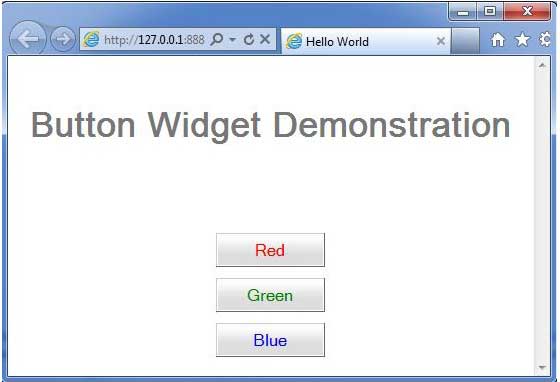
当您点击点击我按钮时,它将显示一个警告消息Hello World!