- Windows 10 开发教程
- Windows 10 - 主页
- Windows 10 - 简介
- Windows 10 – UWP
- Windows 10 – 第一个应用
- Windows 10 - 应用商店
- Windows 10 - XAML 控件
- Windows 10 - 数据绑定
- Windows 10 - XAML 性能
- Windows 10 - 自适应设计
- Windows 10 - 自适应 UI
- Windows 10 - 自适应代码
- Windows 10 - 文件管理
- Windows 10 - SQLite 数据库
- Windows 10 – 通信
- Windows 10 - 应用本地化
- Windows 10 - 应用生命周期
- Windows 10 - 后台执行
- Windows 10 - 应用服务
- Windows 10 - Web 平台
- Windows 10 - 连接体验
- Windows 10 - 导航
- Windows 10 - 网络
- Windows 10 - 云服务
- Windows 10 - 实时磁贴
- Windows 10 - 共享契约
- Windows 10 - 移植到 Windows
- Windows 10 有用资源
- Windows 10 - 快速指南
- Windows 10 - 有用资源
- Windows 10 - 讨论
Windows 10 开发 - 自适应代码
在本章中,我们将演示如何使您的应用程序适应 Windows 10 支持的不同设备。我们已经了解了如何适应您的 UI 以及 UWP 应用程序中使用的所有技巧、技术和控件。
现在,我们将学习如何适应您的代码,因为
应用程序代码在所有设备上并不相同。
使用的 API,特别是针对 Xbox 的 API,在移动设备上不可用。HoloLens 等设备也是如此。

自适应代码可以根据条件启用您的应用程序,并在特定设备系列和/或特定版本的平台/扩展 API 上运行时执行代码。
编写代码
在 Windows 10 中,您可以使用 Visual Studio 使用 C++、C#、Visual Basic 或 JavaScript 来实现 UWP 应用程序。
使用 C# 和 Visual Basic,您可以使用 XAML 进行 UI 设计。
使用 C++,您可以使用 DirectX 而不是 XAML。
对于 JavaScript,您可以使用 HTML 作为您的表示层,它是一个跨平台的 Web 标准。
Windows Core API 在所有设备上都以相同的方式运行,其中包含代码和 UI 所需的大部分功能。但是,对于针对特定设备系列的代码和 UI,您需要使用自适应代码和自适应 UI。
调用目标设备系列未实现的 API -
UI 可以轻松适应不同的屏幕,但不同的设备系列不仅仅具有不同的屏幕尺寸,还有更多差异。
例如,手机有一些硬件按钮,如后退和摄像头,这些按钮在其他设备(如 PC)上可能不可用。
默认情况下,核心 API 包含适用于所有设备的大部分功能,但可以通过在您的 UWP 应用程序中引用扩展 SDK(就像外部程序集一样)来使用设备特定的功能。
要添加应用程序中需要的任何特定扩展 SDK,请按照以下步骤操作 -
右键单击引用。
选择“添加引用...”。将打开以下对话框。
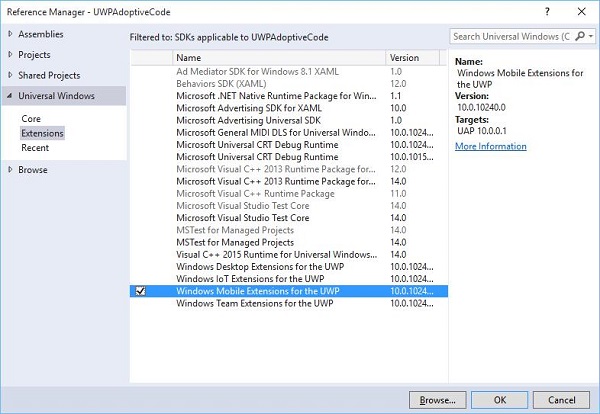
添加扩展就像添加项目引用一样简单。
现在,您可以从列表中添加任何扩展 SDK,其中包含桌面扩展、物联网扩展和移动扩展等。
桌面和移动扩展是两种最常见的平台扩展 SDK。例如,移动扩展启用了使用硬件摄像头按钮所需的 API。
您可以使用Windows.Foundation.Metadata.ApiInformation 类方法检查设备功能,如果当前设备上支持该类型,则该方法返回布尔输出。例如,您可以使用以下代码启用 Windows 应用以使用摄像头按钮 -
bool isHardwareButtonsAPIPresent =
   Windows.Foundation.Metadata.ApiInformation.
   IsTypePresent("Windows.Phone.UI.Inpu t.HardwareButtons");

if (isHardwareButtonsAPIPresent) {
   Windows.Phone.UI.Input.HardwareButtons.CameraPressed += HardwareButtons_CameraPressed;
}
只有在设备上启用了移动扩展 SDK 时,手机摄像头按钮代码才会执行。类似地,您还可以使用IsEventPresent、IsMethodPresent、IsPropertyPresent代替IsTypePresent来检查当前 API 版本中的任何特定事件、方法或属性,如下所示。
bool isHardwareButtons_CameraPressedAPIPresent =
   Windows.Foundation.Metadata.ApiInformation.IsEventPresent
   ("Windows.Phone.UI.Input.HardwareButtons", "CameraPressed");
UWP 中的 Win32 API
通用 Windows 平台 (UWP) 应用程序或 Windows 运行时组件(使用 C++/CX 编写)可以访问 Win32 API,这些 API 现在也是 UWP 的一部分。所有 Windows 10 设备系列都可以通过将应用程序与Windowsapp.lib链接来实现 Win32 API。
Windowsapp.lib是一个“伞形”库,提供 UWP API 的导出。链接到Windowsapp.lib将向您的应用添加对所有 Windows 10 设备系列中存在的dll的依赖项。
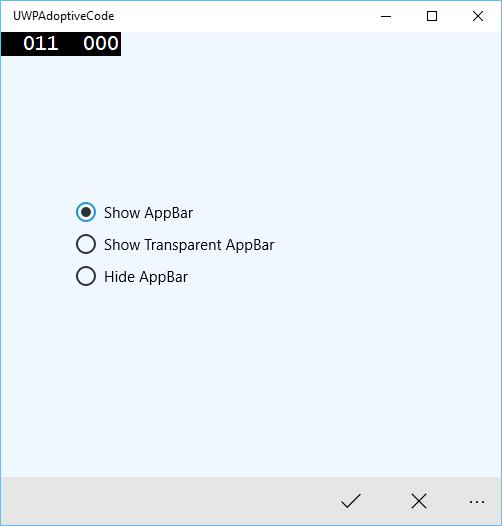
让我们来看一个简单的示例,其中应用程序同时针对桌面和手机。因此,当应用程序在桌面上运行时,它不会显示状态栏,但当相同的应用程序在手机上运行时,它将显示状态栏。
以下是添加不同控件的 XAML 代码。
<Page
   x:Class = "UWPAdoptiveCode.MainPage"
   xmlns = "http://schemas.microsoft.com/winfx/2006/xaml/presentation"
   xmlns:x = "http://schemas.microsoft.com/winfx/2006/xaml"
   xmlns:local = "using:UWPAdoptiveCode"
   xmlns:d = "http://schemas.microsoft.com/expression/blend/2008"
   xmlns:mc = "http://schemas.openxmlformats.org/markup-compatibility/2006"
   mc:Ignorable = "d">

   <Page.Background>
      <SolidColorBrush Color = "Green"/>
   </Page.Background>

   <Page.BottomAppBar>
      <CommandBar x:Name = "commandBar" >
         <AppBarButton Icon = "Accept" Label = "appbarbutton"/>
         <AppBarButton Icon = "Cancel" Label = "appbarbutton"/>
      </CommandBar>
   </Page.BottomAppBar>

   <Grid Background = "AliceBlue">

      <VisualStateManager.VisualStateGroups>

         <VisualStateGroup>

            <VisualState>
               <VisualState.StateTriggers>
                  <local:DeviceFamilyTrigger DeviceFamily = "Desktop" />
               </VisualState.StateTriggers>

               <VisualState.Setters>
                  <Setter Target = "StatusBarControls.Visibility"
                     Value = "Collapsed"/>
               </VisualState.Setters>

            </VisualState>

         </VisualStateGroup>

      </VisualStateManager.VisualStateGroups>

      <StackPanel HorizontalAlignment = "Left" Margin = "75,164,0,0"
         VerticalAlignment = "Top" >

         <RadioButton x:Name = "ShowAppBarRadioButton" Content = "Show AppBar"
            HorizontalAlignment = "Stretch" VerticalAlignment = "Stretch"
            IsChecked = "True" Checked = "RadioButton_Checked"/>

         <RadioButton x:Name = "ShowOpaqueAppBarRadioButton"
            Content = "Show Transparent AppBar" HorizontalAlignment = "Stretch"
            VerticalAlignment = "Stretch" Checked = "RadioButton_Checked"/>

         <RadioButton x:Name = "HideAppBarRadioButton" Content = "Hide AppBar"
            HorizontalAlignment = "Stretch" VerticalAlignment = "Stretch"
            Checked = "RadioButton_Checked"/>

      </StackPanel>

      <StackPanel x:Name = "StatusBarControls" Orientation = "Vertical"
         Margin = "75,350,0,0" Visibility = "Visible">

         <CheckBox x:Name = "StatusBarBackgroundCheckBox"
            Content = "Set StatusBar Background"
            Checked = "StatusBarBackgroundCheckBox_Checked"
            Unchecked = "StatusBarBackgroundCheckBox_Unchecked"/>

         <CheckBox x:Name = "StatusBarHiddenCheckBox"
            Content = "Set StatusBar Hidden" Checked = "StatusBarHiddenCheckBox_Checked"
            Unchecked = "StatusBarHiddenCheckBox_Unchecked"/>

      </StackPanel>

   </Grid>

</Page>
以下是不同事件的 C# 实现。
using Windows.UI;
using Windows.UI.Xaml;
using Windows.UI.Xaml.Controls;

// The Blank Page item template is documented at
   http://go.microsoft.com/fwlink/?LinkId=402352&clcid=0x409

namespace UWPAdoptiveCode {
   /// <summary>
      /// An empty page that can be used on its own or navigated to within a Frame.
   /// </summary>

   public sealed partial class MainPage : Page {

      private Color? DefaultTitleBarButtonsBGColor;
      private Color? DefaultTitleBarBGColor;

      public MainPage() {
         this.InitializeComponent();

         //Windows.UI.ViewManagement.ApplicationView.GetForCurrentView().
            VisibleBoundsCh anged += MainPage_VisibleBoundsChanged;

         var viewTitleBar = Windows.UI.ViewManagement.ApplicationView.
            GetForCurrentView().TitleBar;

         DefaultTitleBarBGColor = viewTitleBar.BackgroundColor;
         DefaultTitleBarButtonsBGColor = viewTitleBar.ButtonBackgroundColor;
      }

      private void RadioButton_Checked(object sender, RoutedEventArgs e) {

         // Bottom AppBar shows on Desktop and Mobile
         if (ShowAppBarRadioButton != null) {

            if (ShowAppBarRadioButton.IsChecked.HasValue &&
               (ShowAppBarRadioButton.IsChecked.Value == true)) {
                 commandBar.Visibility = Windows.UI.Xaml.Visibility.Visible;
                 commandBar.Opacity = 1;
            } else {
               commandBar.Visibility = Windows.UI.Xaml.Visibility.Collapsed;
            }
         }

         if (ShowOpaqueAppBarRadioButton != null) {

            if (ShowOpaqueAppBarRadioButton.IsChecked.HasValue &&
               (ShowOpaqueAppBarRadioButton.IsChecked.Value == true)){
                  commandBar.Visibility = Windows.UI.Xaml.Visibility.Visible;
                  commandBar.Background.Opacity = 0;
            } else{
               commandBar.Background.Opacity = 1;
            }
         }

      }

      private void StatusBarHiddenCheckBox_Checked(object sender, RoutedEventArgs e){

         // StatusBar is Mobile only
         if (Windows.Foundation.Metadata.ApiInformation.
            IsTypePresent("Windows.UI.ViewManag ement.StatusBar")){
               var ignore = Windows.UI.ViewManagement.StatusBar.GetForCurrentView().HideAsync();
         }
      }

      private void StatusBarHiddenCheckBox_Unchecked(object sender, RoutedEventArgs e){

         // StatusBar is Mobile only
         if (Windows.Foundation.Metadata.ApiInformation.
            IsTypePresent("Windows.UI.ViewManag ement.StatusBar")){
               var ignore = Windows.UI.ViewManagement.StatusBar.GetForCurrentView().ShowAsync();
         }
      }

      private void StatusBarBackgroundCheckBox_Checked(object sender, RoutedEventArgs e){

         // StatusBar is Mobile only
         if (Windows.Foundation.Metadata.ApiInformation.
            IsTypePresent("Windows.UI.ViewManag ement.StatusBar")){

               Windows.UI.ViewManagement.StatusBar.GetForCurrentView().
                  BackgroundColor = Windows.UI.Colors.Blue;

               Windows.UI.ViewManagement.StatusBar.GetForCurrentView().
                   BackgroundOpacity = 1;
         }
      }

      private void StatusBarBackgroundCheckBox_Unchecked(object sender, RoutedEventArgs e){

         // StatusBar is Mobile only
         if (Windows.Foundation.Metadata.ApiInformation.
            IsTypePresent("Windows.UI.ViewManag ement.StatusBar")){
               Windows.UI.ViewManagement.StatusBar.GetForCurrentView().
                  BackgroundOpacity = 0;
         }
      }

   }

   public class DeviceFamilyTrigger : StateTriggerBase{

      //private variables
      private string _deviceFamily;

      //Public property
      public string DeviceFamily {

         get {
            return _deviceFamily;
         }
         set{
            _deviceFamily = value;
            var qualifiers = Windows.ApplicationModel.Resources.Core.ResourceContext.
               GetForCurrentView().Qua lifierValues;

            if (qualifiers.ContainsKey("DeviceFamily"))
               SetActive(qualifiers["DeviceFamily"] == _deviceFamily);
            else
               SetActive(false);
         }
      }
   }
}
当以上代码在手机上编译并执行时,您将看到以下窗口。
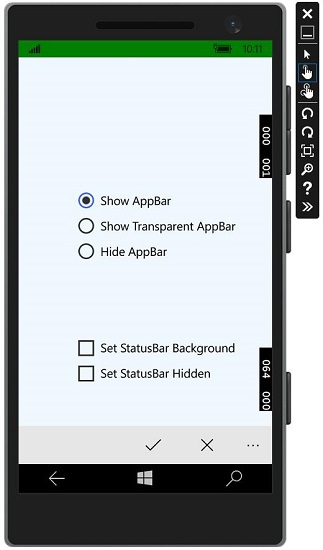
您可以使用复选框更改状态栏的背景颜色,如图像所示。
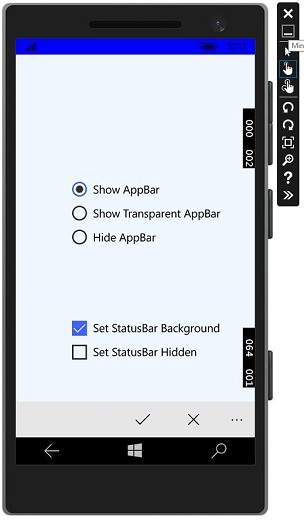
您还可以隐藏状态栏。
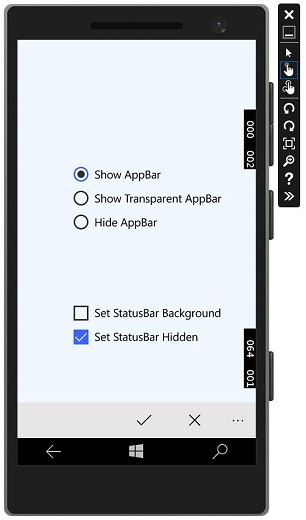
现在,当您在桌面设备上运行相同的应用程序时,您将看到以下窗口,其中状态栏和特定于状态栏的复选框不可见。