- Windows 10 开发教程
- Windows 10 - 首页
- Windows 10 - 简介
- Windows 10 – UWP
- Windows 10 – 第一个应用
- Windows 10 - 应用商店
- Windows 10 - XAML 控件
- Windows 10 - 数据绑定
- Windows 10 - XAML 性能
- Windows 10 - 自适应设计
- Windows 10 - 自适应 UI
- Windows 10 - 自适应代码
- Windows 10 - 文件管理
- Windows 10 - SQLite 数据库
- Windows 10 – 通信
- Windows 10 - 应用本地化
- Windows 10 - 应用生命周期
- Windows 10 - 后台执行
- Windows 10 - 应用服务
- Windows 10 - Web 平台
- Windows 10 - 连接体验
- Windows 10 - 导航
- Windows 10 - 网络
- Windows 10 - 云服务
- Windows 10 - 动态磁贴
- Windows 10 - 共享契约
- Windows 10 - 移植到 Windows
- Windows 10 有用资源
- Windows 10 - 快速指南
- Windows 10 - 有用资源
- Windows 10 - 讨论
Windows 10 开发 - XAML 性能
应用程序的性能,例如应用程序启动速度或导航显示下一段内容的速度等,非常重要。
应用程序的性能可能会受到许多因素的影响,包括 XAML 渲染引擎解析应用程序中所有 XAML 代码的能力。XAML 是创建 UI 的强大工具,但通过使用 Windows 10 应用程序中现在可用的新技术,可以使其更强大。
例如,在您的应用程序中,某些内容您希望在页面加载时显示,之后不再需要。也可能在启动时不需要加载所有 UI 元素。
在 Windows 10 应用中,XAML 中添加了一些新功能,这些功能提高了 XAML 性能。
可以使用以下技术提高任何通用 Windows 应用程序的性能:
- 渐进式渲染
- 延迟加载
渐进式渲染
在 Windows 10 中,XAML 引入了两个全新且非常酷的功能。它们是:
x:Bind
这是 XAML 中引入的一种用于绑定的新语法,其工作方式与Binding语法几乎相同。x:Bind有两个主要区别:它提供编译时语法验证和更好的性能。
x:Phase
它提供了一种优先渲染数据模板中 XAML 控件的功能。每个 UI 元素只能指定一个阶段。如果指定了阶段,则该阶段将应用于元素上的所有绑定。如果未指定阶段,则假定为阶段 0。
在通用 Windows 平台 (UWP) 应用程序中,这两个新功能可提高性能。它也可以用于迁移到 Windows 10 的现有 Windows 8.x 应用程序。
下面是一个示例,其中员工对象使用x:Bind关键字与GridView绑定。
<Page
   x:Class = "XAMLPhase.MainPage"
   xmlns = "http://schemas.microsoft.com/winfx/2006/xaml/presentation"
   xmlns:x = "http://schemas.microsoft.com/winfx/2006/xaml"
   xmlns:local = "using:XAMLPhase"
   xmlns:d = "http://schemas.microsoft.com/expression/blend/2008"
   xmlns:mc = "http://schemas.openxmlformats.org/markup-compatibility/2006"
   mc:Ignorable = "d">

   <Grid Background = "{ThemeResource ApplicationPageBackgroundThemeBrush}">
      <GridView Name = "Presidents" ItemsSource = "{Binding}" Height = "300"
         Width = "400" Margin = "50">

         <GridView.ItemTemplate>
            <DataTemplate x:DataType = "local:Employee">

               <StackPanel Orientation = "Horizontal" Margin = "2">
                  <TextBlock Text = "{x:Bind Name}" Width = "95" Margin = "2" />
                  <TextBlock Text = "{x:Bind Title}" Width = "95" Margin = "2"
                     x:Phase = "1"/>
               </StackPanel>

            </DataTemplate>
         </GridView.ItemTemplate>

      </GridView>

   </Grid>

</Page>
在上例 XAML 代码中,x:Phase = "1" 与 Title 一起定义。因此,在第一阶段,将渲染Name,然后渲染Title。
下面是 C# 中Employee 类的实现。
using System.Collections.ObjectModel;
using System.ComponentModel;
using System.Runtime.CompilerServices;
using Windows.UI.Xaml.Controls;

// The Blank Page item template is documented at
   http://go.microsoft.com/fwlink/?LinkId=402352&clcid=0x409

namespace XAMLPhase {

   /// <summary>
      /// An empty page that can be used on its own or navigated to within a Frame.
   /// </summary>

   public sealed partial class MainPage : Page {
      public MainPage() {
         this.InitializeComponent();
         DataContext = Employee.GetEmployees();
      }
   }

   public class Employee : INotifyPropertyChanged {
      private string name;

      public string Name {
         get { return name; }

         set {
            name = value;
            RaiseProperChanged();
         }
      }

      private string title;

      public string Title {
         get { return title; }

         set {
            title = value;
            RaiseProperChanged();
         }
      }

      public static Employee GetEmployee() {

         var emp = new Employee() {
            Name = "Waqas",
            Title = "Software Engineer"
         };

         return emp;
      }

      public event PropertyChangedEventHandler PropertyChanged;

      private void RaiseProperChanged(
         [CallerMemberName] string caller = "") {

         if (PropertyChanged != null) {
            PropertyChanged(this, new PropertyChangedEventArgs(caller));
         }

      }

      public static ObservableCollection<Employee> GetEmployees() {
         var employees = new ObservableCollection<Employee>();

         employees.Add(new Employee() { Name = "Ali", Title = "Developer" });
         employees.Add(new Employee() { Name = "Ahmed", Title = "Programmer" });
         employees.Add(new Employee() { Name = "Amjad", Title = "Desiner" });
         employees.Add(new Employee() { Name = "Waqas", Title = "Programmer" });
         employees.Add(new Employee() { Name = "Bilal", Title = "Engineer" });
         employees.Add(new Employee() { Name = "Waqar", Title = "Manager" });

         return employees;
      }

   }

}
执行上述代码后,您将看到以下窗口。

X:Phase与x:Bind一起用于增量渲染ListView和GridView项,并改善平移体验。
延迟加载
延迟加载是一种技术,可用于通过减少应用程序启动时的 XAML UI 元素数量来最大限度地减少启动加载时间。如果您的应用程序包含 30 个 UI 元素,而用户在启动时不需要所有这些元素,则所有不需要的元素都可以通过延迟加载来节省一些加载时间。
x:DeferLoadStrategy = "Lazy" 会延迟创建元素及其子元素,这会减少启动时间,但会略微增加内存使用量。
可以使用在元素上定义的名称调用FindName来实现/创建延迟元素。
创建延迟元素后,将发生以下几件事:
将引发元素上的 Loaded 事件。
将评估元素上的任何绑定。
如果应用程序注册为接收包含延迟元素的属性上的属性更改通知,则将引发该通知。
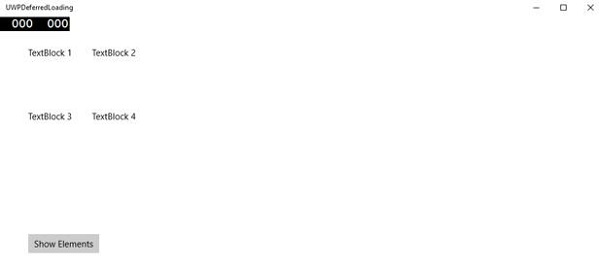
下面是一个示例,其中x:DeferLoadStrategy = "Lazy"用于包含四个文本块的网格,并且在应用程序启动时不会加载这些文本块,直到您加载它。
<Page
   x:Class = "UWPDeferredLoading.MainPage"
   xmlns = "http://schemas.microsoft.com/winfx/2006/xaml/presentation"
   xmlns:x = "http://schemas.microsoft.com/winfx/2006/xaml"
   xmlns:local = "using:UWPDeferredLoading"
   xmlns:d = "http://schemas.microsoft.com/expression/blend/2008"
   xmlns:mc = "http://schemas.openxmlformats.org/markup-compatibility/2006"
   mc:Ignorable = "d">

   <Grid Background = "{ThemeResource ApplicationPageBackgroundThemeBrush}">
      <Grid x:Name = "DeferredGrid" x:DeferLoadStrategy = "Lazy" Margin = "50">
         <Grid.RowDefinitions>
            <RowDefinition Height = "Auto" />
            <RowDefinition Height = "Auto" />
         </Grid.RowDefinitions>

         <Grid.ColumnDefinitions>
            <ColumnDefinition Width = "Auto" />
            <ColumnDefinition Width = "Auto" />
         </Grid.ColumnDefinitions>

         <TextBlock Height = "100" Width = "100" Text = "TextBlock 1" Margin = "0,0,4,4" />

         <TextBlock Height = "100" Width = "100" Text = "TextBlock 2"
            Grid.Column = "1" Margin = "4,0,0,4" />

         <TextBlock Height = "100" Width = "100" Text = "TextBlock 3"
            Grid.Row = "1" Margin = "0,4,4,0" />

         <TextBlock Height = "100" Width = "100" Text = "TextBlock 4"
            Grid.Row = "1" Grid.Column = "1" Margin = "4,4,0,0" />
      </Grid>

      <Button x:Name = "RealizeElements" Content = "Show Elements"
         Click = "RealizeElements_Click" Margin = "50"/>

   </Grid>

</Page>
以下程序是单击事件的实现,其中网格加载到应用程序主页面上。
using Windows.UI.Xaml;
using Windows.UI.Xaml.Controls;

// The Blank Page item template is documented at
   http://go.microsoft.com/fwlink/?LinkId=402352&clcid=0x409

namespace UWPDeferredLoading {

   /// <summary>
      /// An empty page that can be used on its own or navigated to within a Frame.
   /// </summary>

   public sealed partial class MainPage : Page {
      public MainPage() {
         this.InitializeComponent();
      }

      private void RealizeElements_Click(object sender, RoutedEventArgs e) {
         this.FindName("DeferredGrid"); // This will realize the deferred grid
      }

   }

}
编译并执行上述代码后,您只会看到一个按钮。文本块不会在启动时加载。
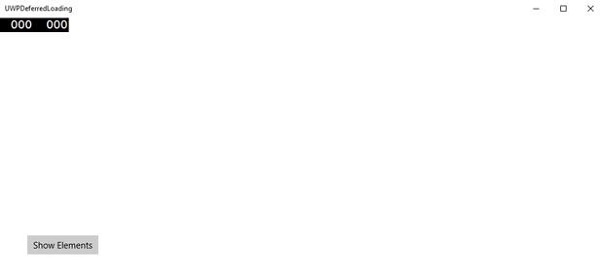
现在,当您单击显示元素按钮时,它将加载文本块,这将提高应用程序的启动性能。