
- Windows 10 开发教程
- Windows 10 - 首页
- Windows 10 - 简介
- Windows 10 – UWP
- Windows 10 – 第一个应用
- Windows 10 - 应用商店
- Windows 10 - XAML 控件
- Windows 10 - 数据绑定
- Windows 10 - XAML 性能
- Windows 10 - 自适应设计
- Windows 10 - 自适应 UI
- Windows 10 - 自适应代码
- Windows 10 - 文件管理
- Windows 10 - SQLite 数据库
- Windows 10 – 通信
- Windows 10 - 应用本地化
- Windows 10 - 应用生命周期
- Windows 10 - 后台执行
- Windows 10 - 应用服务
- Windows 10 - Web 平台
- Windows 10 - 连接体验
- Windows 10 - 导航
- Windows 10 - 网络
- Windows 10 - 云服务
- Windows 10 - 实时磁贴
- Windows 10 - 共享契约
- Windows 10 - 移植到 Windows
- Windows 10 有用资源
- Windows 10 - 快速指南
- Windows 10 - 有用资源
- Windows 10 - 讨论
Windows 10 开发 - 快速指南
Windows 10 开发 - 简介
本教程专为希望学习如何开发 Windows 10 应用程序的人员设计。在本教程中,我们将学习 -
- Windows 10 应用程序开发
- Microsoft 发布的新操作系统的更新
- 更新中为开发人员提供的新功能
现在有很多有趣的应用程序场景成为可能,这些场景在第一个版本中我们无法使用。Microsoft 不仅添加了新的 API,还扩展了现有的 API。
通用 Windows 应用
通用 Windows 应用最初在 Windows 8 中作为 Windows 运行时引入,它建立在通用应用程序平台之上。
现在,在 Windows 10 中,通用应用程序平台的名称已更改为通用 Windows 平台 (UWP)。您可以通过针对 Windows 应用商店的 Windows 10 设备(如 PC、平板电脑、手机等)构建现代且完全沉浸式的应用。
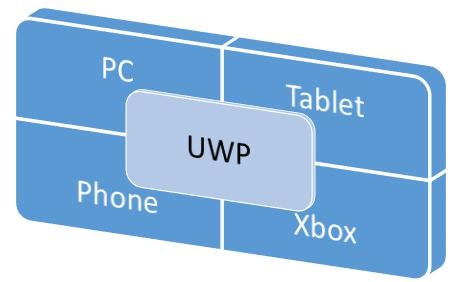
在 Windows 10 中,您可以轻松开发应用程序以触达 Windows 10 支持的所有设备,只需 -
- 一组 API
- 一个应用包
- 以及一个应用商店
通用 Windows 平台还支持不同的屏幕尺寸和不同的交互模式,例如触控板、鼠标和键盘、游戏控制器或笔。
UWP 应用的特点
以下是通用 Windows 应用的一些特性,使其优于 Windows 10。
您可以针对设备系列,而不是像 Windows 8.1 那样针对操作系统。
应用程序使用.AppX打包格式进行打包和分发,确保您的应用程序可以无缝部署和更新。
您可以将应用程序提交到 Windows 应用商店,它将使应用程序在所有设备系列或您选择的设备上可用。您可以在一个地方轻松管理所有 Windows 设备的应用程序。
您可以将应用程序的可用性限制在特定的设备系列。
通用 Windows 平台 (UWP) 的核心 API 在所有 Windows 设备系列中都是相同的。因此,如果您的应用仅使用核心 API,则它可以在所有 Windows 10 设备上运行。
借助扩展 SDK,您可以为特定设备启用您的应用程序。
开发选择
通用 Windows 应用程序可以使用以下任何语言创建 -
- 使用 XAML 的 C# 或 Visual Basic
- 使用 HTML 的 JavaScript
- 使用 DirectX 和/或 XAML 的 C++
您还可以用一种语言编写组件,并在用另一种语言开发的应用程序中使用它们。
Windows 10 开发 - UWP
Windows 运行时 (WinRT) 是一种平台同构的应用程序架构,支持使用 C++/CX、C#、VB.NET 和 JavaScript 进行开发。WinRT 应用程序原生支持 x86 和 ARM 架构。一些重要特性是。
它于 2012 年 9 月在 Windows Server 2012 中首次推出。
WinRT API 使用 JavaScript、C#、Visual Basic 和 C++ 提供对所有核心平台功能的访问。
WinRT 组件支持多种语言和 API,例如本机语言、托管语言和脚本语言。
通用 Windows 平台 (UWP)
通用 Windows 应用构建于通用 Windows 平台 (UWP) 之上,该平台最初在 Windows 8 中作为 Windows 运行时引入。在 Windows 10 中,引入了通用 Windows 平台 (UWP),它进一步发展了 Windows 运行时 (WinRT) 模型。
在 Windows 8.1 中,WinRT 首次在 Windows Phone 8.1 应用程序和 Windows 8.1 应用程序之间保持一致,借助通用 Windows 8 应用来针对 Windows 手机和 Windows 应用程序使用共享代码库。
Windows 10 统一核心(现在称为 Windows Core)已发展到 UWP 现在提供可在每个运行 Windows 10 的设备上使用的通用应用程序平台的程度。
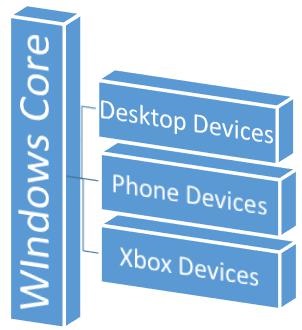
UWP 不仅可以调用所有设备通用的 WinRT API,还可以调用特定于应用程序运行的设备系列的 API(包括 Win32 和 .NET API)。
Windows 10 支持的设备
Windows 8.1 和 Windows Phone 8.1 应用针对操作系统;Windows 或 Windows Phone。Windows 10 应用程序不针对操作系统,而是针对一个或多个设备系列。
设备系列也有自己的 API,这些 API 为特定设备系列添加功能。您可以轻松确定 Windows 应用商店中应用程序可以安装和运行的所有设备系列中的所有设备。以下是设备系列的分层表示。

UWP 的优势
通用 Windows 平台 (UWP) 为开发人员提供了大量功能。它们是 -
- 所有设备的一个操作系统和一个统一核心。
- 一个应用程序平台,可在每个系列中运行应用程序。
- 一个开发中心提交应用程序和仪表板。
- 所有设备的一个应用商店。
UWP 开发设置
要开始为 Windows 10 创建自己的通用 Windows 平台 (UWP) 应用,需要执行以下步骤。
Windows 10 操作系统 - UWP 应用需要最新版本的 Windows 才能开发。您也可以在 Windows 8.1 上开发 UWP 应用程序,但 UI 设计器窗口不受支持。
Windows 10 开发人员工具 - 在 Visual Studio 2015 中,您可以设计、编写代码、测试和调试 UWP 应用。您可以从 https://dev.windows.com/en-us/downloads下载并安装免费的 Microsoft Visual Studio Community 2015。
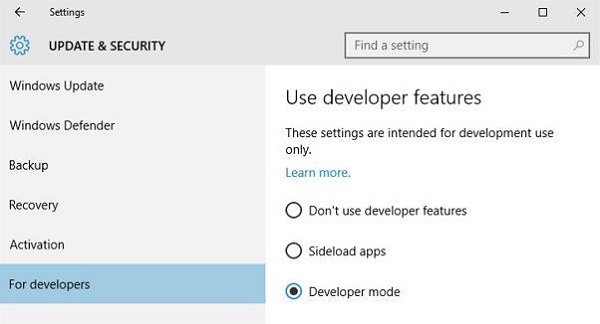
为 Windows 10 启用开发模式 -
转到开始 > 设置。
选择更新和安全。
然后选择“开发者选项”。
点击开发者模式
对于 UWP 应用,在设备上测试应用非常重要。
注册为应用开发者 - 您可以开始开发应用,但要将应用提交到应用商店,您需要一个开发者帐户。您可以在此处创建您的开发者帐户https://msdn.microsoft.com/enus/library/windows/apps/bg124287.aspx
完成以上步骤后,您现在就可以开始开发通用 Windows 平台 (UWP) 应用程序了。
Windows 10 开发 - 第一个应用
在本节中,我们将使用 XAML 和 C# 在 Windows 10 上的通用 Windows 平台 (UWP) 中创建我们的第一个简单应用程序“Hello world”。我们将演示如何在 Visual Studio 中创建的单个 UWP 应用程序如何在任何 Windows 10 设备上运行和执行。
让我们按照以下步骤开始创建应用。
启动 Visual Studio 2015。
点击文件菜单,然后选择新建 > 项目。
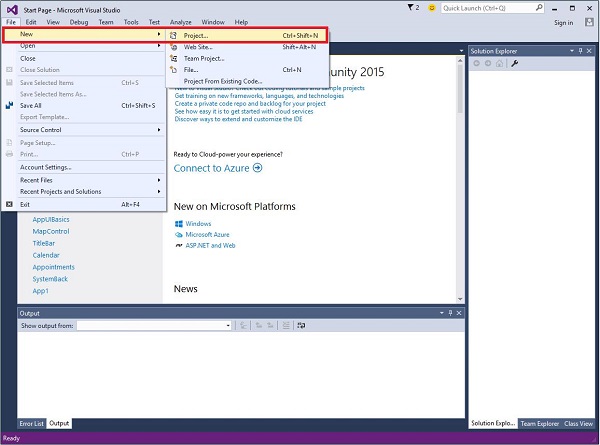
将显示以下新建项目对话框窗口。您可以在对话框左侧窗格中看到不同类型的模板。
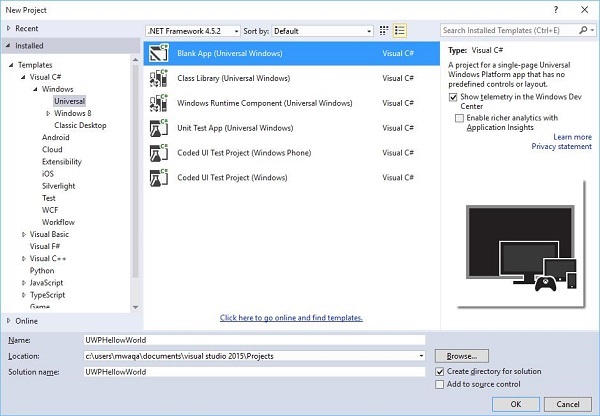
在左侧窗格中,您可以看到树形视图。从模板 > Visual C# > Windows中选择通用模板。
从中心窗格中,选择空白应用(通用 Windows)模板
通过在名称字段中输入UWPHelloWorld来为项目命名。
点击确定以创建一个新的 UWP 项目。
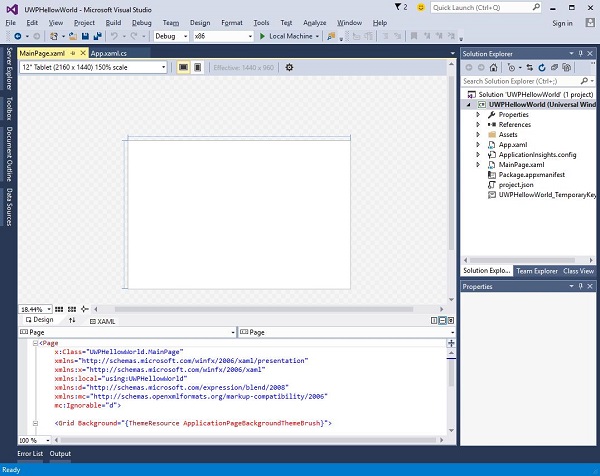
您可以在解决方案资源管理器中看到新创建的项目。
这是一个空白应用,但它包含许多文件,这是任何 UWP 应用程序的最低要求。
MainPage.xaml和MainPage.xaml.cs在您执行应用程序时运行。
默认情况下,MainPage.xaml文件包含以下信息。
<Page
   x:Class = ”UWPHellowWorld.MainPage”
   xmlns = ”http://schemas.microsoft.com/winfx/2006/xaml/presentation”
   xmlns:x = ”http://schemas.microsoft.com/winfx/2006/xaml”
   xmlns:local = ”using:UWPHellowWorld”
   xmlns:d = ”http://schemas.microsoft.com/expression/blend/2008”
   xmlns:mc = ”http://schemas.openxmlformats.org/markup-compatibility/2006”
   mc:Ignorable = ”d”>

   <Grid Background = ”{ThemeResource ApplicationPageBackgroundThemeBrush}”>
   </Grid>

</Page>
以下是MainPage.xaml.cs中提供的默认信息。
using System;
using System.Collections.Generic;
using System.IO;
using System.Linq;
using System.Runtime.InteropServices.WindowsRuntime;

using Windows.Foundation;
using Windows.Foundation.Collections;

using Windows.UI.Xaml;
using Windows.UI.Xaml.Controls;
using Windows.UI.Xaml.Controls.Primitives;
using Windows.UI.Xaml.Data;
using Windows.UI.Xaml.Input;
using Windows.UI.Xaml.Media;
using Windows.UI.Xaml.Navigation;

// The Blank Page item template is documented at
   http://go.microsoft.com/fwlink/?LinkId=402352&clcid=0x409

namespace UWPHellowWorld {

   /// <summary>
      /// An empty page that can be used on its own or navigated to within a Frame.
   /// </summary>

   public sealed partial class MainPage : Page {
      public MainPage(){
         this.InitializeComponent();
      }
   }

}
让我们添加一些文本块、文本框和按钮,如下面的 XAML 代码所示。
<Page
   x:Class = ”UWPHellowWorld.MainPage”
   xmlns = ”http://schemas.microsoft.com/winfx/2006/xaml/presentation”
   xmlns:x = ”http://schemas.microsoft.com/winfx/2006/xaml”
   xmlns:local = ”using:UWPHellowWorld”
   xmlns:d = ”http://schemas.microsoft.com/expression/blend/2008”
   xmlns:mc = ”http://schemas.openxmlformats.org/markup-compatibility/2006”
   mc:Ignorable = ”d”>

   <Grid Background = ”{ThemeResource ApplicationPageBackgroundThemeBrush}”>

      <StackPanel HorizontalAlignment = ”Center”>
         <TextBlock Text = ”Hello, world!”  Margin = ”20”  Width = ”200”
            HorizontalAlignment = ”Left”/>

         <TextBlock Text = ”Write your name.” Margin = ”20” Width = ”200”
            HorizontalAlignment = ”Left”/>

         <TextBox x:Name = ”txtbox”  Width = ”280” Margin = ”20”
            HorizontalAlignment = ”Left”/>

         <Button x:Name = ”button” Content = ”Click Me” Margin = ”20”
            Click = ”button_Click”/>

         <TextBlock x:Name = ”txtblock” HorizontalAlignment = ”Left”
            Margin = ”20”/>
      </StackPanel>

   </Grid>

</Page>
- 以下是 C# 中的点击事件按钮。
using System;
using System.Collections.Generic;
using System.IO;
using System.Linq;

using System.Runtime.InteropServices.WindowsRuntime;
using Windows.Foundation;
using Windows.Foundation.Collections;

using Windows.UI.Xaml;
using Windows.UI.Xaml.Controls;
using Windows.UI.Xaml.Controls.Primitives;
using Windows.UI.Xaml.Data;
using Windows.UI.Xaml.Input;
using Windows.UI.Xaml.Media;
using Windows.UI.Xaml.Navigation;

// The Blank Page item template is documented at
   http://go.microsoft.com/fwlink/?LinkId=402352&clcid=0x409

namespace UWPHellowWorld {

   /// <summary>
      /// An empty page that can be used on its own or navigated to within a Frame.
   /// </summary>

   public sealed partial class MainPage : Page {
      public MainPage() {
         this.InitializeComponent();
      }

      private void button_Click(object sender, RoutedEventArgs e) {
         if (txtbox.Text != “”)
            txtblock.Text = “Hello: “ + txtbox.Text;
         else
            txtblock.Text = “You have not write your name”;
      }

   }

}
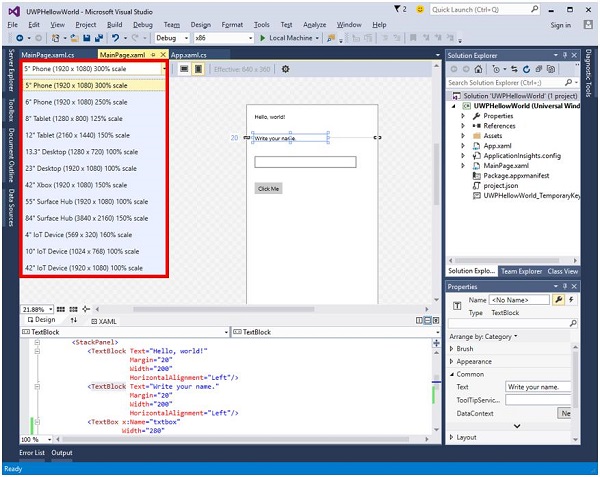
在 UWP 项目中,设备预览选项在设计窗口中可用,借助该选项,您可以轻松更改布局,以适合您针对应用程序的所有设备系列中的所有设备的屏幕尺寸。
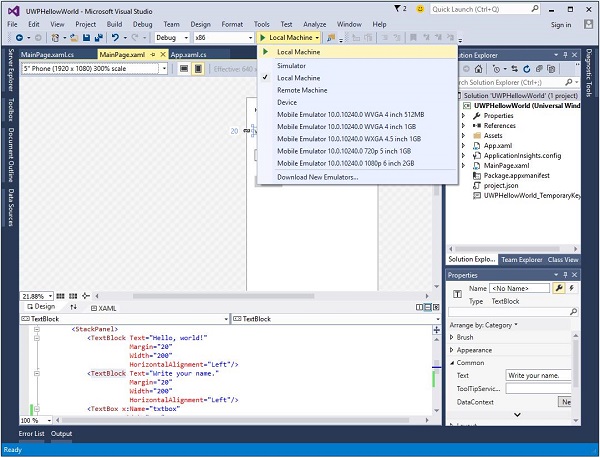
您可以在本地计算机、模拟器或仿真器或远程设备上运行和测试您的应用。您可以从以下菜单中选择目标设备,如下所示 -
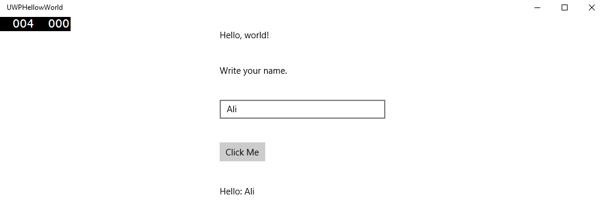
让我们在本地计算机上运行上述代码,您将看到以下窗口。现在,在文本框中输入任何名称,然后点击点击我按钮。
现在,如果您想在仿真器上测试您的应用,您可以从菜单中选择一个特定的仿真器并执行您的应用程序。您将看到以下仿真器 -
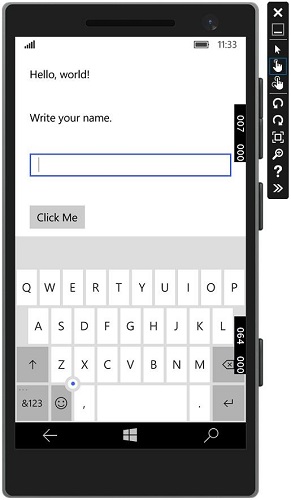
我们建议您使用不同的设备执行上述应用程序。
Windows 10 开发 - 应用商店
Windows 应用商店对开发人员的好处在于您可以出售您的应用程序。您可以为每个设备系列提交您的单个应用程序。
Windows 10 应用商店是提交应用程序的地方,以便用户可以找到您的应用程序。
在 Windows 8 中,应用商店仅限于应用程序,并且 Microsoft 提供许多应用商店,即 Xbox 音乐商店、Xbox 游戏商店等。

在 Windows 8 中,所有这些都是不同的应用商店,但在 Windows 10 中,它称为 Windows 应用商店。它的设计方式是用户可以在一个地方为所有 Windows 10 设备找到各种应用、游戏、歌曲、电影、软件和服务。

货币化
货币化意味着在台式机、移动设备、平板电脑和其他设备上销售您的应用。有各种方法可以在 Windows 应用商店中销售您的应用程序和服务以赚取一些钱。
您可以选择以下任何方法 -
最简单的方法是在应用商店中提交您的应用,并提供付费下载选项。
试用版选项,用户可以在购买具有有限功能的应用之前试用您的应用。
使用 Microsoft 广告在您的应用中添加广告。
Microsoft 广告
当您在应用程序中添加广告并且用户点击该特定广告时,广告客户将向您支付费用。Microsoft 广告允许开发人员接收来自 Microsoft 广告网络的广告。
用于通用 Windows 应用的 Microsoft 广告 SDK 包含在 Visual Studio 2015 安装的库中。
您也可以从visualstudiogallery安装它。
现在,您可以轻松地将视频和横幅广告集成到您的应用中。
让我们看看 XAML 中的一个简单示例,以使用AdControl在您的应用程序中添加横幅广告。
创建一个名为UWPBannerAd的新通用 Windows 空白应用项目。
在解决方案资源管理器中,右键点击引用
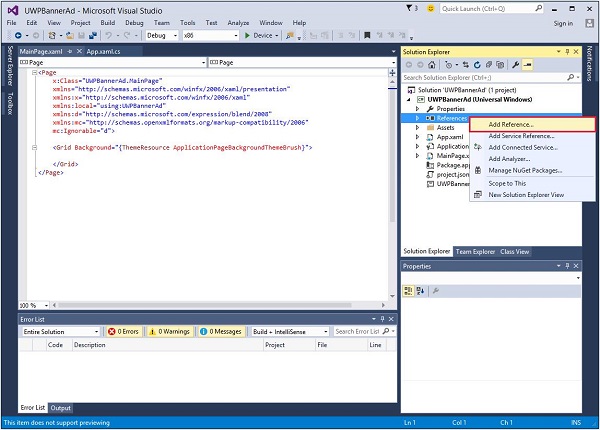
选择添加引用,这将打开引用管理器对话框。
从左侧窗格中,在“通用 Windows”选项下选择**扩展**,并选中**Microsoft Advertising SDK for XAML**。
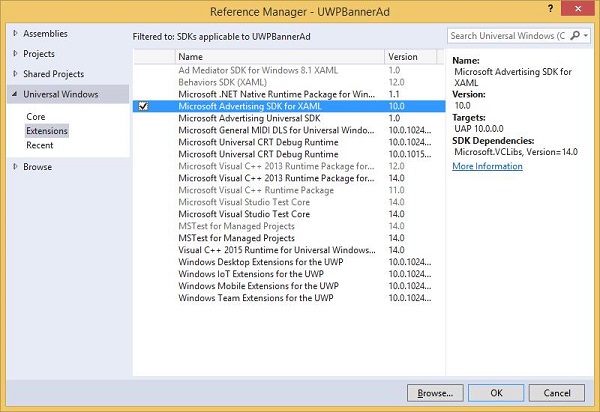
单击**确定**继续。
下面是添加了某些属性的**AdControl**的 XAML 代码。
<Page
   x:Class = "UWPBannerAd.MainPage"
   xmlns = "http://schemas.microsoft.com/winfx/2006/xaml/presentation"
   xmlns:x = "http://schemas.microsoft.com/winfx/2006/xaml"
   xmlns:local = "using:UWPBannerAd"
   xmlns:d = "http://schemas.microsoft.com/expression/blend/2008"
   xmlns:mc = "http://schemas.openxmlformats.org/markup-compatibility/2006"
   xmlns:UI = "using:Microsoft.Advertising.WinRT.UI"
   mc:Ignorable = "d">

   <Grid Background = "{ThemeResource ApplicationPageBackgroundThemeBrush}">
      <StackPanel HorizontalAlignment = "Center">
         <UI:AdControl ApplicationId = "d25517cb-12d4-4699-8bdc-52040c712cab"
            AdUnitId = "10043121" HorizontalAlignment = "Left" Height = "580"
            VerticalAlignment = "Top" Width = "800"/>
      </StackPanel>
   </Grid>

</Page>
当以上代码在本地计算机上编译并执行时,您将看到以下窗口,其中包含 MSN 横幅。单击此横幅时,它将打开 MSN 网站。

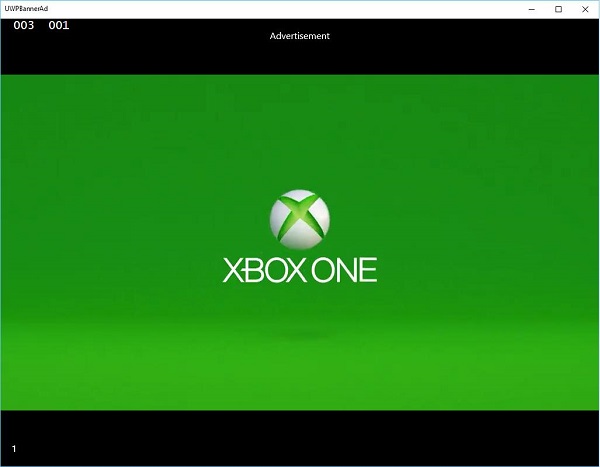
您也可以在应用程序中添加**视频横幅**。让我们考虑另一个示例,其中当单击**显示广告**按钮时,它将播放 Xbox One 的视频广告。
下面是 XAML 代码,其中我们演示了如何添加具有某些属性和事件的按钮。
<Page
   x:Class = "UWPBannerAd.MainPage"
   xmlns = "http://schemas.microsoft.com/winfx/2006/xaml/presentation"
   xmlns:x = "http://schemas.microsoft.com/winfx/2006/xaml"
   xmlns:local = "using:UWPBannerAd"
   xmlns:d = "http://schemas.microsoft.com/expression/blend/2008"
   xmlns:mc = "http://schemas.openxmlformats.org/markup-compatibility/2006"
   xmlns:UI = "using:Microsoft.Advertising.WinRT.UI"
   mc:Ignorable = "d">

   <Grid Background = "{ThemeResource ApplicationPageBackgroundThemeBrush}">
      <StackPanel HorizontalAlignment = "Center">
         <Button x:Name = "showAd" Content = "Show Ad" HorizontalAlignment = "Left"
            Margin = "138,296,0,0" VerticalAlignment = "Top" FontSize = "48"
            Click = "showAd_Click"/>
      </StackPanel>
   </Grid>

</Page>
下面是在 C# 中的单击事件实现。
using Microsoft.Advertising.WinRT.UI;
using Windows.UI.Xaml;
using Windows.UI.Xaml.Controls;

// The Blank Page item template is documented at
   http://go.microsoft.com/fwlink/?LinkId=402352&clcid=0x409

namespace UWPBannerAd {

   /// <summary>
      /// An empty page that can be used on its own or navigated to within a Frame.
   /// </summary>

   public sealed partial class MainPage : Page {
      InterstitialAd videoAd = new InterstitialAd();

      public MainPage() {
         this.InitializeComponent();
      }

      private void showAd_Click(object sender, RoutedEventArgs e) {
         var MyAppId = "d25517cb-12d4-4699-8bdc-52040c712cab";
         var MyAdUnitId = "11388823";
         videoAd.AdReady += videoAd_AdReady;
         videoAd.RequestAd(AdType.Video, MyAppId, MyAdUnitId);
      }

      void videoAd_AdReady(object sender, object e){
         if ((InterstitialAdState.Ready) == (videoAd.State)) {
            videoAd.Show();
         }
      }

   }

}
当以上代码在本地计算机上编译并执行时,您将看到以下窗口,其中包含**显示广告**按钮。

现在,当您单击**显示广告**按钮时,它将在您的应用程序中播放视频。
Windows 10 开发 - XAML 控件
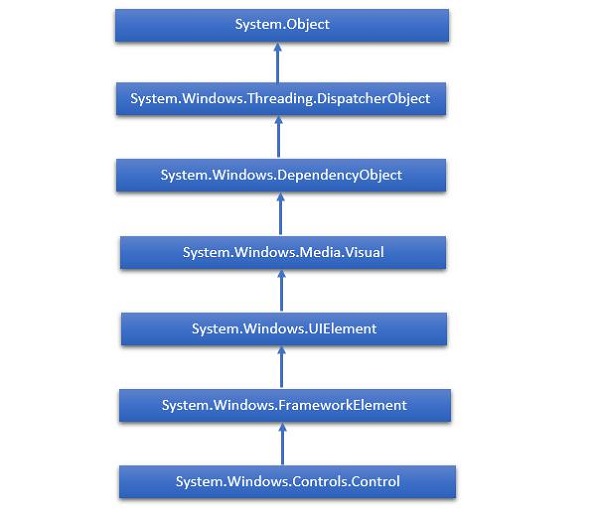
XAML 代表可扩展应用程序标记语言。它是一个用户界面框架,它提供了一个广泛的控件库,支持 Windows 的 UI 开发。其中一些具有视觉表示形式,例如按钮、文本框和文本块等;而其他控件则用作其他控件或内容(例如图像等)的容器。所有 XAML 控件都继承自**“System.Windows.Controls.Control”**。
XAML 新兴故事
XAML 用于许多重要的 Microsoft 平台,例如 Windows Presentation Foundation (WPF)、Silverlight 和现在的 Windows 应用。现在,Microsoft Office 2016 也是 UWP 应用系列的一部分。XAML 是一个丰富的平台,它提供了非常酷的功能和控件,可用于 UWP 应用程序。
控件的完整继承层次结构如下所示。
布局控件
控件的布局对于应用程序可用性非常重要且至关重要。它用于在应用程序中排列一组 GUI 元素。在选择布局面板时,需要考虑某些重要事项 -
- 子元素的位置。
- 子元素的大小。
- 子元素相互叠加的分层。
下面列出了**布局控件** -
| 序号 | 控件和说明 |
|---|---|
| 1 | StackPanel **StackPanel** 是 XAML 中一个简单而有用的布局面板。在 StackPanel 中,子元素可以基于方向属性沿水平或垂直方向排列成单行。 |
| 2 | WrapPanel 在**WrapPanel** 中,子元素按顺序从左到右或从上到下排列,具体取决于方向属性。StackPanel 和 WrapPanel 之间的唯一区别在于它不会将所有子元素堆叠到单行中,而是如果剩余空间不足,则将剩余元素换行。 |
| 3 | DockPanel **DockPanel** 定义了一个区域,用于相对于彼此(水平或垂直)排列子元素。使用 DockPanel,您可以轻松地使用 Dock 属性将子元素停靠到顶部、底部、右侧、左侧和中心。 使用**LastChildFill** 属性,当为该元素设置时,最后一个子元素将填充剩余空间,而不管任何其他停靠值如何。 |
| 4 | Canvas **Canvas** 是基本布局面板,其中子元素可以使用相对于任何边(例如左侧、右侧、顶部和底部)的坐标显式定位。Canvas 通常用于 2D 图形元素(例如 Ellipse、Rectangle 等),但不适用于 UI 元素,因为在 XAML 应用程序中指定绝对坐标会在调整大小、本地化或缩放时造成麻烦。 |
| 5 | Grid **Grid** 提供了一个灵活的区域,该区域由行和列组成。在 Grid 中,子元素可以以表格形式排列。可以通过使用**Grid.Row** 和**Grid.Column** 属性将元素添加到任何特定的行和列。 |
| 6 | SplitView **SplitView** 表示一个包含两个视图的容器;一个视图用于主要内容,另一个视图通常用于导航命令。 |
| 7 | RelativePanel **RelativePanel** 定义一个区域,您可以在其中相对于彼此或父面板定位和对齐子对象。 |
| 8 | ViewBox **ViewBox** 定义一个内容装饰器,可以拉伸和缩放单个子元素以填充可用空间。 |
| 9 | FlipView **FlipView** 表示一个项目控件,一次显示一个项目,并启用“翻转”行为以遍历其项目集合。 |
| 10 | GridView **GridView** 是一种控件,以行和列的形式呈现项目集合,并且可以水平滚动。 |
UI 控件
以下是 UI 控件的列表,这些控件对最终用户可见。
| 序号 | UI 控件和说明 |
|---|---|
| 1 | Button 响应用户输入的控件 |
| 2 | Calendar 表示一个控件,使用户能够通过使用可视日历显示来选择日期。 |
| 3 | CheckBox 用户可以选择或清除的控件。 |
| 4 | ComboBox 项目的下拉列表,用户可以从中选择。 |
| 5 | ContextMenu 获取或设置应在每次通过用户界面 (UI) 从此元素内部请求上下文菜单时出现的上下文菜单元素。 |
| 6 | DataGrid 表示一个控件,以可自定义的网格显示数据。 |
| 7 | DatePicker 允许用户选择日期的控件。 |
| 8 | Dialogs 应用程序还可以显示其他窗口,以便用户收集或显示重要信息。 |
| 9 | Flyout 表示一个控件,显示轻量级 UI,这些 UI 要么是信息,要么需要用户交互。与对话框不同,Flyout 可以通过单击或点击其外部、按设备的返回按钮或按“Esc”键轻松关闭。 |
| 10 | Image 显示图像的控件。 |
| 11 | ListBox 显示用户可以从中选择的项目内联列表的控件。 |
| 12 | Menus 表示一个 Windows 菜单控件,使您能够分层组织与命令和事件处理程序关联的元素。 |
| 13 | MenuFlyout 表示显示命令菜单的弹出菜单。 |
| 14 | PasswordBox 用于输入密码的控件。 |
| 15 | Popup 在应用程序窗口的范围内,在现有内容的顶部显示内容。 |
| 16 | ProgressBar 通过显示条形来指示进度的控件。 |
| 17 | ProgressRing 通过显示环形来指示不确定进度的控件。 |
| 18 | RadioButton 允许用户从一组选项中选择单个选项的控件。 |
| 19 | RichEditBox 允许用户编辑富文本文档的控件,其中包含格式化文本、超链接和图像等内容。 |
| 20 | ScrollViewer 一个容器控件,允许用户平移和缩放其内容。 |
| 21 | SearchBox 允许用户输入搜索查询的控件。 |
| 22 | Slider 允许用户通过沿轨道移动 Thumb 控件来从一系列值中进行选择的控件。 |
| 23 | TextBlock 显示文本的控件。 |
| 24 | TimePicker 允许用户设置时间值的控件。 |
| 25 | ToggleButton 可以在 2 个状态之间切换的按钮。 |
| 26 | ToolTip 一个弹出窗口,显示元素的信息。 |
| 27 | Window 提供最小化/最大化选项、标题栏、边框和关闭按钮的根窗口。 |
下面是一个示例,其中包含**SplitView** 中的不同类型的控件。在 XAML 文件中,使用某些属性和事件创建了不同的控件。
<Page
x:Class = "UWPControlsDemo.MainPage"
xmlns = "http://schemas.microsoft.com/winfx/2006/xaml/presentation"
xmlns:x = "http://schemas.microsoft.com/winfx/2006/xaml"
xmlns:local = "using:UWPControlsDemo"
xmlns:d = "http://schemas.microsoft.com/expression/blend/2008"
xmlns:mc = "http://schemas.openxmlformats.org/markup-compatibility/2006"
mc:Ignorable = "d">
<Grid Background = "{ThemeResource ApplicationPageBackgroundThemeBrush}">
<StackPanel Margin = "20">
<StackPanel Orientation = "Horizontal">
<ToggleButton x:Name = "HamburgerButton" FontFamily = "Segoe MDL2 Assets"
Content = "" Checked = "HandleCheck" Unchecked = "HandleUnchecked"
HorizontalAlignment = "Center"/>
<AppBarButton Icon = "Like" />
<AppBarButton Icon = "Dislike" />
<AppBarSeparator/>
<AppBarButton Icon = "Accept" />
<AppBarButton Icon = "Add" />
</StackPanel>
<SplitView x:Name = "splitView" DisplayMode = "Inline"
OpenPaneLength = "296">
<SplitView.Pane>
<StackPanel>
<TextBlock Text = "SplitView Pane" FontSize = "36"
VerticalAlignment = "Center" HorizontalAlignment = "Center"
Margin = "10"/>
<Button Content = "Options" Margin = "10">
<Button.Flyout>
<MenuFlyout>
<MenuFlyoutItem Text = "Reset"/>
<MenuFlyoutSeparator/>
<MenuFlyoutItem Text = "Repeat"/>
<MenuFlyoutItem Text = "Shuffle"/>
</MenuFlyout>
</Button.Flyout>
</Button>
</StackPanel>
</SplitView.Pane>
<StackPanel>
<TextBlock Text = "SplitView Content" FontSize = "36"
VerticalAlignment = "Center" HorizontalAlignment = "Center"
Margin = "10"/>
<Border BorderThickness = "3" BorderBrush = "Red" Margin = "5">
<StackPanel Orientation = "Horizontal">
<TextBlock Text = "Hyperlink example" Margin = "5"/>
<HyperlinkButton Content = "www.microsoft.com"
NavigateUri = "http://www.microsoft.com"/>
</StackPanel>
</Border>
<RelativePanel BorderBrush = "Red" BorderThickness = "2"
CornerRadius = "10" Padding = "12" Margin = "5">
<TextBlock x:Name = "txt" Text = "Relative Panel example"
RelativePanel.AlignLeftWithPanel = "True"
Margin = "5,0,0,0"/>
<TextBox x:Name = "textBox1" RelativePanel.RightOf = "btn"
Margin = "5,0,0,0"/>
<Button x:Name = "btn" Content = "Name"
RelativePanel.RightOf = "txt" Margin = "5,0,0,0"/>
</RelativePanel>
<FlipView Height = "400" Margin = "10" Width = "400">
<Image Source = "Images/DSC_0104.JPG"/>
<Image Source = "Images/DSC_0080.JPG"/>
<Image Source = "Images/DSC_0076.JPG"/>
<Image Source = "Images/thGTF7BWGW.jpg"/>
</FlipView>
</StackPanel>
</SplitView>
</StackPanel>
</Grid>
</Page>
下面是在 C# 中的**事件**实现。
using Windows.UI.Xaml;
using Windows.UI.Xaml.Controls;
using Windows.UI.Xaml.Media;

// The Blank Page item template is documented at
   http://go.microsoft.com/fwlink/?LinkId=402352&clcid=0x409

namespace UWPControlsDemo {

   /// <summary>
      /// An empty page that can be used on its own or navigated to within a Frame.
   /// </summary>

   public sealed partial class MainPage : Page {

      public MainPage() {
         this.InitializeComponent();
      }

      private void HandleCheck(object sender, RoutedEventArgs e) {
         splitView.IsPaneOpen = true;
      }

      private void HandleUnchecked(object sender, RoutedEventArgs e) {
         splitView.IsPaneOpen = false;
      }

   }

}
编译并执行以上代码后,您将看到以下窗口 -
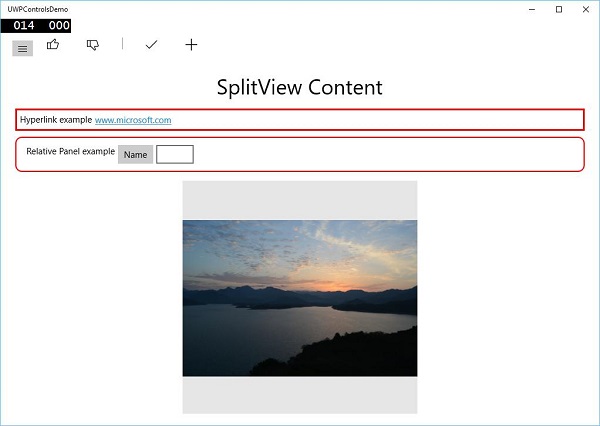
当您单击左上角的汉堡包按钮时,它将打开/关闭**SplitView** 窗格。
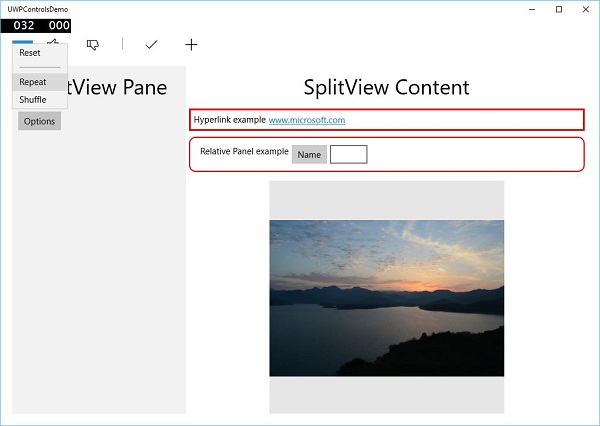
在**SplitView** 窗格中,您可以看到**Flyout**、**MenuFlyout** 和**FlipView** 控件。
在**SplitView** 内容中,您可以看到超链接、相对面板、ViewBox 和其他按钮和文本框控件。
Windows 10 开发 - 数据绑定
数据绑定是 XAML 应用程序中的一种机制,它为使用部分类的 Windows 运行时应用提供了一种简单易用的方法来显示和交互数据。在此机制中,数据的管理与数据在 UI 中的显示方式完全分离。
数据绑定允许数据在 UI 元素和用户界面上的数据对象之间流动。当建立绑定并且数据或您的业务模型发生更改时,它会自动将更新反映到 UI 元素,反之亦然。也可以绑定到页面上的另一个元素,而不是绑定到标准数据源。数据绑定可以是 -
- 单向数据绑定
- 双向数据绑定
- 元素绑定
单向数据绑定
在单向绑定中,数据从其源(保存数据的对象)绑定到其目标(显示数据的对象)。
让我们看一下单向数据绑定的简单示例。下面是创建了四个具有某些属性的文本块的 XAML 代码。
<Page
   x:Class = "OneWayDataBinding.MainPage"
   xmlns = "http://schemas.microsoft.com/winfx/2006/xaml/presentation"
   xmlns:x = "http://schemas.microsoft.com/winfx/2006/xaml"
   xmlns:local = "using:OneWayDataBinding"
   xmlns:d = "http://schemas.microsoft.com/expression/blend/2008"
   xmlns:mc = "http://schemas.openxmlformats.org/markup-compatibility/2006"
   mc:Ignorable = "d">

   <Grid Background = "{ThemeResource ApplicationPageBackgroundThemeBrush}">
      <StackPanel Name = "Display">
         <StackPanel Orientation = "Horizontal" Margin = "50, 50, 0, 0">
            <TextBlock Text = "Name: " Margin = "10" Width = "100"/>
            <TextBlock Margin = "10" Width = "100" Text = "{Binding Name}"/>
         </StackPanel>

         <StackPanel Orientation = "Horizontal" Margin = "50,0,50,0">
            <TextBlock Text = "Title: " Margin = "10" Width = "100"/>
            <TextBlock Margin = "10" Width = "200" Text = "{Binding Title}" />
         </StackPanel>

      </StackPanel>
   </Grid>

</Page>
两个文本块的 Text 属性分别静态设置为**“Name”** 和**“Title”**,而其他两个文本块的 Text 属性绑定到“Name”和“Title”,它们是 Employee 类的类变量,如下所示。
using Windows.UI.Xaml.Controls;

// The Blank Page item template is documented at
   http://go.microsoft.com/fwlink/?LinkId=402352&clcid=0x409

namespace OneWayDataBinding {

   /// <summary>
      /// An empty page that can be used on its own or navigated to within a Frame.
   /// </summary>

   public sealed partial class MainPage : Page {
      public MainPage(){
         this.InitializeComponent();
         DataContext = Employee.GetEmployee();
      }
   }

   public class Employee {
      public string Name { get; set; }
      public string Title { get; set; }

      public static Employee GetEmployee() {
         var emp = new Employee() {
            Name = "Waqar Ahmed",
            Title = "Development Manager"
         };

         return emp;
      }

   }
}
在**Employee 类**中,我们有变量**Name** 和**Title**,以及一个静态方法,其中初始化**employee 对象**并将返回该 employee 对象。因此,我们绑定到属性 Name 和 Title,但我们尚未选择属性所属的对象。简单的方法是在**MainPage** 构造函数中将对象分配给**DataContext**,我们在其中绑定其属性。
当您运行此应用程序时,您可以在**MainWindow** 中立即看到您已成功绑定到该 Employee 对象的 Name 和 Title。
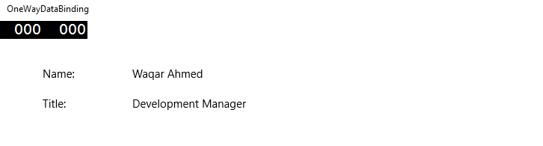
双向数据绑定
在双向绑定中,用户可以通过用户界面修改数据,并将这些数据更新到源中。例如,如果源在用户查看视图时发生更改,则希望视图也随之更新。
让我们看一下下面给出的示例,其中创建了两个标签、两个文本框和一个按钮,并设置了一些属性和事件。
<Page
   x:Class = "TwoWayDataBinding.MainPage"
   xmlns = "http://schemas.microsoft.com/winfx/2006/xaml/presentation"
   xmlns:x = "http://schemas.microsoft.com/winfx/2006/xaml"
   xmlns:local = "using:TwoWayDataBinding"
   xmlns:d = "http://schemas.microsoft.com/expression/blend/2008"
   xmlns:mc = "http://schemas.openxmlformats.org/markup-compatibility/2006"
   mc:Ignorable = "d">

   <Grid Background = "{ThemeResource ApplicationPageBackgroundThemeBrush}">

      <Grid.RowDefinitions>
         <RowDefinition Height = "Auto" />
         <RowDefinition Height = "Auto" />
         <RowDefinition Height = "*" />
      </Grid.RowDefinitions>

      <Grid.ColumnDefinitions>
         <ColumnDefinition Width = "Auto" />
         <ColumnDefinition Width = "200" />
      </Grid.ColumnDefinitions>

      <TextBlock Name = "nameLabel" Margin = "200,20,0,0">Name:</TextBlock>

      <TextBox Name = "nameText" Grid.Column = "1" Margin = "10,20,0,0"
         Text = "{Binding Name, Mode = TwoWay}"/>

      <TextBlock Name = "ageLabel" Margin = "200,20,0,0"
         Grid.Row = "1">Age:</TextBlock>

      <TextBox Name = "ageText" Grid.Column = "1" Grid.Row = "1" Margin = "10,20,0,0"
         Text = "{Binding Age, Mode = TwoWay}"/>

      <StackPanel Grid.Row = "2" Grid.ColumnSpan = "2">
         <Button Content = "Display" Click = "Button_Click"
            Margin = "200,20,0,0"/>
         <TextBlock x:Name = "txtblock" Margin = "200,20,0,0"/>
      </StackPanel>

   </Grid>

</Page>
我们可以观察到以下内容:
两个文本框的 Text 属性分别绑定到“Name”和“Age”,它们是Person 类的类变量,如下所示。
在Person 类中,我们只有两个变量:Name 和 Age,并在MainWindow类中初始化了它的对象。
在 XAML 代码中,我们绑定到属性Name和Age,但我们没有选择属性所属的对象。
更简单的方法是将一个对象分配给DataContext,我们在 C# 代码中绑定其属性,如下所示,在MainWindow 构造函数中。
using Windows.UI.Xaml;
using Windows.UI.Xaml.Controls;

// The Blank Page item template is documented at
   http://go.microsoft.com/fwlink/?LinkId=402352&clcid=0x409

namespace TwoWayDataBinding {

   /// <summary>
      /// An empty page that can be used on its own or navigated to within a Frame.
   /// </summary>

   public sealed partial class MainPage : Page {
      Person person = new Person { Name = "Salman", Age = 26 };

      public MainPage() {
         this.InitializeComponent();
         this.DataContext = person;
      }

      private void Button_Click(object sender, RoutedEventArgs e) {
         string message = person.Name + " is " + person.Age + " years old";
         txtblock.Text = message;
      }

   }

   public class Person {
      private string nameValue;

      public string Name {
         get { return nameValue; }
         set { nameValue = value; }
      }

      private double ageValue;

      public double Age {
         get { return ageValue; }

         set {
            if (value != ageValue) {
               ageValue = value;
            }
         }
      }

   }

}
编译并执行上述代码后,您将看到以下窗口。点击Display按钮。
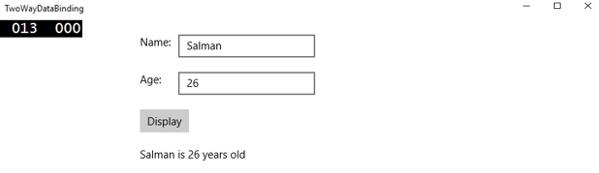
让我们更改 Name 和 Age,然后再次点击Display按钮。
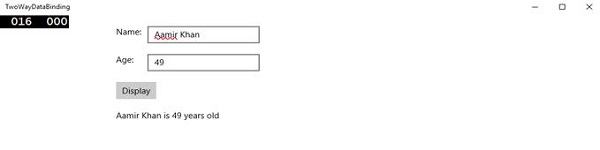
您可以看到,在点击‘Display’按钮时,文本框的文本没有用于在TextBlock上显示数据,而是使用了类变量。
我建议您在两种情况下都执行上述代码,以便更好地理解。
元素绑定
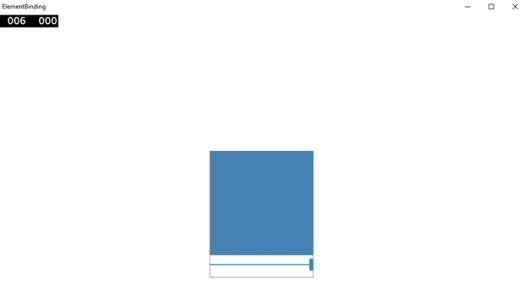
也可以绑定到页面上的另一个元素,而不是标准数据源。让我们创建一个名为ElementBinding的应用程序,其中创建了一个滑块和一个矩形,并通过滑块绑定矩形的宽度和高度。下面是 XAML 中的代码。
<Page
   x:Class = "ElementBinding.MainPage"
   xmlns = "http://schemas.microsoft.com/winfx/2006/xaml/presentation"
   xmlns:x = "http://schemas.microsoft.com/winfx/2006/xaml"
   xmlns:local = "using:ElementBinding"
   xmlns:d = "http://schemas.microsoft.com/expression/blend/2008"
   xmlns:mc = "http://schemas.openxmlformats.org/markup-compatibility/2006"
   mc:Ignorable = "d">

   <Grid Background = "{ThemeResource ApplicationPageBackgroundThemeBrush}">
      <StackPanel VerticalAlignment = "Center" HorizontalAlignment = "Center">

         <Rectangle Height = "100" Width = "100" Fill = "SteelBlue"
            RenderTransformOrigin = "0.5,0.5" Margin = "50">

            <Rectangle.RenderTransform>
               <CompositeTransform ScaleX = "{Binding Value, ElementName = MySlider}"
                  ScaleY = "{Binding Value, ElementName = MySlider}"/>
            </Rectangle.RenderTransform>

         </Rectangle>

         <Slider Minimum = ".5" Maximum = "2.0" StepFrequency = ".1"
            x:Name = "MySlider" />

      </StackPanel>
   </Grid>

</Page>
编译并执行上述代码后,您将看到以下窗口。
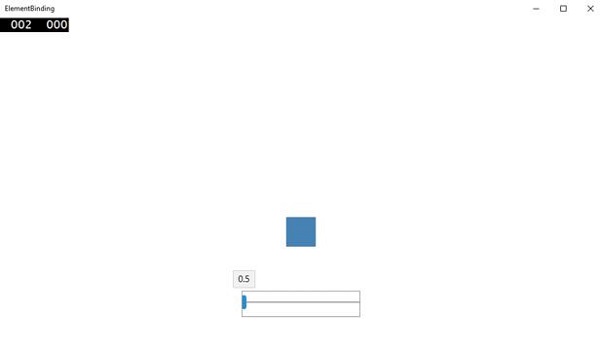
使用滑块,您可以更改矩形的大小,如下所示。
Windows 10 开发 - XAML 性能
应用程序的性能非常重要,例如应用程序启动速度或导航到显示下一个内容的速度等。
应用程序的性能可能会受到许多因素的影响,包括 XAML 渲染引擎解析应用程序中所有 XAML 代码的能力。XAML 是一个非常强大的 UI 创建工具,但可以通过使用 Windows 10 应用程序中现在可用的新技术使其更加强大。
例如,在您的应用程序中,有些内容您希望在页面加载时显示,然后以后不再需要。在启动时,您可能也不需要加载所有 UI 元素。
在 Windows 10 应用程序中,XAML 中添加了一些新功能,这些功能提高了 XAML 的性能。
任何通用 Windows 应用程序的性能都可以通过以下技术得到改进:
- 渐进式渲染
- 延迟加载
渐进式渲染
在 Windows 10 中,XAML 中引入了两个新的非常酷的功能。它们是:
x:Bind
这是 XAML 中引入的一种用于绑定的新语法,其工作方式与Binding语法几乎相同。x:Bind有两个主要区别:它提供编译时语法验证和更好的性能。
X:Phase
它提供了优先级处理数据模板内 XAML 控件渲染的功能。每个 UI 元素只能指定一个阶段。如果是这样,它将应用于元素上的所有绑定。如果未指定阶段,则假定为阶段 0。
在通用 Windows 平台 (UWP) 应用程序中,这两个新功能提供了性能改进。它也可以用于迁移到 Windows 10 的现有 Windows 8.x 应用程序。
下面是一个示例,其中使用x:Bind关键字将员工对象与GridView绑定。
<Page
   x:Class = "XAMLPhase.MainPage"
   xmlns = "http://schemas.microsoft.com/winfx/2006/xaml/presentation"
   xmlns:x = "http://schemas.microsoft.com/winfx/2006/xaml"
   xmlns:local = "using:XAMLPhase"
   xmlns:d = "http://schemas.microsoft.com/expression/blend/2008"
   xmlns:mc = "http://schemas.openxmlformats.org/markup-compatibility/2006"
   mc:Ignorable = "d">

   <Grid Background = "{ThemeResource ApplicationPageBackgroundThemeBrush}">
      <GridView Name = "Presidents" ItemsSource = "{Binding}" Height = "300"
         Width = "400" Margin = "50">

         <GridView.ItemTemplate>
            <DataTemplate x:DataType = "local:Employee">

               <StackPanel Orientation = "Horizontal" Margin = "2">
                  <TextBlock Text = "{x:Bind Name}" Width = "95" Margin = "2" />
                  <TextBlock Text = "{x:Bind Title}" Width = "95" Margin = "2"
                     x:Phase = "1"/>
               </StackPanel>

            </DataTemplate>
         </GridView.ItemTemplate>

      </GridView>

   </Grid>

</Page>
在上面的 XAML 代码中,x:Phase = "1"与 Title 一起定义。因此,在第一阶段,将渲染Name,然后渲染Title。
下面是 C# 中Employee 类的实现。
using System.Collections.ObjectModel;
using System.ComponentModel;
using System.Runtime.CompilerServices;
using Windows.UI.Xaml.Controls;

// The Blank Page item template is documented at
   http://go.microsoft.com/fwlink/?LinkId=402352&clcid=0x409

namespace XAMLPhase {

   /// <summary>
      /// An empty page that can be used on its own or navigated to within a Frame.
   /// </summary>

   public sealed partial class MainPage : Page {
      public MainPage() {
         this.InitializeComponent();
         DataContext = Employee.GetEmployees();
      }
   }

   public class Employee : INotifyPropertyChanged {
      private string name;

      public string Name {
         get { return name; }

         set {
            name = value;
            RaiseProperChanged();
         }
      }

      private string title;

      public string Title {
         get { return title; }

         set {
            title = value;
            RaiseProperChanged();
         }
      }

      public static Employee GetEmployee() {

         var emp = new Employee() {
            Name = "Waqas",
            Title = "Software Engineer"
         };

         return emp;
      }

      public event PropertyChangedEventHandler PropertyChanged;

      private void RaiseProperChanged(
         [CallerMemberName] string caller = "") {

         if (PropertyChanged != null) {
            PropertyChanged(this, new PropertyChangedEventArgs(caller));
         }

      }

      public static ObservableCollection<Employee> GetEmployees() {
         var employees = new ObservableCollection<Employee>();

         employees.Add(new Employee() { Name = "Ali", Title = "Developer" });
         employees.Add(new Employee() { Name = "Ahmed", Title = "Programmer" });
         employees.Add(new Employee() { Name = "Amjad", Title = "Desiner" });
         employees.Add(new Employee() { Name = "Waqas", Title = "Programmer" });
         employees.Add(new Employee() { Name = "Bilal", Title = "Engineer" });
         employees.Add(new Employee() { Name = "Waqar", Title = "Manager" });

         return employees;
      }

   }

}
执行上述代码后,您将看到以下窗口。

X:Phase与x:Bind一起用于增量渲染ListView和GridView项,并改善平移体验。
延迟加载
延迟加载是一种技术,可用于通过减少应用程序启动时的 XAML UI 元素数量来最大程度地减少启动加载时间。如果您的应用程序包含 30 个 UI 元素,并且用户在启动时不需要所有这些元素,那么所有不需要的元素都可以通过延迟来节省一些加载时间。
x:DeferLoadStrategy = "Lazy"延迟创建元素及其子元素,这会减少启动时间,但会略微增加内存使用量。
可以通过使用元素上定义的名称调用FindName来实现/创建延迟元素。
创建延迟元素后,将发生以下几件事:
将引发元素上的 Loaded 事件。
将评估元素上的任何绑定。
如果应用程序已注册以接收包含延迟元素的属性上的属性更改通知,则将引发该通知。
下面是一个示例,其中x:DeferLoadStrategy = "Lazy"用于包含四个文本块的网格,并且在应用程序启动时不会加载,直到您加载它为止。
<Page
   x:Class = "UWPDeferredLoading.MainPage"
   xmlns = "http://schemas.microsoft.com/winfx/2006/xaml/presentation"
   xmlns:x = "http://schemas.microsoft.com/winfx/2006/xaml"
   xmlns:local = "using:UWPDeferredLoading"
   xmlns:d = "http://schemas.microsoft.com/expression/blend/2008"
   xmlns:mc = "http://schemas.openxmlformats.org/markup-compatibility/2006"
   mc:Ignorable = "d">

   <Grid Background = "{ThemeResource ApplicationPageBackgroundThemeBrush}">
      <Grid x:Name = "DeferredGrid" x:DeferLoadStrategy = "Lazy" Margin = "50">
         <Grid.RowDefinitions>
            <RowDefinition Height = "Auto" />
            <RowDefinition Height = "Auto" />
         </Grid.RowDefinitions>

         <Grid.ColumnDefinitions>
            <ColumnDefinition Width = "Auto" />
            <ColumnDefinition Width = "Auto" />
         </Grid.ColumnDefinitions>

         <TextBlock Height = "100" Width = "100" Text = "TextBlock 1" Margin = "0,0,4,4" />

         <TextBlock Height = "100" Width = "100" Text = "TextBlock 2"
            Grid.Column = "1" Margin = "4,0,0,4" />

         <TextBlock Height = "100" Width = "100" Text = "TextBlock 3"
            Grid.Row = "1" Margin = "0,4,4,0" />

         <TextBlock Height = "100" Width = "100" Text = "TextBlock 4"
            Grid.Row = "1" Grid.Column = "1" Margin = "4,4,0,0" />
      </Grid>

      <Button x:Name = "RealizeElements" Content = "Show Elements"
         Click = "RealizeElements_Click" Margin = "50"/>

   </Grid>

</Page>
以下程序是点击事件的实现,其中网格在应用程序主页面加载。
using Windows.UI.Xaml;
using Windows.UI.Xaml.Controls;

// The Blank Page item template is documented at
   http://go.microsoft.com/fwlink/?LinkId=402352&clcid=0x409

namespace UWPDeferredLoading {

   /// <summary>
      /// An empty page that can be used on its own or navigated to within a Frame.
   /// </summary>

   public sealed partial class MainPage : Page {
      public MainPage() {
         this.InitializeComponent();
      }

      private void RealizeElements_Click(object sender, RoutedEventArgs e) {
         this.FindName("DeferredGrid"); // This will realize the deferred grid
      }

   }

}
编译并执行上述代码后,您只会看到一个按钮。Textblocks在启动时不会加载。
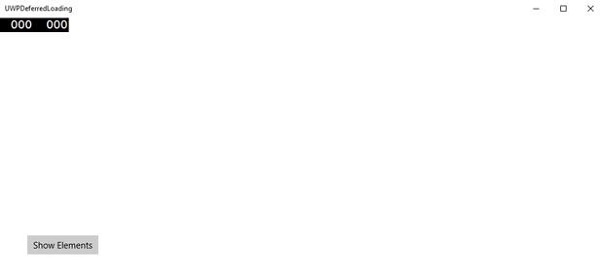
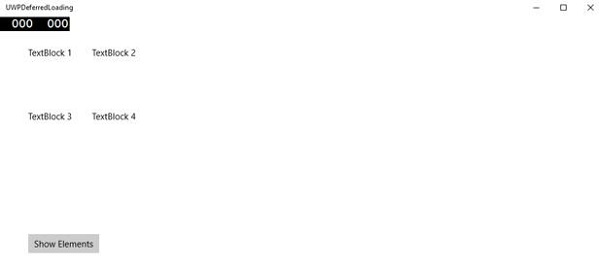
现在,当您点击Show Elements按钮时,它将加载文本块,这将提高应用程序的启动性能。
Windows 10 开发 - 自适应设计
在 Windows 10 中,通用 Windows 平台 (UWP) 应用程序现在可以在许多设备系列上运行,例如:
桌面设备系列 - 平板电脑、笔记本电脑、PC
移动设备系列 - Windows 手机、平板手机
物联网设备系列 - 可穿戴设备或家用电器等紧凑型设备
团队设备系列 - Surface Hub
每个设备系列都有其自己的屏幕和窗口大小。那么如何设计一个应用程序,使其在多个屏幕尺寸和不同的输入方法差别很大的设备上提供良好的用户体验呢?
为多个设备系列设计应用程序需要一些额外的考虑、计划和设计。Windows 10 UWP 提供了一套内置功能和通用构建块,使为多个设备设计以及跨平台控件支持的不同屏幕和窗口大小自动缩放变得更加容易。
新内置功能
以下是开发人员在创建 UWP 应用程序时可以使用的新功能。这些功能是自动且免费的。
有效像素和平台缩放
当您的 UWP 应用程序在 Windows 10 支持的任何设备上运行时,则:
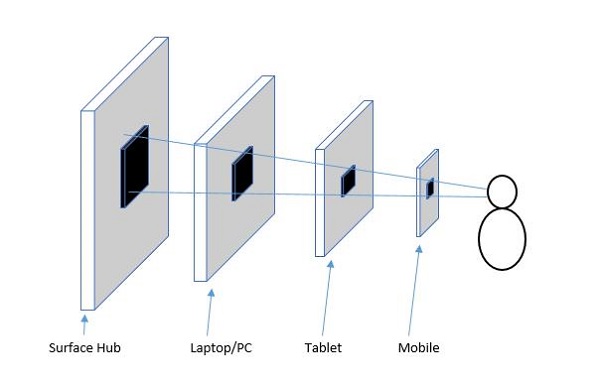
系统使用一种算法来规范控件、字体和其他 UI 元素在当前运行的设备屏幕上的显示方式。
缩放算法控制观看距离和屏幕密度(每英寸像素数),以针对假定大小(而不是物理大小)进行优化。
缩放算法确保 10 英尺外的 Surface Hub 上的 36 px 字体与几英寸外的 5 英寸手机上的 36 px 字体对用户来说同样易读。
通用输入和智能交互
通用 Windows 平台内置了智能交互输入系统,该系统可以理解所有设备的输入。例如,当您在应用程序中设计点击交互时,您无需知道点击来自实际鼠标点击还是手指点击。系统会自动为您完成。
通用构建块
有一些有价值的构建块,使在通用 Windows 平台 (UWP) 中为多个设备系列设计应用程序变得更加容易。
通用控件
UWP 提供了一组通用控件,这些控件保证可以在所有 Windows 10 设备上正常工作。
此“通用控件”列表包含单选按钮、组合框和文本框等常用控件。
它还包含一些复杂的控件,例如网格视图和列表视图,这些控件可以从数据流和模板生成项目列表。
通用样式
UWP 应用程序自动获得一组默认样式,为您提供以下功能:
一组样式,可以自动为您的应用程序提供浅色或深色主题。
交互的默认动画。
对高对比度模式的自动支持。
对其他语言的自动支持。我们的默认样式会自动为 Windows 支持的每种语言选择正确的字体。您甚至可以在同一个应用程序中使用多种语言,并且它们将正确显示。
Windows 10 开发 - 自适应 UI
通用 Windows 平台 (UWP) 应用程序可以在许多不同的设备上运行,并且每个设备都有其自己的输入形式、屏幕分辨率、DPI 密度和其他独特特性。
在 Windows 10 中,借助新的通用控件、布局面板和工具,您可以轻松地使您的 UI 适应应用程序可能运行的设备。例如,当您的 UWP 应用程序在台式电脑、移动设备或平板电脑上运行时,您可以调整 UI 以利用不同的屏幕分辨率、屏幕尺寸和 DPI 密度。
在 Windows 10 中,您可以使用以下功能轻松地将 UI 定向到多个设备:
您可以通过使用通用控件和布局面板来增强不同屏幕分辨率和屏幕尺寸的 UI。
通用输入处理允许您通过触摸板、笔、鼠标、键盘或控制器(例如 Microsoft Xbox 控制器)接收输入。
借助工具,您可以设计能够适应不同屏幕分辨率的应用程序 UI。
自适应缩放会根据设备之间的分辨率和 DPI 差异进行调整。
在 Windows 10 中,您可以轻松地以任何您想要的方式排列、调整大小和定位应用程序。它还为用户提供了一种灵活性,让他们可以按照自己的意愿使用您的应用程序。在 Windows 10 中,有各种方法可以在您的 UWP 应用程序中实现响应式技术,因此无论屏幕或窗口大小如何,它都看起来很棒。
VisualStateManager
在 Windows 10 中,VisualStateManager 类具有两种新的机制,借助这些机制,您可以在 UWP 应用程序中实现响应式设计。新的 VisualState.StateTriggers 允许开发人员检查某些条件(例如窗口高度或窗口宽度),然后 VisualState.Setters API 定义对这些特定条件的视觉状态。
让我们看一下下面给出的示例,其中在堆叠面板中添加了一些控件。
<Page
   x:Class = "UWPAdaptiveUI.MainPage"
   xmlns = "http://schemas.microsoft.com/winfx/2006/xaml/presentation"
   xmlns:x = "http://schemas.microsoft.com/winfx/2006/xaml"
   xmlns:local = "using:UWPAdaptiveUI"
   xmlns:d = "http://schemas.microsoft.com/expression/blend/2008"
   xmlns:mc = "http://schemas.openxmlformats.org/markup-compatibility/2006"
   mc:Ignorable = "d">

   <Grid Background = "{ThemeResource ApplicationPageBackgroundThemeBrush}">
      <VisualStateManager.VisualStateGroups>

         <VisualStateGroup>

            <VisualState>

               <VisualState.StateTriggers>
                  <!-- VisualState to be triggered when window
                     width is >=720 effective pixels. -->
                  <AdaptiveTrigger MinWindowWidth = "720" />
               </VisualState.StateTriggers>

               <VisualState.Setters>
                  <Setter Target = "myPanel.Orientation" Value = "Horizontal" />
               </VisualState.Setters>

            </VisualState>

         </VisualStateGroup>

      </VisualStateManager.VisualStateGroups>

      <StackPanel x:Name = "myPanel" Orientation = "Vertical">

         <TextBlock Text = "Windows 10 Tutorials: Text block 1. "
            Style = "{ThemeResource BodyTextBlockStyle}"/>

         <TextBlock Text = "Windows 10 Tutorials: Text block 2. "
            Style = "{ThemeResource BodyTextBlockStyle}"/>

         <TextBlock Text = "Windows 10 Tutorials: Text block 3. "
            Style = "{ThemeResource BodyTextBlockStyle}"/>

      </StackPanel>

   </Grid>

</Page>
现在 VisualStateManager 将根据窗口的宽度调整堆叠面板的方向。如果宽度 >= 720,则方向将变为水平,否则将保持垂直。编译并执行上述代码后,您将看到以下窗口,其中包含三个按垂直顺序排列的文本块。
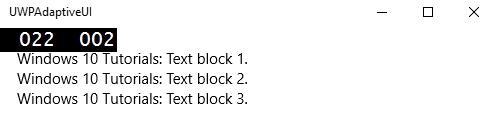
让我们调整上述窗口的宽度,您将看到以下窗口 -

现在您可以看到文本块是按水平顺序排列的。
RelativePanel
RelativePanel 可用于通过表达元素之间的空间关系来布局 UI 元素。让我们举一个在相对面板中创建一些矩形的例子。
<Page
   x:Class = "UWPAdaptiveUI.MainPage"
   xmlns = "http://schemas.microsoft.com/winfx/2006/xaml/presentation"
   xmlns:x = "http://schemas.microsoft.com/winfx/2006/xaml"
   xmlns:local = "using:UWPAdaptiveUI"
   xmlns:d = "http://schemas.microsoft.com/expression/blend/2008"
   xmlns:mc = "http://schemas.openxmlformats.org/markup-compatibility/2006"
   mc:Ignorable = "d">

   <Grid Background = "{ThemeResource ApplicationPageBackgroundThemeBrush}">

      <VisualStateManager.VisualStateGroups>

         <VisualStateGroup>

            <VisualState>

               <VisualState.StateTriggers>
                  <AdaptiveTrigger MinWindowWidth = "720" />
               </VisualState.StateTriggers>

               <VisualState.Setters>
                  <Setter Target = "GreenRect.(RelativePanel.RightOf)"
                     Value = "BlueRect" />
                  <Setter Target = "GreenRect.(RelativePanel.AlignRightWithPanel)"
                     Value = "True" />
               </VisualState.Setters>

            </VisualState>

         </VisualStateGroup>

      </VisualStateManager.VisualStateGroups>

      <RelativePanel BorderBrush = "Gray" BorderThickness = "10">
         <Rectangle x:Name = "RedRect" Fill = "Red" MinHeight = "100"
            MinWidth = "100"/>

         <Rectangle x:Name = "BlueRect" Fill = "Blue" MinHeight = "100"
            MinWidth = "100" RelativePanel.RightOf = "RedRect" />

         <!-- Width is not set on the green and yellow rectangles.
            It's determined by the RelativePanel properties. -->

         <Rectangle x:Name = "GreenRect" Fill = "Green" MinHeight = "100"
            RelativePanel.Below = "BlueRect" RelativePanel.AlignLeftWith = "RedRect"
            RelativePanel.AlignRightWith = "BlueRect"/>

         <Rectangle Fill = "Yellow" MinHeight = "100" RelativePanel.Below = "GreenRect"
            RelativePanel.AlignLeftWith = "BlueRect"
            RelativePanel.AlignRightWithPanel = "True"/>

      </RelativePanel>

   </Grid>

</Page>
编译并执行上述代码后,您将看到以下窗口。
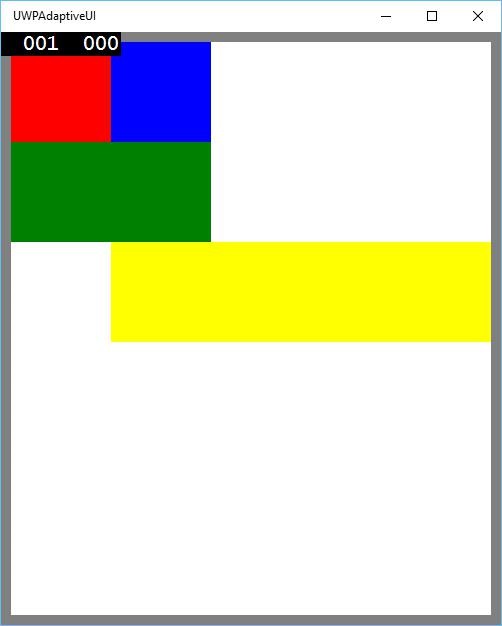
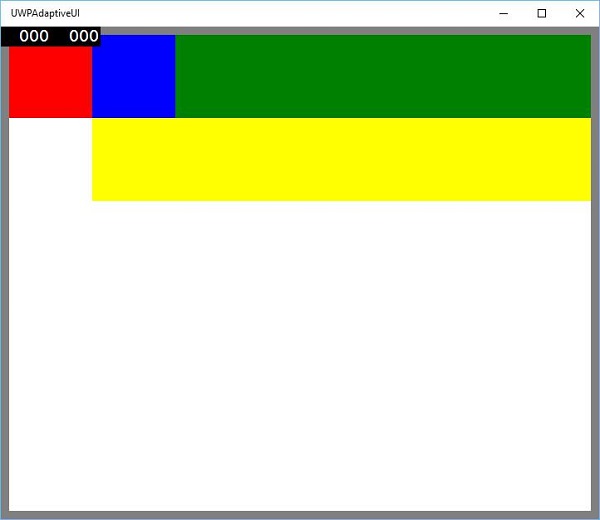
调整上述窗口大小时,您会看到绿色矩形现在已调整到蓝色矩形左侧的顶行,如下所示。
Windows 10 开发 - 自适应代码
在本章中,我们将演示如何使您的应用程序适用于 Windows 10 支持的不同设备。我们已经了解了如何采用您的 UI 以及 UWP 应用程序中使用的所有技巧、技术和控件。
现在,我们将学习如何采用您的代码,因为
应用程序代码在所有设备上都不相同。
使用的 API,特别是针对 Xbox 的 API,在移动设备上将不可用。HoloLens 等也是如此。
自适应代码可以根据条件启用您的应用程序,并且仅在特定设备系列和/或特定版本的平台/扩展 API 上运行时才执行代码。
编写代码
在 Windows 10 中,您可以使用 C++、C#、Visual Basic 或 JavaScript 在 Visual Studio 中实现 UWP 应用程序。
使用 C# 和 Visual Basic,您可以使用 XAML 进行 UI 设计。
使用 C++,您可以使用 DirectX 而不是使用 XAML。
对于 JavaScript,您可以使用 HTML 作为您的表示层,它是一个跨平台的 Web 标准。
Windows Core API 在所有设备上的运行方式相同,其中包含代码和 UI 所需的大多数功能。但是,对于针对特定设备系列的代码和 UI,您需要使用自适应代码和自适应 UI。
调用目标设备系列未实现的 API -
UI 可以轻松适应不同的屏幕,但不同的设备系列不仅具有不同的屏幕尺寸,而且还有更多其他方面。
例如,手机有一些硬件按钮,如返回键和相机键,这些按钮在其他设备(如 PC)上可能不可用。
默认情况下,核心 API 包含适用于所有设备的大多数功能,但可以通过在 UWP 应用程序中引用扩展 SDK(就像外部程序集一样)来使用特定于设备的功能。
要添加应用程序中需要的任何特定扩展 SDK,请按照以下步骤操作 -
右键单击引用。
选择“添加引用...”。将打开以下对话框。
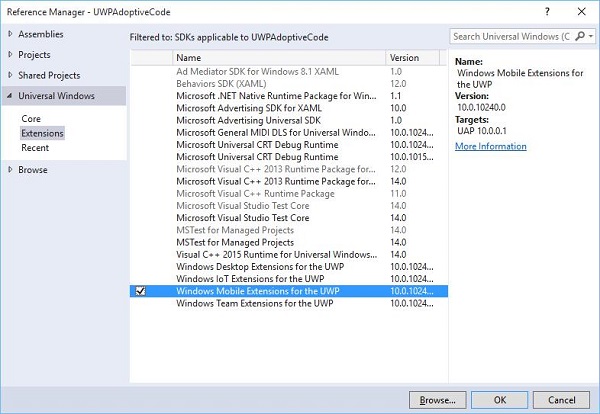
添加扩展就像添加项目引用一样简单。
现在,您可以从列表中添加任何扩展 SDK,其中包含桌面扩展、IoT 扩展和移动扩展等。
桌面和移动扩展是两个最常见的平台扩展 SDK。例如,移动扩展启用了使用硬件相机按钮所需的 API。
您可以使用Windows.Foundation.Metadata.ApiInformation 类方法检查设备功能,如果当前设备支持该类型,则该方法将返回布尔输出。例如,您可以使用如下代码启用您的 Windows 应用来使用相机按钮 -
bool isHardwareButtonsAPIPresent =
   Windows.Foundation.Metadata.ApiInformation.
   IsTypePresent("Windows.Phone.UI.Inpu t.HardwareButtons");

if (isHardwareButtonsAPIPresent) {
   Windows.Phone.UI.Input.HardwareButtons.CameraPressed += HardwareButtons_CameraPressed;
}
仅当设备上启用了移动扩展 SDK 时,才会执行手机相机按钮代码。类似地,您还可以使用IsEventPresent、IsMethodPresent、IsPropertyPresent代替IsTypePresent来检查当前 API 版本中的任何特定事件、方法或属性,如下所示。
bool isHardwareButtons_CameraPressedAPIPresent =
   Windows.Foundation.Metadata.ApiInformation.IsEventPresent
   ("Windows.Phone.UI.Input.HardwareButtons", "CameraPressed");
UWP 中的 Win32 API
用 C++/CX 编写的通用 Windows 平台 (UWP) 应用程序或 Windows 运行时组件可以访问 Win32 API,这些 API 现在也是 UWP 的一部分。所有 Windows 10 设备系列都可以通过将应用程序与Windowsapp.lib链接来实现 Win32 API。
Windowsapp.lib是一个“伞形”库,提供 UWP API 的导出。链接到Windowsapp.lib将向您的应用添加对所有 Windows 10 设备系列中存在的dll的依赖项。
让我们来看一个简单的例子,其中应用程序同时针对桌面和手机。因此,当应用程序在桌面上运行时,它不会显示状态栏,但当同一应用程序在手机上运行时,它将显示状态栏。
以下是添加不同控件的 XAML 代码。
<Page
   x:Class = "UWPAdoptiveCode.MainPage"
   xmlns = "http://schemas.microsoft.com/winfx/2006/xaml/presentation"
   xmlns:x = "http://schemas.microsoft.com/winfx/2006/xaml"
   xmlns:local = "using:UWPAdoptiveCode"
   xmlns:d = "http://schemas.microsoft.com/expression/blend/2008"
   xmlns:mc = "http://schemas.openxmlformats.org/markup-compatibility/2006"
   mc:Ignorable = "d">

   <Page.Background>
      <SolidColorBrush Color = "Green"/>
   </Page.Background>

   <Page.BottomAppBar>
      <CommandBar x:Name = "commandBar" >
         <AppBarButton Icon = "Accept" Label = "appbarbutton"/>
         <AppBarButton Icon = "Cancel" Label = "appbarbutton"/>
      </CommandBar>
   </Page.BottomAppBar>

   <Grid Background = "AliceBlue">

      <VisualStateManager.VisualStateGroups>

         <VisualStateGroup>

            <VisualState>
               <VisualState.StateTriggers>
                  <local:DeviceFamilyTrigger DeviceFamily = "Desktop" />
               </VisualState.StateTriggers>

               <VisualState.Setters>
                  <Setter Target = "StatusBarControls.Visibility"
                     Value = "Collapsed"/>
               </VisualState.Setters>

            </VisualState>

         </VisualStateGroup>

      </VisualStateManager.VisualStateGroups>

      <StackPanel HorizontalAlignment = "Left" Margin = "75,164,0,0"
         VerticalAlignment = "Top" >

         <RadioButton x:Name = "ShowAppBarRadioButton" Content = "Show AppBar"
            HorizontalAlignment = "Stretch" VerticalAlignment = "Stretch"
            IsChecked = "True" Checked = "RadioButton_Checked"/>

         <RadioButton x:Name = "ShowOpaqueAppBarRadioButton"
            Content = "Show Transparent AppBar" HorizontalAlignment = "Stretch"
            VerticalAlignment = "Stretch" Checked = "RadioButton_Checked"/>

         <RadioButton x:Name = "HideAppBarRadioButton" Content = "Hide AppBar"
            HorizontalAlignment = "Stretch" VerticalAlignment = "Stretch"
            Checked = "RadioButton_Checked"/>

      </StackPanel>

      <StackPanel x:Name = "StatusBarControls" Orientation = "Vertical"
         Margin = "75,350,0,0" Visibility = "Visible">

         <CheckBox x:Name = "StatusBarBackgroundCheckBox"
            Content = "Set StatusBar Background"
            Checked = "StatusBarBackgroundCheckBox_Checked"
            Unchecked = "StatusBarBackgroundCheckBox_Unchecked"/>

         <CheckBox x:Name = "StatusBarHiddenCheckBox"
            Content = "Set StatusBar Hidden" Checked = "StatusBarHiddenCheckBox_Checked"
            Unchecked = "StatusBarHiddenCheckBox_Unchecked"/>

      </StackPanel>

   </Grid>

</Page>
以下是不同事件的 C# 实现。
using Windows.UI;
using Windows.UI.Xaml;
using Windows.UI.Xaml.Controls;

// The Blank Page item template is documented at
   http://go.microsoft.com/fwlink/?LinkId=402352&clcid=0x409

namespace UWPAdoptiveCode {
   /// <summary>
      /// An empty page that can be used on its own or navigated to within a Frame.
   /// </summary>

   public sealed partial class MainPage : Page {

      private Color? DefaultTitleBarButtonsBGColor;
      private Color? DefaultTitleBarBGColor;

      public MainPage() {
         this.InitializeComponent();

         //Windows.UI.ViewManagement.ApplicationView.GetForCurrentView().
            VisibleBoundsCh anged += MainPage_VisibleBoundsChanged;

         var viewTitleBar = Windows.UI.ViewManagement.ApplicationView.
            GetForCurrentView().TitleBar;

         DefaultTitleBarBGColor = viewTitleBar.BackgroundColor;
         DefaultTitleBarButtonsBGColor = viewTitleBar.ButtonBackgroundColor;
      }

      private void RadioButton_Checked(object sender, RoutedEventArgs e) {

         // Bottom AppBar shows on Desktop and Mobile
         if (ShowAppBarRadioButton != null) {

            if (ShowAppBarRadioButton.IsChecked.HasValue &&
               (ShowAppBarRadioButton.IsChecked.Value == true)) {
                 commandBar.Visibility = Windows.UI.Xaml.Visibility.Visible;
                 commandBar.Opacity = 1;
            } else {
               commandBar.Visibility = Windows.UI.Xaml.Visibility.Collapsed;
            }
         }

         if (ShowOpaqueAppBarRadioButton != null) {

            if (ShowOpaqueAppBarRadioButton.IsChecked.HasValue &&
               (ShowOpaqueAppBarRadioButton.IsChecked.Value == true)){
                  commandBar.Visibility = Windows.UI.Xaml.Visibility.Visible;
                  commandBar.Background.Opacity = 0;
            } else{
               commandBar.Background.Opacity = 1;
            }
         }

      }

      private void StatusBarHiddenCheckBox_Checked(object sender, RoutedEventArgs e){

         // StatusBar is Mobile only
         if (Windows.Foundation.Metadata.ApiInformation.
            IsTypePresent("Windows.UI.ViewManag ement.StatusBar")){
               var ignore = Windows.UI.ViewManagement.StatusBar.GetForCurrentView().HideAsync();
         }
      }

      private void StatusBarHiddenCheckBox_Unchecked(object sender, RoutedEventArgs e){

         // StatusBar is Mobile only
         if (Windows.Foundation.Metadata.ApiInformation.
            IsTypePresent("Windows.UI.ViewManag ement.StatusBar")){
               var ignore = Windows.UI.ViewManagement.StatusBar.GetForCurrentView().ShowAsync();
         }
      }

      private void StatusBarBackgroundCheckBox_Checked(object sender, RoutedEventArgs e){

         // StatusBar is Mobile only
         if (Windows.Foundation.Metadata.ApiInformation.
            IsTypePresent("Windows.UI.ViewManag ement.StatusBar")){

               Windows.UI.ViewManagement.StatusBar.GetForCurrentView().
                  BackgroundColor = Windows.UI.Colors.Blue;

               Windows.UI.ViewManagement.StatusBar.GetForCurrentView().
                   BackgroundOpacity = 1;
         }
      }

      private void StatusBarBackgroundCheckBox_Unchecked(object sender, RoutedEventArgs e){

         // StatusBar is Mobile only
         if (Windows.Foundation.Metadata.ApiInformation.
            IsTypePresent("Windows.UI.ViewManag ement.StatusBar")){
               Windows.UI.ViewManagement.StatusBar.GetForCurrentView().
                  BackgroundOpacity = 0;
         }
      }

   }

   public class DeviceFamilyTrigger : StateTriggerBase{

      //private variables
      private string _deviceFamily;

      //Public property
      public string DeviceFamily {

         get {
            return _deviceFamily;
         }
         set{
            _deviceFamily = value;
            var qualifiers = Windows.ApplicationModel.Resources.Core.ResourceContext.
               GetForCurrentView().Qua lifierValues;

            if (qualifiers.ContainsKey("DeviceFamily"))
               SetActive(qualifiers["DeviceFamily"] == _deviceFamily);
            else
               SetActive(false);
         }
      }
   }
}
编译并在手机上执行上述代码后,您将看到以下窗口。
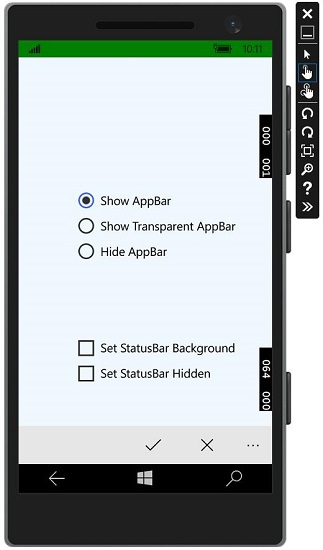
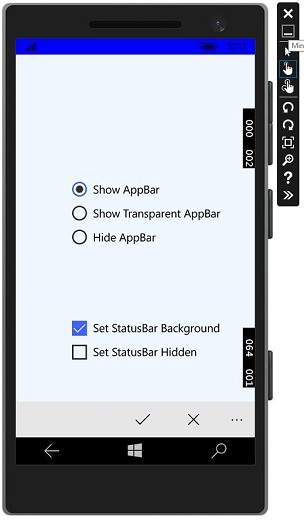
您可以使用复选框更改状态栏的背景颜色,如图像所示。
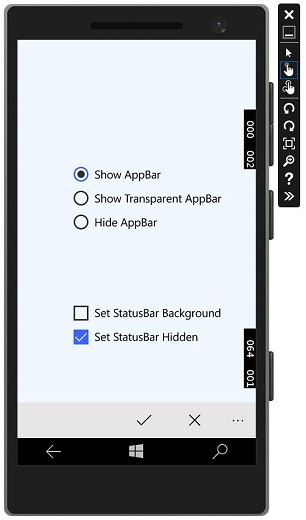
您还可以隐藏状态栏。
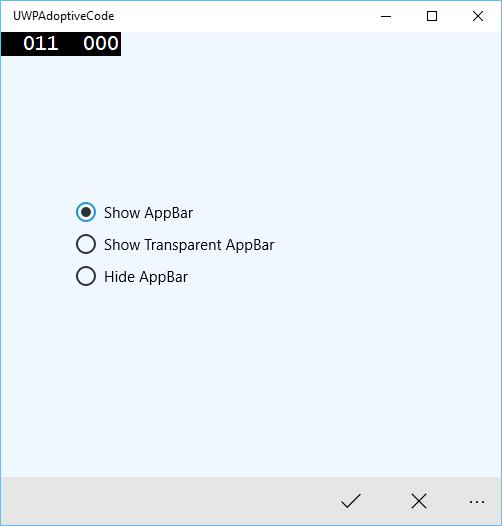
现在,当您在桌面设备上运行同一应用程序时,您将看到以下窗口,其中状态栏和特定于状态栏的复选框不可见。
Windows 10 开发 - 文件管理
在任何应用程序中,数据都是最重要的内容之一。如果您是.net开发人员,您可能了解隔离存储,并且通用 Windows 平台 (UWP) 应用程序也遵循相同的概念。
文件位置
这些是您的应用程序可以访问数据的区域。应用程序包含一些特定于该应用程序的私有区域,其他应用程序无法访问,但还有许多其他区域,您可以在其中将数据存储和保存到文件中。
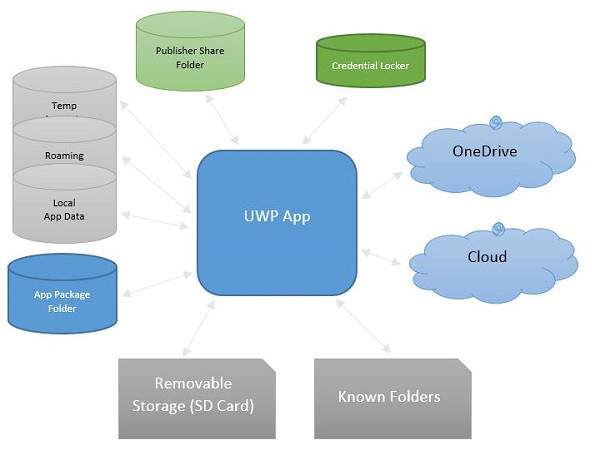
以下是每个文件夹的简要说明。
| 序号 | 文件夹和说明 |
|---|---|
| 1 | 应用包文件夹 包管理器将所有与应用程序相关的文件安装到应用包文件夹中,并且应用程序只能从此文件夹读取数据。 |
| 2 | 本地文件夹 应用程序将本地数据存储到本地文件夹中。它可以存储的数据量取决于存储设备上的限制。 |
| 3 | 漫游文件夹 与应用程序相关的设置和属性存储在漫游文件夹中。其他设备也可以从此文件夹访问数据。它的大小限制为每个应用程序 100KB。 |
| 4 | 临时文件夹 用于临时存储,并且不保证在应用程序再次运行时它仍然可用。 |
| 5 | 发布者共享 同一发布者的所有应用程序的共享存储。它在应用清单中声明。 |
| 6 | 凭据保管库 用于安全存储密码凭据对象。 |
| 7 | OneDrive OneDrive 是随您的 Microsoft 帐户提供的免费在线存储。 |
| 8 | 云 将数据存储在云中。 |
| 9 | 已知文件夹 这些文件夹已经是已知文件夹,例如“我的图片”、“视频”和“音乐”。 |
| 10 | 可移动存储 USB 存储设备或外部硬盘驱动器等。 |
文件处理 API
在 Windows 8 中,引入了新的文件处理 API。这些 API 位于Windows.Storage和Windows.Storage.Streams命名空间中。您可以使用这些 API 而不是System.IO.IsolatedStorage命名空间。通过使用这些 API,将更容易将您的 Windows Phone 应用移植到 Windows 应用商店,并且您可以轻松地将您的应用程序升级到 Windows 的未来版本。
要访问本地、漫游或临时文件夹,您需要调用这些 API -
StorageFolder localFolder = ApplicationData.Current.LocalFolder;
StorageFolder roamingFolder = ApplicationData.Current.RoamingFolder;
StorageFolder tempFolder = ApplicationData.Current.TemporaryFolder;
要在本地文件夹中创建新文件,请使用以下代码 -
StorageFolder localFolder = ApplicationData.Current.LocalFolder;
StorageFile textFile = await localFolder.CreateFileAsync(filename,
   CreationCollisionOption.ReplaceExisting);
这是打开新创建的文件并在该文件中写入一些内容的代码。
using (IRandomAccessStream textStream = await textFile.OpenAsync(FileAccessMode.ReadWrite)) {

   using (DataWriter textWriter = new DataWriter(textStream)){
      textWriter.WriteString(contents);
      await textWriter.StoreAsync();
   }

}
您可以从本地文件夹中再次打开同一文件,如以下代码所示。
using (IRandomAccessStream textStream = await textFile.OpenReadAsync()) {

   using (DataReader textReader = new DataReader(textStream)){
      uint textLength = (uint)textStream.Size;
      await textReader.LoadAsync(textLength);
      contents = textReader.ReadString(textLength);
   }

}
要了解数据读取和写入的工作原理,让我们来看一个简单的例子。以下是添加不同控件的 XAML 代码。
<Page
   x:Class = "UWPFileHandling.MainPage"
   xmlns = "http://schemas.microsoft.com/winfx/2006/xaml/presentation"
   xmlns:x = "http://schemas.microsoft.com/winfx/2006/xaml"
   xmlns:local = "using:UWPFileHandling"
   xmlns:d = "http://schemas.microsoft.com/expression/blend/2008"
   xmlns:mc = "http://schemas.openxmlformats.org/markup-compatibility/2006"
   mc:Ignorable = "d">

   <Grid Background = "{ThemeResource ApplicationPageBackgroundThemeBrush}">

      <Button x:Name = "readFile" Content = "Read Data From File"
         HorizontalAlignment = "Left" Margin = "62,518,0,0"
         VerticalAlignment = "Top" Height = "37" Width = "174"
         Click = "readFile_Click"/>

      <TextBox x:FieldModifier = "public" x:Name = "textBox"
         HorizontalAlignment = "Left" Margin = "58,145,0,0" TextWrapping = "Wrap"
         VerticalAlignment = "Top" Height = "276" Width = "245"/>.

      <Button x:Name = "writeFile" Content = "Write Data to File"
         HorizontalAlignment = "Left" Margin = "64,459,0,0"
         VerticalAlignment = "Top" Click = "writeFile_Click"/>

      <TextBlock x:Name = "textBlock" HorizontalAlignment = "Left"
         Margin = "386,149,0,0" TextWrapping = "Wrap"
         VerticalAlignment = "Top" Height = "266" Width = "250"
         Foreground = "#FF6231CD"/>

   </Grid>

</Page>
以下是不同事件的 C# 实现,以及用于读取和写入文本文件数据的FileHelper类的实现。
using System;
using System.IO;
using System.Threading.Tasks;

using Windows.Storage;
using Windows.Storage.Streams;
using Windows.UI.Xaml;
using Windows.UI.Xaml.Controls;

// The Blank Page item template is documented at
   http://go.microsoft.com/fwlink/?LinkId=402352&clcid=0x409

namespace UWPFileHandling {

   /// <summary>
      /// An empty page that can be used on its own or navigated to within a Frame.
   /// </summary>

   public partial class MainPage : Page {
      const string TEXT_FILE_NAME = "SampleTextFile.txt";

      public MainPage(){
         this.InitializeComponent();
      }

      private async void readFile_Click(object sender, RoutedEventArgs e) {
         string str = await FileHelper.ReadTextFile(TEXT_FILE_NAME);
         textBlock.Text = str;
      }

      private async void writeFile_Click(object sender, RoutedEventArgs e) {
         string textFilePath = await FileHelper.WriteTextFile(TEXT_FILE_NAME, textBox.Text);
      }

   }

   public static class FileHelper {

      // Write a text file to the app's local folder.

      public static async Task<string>
         WriteTextFile(string filename, string contents) {

         StorageFolder localFolder = ApplicationData.Current.LocalFolder;
         StorageFile textFile = await localFolder.CreateFileAsync(filename,
            CreationCollisionOption.ReplaceExisting);

         using (IRandomAccessStream textStream = await
            textFile.OpenAsync(FileAccessMode.ReadWrite)){

               using (DataWriter textWriter = new DataWriter(textStream)){
                  textWriter.WriteString(contents);
                  await textWriter.StoreAsync();
               }
         }

         return textFile.Path;
      }

      // Read the contents of a text file from the app's local folder.

      public static async Task<string> ReadTextFile(string filename) {
         string contents;
         StorageFolder localFolder = ApplicationData.Current.LocalFolder;
         StorageFile textFile = await localFolder.GetFileAsync(filename);

         using (IRandomAccessStream textStream = await textFile.OpenReadAsync()){

            using (DataReader textReader = new DataReader(textStream)){
               uint textLength = (uint)textStream.Size;
               await textReader.LoadAsync(textLength);
               contents = textReader.ReadString(textLength);
            }

         }

         return contents;
      }
   }
}
编译并执行上述代码后,您将看到以下窗口。
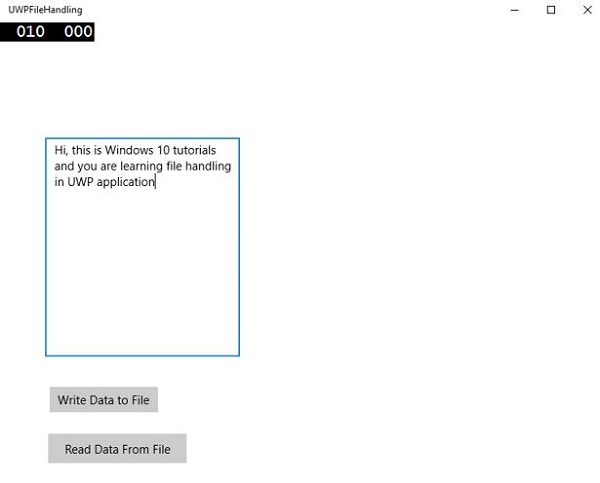
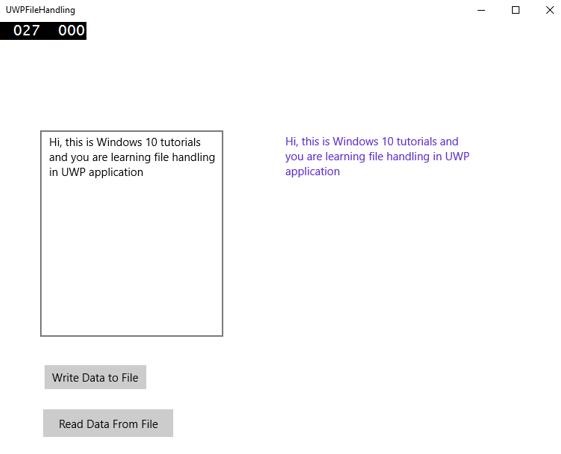
现在,您在文本框中写入内容并单击“将数据写入文件”按钮。程序将数据写入本地文件夹中的文本文件。如果您单击“从文件读取数据”按钮,程序将从位于本地文件夹中的同一文本文件中读取数据,并将其显示在文本块上。
Windows 10 开发 - SQLite 数据库
在许多应用程序中,某些类型的数据彼此之间存在某种关系。这些难以存储在文件中的数据类型可以存储在数据库中。
如果您熟悉任何应用程序中的 SQL Server 或 Oracle 数据库等数据库类型,那么理解SQLite 数据库非常容易。
什么是 SQLite?
SQLite 是一个软件库,它实现了自包含、无服务器、零配置、事务性 SQL 数据库引擎。
重要功能包括 -
SQLite 是世界上部署最广泛的数据库引擎。
SQLite 的源代码是开源的。
由于其可移植性和较小的占用空间,它对游戏和移动应用程序开发产生了重大影响。
SQLite 的优势
以下是 SQLite 的优势 -
- 它是一个非常轻量级的数据库。
- 它是平台独立的,可在所有平台上运行。
- 它具有较小的内存占用空间。
- 它是可靠的。
- 无需任何设置和安装。
- 它没有任何依赖项。
要在您的通用 Windows 平台 (UWP) 应用程序中使用SQLite,您需要按照以下步骤操作。
使用名称UWPSQLiteDemo创建一个新的通用 Windows 空白应用。
转到工具菜单,然后选择扩展和更新。将打开以下对话框。
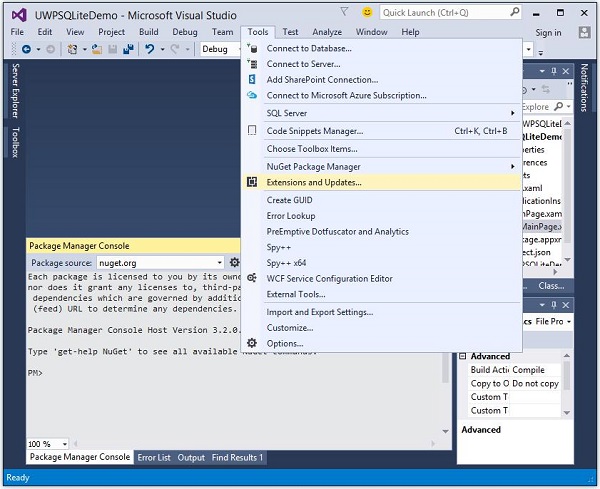
- 选择扩展和更新后,将打开以下窗口。
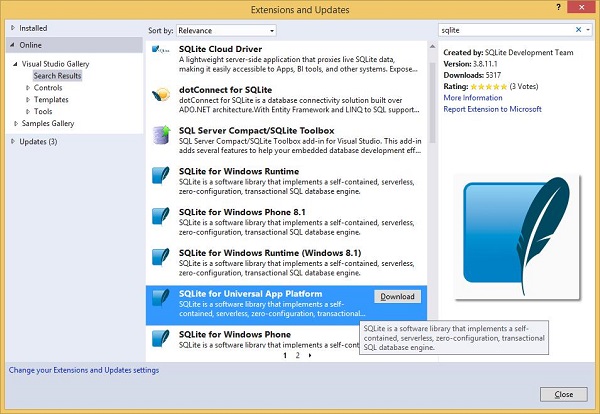
现在选择联机选项,然后从左侧窗格中搜索 SQLite。
下载并安装适用于通用应用平台的 SQLite。
现在,再次转到工具菜单,然后选择NuGet 包管理器 > 包管理器控制台菜单选项,如下所示。
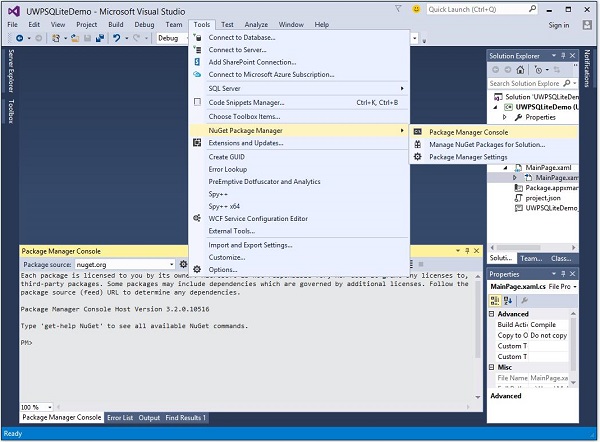
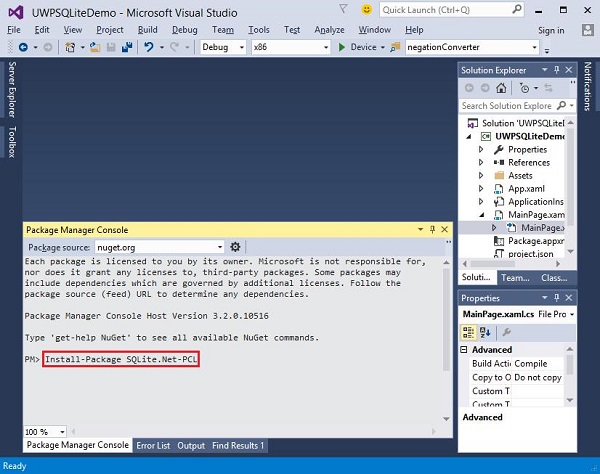
在包管理器控制台中写入以下命令,然后按 Enter 执行此命令 -
Install-Package SQLite.Net-PCL
现在,在解决方案资源管理器中右键单击引用,然后选择添加引用。
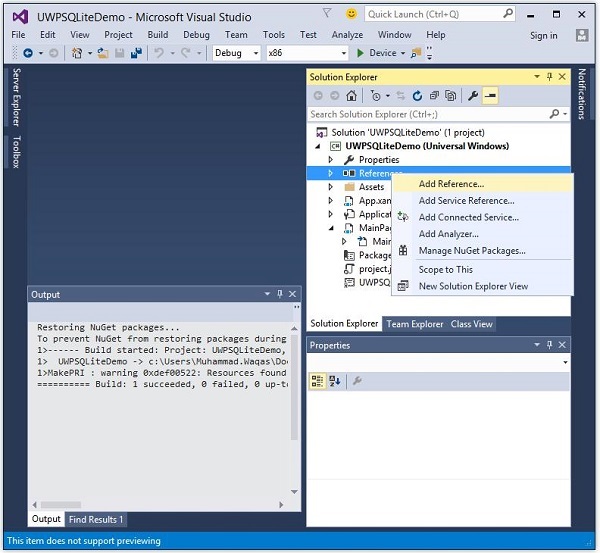
- 将打开以下对话框。
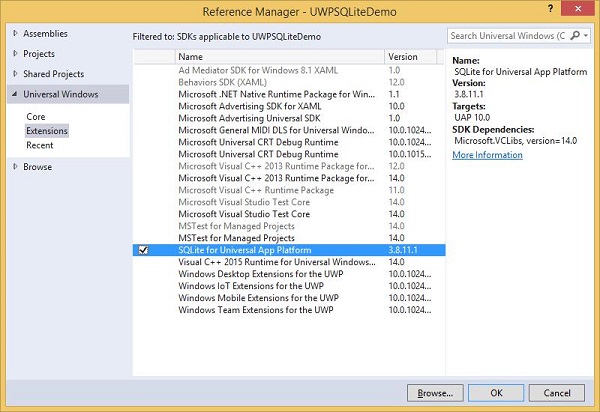
从通用 Windows下的左侧窗格中选择扩展,在中间窗格中选中适用于通用应用平台的 SQLite,然后单击确定。
现在,您已准备好开始在 UWP 应用程序中使用 SQLite 了。
您可以使用以下代码创建数据库。
string path = Path.Combine(Windows.Storage.ApplicationData.
   Current.LocalFolder.Path, "db.sqlite");

SQLite.Net.SQLiteConnection conn = new SQLite.Net.SQLiteConnection(new
   SQLite.Net.Platform.WinRT.SQLitePlatformWinRT(), path);
要创建表格,您需要使用表名对象调用CreateTable方法。
conn.CreateTable<Customer>();
您可以使用以下代码将数据插入到您的表格中。
conn.Insert(new Customer(){
   Name = textBox.Text,
   Age = textBox1.Text
});
以下是从表格中检索数据的代码。
var query = conn.Table<Customer>();
string id = "";
string name = "";
string age = "";

foreach (var message in query) {
   id = id + " " + message.Id;
   name = name + " " + message.Name;
   age = age + " " + message.Age;
}
让我们通过一个简单的例子来了解如何创建一个数据库、一个表格以及如何从数据库中插入和检索数据。我们将添加姓名和年龄,然后我们将从表格中检索相同的数据。以下是添加不同控件的 XAML 代码。
<Page
   x:Class = "UWPSQLiteDemo.MainPage"
   xmlns = "http://schemas.microsoft.com/winfx/2006/xaml/presentation"
   xmlns:x = "http://schemas.microsoft.com/winfx/2006/xaml"
   xmlns:local = "using:UWPSQLiteDemo"
   xmlns:d = "http://schemas.microsoft.com/expression/blend/2008"
   xmlns:mc = "http://schemas.openxmlformats.org/markup-compatibility/2006"
   mc:Ignorable = "d">

   <Grid Background = "{ThemeResource ApplicationPageBackgroundThemeBrush}" >
      <Button x:Name = "Retrieve" Content = "Retrieve" HorizontalAlignment = "Left"
         VerticalAlignment = "Top" Margin = "384,406,0,0"
         Click = "Retrieve_Click"/>

      <Button x:Name = "Add" Content = "Add" HorizontalAlignment = "Left"
         VerticalAlignment = "Top" Margin = "291,406,0,0" Click = "Add_Click"/>

      <TextBlock x:Name = "textBlock" HorizontalAlignment = "Left"
         TextWrapping = "Wrap" Text = "Name" VerticalAlignment = "Top"
         Margin = "233,280,0,0" Width = "52"/>

      <TextBox x:Name = "textBox" HorizontalAlignment = "Left" TextWrapping = "Wrap"
         VerticalAlignment = "Top" Margin = "289,274,0,0" Width = "370"/>

      <TextBlock x:Name = "textBlock1" HorizontalAlignment = "Left"
         TextWrapping = "Wrap" Text = "Age" VerticalAlignment = "Top"
         Margin = "233,342,0,0" Width = "52"/>

      <TextBox x:Name = "textBox1" HorizontalAlignment = "Left" TextWrapping = "Wrap"
         VerticalAlignment = "Top" Margin = "289,336,0,0" Width = "191"/>

      <TextBlock x:Name = "textBlock2" HorizontalAlignment = "Left"
         Margin = "290,468,0,0" TextWrapping = "Wrap"
         VerticalAlignment = "Top" Width = "324" Height = "131"/>

   </Grid>

</Page>
以下是事件和SQLite 数据库的 C# 实现。
using SQLite.Net.Attributes;

using System;
using System.Collections.Generic;
using System.IO;
using System.Linq;
using System.Runtime.InteropServices.WindowsRuntime;

using Windows.Foundation;
using Windows.Foundation.Collections;

using Windows.UI.Xaml;
using Windows.UI.Xaml.Controls;
using Windows.UI.Xaml.Controls.Primitives;
using Windows.UI.Xaml.Data;
using Windows.UI.Xaml.Input;
using Windows.UI.Xaml.Media;
using Windows.UI.Xaml.Navigation;

// The Blank Page item template is documented at
   http://go.microsoft.com/fwlink/?LinkId=402352&clcid=0x409

namespace UWPSQLiteDemo {

   /// <summary>
      /// An empty page that can be used on its own or navigated to within a Frame.
   /// </summary>

   public sealed partial class MainPage : Page {
      string path;
      SQLite.Net.SQLiteConnection conn;

      public MainPage(){
         this.InitializeComponent();
         path = Path.Combine(Windows.Storage.ApplicationData.Current.LocalFolder.Path,
            "db.sqlite");
         conn = new SQLite.Net.SQLiteConnection(new
            SQLite.Net.Platform.WinRT.SQLitePlatformWinRT(), path);
         conn.CreateTable<Customer>();
      }

      private void Retrieve_Click(object sender, RoutedEventArgs e) {
         var query = conn.Table<Customer>();
         string id = "";
         string name = "";
         string age = "";

         foreach (var message in query) {
            id = id + " " + message.Id;
            name = name + " " + message.Name;
            age = age + " " + message.Age;
         }

         textBlock2.Text = "ID: " + id + "\nName: " + name + "\nAge: " + age;
      }

      private void Add_Click(object sender, RoutedEventArgs e){

         var s = conn.Insert(new Customer(){
            Name = textBox.Text,
            Age = textBox1.Text
         });

      }
   }

   public class Customer {
      [PrimaryKey, AutoIncrement]
      public int Id { get; set; }
      public string Name { get; set; }
      public string Age { get; set; }
   }

}
编译并执行上述代码后,您将看到以下窗口。
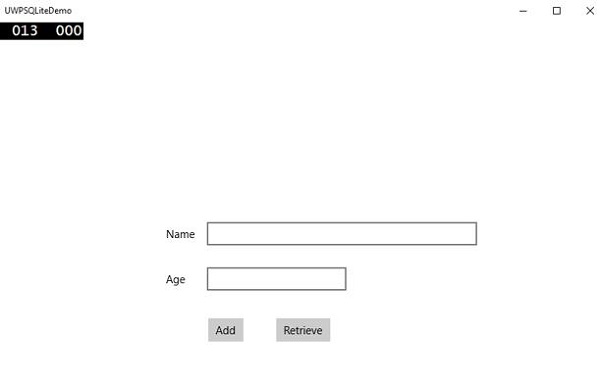
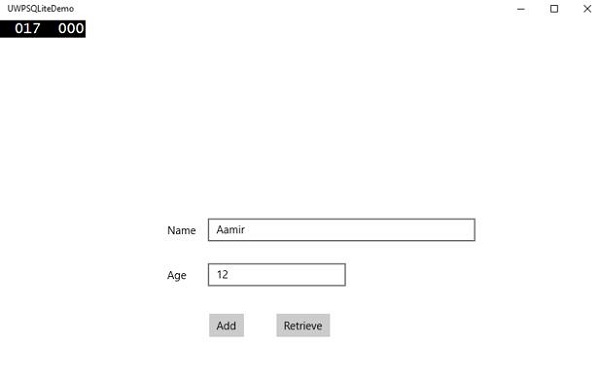
输入姓名和年龄,然后点击添加按钮。
现在点击检索按钮。您将在文本块上看到以下数据。
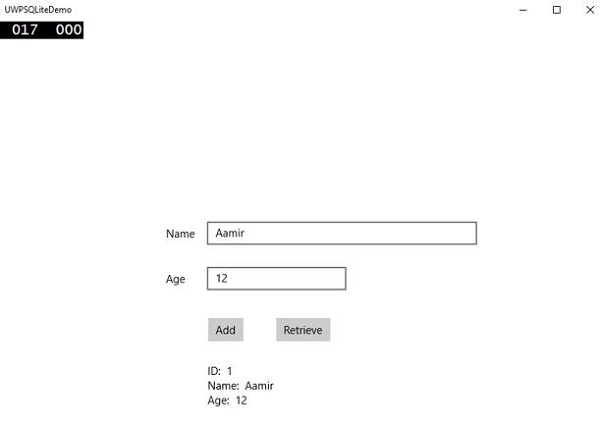
ID 字段是主键和自动增量字段,在 Customer 类中指定。
[PrimaryKey, AutoIncrement]
public int Id { get; set; }
Windows10 开发 - 应用通信
应用间通信意味着您的应用程序可以与安装在同一设备上的其他应用程序进行通信。这并不是通用 Windows 平台 (UWP) 应用程序的新功能,在 Windows 8.1 中也可用。
在 Windows 10 中,引入了一些新的改进方法来轻松地在同一设备上的应用程序之间进行通信。两个应用程序之间的通信可以通过以下方式实现:
- 一个应用程序启动另一个应用程序并传递一些数据。
- 应用程序之间简单地交换数据,无需启动任何内容。
应用间通信的主要优势在于,您可以将应用程序分解成更小的块,这些块可以更容易地维护、更新和使用。
准备您的应用
如果您按照以下步骤操作,其他应用程序就可以启动您的应用程序。
在应用程序包清单中添加协议声明。
双击Package.appxmanifest文件,该文件位于解决方案资源管理器中,如下所示。
转到声明选项卡,并写入协议名称,如下所示。
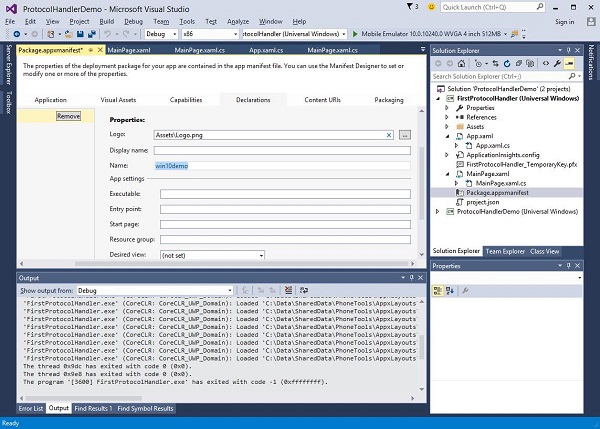
下一步是添加激活代码,以便应用程序在被其他应用程序启动时能够做出相应的响应。
要响应协议激活,我们需要重写激活类的OnActivated方法。因此,在App.xaml.cs文件中添加以下代码。
protected override void OnActivated(IActivatedEventArgs args) {

   ProtocolActivatedEventArgs protocolArgs = args as ProtocolActivatedEventArgs;

   if (args != null){

      Frame rootFrame = Window.Current.Content as Frame;

      // Do not repeat app initialization when the Window already has content,
      // just ensure that the window is active

      if (rootFrame == null){

         // Create a Frame to act as the navigation context and navigate to the first page
         rootFrame = new Frame();

         // Set the default language
         rootFrame.Language = Windows.Globalization.ApplicationLanguages.Languages[0];
         rootFrame.NavigationFailed += OnNavigationFailed;

         // Place the frame in the current Window
         Window.Current.Content = rootFrame;
      }

      if (rootFrame.Content == null){

         // When the navigation stack isn't restored, navigate to the
         // first page, configuring the new page by passing required
         // information as a navigation parameter

         rootFrame.Navigate(typeof(MainPage), null);
      }

      // Ensure the current window is active
      Window.Current.Activate();

   }
}
要启动应用程序,您可以简单地使用Launcher.LaunchUriAsync方法,该方法将使用此方法中指定的协议启动应用程序。
await Windows.System.Launcher.LaunchUriAsync(new Uri("win10demo:?SomeData=123"));
让我们通过一个简单的示例来了解这一点,在这个示例中,我们有两个 UWP 应用程序,分别是ProtocolHandlerDemo和FirstProtocolHandler。
在此示例中,ProtocolHandlerDemo应用程序包含一个按钮,点击该按钮将打开FirstProtocolHandler应用程序。
以下是 ProtocolHandlerDemo 应用程序的 XAML 代码,其中包含一个按钮。
<Page
   x:Class = "ProtocolHandlerDemo.MainPage"
   xmlns = "http://schemas.microsoft.com/winfx/2006/xaml/presentation"
   xmlns:x = "http://schemas.microsoft.com/winfx/2006/xaml"
   xmlns:local = "using:ProtocolHandlerDemo"
   xmlns:d = "http://schemas.microsoft.com/expression/blend/2008"
   xmlns:mc = "http://schemas.openxmlformats.org/markup-compatibility/2006"
   mc:Ignorable = "d">

   <Grid Background = "{ThemeResource ApplicationPageBackgroundThemeBrush}">
      <Button x:Name = "LaunchButton" Content = " Launch First Protocol App"
         FontSize = "24" HorizontalAlignment = "Center"
         Click = "LaunchButton_Click"/>
   </Grid>

</Page>
以下是 C# 代码,其中实现了按钮点击事件。
using System;
using Windows.UI.Xaml;
using Windows.UI.Xaml.Controls;

// The Blank Page item template is documented at
   http://go.microsoft.com/fwlink/?LinkId=402352&clcid=0x409

namespace ProtocolHandlerDemo {

   /// <summary>
      /// An empty page that can be used on its own or navigated to within a Frame.
   /// </summary>

   public sealed partial class MainPage : Page {

      public MainPage(){
         this.InitializeComponent();
      }

      private async void LaunchButton_Click(object sender, RoutedEventArgs e) {
         await Windows.System.Launcher.LaunchUriAsync(new
            Uri("win10demo:?SomeData=123"));
      }

   }
}
现在让我们看看FirstProtocolHandler应用程序表格。以下是创建具有某些属性的文本块的 XAML 代码。
<Page
   x:Class = "FirstProtocolHandler.MainPage"
   xmlns = "http://schemas.microsoft.com/winfx/2006/xaml/presentation"
   xmlns:x = "http://schemas.microsoft.com/winfx/2006/xaml"
   xmlns:local = "using:FirstProtocolHandler"
   xmlns:d = "http://schemas.microsoft.com/expression/blend/2008"
   xmlns:mc = "http://schemas.openxmlformats.org/markup-compatibility/2006"
   mc:Ignorable = "d">

   <Grid Background = "{ThemeResource ApplicationPageBackgroundThemeBrush}">
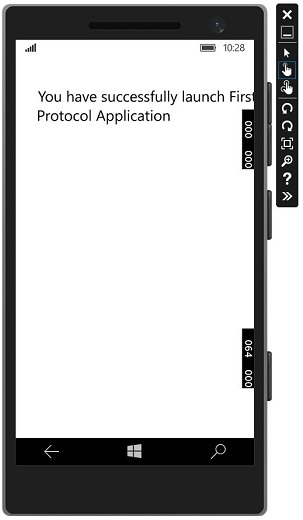
      <TextBlock Text = "You have successfully launch First Protocol Application"
         TextWrapping = "Wrap" Style = "{StaticResource SubtitleTextBlockStyle}"
         Margin = "30,39,0,0" VerticalAlignment = "Top" HorizontalAlignment = "Left"
         Height = "100" Width = "325"/>
   </Grid>

</Page>
以下是App.xaml.cs文件的 C# 实现,其中重写了OnActicated。在App.xaml.cs文件中的 App 类中添加以下代码。
protected override void OnActivated(IActivatedEventArgs args) {
   ProtocolActivatedEventArgs protocolArgs = args as ProtocolActivatedEventArgs;

   if (args != null) {
      Frame rootFrame = Window.Current.Content as Frame;

      // Do not repeat app initialization when the Window already has content,
      // just ensure that the window is active

      if (rootFrame == null) {

         // Create a Frame to act as the navigation context and navigate to
            the first page
         rootFrame = new Frame();

         // Set the default language
         rootFrame.Language = Windows.Globalization.ApplicationLanguages.Languages[0];
         rootFrame.NavigationFailed += OnNavigationFailed;

         // Place the frame in the current Window
         Window.Current.Content = rootFrame;
      }

      if (rootFrame.Content == null) {

         // When the navigation stack isn't restored navigate to the
         // first page, configuring the new page by passing required
         // information as a navigation parameter

         rootFrame.Navigate(typeof(MainPage), null);
      }

      // Ensure the current window is active
      Window.Current.Activate();
   }
}
当您在模拟器上编译并执行ProtocolHandlerDemo应用程序时,您将看到以下窗口。
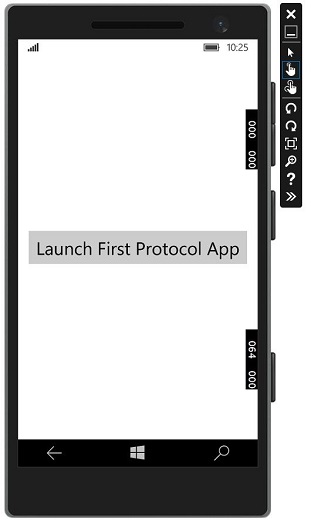
现在,当您点击按钮时,它将打开FirstProtocolHandler应用程序,如下所示。
Windows 10 开发 - 本地化
Windows 在全球范围内使用,在各种不同的市场和针对不同文化、地区或语言的目标受众。本地化是指将应用程序资源翻译成特定文化支持的本地化版本。
当您仅用一种语言开发任何应用程序时,这意味着您只是限制了自己的业务和客户。如果您想扩大客户群,从而增加您的业务,那么您的应用程序必须在全球范围内可用并可访问。对您的产品进行经济高效的本地化是接触更多客户的最佳和最经济的方式之一。
在 Windows 10 中,使用resx文件创建可本地化的应用程序非常容易,这是本地化最简单的解决方案。
让我们通过遵循下面提到的所有步骤,通过一个简单的例子来理解这一点。
翻译 UI 资源
您可以将 UI 的字符串资源放入资源 (resw) 文件中,而不是直接将它们放在代码或标记中,然后您可以从代码或标记中引用这些字符串。请按照以下步骤将字符串添加到资源文件。
创建一个新的通用 Windows 平台 (UWP) 应用程序。
在解决方案资源管理器中,右键单击项目并选择添加 > 新建文件夹。
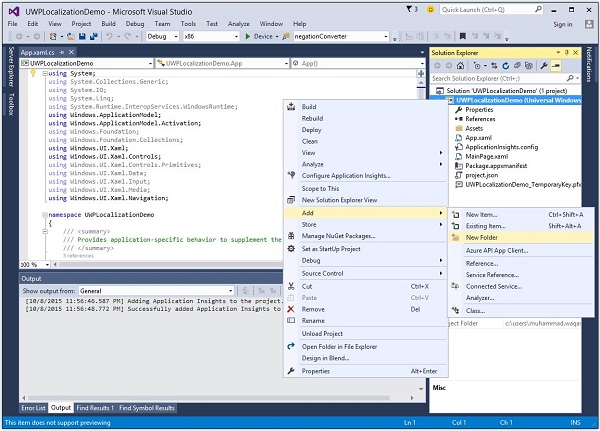
将新文件夹的名称更改为“Strings”。
右键单击Strings文件夹,并添加一个名为“en-US”的新文件夹。这些是特定于语言和国家/地区名称的命名约定,可以在国家/地区语言支持 (NLS) API 参考 msdn.microsoft.com页面上找到。
右键单击en-US文件夹,然后选择添加 > 新建项…。
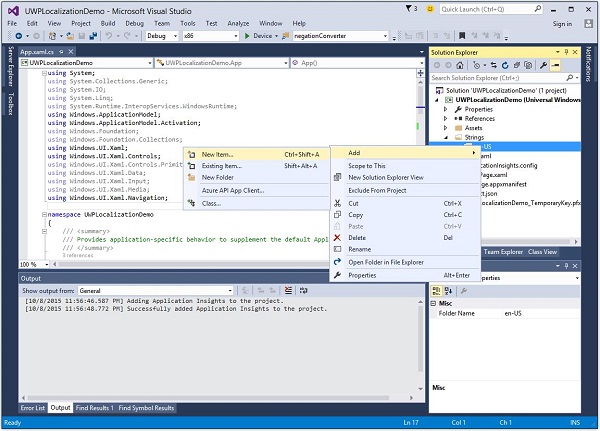
- 将打开以下对话框。
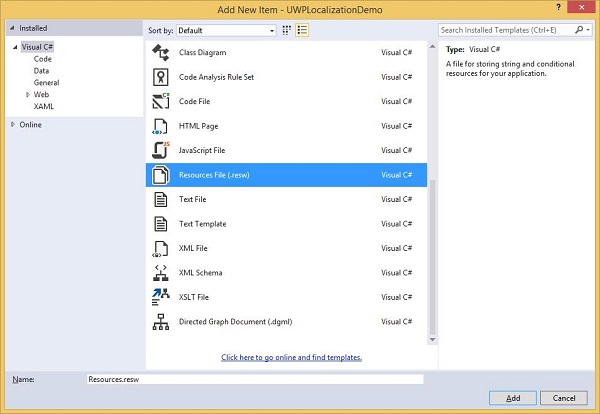
选择“资源文件 (.resw)”,然后单击添加按钮。
现在让我们转到 XAML 文件,并添加一个具有某些属性的 Hub 控件,如下所示。
<Page
   x:Class = "UWPLocalizationDemo.MainPage"
   xmlns = "http://schemas.microsoft.com/winfx/2006/xaml/presentation"
   xmlns:x = "http://schemas.microsoft.com/winfx/2006/xaml"
   xmlns:local = "using:UWPLocalizationDemo"
   xmlns:d = "http://schemas.microsoft.com/expression/blend/2008"
   xmlns:mc = "http://schemas.openxmlformats.org/markup-compatibility/2006"
   mc:Ignorable = "d">

   <Grid Background = "{ThemeResource ApplicationPageBackgroundThemeBrush}">
      <Hub x:Name = "textBlock" x:Uid = "HubControl" Background = "Black"
         Foreground = "White" Header = "Localization Demo"/>
   </Grid>

</Page>
x:Uid = “HubControl”是用于本地化的标识符。
现在,当编译并执行上述代码时,您将看到以下窗口。
与 Hub 相关的所有信息,例如标题、前景色和背景颜色,都设置在 XAML 中。
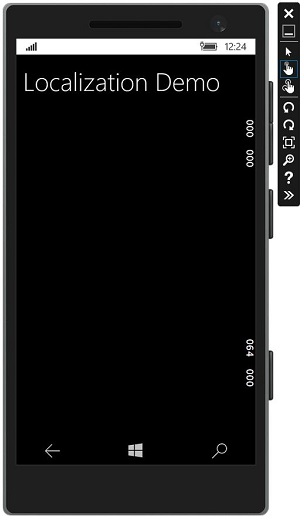
现在在Strings/en-US文件夹中的Resource.resw文件中添加一些信息,如下所示。

您需要将每个需要本地化文本的控件与 .resw文件关联。您可以通过在 XAML 元素上使用x:Uid属性来实现,如下所示:
x:Uid = “HubControl”用于在resw文件中为标题、前景色和背景颜色分配字符串。
现在,当您在模拟器上编译并执行应用程序时,您将看到以下窗口。您可以看到标题、前景色和背景颜色的值是从Resources.resw文件中获取的。

您可以为其他语言(例如法语、德语和日语等)手动添加其他Resource.resw文件,就像我们为英语-美国所做的那样,但 Microsoft 还提供了多语言应用程序工具包,借助该工具包,您可以轻松地将Resource.resw翻译成其他语言。
转到工具 > 扩展和更新菜单,并搜索多语言应用程序工具包。
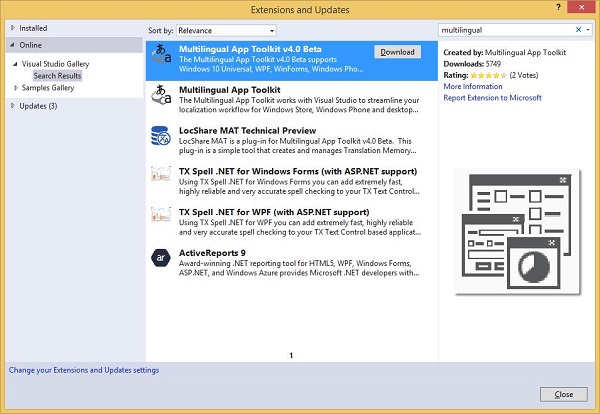
下载并安装此工具包。安装完成后,重新启动 Visual Studio 并打开同一个项目。
现在从工具 > 多语言应用程序工具包菜单选项中启用此工具包。
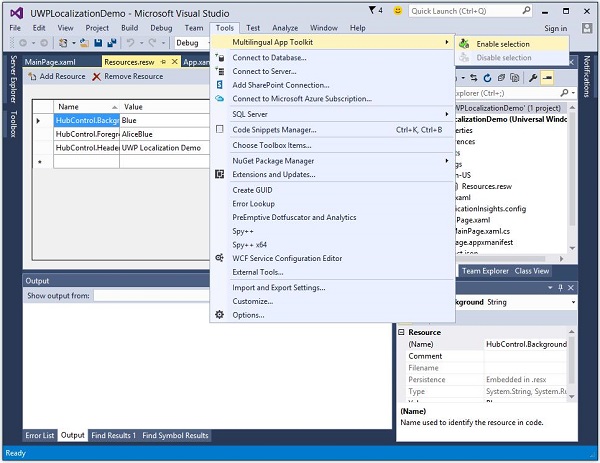
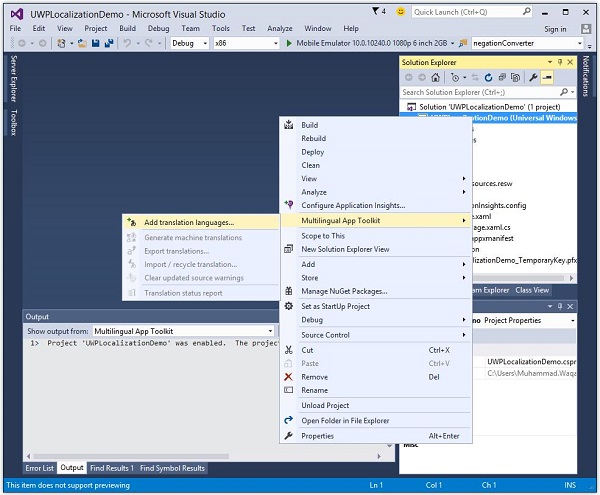
现在您可以为其他语言添加翻译。
右键单击解决方案资源管理器中的项目,然后从菜单中选择多语言应用程序工具包 > 添加翻译语言选项。
将打开以下翻译语言对话框。您可以选择任何您想要的语言,以针对这些文化本地化您的应用程序。
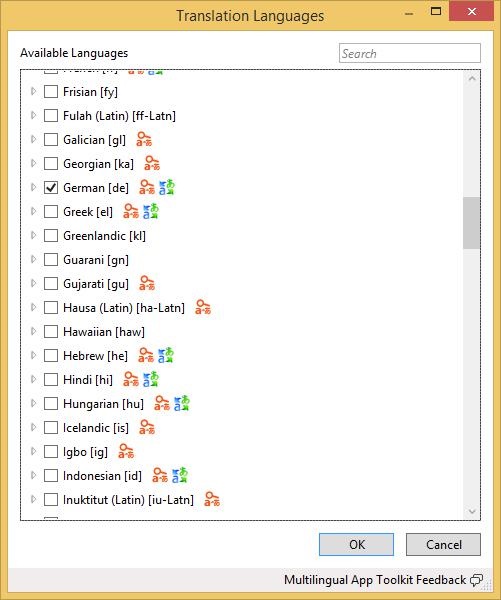
让我们选择德语,然后单击确定按钮。
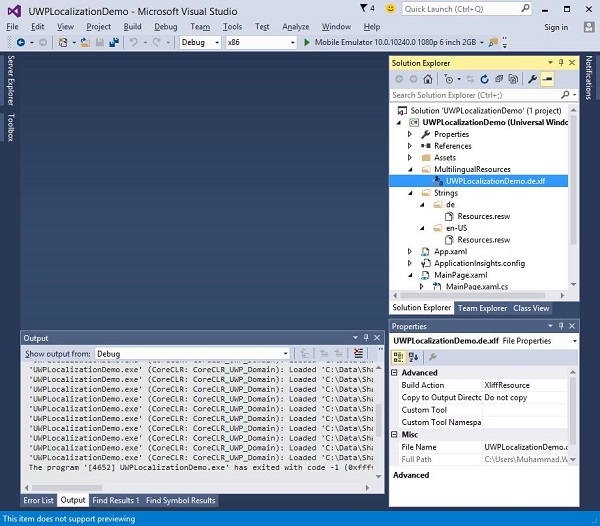
您还可以看到Resources.resw文件是在Strings\de文件夹内创建的。
现在,您将看到另一个MultiLingualResources已添加到*.xlf文件中。双击此文件,这将打开多语言编辑器以检查和验证已翻译的字符串,并在需要时进行一些更改。
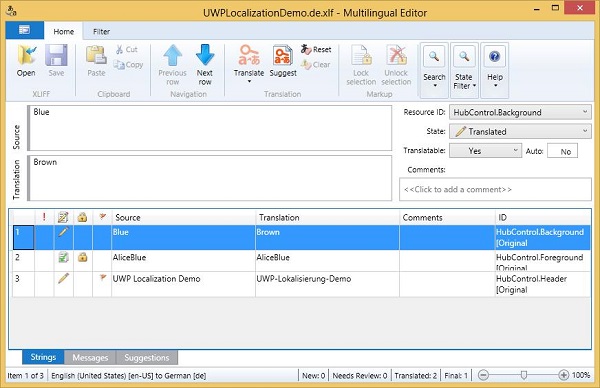
进行更改并验证背景颜色是否已更改为棕色,以及标题文本是否已正确翻译成德语。
如上例所示,Hub 的背景颜色已从蓝色更改为棕色,前景色保持不变。
现在打开Resources.resw,它位于Strings\de文件夹内。
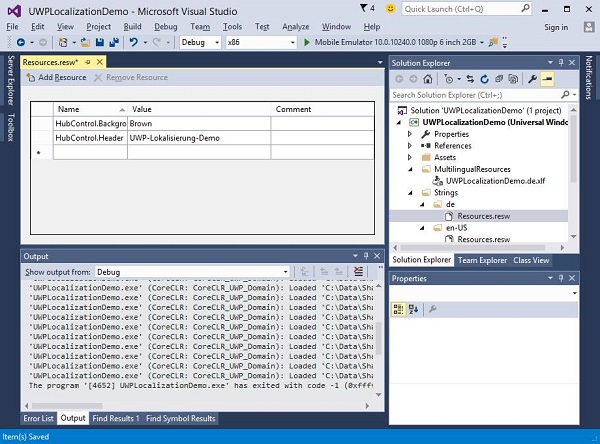
您可以看到这里只提到了两个字符串,因为我们没有在多语言编辑器中更改前景色。
要检查应用程序的本地化版本,请更改计算机的区域性。要更改计算机的区域性,请按照以下步骤操作。
- 让我们转到 PC 设置并选择时间和语言。
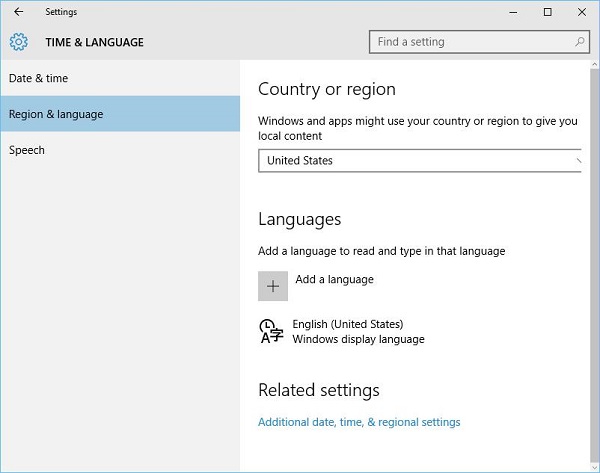
在左侧窗格中,选择区域和语言,然后单击添加语言。
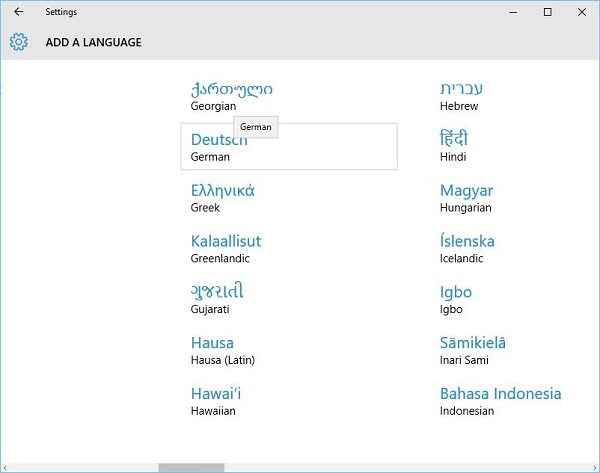
选择德语 (德国)语言,如上所示,这将打开另一个对话框。
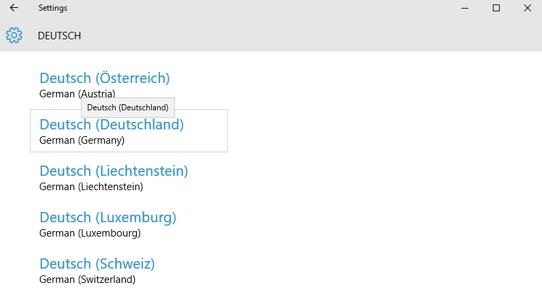
现在选择德语 (德国)并关闭此对话框。

- 将德语设置为默认语言。
- 现在执行您的应用程序,它将显示以下窗口。
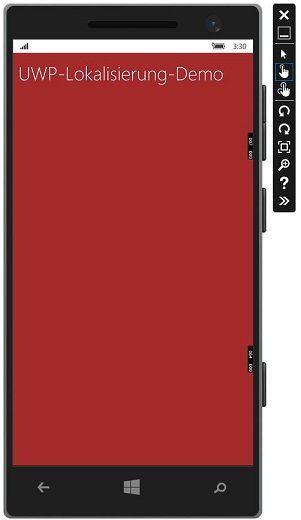
- 现在您可以看到您的应用程序的德语输出。
Windows 10 开发 - 生命周期
从历史上看,Windows 拥有一个环境,用户可以在其中同时运行多个应用程序。用户可以轻松地在不同的应用程序之间切换。此模型不适用于手机或平板电脑设备,因为这些设备通常以单一应用程序为中心。
Windows 8 应用商店应用程序程序员面临的最重大挑战之一是管理和理解应用程序的生命周期。如果您一直在构建 Windows Phone 应用程序,那么其中许多内容将是熟悉的。
在 Windows 8 下,操作系统管理应用程序的生命周期,虽然用户可以终止应用程序,但通常用户会打开新的应用程序,而不会有意识地终止正在运行的应用程序。
Windows 10 的通用 Windows 平台 (UWP) 解决了这些问题,为桌面用户提供了一些很酷的功能,以便多个应用程序可以以多窗口体验运行。
Windows 应用程序可以在基本级别存在三种状态,如下所示。
运行中
挂起
终止
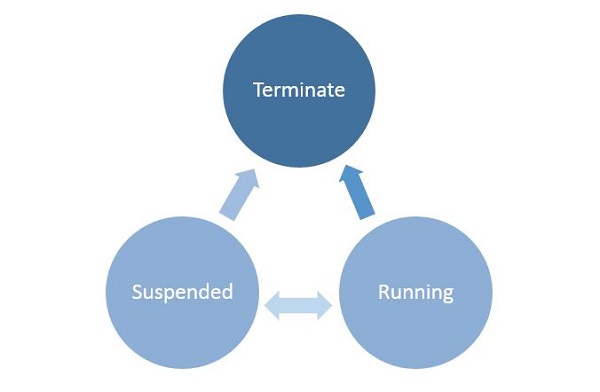
当用户启动/激活任何应用程序时,它将进入运行中状态。
如果用户不使用应用程序并且它不再处于前台,则可以将其挂起。
从挂起状态,应用程序可以恢复该应用程序或终止操作系统以回收系统资源。
进程状态转换
了解正在运行的应用程序中的进程状态转换非常重要。当用户首次启动应用程序时,将显示启动屏幕,然后应用程序开始运行。
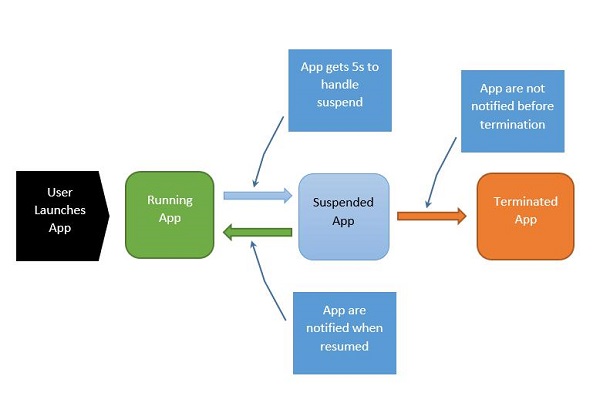
该过程可以解释如下:
当应用程序挂起时,您的应用程序有 5 秒钟的时间来处理该挂起事件。
当应用程序挂起时,绝对不会运行任何代码,也不会分配任何资源。
恢复时,将通知应用程序它已恢复。如果您来自挂起状态,则无需执行任何操作。
在内存压力下,您的应用程序可能会被终止。
请记住,在那个时候您不会收到通知,因此,您需要在进入挂起应用程序状态时执行任何保存操作。
当应用程序在运行和挂起状态之间来回转换时,分别触发挂起和恢复事件。
有时,您需要保存数据。然后,您必须调用如下所示的异步方法。
Application.Current.Suspending += new SuspendingEventHandler(App_Suspending);

async void App_Suspending(Object sender, Windows.ApplicationModel.SuspendingEventArgs e){
   // Create a simple setting
   localSettings.Values["FirstName"] = fName.Text;
   localSettings.Values["LastName"] = lName.Text;
   localSettings.Values["Email"] = email.Text;
}
Application.Current.Resuming += new EventHandler<Object>(App_Resuming);

private void App_Resuming(Object sender, Object e){
   fName.Text = localSettings.Values["FirstName"];
   lName.Text = localSettings.Values["LastName"];
   email.Text = localSettings.Values["Email"];
}
让我们研究一个示例,其中控件如以下给定的 XAML 文件中所示添加。
<Page
   x:Class = "UWPLifeCycleDemo.MainPage"
   xmlns = "http://schemas.microsoft.com/winfx/2006/xaml/presentation"
   xmlns:x = "http://schemas.microsoft.com/winfx/2006/xaml"
   xmlns:local = "using:UWPLifeCycleDemo"
   xmlns:d = "http://schemas.microsoft.com/expression/blend/2008"
   xmlns:mc = "http://schemas.openxmlformats.org/markup-compatibility/2006"
   mc:Ignorable = "d">

   <Grid Background = "{ThemeResource ApplicationPageBackgroundThemeBrush}">
      <Hub Header = "Details" />

      <StackPanel VerticalAlignment = "Top" HorizontalAlignment = "Left"
         Margin = "12,64,0,0">

         <TextBox Header = "First Name" Text = "{Binding FirstName,
            Mode = TwoWay, UpdateSourceTrigger = PropertyChanged}"
            Width = "200" />

         <TextBox Header = "Last Name" Text = "{Binding LastName, Mode = TwoWay,
            UpdateSourceTrigger = PropertyChanged}" Width = "200" />

         <TextBox Header = "Email" Text = "{Binding Email, Mode = TwoWay,
            UpdateSourceTrigger = PropertyChanged}" Width = "200" />

         <Button Margin = "0,12">Submit</Button>

      </StackPanel>

   </Grid>

</Page>
下面是 C# 代码,其中实现了挂起和恢复事件。当前数据将存储在挂起事件中的本地设置中,然后从本地设置中的恢复事件中检索数据,如下所示。
using System;
using System.ComponentModel;
using System.Runtime.CompilerServices;

using Windows.UI.Xaml;
using Windows.UI.Xaml.Controls;

namespace UWPLifeCycleDemo {

   /// <summary>
      /// An empty page that can be used on its own or navigated to within a Frame.
   /// </summary>

   public sealed partial class MainPage : Page{
      var localSettings = Windows.Storage.ApplicationData.Current.LocalSettings;

      public MainPage() {
         this.InitializeComponent();
         Application.Current.Suspending += new SuspendingEventHandler(App_Suspending);
         Application.Current.Resuming += new EventHandler<Object>(App_Resuming);
      }

      async void App_Suspending(Object sender, Windows.ApplicationModel.SuspendingEventArgs e){

         // Create a simple setting
         localSettings.Values["FirstName"] = fName.Text;
         localSettings.Values["LastName"] = lName.Text;
         localSettings.Values["Email"] = email.Text;
      }

      private void App_Resuming(Object sender, Object e){
         fName.Text = localSettings.Values["FirstName"];
         lName.Text = localSettings.Values["LastName"];
         email.Text = localSettings.Values["Email"];
      }

   }

   public abstract class BindableBase : INotifyPropertyChanged {
      private string _FirstName = default(string);

      public string FirstName {
         get { return _FirstName; }
         set { Set(ref _FirstName, value); }
      }

      private string _LastName = default(string);

      public string LastName {
         get { return _LastName; }
         set { Set(ref _LastName, value); }
      }

      private string _Email = default(string);

      public string Email {
         get { return _Email; }
         set { Set(ref _Email, value); }
      }

      public event PropertyChangedEventHandler PropertyChanged;

      public void RaisePropertyChanged([CallerMemberName]string propertyName = null) {
         PropertyChanged?.Invoke(this, new PropertyChangedEventArgs(propertyName));
      }

      public void Set<T>(ref T storage, T value,
         [CallerMemberName()]string propertyName = null){

         if (!object.Equals(storage, value)){
            storage = value;
            RaisePropertyChanged(propertyName);
         }
      }
   }
}
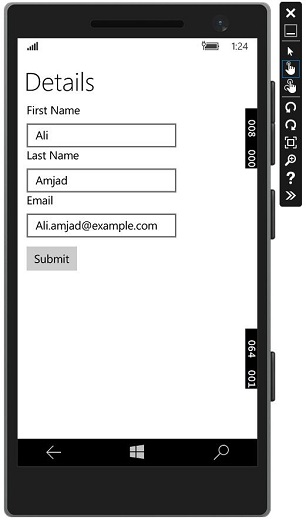
编译并执行上述代码后,您将看到以下窗口。现在编写所需的信息。
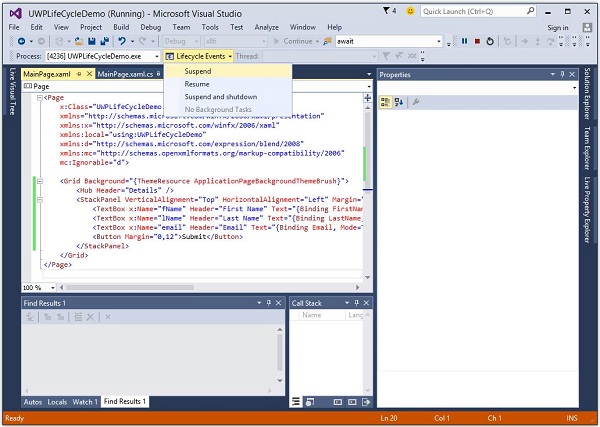
让我们转到生命周期事件下拉菜单并选择挂起。现在您的应用程序将被挂起,所需的信息将存储在本地设置中。请参见下面给出的屏幕截图。
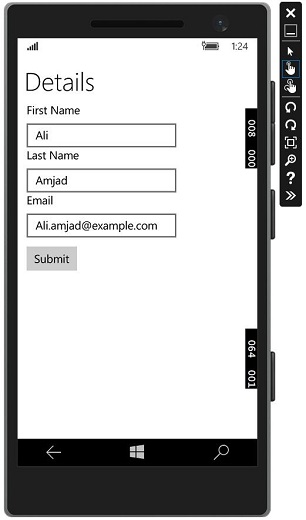
现在,当您要恢复应用程序时,从生命周期事件菜单中选择恢复选项。

现在您将看到从本地设置中检索存储的信息,并且应用程序从挂起状态恢复到相同的状态。
Windows 10 开发 - 后台执行
通用 Windows 平台 (UWP) 引入了新的机制,允许应用程序在应用程序没有在前台运行时执行某些功能。UWP 还增强了应用程序在后台扩展执行时间的能力,用于后台任务和触发器。后台执行是应用程序生命周期的真正补充。
后台任务的重要功能如下:
后台任务由系统或时间事件触发,并且可以受一个或多个条件约束。
当触发后台任务时,其关联的处理程序运行并执行后台任务的工作。
即使注册了后台任务的应用已挂起,后台任务也可以运行。
它们是标准应用程序平台的一部分,本质上为应用程序提供了注册系统事件(触发器)的能力。当该事件发生时,它们在后台运行预定义的代码块。系统触发器包括网络连接更改或系统时区等事件。
后台执行没有保证,因此不适用于关键功能。
操作系统对同时运行的后台任务数量有限制。因此,即使触发器被触发且条件满足,任务仍然可能无法运行。
创建和注册后台任务
创建一个后台任务类并将其注册为在您的应用不在前台时运行。您可以通过编写实现IBackgroundTask接口的类来在后台运行代码。以下示例代码显示了后台任务类的非常基本的起点。
public sealed class MyBackgroundTask : IBackgroundTask {
   public void Run(IBackgroundTaskInstance taskInstance){
      // write code
   }
}
您可以按如下方式请求访问后台任务。
var access = await BackgroundExecutionManager.RequestAccessAsync();

switch (access) {

   case BackgroundAccessStatus.Unspecified:
      break;
   case BackgroundAccessStatus.AllowedMayUseActiveRealTimeConnectivity:
      break;
   case BackgroundAccessStatus.AllowedWithAlwaysOnRealTimeConnectivity:
      break;
   case BackgroundAccessStatus.Denied:
      break;
   default:
      break;
}
要构建和注册后台任务,请使用以下代码。
var task = new BackgroundTaskBuilder {
   Name = "My Task",
   TaskEntryPoint = typeof(BackgroundStuff.MyBackgroundTask).ToString()
};

var trigger = new ApplicationTrigger();
task.SetTrigger(trigger);
task.Register();

await trigger.RequestAsync();
让我们通过遵循以下所有步骤来了解后台任务的一个简单示例。
创建一个新的空白 UWP 项目‘UWPBackgroundDemo’并在 XAML 文件中添加一个按钮。
<Page
   x:Class = "UWPBackgroundDemo.MainPage"
   xmlns = "http://schemas.microsoft.com/winfx/2006/xaml/presentation"
   xmlns:x = "http://schemas.microsoft.com/winfx/2006/xaml"
   xmlns:local = "using:UWPBackgroundDemo"
   xmlns:d = "http://schemas.microsoft.com/expression/blend/2008"
   xmlns:mc = "http://schemas.openxmlformats.org/markup-compatibility/2006"
   mc:Ignorable = "d">

   <Grid Background = "{ThemeResource ApplicationPageBackgroundThemeBrush}">
      <Button x:Name = "button" Content = "Button"
         HorizontalAlignment = "Left" Margin = "159,288,0,0"
         VerticalAlignment = "Top" Click = "button_Click"/>
   </Grid>

</Page>
下面是在其中注册后台任务的按钮点击事件实现。
using System;

using Windows.ApplicationModel.Background;
using Windows.UI.Xaml;
using Windows.UI.Xaml.Controls;

// The Blank Page item template is documented at
   http://go.microsoft.com/fwlink/?LinkId=402352&clcid=0x409

namespace UWPBackgroundDemo {

   /// <summary>
      /// An empty page that can be used on its own or navigated to within a Frame.
   /// </summary>

   public sealed partial class MainPage : Page {

      public MainPage() {
         this.InitializeComponent();
      }

      private async void button_Click(object sender, RoutedEventArgs e) {
         var access = await BackgroundExecutionManager.RequestAccessAsync();

         switch (access){
            case BackgroundAccessStatus.Unspecified:
               break;
            case BackgroundAccessStatus.AllowedMayUseActiveRealTimeConnectivity:
               break;
            case BackgroundAccessStatus.AllowedWithAlwaysOnRealTimeConnectivity:
               break;
            case BackgroundAccessStatus.Denied:
               break;
            default:
               break;
         }

         var task = new BackgroundTaskBuilder {
            Name = "My Task",
            TaskEntryPoint = typeof(BackgroundStuff.MyBackgroundTask).ToString()
         };

         var trigger = new ApplicationTrigger();
         task.SetTrigger(trigger);

         var condition = new SystemCondition(SystemConditionType.InternetAvailable);
         task.Register();

         await trigger.RequestAsync();
      }
   }
}
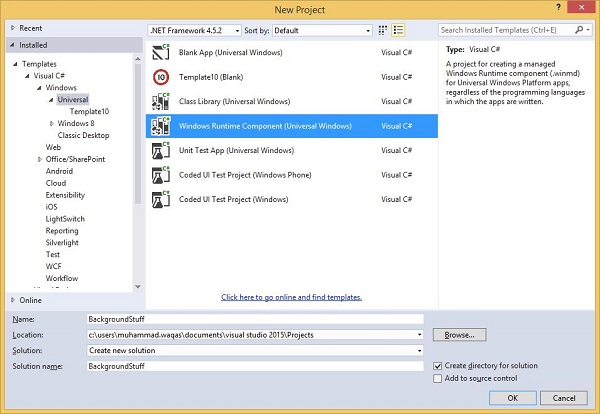
现在创建另一个项目,但这次从菜单中选择 Windows 运行时组件(通用 Windows),并为该项目命名为Background stuff。
下面是 C# 代码,其中包含MyBackgroundTask类实现,它将运行后台任务。
using Windows.ApplicationModel.Background;
using Windows.UI.Notifications;

namespace BackgroundStuff {
   public sealed class MyBackgroundTask : IBackgroundTask {

      public void Run(IBackgroundTaskInstance taskInstance) {
         SendToast("Hi this is background Task");
      }

      public static void SendToast(string message) {
         var template = ToastTemplateType.ToastText01;
         var xml = ToastNotificationManager.GetTemplateContent(template);
         var elements = xml.GetElementsByTagName("Test");
         var text = xml.CreateTextNode(message);

         elements[0].AppendChild(text);
         var toast = new ToastNotification(xml);
         ToastNotificationManager.CreateToastNotifier().Show(toast);
      }
   }
}
为了使此项目在UWPBackgroundDemo项目中可访问,请在解决方案资源管理器中右键单击引用>添加引用,然后添加BackgroundStuff项目。
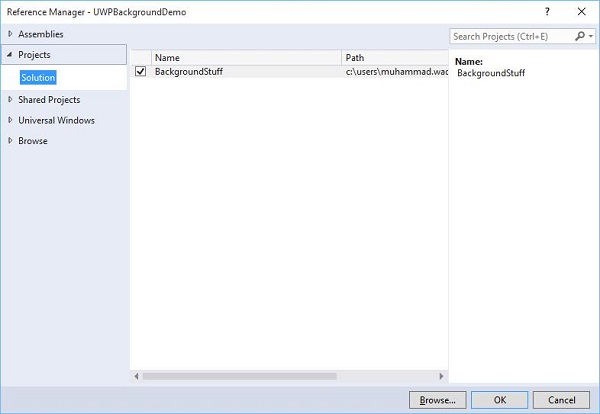
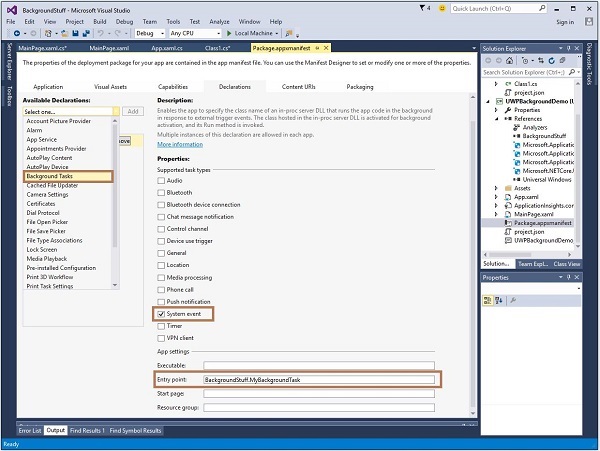
现在,让我们转到UWPBackgroundDemo项目的Package.appxmanifest文件,并在“声明”选项卡中添加以下信息。
首先构建 Background stuff 项目,然后构建并执行UWPBackgroundDemo项目。
编译并执行上述代码后,您将看到以下窗口。
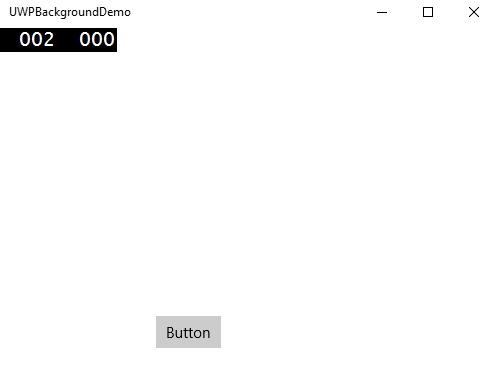
当您单击按钮时,它将运行后台任务,并在窗口的右侧显示通知。
Windows 10 开发 - 服务
在本章中,我们将学习 UWP 应用如何帮助或为另一个通用 Windows 平台 (UWP) 应用程序提供服务。实际上,本章是后台执行章节的扩展,也是其一个特例。
在 Windows 10 中,应用服务是应用为其他应用提供服务的一种方式或机制。
应用服务以后台任务的形式工作。
前台应用可以调用另一个应用中的应用服务以在后台执行任务。

应用服务类似于 Web 服务,但应用服务用于 Windows 10 设备上。
通用 Windows 平台 (UWP) 应用程序可以通过多种方式与另一个 UWP 应用程序交互:
- 使用 LaunchUriAsync 的 URI 关联
- 使用 LaunchFileAsync 的文件关联
- 使用 LaunchUriForResultsAsync 启动结果
- 应用服务
前三种方式用于两个应用程序都在前台的情况下,但应用服务用于后台任务,在这种情况下,客户端应用程序必须在前台并可用于使用应用服务。
应用服务在提供非可视化服务的应用程序中非常有用,例如条形码扫描仪,其中前台应用程序将获取图像并将这些字节发送到应用服务以识别条形码。
为了理解所有这些概念,让我们在 Microsoft Visual Studio 2015 中创建一个名为AppServiceProvider的新 UWP 项目。
现在在Package.appmenifest文件中,添加以下信息。

要创建一个可以由前台应用程序调用的应用服务,让我们向解决方案添加一个新的Windows 运行时组件项目,命名为MyAppService,因为应用服务作为后台任务实现。
在AppServiceProvider项目中添加对MyAppService项目的引用。
现在从MyAppService项目中删除class1.cs文件,并添加一个具有清单名称的新类,该类将实现IBackgrounTask接口。
IBackgrounTask接口只有一个方法“Run”,需要为后台任务实现。
public sealed class Inventory : IBackgroundTask {
   public void Run(IBackgroundTaskInstance taskInstance) {

   }
}
创建后台任务时,将调用Run() 方法,当 Run 方法完成时,后台任务将终止。为了保持后台任务以服务请求,代码获取延迟。
应用服务代码位于OnRequestedReceived()中。在此示例中,库存项目的索引传递到服务,以检索指定库存项目的名称和价格。
private async void OnRequestReceived(AppServiceConnection sender,
   AppServiceRequestReceivedEventArgs args) {
      // Get a deferral because we use an awaitable API below to respond to the message
}
下面是 C# 中 Inventory 类的完整实现。
using System;
using System.Collections.Generic;
using System.Linq;
using System.Text;
using System.Threading.Tasks;

using Windows.ApplicationModel.AppService;
using Windows.ApplicationModel.Background;
using Windows.Foundation.Collections;

namespace MyAppService{
   public sealed class Inventory : IBackgroundTask {

      private BackgroundTaskDeferral backgroundTaskDeferral;
      private AppServiceConnection appServiceconnection;

      private String[] inventoryItems = new string[] { "Robot vacuum", "Chair" };
      private double[] inventoryPrices = new double[] { 129.99, 88.99 };

      public void Run(IBackgroundTaskInstance taskInstance) {
         this.backgroundTaskDeferral = taskInstance.GetDeferral();
         taskInstance.Canceled += OnTaskCanceled;
         var details = taskInstance.TriggerDetails as AppServiceTriggerDetails;

         appServiceconnection = details.AppServiceConnection;
         appServiceconnection.RequestReceived += OnRequestReceived;
      }

      private async void OnRequestReceived(AppServiceConnection sender,
         AppServiceRequestReceivedEventArgs args) {

            var messageDeferral = args.GetDeferral();
            ValueSet message = args.Request.Message;
            ValueSet returnData = new ValueSet();

            string command = message["Command"] as string;
            int? inventoryIndex = message["ID"] as int?;
            if (inventoryIndex.HasValue &&

            inventoryIndex.Value >= 0 &&
            inventoryIndex.Value < inventoryItems.GetLength(0)) {

               switch (command) {

                  case "Price": {
                     returnData.Add("Result", inventoryPrices[inventoryIndex.Value]);
                     returnData.Add("Status", "OK");
                     break;
                  }

                  case "Item": {
                     returnData.Add("Result", inventoryItems[inventoryIndex.Value]);
                     returnData.Add("Status", "OK");
                     break;
                  }

                  default: {
                     returnData.Add("Status", "Fail: unknown command");
                     break;
                  }
               } else {
                  returnData.Add("Status", "Fail: Index out of range");
               }
            }
            await args.Request.SendResponseAsync(returnData);
            messageDeferral.Complete();
      }

      private void OnTaskCanceled(IBackgroundTaskInstance sender,
         BackgroundTaskCancellationReason reason){
            if (this.backgroundTaskDeferral != null) {
               // Complete the service deferral.
               this.backgroundTaskDeferral.Complete();
            }
      }
   }
}
让我们创建一个客户端应用,方法是在 XAML 文件中添加一个新的空白 UWP 项目ClientApp并添加一个按钮、一个文本框和两个文本块,如下所示。
<Page
   x:Class = "ClientApp.MainPage"
   xmlns = "http://schemas.microsoft.com/winfx/2006/xaml/presentation"
   xmlns:x = "http://schemas.microsoft.com/winfx/2006/xaml"
   xmlns:local = "using:ClientApp"
   xmlns:d = "http://schemas.microsoft.com/expression/blend/2008"
   xmlns:mc = "http://schemas.openxmlformats.org/markup-compatibility/2006"
   mc:Ignorable = "d">

   <Grid Background = "{ThemeResource ApplicationPageBackgroundThemeBrush}">
      <TextBlock HorizontalAlignment = "Left" Text = "Enter Item No."
         Margin = "52,40,0,0" TextWrapping = "Wrap"
         VerticalAlignment = "Top" Height = "32" Width = "268"/>

      <Button x:Name = "button" Content = "Get Info" HorizontalAlignment = "Left"
         Margin = "255,96,0,0" VerticalAlignment = "Top" Click = "button_Click"/>

      <TextBox x:Name = "textBox" HorizontalAlignment = "Left" Margin = "52,96,0,0"
         TextWrapping = "Wrap" VerticalAlignment = "Top" Width = "168"/>

      <TextBlock x:Name = "textBlock" HorizontalAlignment = "Left"
         Margin = "52,190,0,0" TextWrapping = "Wrap"
         VerticalAlignment = "Top" Height = "32" Width = "268"/>
   </Grid>

</Page>
下面是在其中请求应用服务的按钮点击事件实现。
using System;

using Windows.ApplicationModel.AppService;
using Windows.Foundation.Collections;

using Windows.UI.Xaml;
using Windows.UI.Xaml.Controls;

// The Blank Page item template is documented at
   http://go.microsoft.com/fwlink/?LinkId=402352&clcid=0x409

namespace ClientApp {

   /// <summary>
      /// An empty page that can be used on its own or navigated to within a Frame.
   /// </summary>

   public sealed partial class MainPage : Page {

      private AppServiceConnection inventoryService;

      public MainPage() {
         this.InitializeComponent();
      }

      private async void button_Click(object sender, RoutedEventArgs e){

         // Add the connection.
         if (this.inventoryService == null) {

            this.inventoryService = new AppServiceConnection();
            this.inventoryService.AppServiceName = "com.microsoft.inventory";
            this.inventoryService.PackageFamilyName =
               "bb1a8478-8005-46869923-e525ceaa26fc_4sz2ag3dcq60a";

            var status = await this.inventoryService.OpenAsync();

            if (status != AppServiceConnectionStatus.Success) {
               button.Content = "Failed to connect";
               return;
            }
         }

         // Call the service.
         int idx = int.Parse(textBox.Text);
         var message = new ValueSet();

         message.Add("Command", "Item");
         message.Add("ID", idx);

         AppServiceResponse response = await
            this.inventoryService.SendMessageAsync(message);
         string result = "";

         if (response.Status == AppServiceResponseStatus.Success) {
            // Get the data  that the service sent  to us.
            if (response.Message["Status"] as string == "OK") {
               result = response.Message["Result"] as string;
            }
         }

         message.Clear();
         message.Add("Command", "Price");
         message.Add("ID", idx);

         response = await this.inventoryService.SendMessageAsync(message);

         if (response.Status == AppServiceResponseStatus.Success){
            // Get the data that the service sent to us.
            if (response.Message["Status"] as string == "OK") {
               result += " : Price = " + "$"+ response.Message["Result"] as string;
            }
         }

         textBlock.Text = result;
      }
   }
}
要运行此应用程序,您需要将ClientApp项目设置为解决方案资源管理器中的启动项目,然后从生成>部署解决方案中部署此解决方案。

编译并执行上述代码后,您将看到以下窗口。在应用服务中,我们只添加了两个项目的资料。因此,您可以输入 0 或 1 以获取这些项目的资料。

当您输入 0 并单击按钮时,它将运行应用服务作为后台任务,并在文本块上显示项目信息。
Windows 10 开发 - Web 平台
在 Windows 10 中,开发人员可以非常轻松地创建通用 Windows 平台 (UWP) 应用程序,并在该应用程序上托管其网站,然后将其发布到 Windows 应用商店以供下载。
优势
借助 Windows 10 中的此新功能,Web 开发人员可以轻松地将其网站的组件转换为 Windows 应用。
但是,所有这些组件仍将远程托管在其自己的 Web 服务器上。
此外,他们还可以访问通用 API,这将允许开发人员访问一些很酷的东西,例如通知、相机、日历、Cortana 等。
微软希望此功能和能力能够吸引更多开发人员为 Windows 10 平台编写应用,其中包括:
- 桌面
- 智能手机
- Xbox
- 平板电脑
- HoloLens 及其他设备
目前,此功能只有一个问题,那就是安全性。显然,微软需要尽快解决这个问题。
让我们通过一个示例来了解,在这个示例中,我们将托管一个网站并将其转换为 Windows 应用。
请按照以下步骤操作。
从文件>新建>项目创建一个新的通用 Windows 项目。
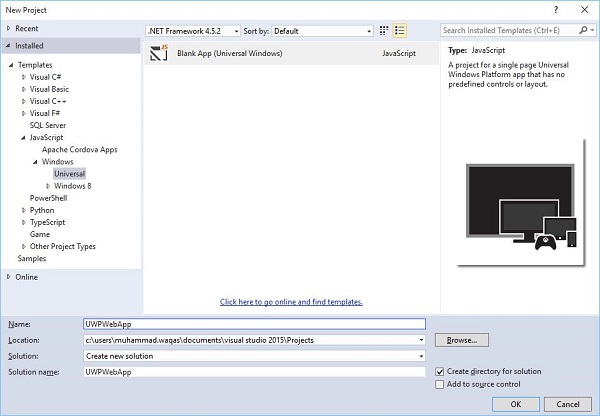
从“新建项目”对话框的左侧窗格中选择JavaScript>Windows>通用选项。
从中间窗格中选择空白应用(通用 Windows)。
在名称字段中输入UWPWebApp,然后单击确定按钮。
如果您查看解决方案资源管理器窗口,您将看到一些文件和文件夹。
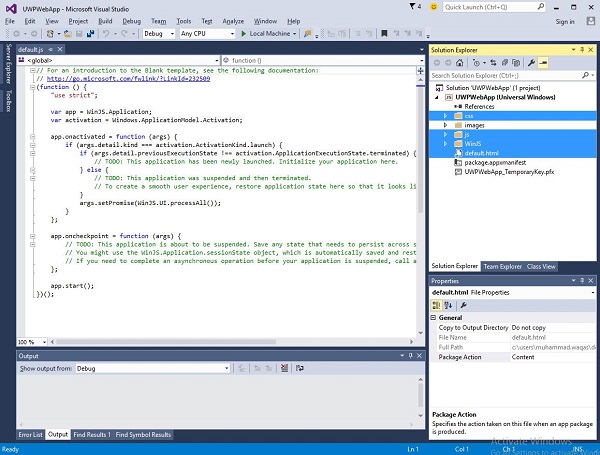
删除css、js、WinJS文件夹和default.html文件,因为在此示例中,我们只是托管一个网站,并且我们假设所有内容都在远程服务器上。因此,我们不需要大多数本地文件。
删除上述文件和文件夹后,现在双击package.appxmanifest文件,您将看到以下窗口。

现在通过用 URL 替换“启动页”字段中的default.html来指定网站 URL。为了演示目的,我们将使用 URLhttps://www.google.com.pk/网站。
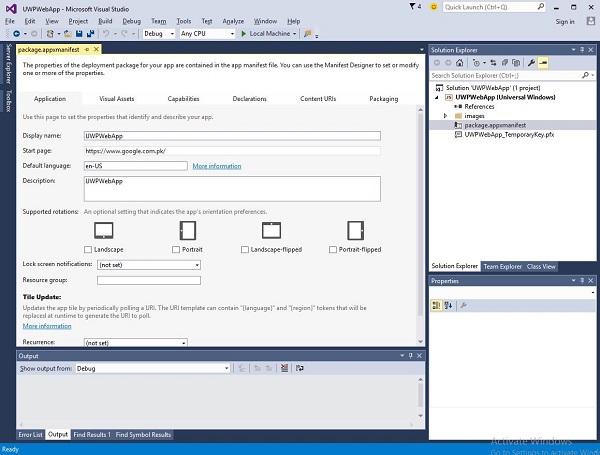
现在转到内容 URI选项卡,并为您的 Web 应用定义规则和访问权限。

在 URI 字段中,指定您的网站链接,然后从规则下拉列表中选择包含,从WinRT 访问中选择全部。
运行此应用程序时,您将在应用程序上看到 Google 启动页面,如下所示。
Windows 10 开发 - 连接体验
正如我们已经知道的,在 Windows 10 中,我们可以创建一个可以在多个 Windows 10 设备上执行和运行的应用程序。假设我们有这些不同的设备,并且我们希望让它感觉就像它是一个应用程序,即使它在不同的设备上运行。
在通用 Windows 平台 (UWP) 中,您可以在所有 Windows 10 设备上运行单个应用程序,并且可以给用户一种它是一个应用程序的感觉。这被称为**连接体验**。
连接体验的重要特性 -
Windows 10 是迈向更个性化计算时代的第一步,在这个时代,您的应用程序、服务和内容可以跨设备无缝且轻松地移动。
通过连接体验,您可以轻松共享与该应用程序相关的数据和个人设置,并且这些数据和设置将在所有设备上可用。
在本章中,我们将学习 -
这些共享数据或设置将存储在何处,以便该应用程序可以在您的设备上使用。
如何识别用户;即,它是同一个用户在不同的设备上使用同一个应用程序。
Windows 10 迈出了大胆的一步。当您使用 Microsoft 帐户 (MSA) 或企业帐户(工作帐户)登录 Windows 10 时,假设 -
对于 MSA 帐户,您可以免费访问 OneDrive,对于企业帐户,您可以访问 Active Directory (AD) 和 Azure Active Directory (AAD)(其是云版本)。
您可以访问不同的应用程序和资源。
设备和应用程序处于漫游状态和设置中。
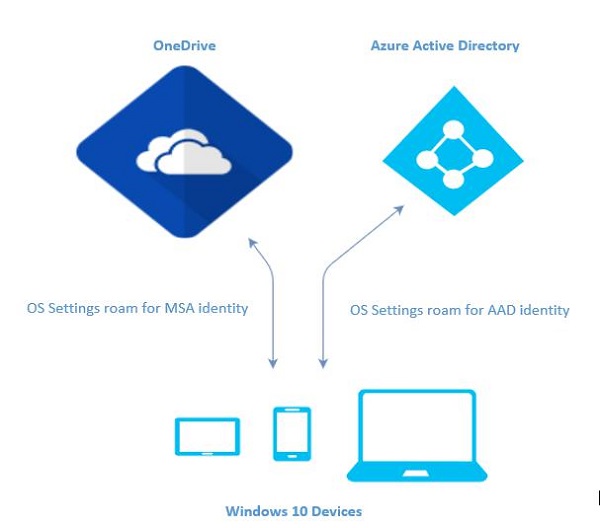
Windows 10 中的漫游
当您登录到 PC 时,您可以设置一些首选项,例如锁定屏幕或背景颜色,或个性化您的各种设置。如果您有多台计算机或设备运行 Windows 10,则当您使用同一帐户登录其他设备时,您在一台设备上的首选项和设置将从云端同步。
在 Windows 10 中,当您设置或个性化应用程序设置时,这些设置将与 UWP 中提供的漫游 API 一起漫游。当您在其他设备上再次运行同一应用程序时,它将首先检索设置并将这些设置应用于该设备上的应用程序。
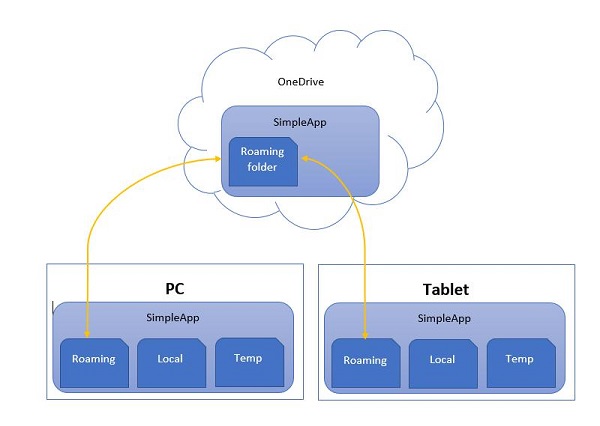
将漫游数据上传到云端的大小限制为 100KB。如果超出此限制,则同步将停止,并且只会像本地文件夹一样运行。
**RoamingSettings** API 作为字典公开,应用程序可以在其中保存数据。
Windows.Storage.ApplicationDataContainer roamingSettings =
   Windows.Storage.ApplicationData.Current.RoamingSettings;

// Retrivve value from RoamingSettings
var colorName = roamingSettings.Values["PreferredBgColor"].ToString();

// Set values to RoamingSettings
roamingSettings.Values["PreferredBgColor"] = "Green";
当 **RoamingSettings** 中的数据发生变化时,它会触发 **DataChanged** 事件,您可以在其中刷新您的设置。
Windows.Storage.ApplicationData.Current.DataChanged += RoamingDataChanged;

private void RoamingDataChanged(Windows.Storage.ApplicationData sender, object args) {
   // Something has changed in the roaming data or settings
}
让我们来看一个示例,在该示例中,我们将设置应用程序的背景颜色,并且这些设置将与 UWP 中提供的漫游 API 一起漫游。
以下是添加不同控件的 XAML 代码。
<Page
   x:Class = "RoamingSettingsDemo.Views.MainPage"
   xmlns = "http://schemas.microsoft.com/winfx/2006/xaml/presentation"
   xmlns:x = "http://schemas.microsoft.com/winfx/2006/xaml"
   xmlns:local = "using:RoamingSettingsDemo.Views"
   xmlns:d = "http://schemas.microsoft.com/expression/blend/2008"
   xmlns:mc = "http://schemas.openxmlformats.org/markup-compatibility/2006"
   mc:Ignorable = "d">

   <Grid x:Name = "MainGrid" Background = "{ThemeResource ApplicationPageBackgroundThemeBrush}">
      <Grid.RowDefinitions>
         <RowDefinition Height = "80" />
         <RowDefinition />
      </Grid.RowDefinitions>

      <StackPanel Orientation = "Horizontal" VerticalAlignment = "Top" Margin = "12,12,0,0">
         <TextBlock Style = "{StaticResource HeaderTextBlockStyle}"
            FontSize = "24" Text = "Connected Experience Demo" />
      </StackPanel>

      <Grid Grid.Row = "1" Margin = "0,80,0,0">
         <StackPanel Margin = "62,0,0,0">
            <TextBlock x:Name = "textBlock" HorizontalAlignment = "Left"
               TextWrapping = "Wrap" Text = "Choose your background color:"
               VerticalAlignment = "Top"/>

            <RadioButton x:Name = "BrownRadioButton" Content = "Brown"
               Checked = "radioButton_Checked" />

            <RadioButton x:Name = "GrayRadioButton" Content = "Gray"
               Checked = "radioButton_Checked"/>
         </StackPanel>
      </Grid>

   </Grid>

</Page>
下面给出了 **RoamingSettings** 和不同事件的 C# 实现。
using System;
using System.Collections.Generic;
using System.IO;
using System.Linq;
using System.Runtime.InteropServices.WindowsRuntime;

using Windows.Foundation;
using Windows.Foundation.Collections;

using Windows.UI;
using Windows.UI.Xaml;
using Windows.UI.Xaml.Controls;
using Windows.UI.Xaml.Controls.Primitives;
using Windows.UI.Xaml.Data;
using Windows.UI.Xaml.Input;
using Windows.UI.Xaml.Media;
using Windows.UI.Xaml.Navigation;

// The RoamingSettingsDemo Page item template is documented at
   http://go.microsoft.com/fwlink/?LinkId=234238

namespace RoamingSettingsDemo.Views {

   /// <summary>
      /// An empty page that can be used on its own or navigated to within a Frame.
   /// </summary>

   public sealed partial class MainPage : Page {

      public MainPage() {
         this.InitializeComponent();
      }

      protected override void OnNavigatedTo(NavigationEventArgs e) {
         SetBackgroundFromSettings();
         Windows.Storage.ApplicationData.Current.DataChanged += RoamingDataChanged;
      }

      protected override void OnNavigatedFrom(NavigationEventArgs e) {
         Windows.Storage.ApplicationData.Current.DataChanged -= RoamingDataChanged;
      }

      private void RoamingDataChanged(Windows.Storage.ApplicationData sender, object args) {

         // Something has changed in the roaming data or settings
         var ignore = Dispatcher.RunAsync(Windows.UI.Core.CoreDispatcherPriority.Normal,
            () ⇒ SetBackgroundFromSettings());
      }

      private void SetBackgroundFromSettings() {

         // Get the roaming settings
         Windows.Storage.ApplicationDataContainer roamingSettings =
            Windows.Storage.ApplicationData.Current.RoamingSettings;

         if (roamingSettings.Values.ContainsKey("PreferBrownBgColor")) {
            var colorName = roamingSettings.Values["PreferBrownBgColor"].ToString();

            if (colorName == "Gray") {
               MainGrid.Background = new SolidColorBrush(Colors.Gray);
               GrayRadioButton.IsChecked = true;
            } else if (colorName == "Brown") {
               MainGrid.Background = new SolidColorBrush(Colors.Brown);
               BrownRadioButton.IsChecked = true;
            }
         }

      }

      private void radioButton_Checked(object sender, RoutedEventArgs e){
         if (GrayRadioButton.IsChecked.HasValue &&
            (GrayRadioButton.IsChecked.Value == true)) {
               Windows.Storage.ApplicationData.Current.RoamingSettings.
                  Values["PreferBrownBgCo lor"] = "Gray";
         } else {
            Windows.Storage.ApplicationData.Current.RoamingSettings.
               Values["PreferBrownBgCo lor"] = "Brown";
         }

         SetBackgroundFromSettings();
      }

   }
}
编译并执行上述代码后,您将看到以下窗口。
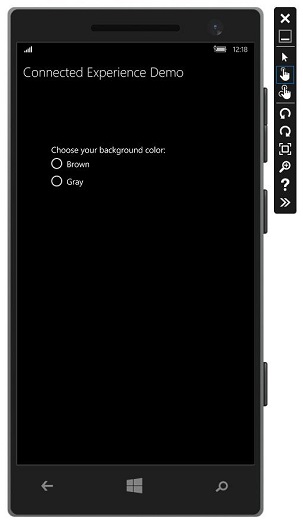
让我们选择灰色作为背景颜色并关闭此应用程序。
现在,当您在此设备或任何其他设备上运行此应用程序时,您将看到背景颜色已更改为灰色。这表明应用程序已成功检索 **RoamingSettings** 中的背景颜色更改信息。
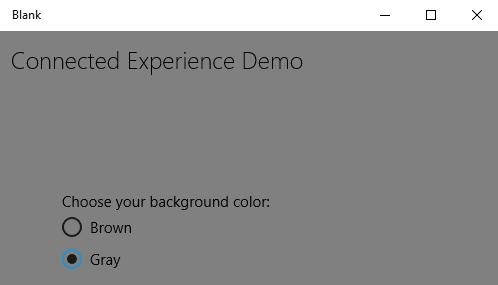
Windows 10 开发 - 导航
在通用 Windows 平台 (UWP) 应用程序中,导航是导航结构、导航元素和系统级功能的灵活模型。它为在应用程序、页面和内容之间移动提供各种直观的用户体验。
在某些情况下和场景中,所有内容和功能都可以轻松地放入单个页面中,开发人员无需创建多个页面。但是,在大多数应用程序中,多个页面用于不同内容和功能之间的交互。
当应用程序具有多个页面时,开发人员提供正确的导航体验非常重要。
页面模型
通常,在通用 Windows 平台 (UWP) 应用程序中,使用单页面导航模型。
重要功能包括 -
单页面导航模型将应用程序的所有上下文以及其他内容和数据维护到一个中央框架中。
您可以将应用程序的内容划分为多个页面。但是,当从一个页面移动到另一个页面时,您的应用程序会将页面加载到主页面表单中。
您的应用程序的主页面不会被卸载,代码和数据也不会被卸载,这使得管理状态变得更容易,并在页面之间提供更流畅的过渡动画。
多页面导航也用于在不同页面或屏幕之间导航,而无需担心应用程序上下文。在多页面导航中,每个页面都有自己的一组功能、用户界面和数据等。
多页面导航通常用于网站内的网页。
导航结构
在多页面导航中,每个页面都有自己的一组功能、用户界面和数据等。例如,照片应用程序可能有一个页面用于捕捉照片,然后当用户想要编辑照片时,它会导航到另一个页面,并且为了维护图片库,它还有另一个页面。
应用程序的导航结构由这些页面的组织方式定义。
以下是组织应用程序导航的方法 -
层次结构
在这种类型的导航结构中,
页面被组织成树状结构。
每个子页面只有一个父页面,但父页面可以有一个或多个子页面。
要到达子页面,您必须遍历父页面。
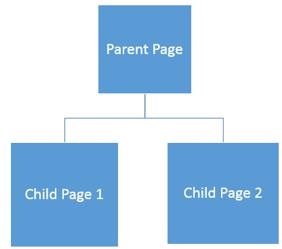
同级
在这种类型的导航中 -
- 页面并排存在。
- 您可以按任何顺序从一个页面转到另一个页面。
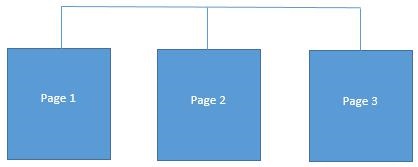
在大多数多页面应用程序中,这两种结构同时使用。一些页面被组织成同级,而另一些页面则被组织成层次结构。
让我们举一个包含三个页面的例子。
创建一个名为 **UWPNavigation** 的空白 UWP 应用程序。
通过在**解决方案资源管理器**中右键单击项目并从菜单中选择**添加 > 新建项**选项,添加两个空白页面,这将打开以下对话框窗口。
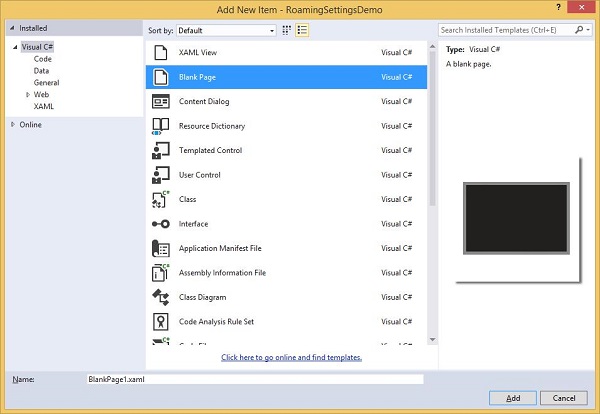
从中间窗格中选择空白页面,然后单击**添加**按钮。
现在按照上述步骤再添加一个页面。
您将在解决方案资源管理器中看到三个页面 - **MainPage、BlankPage1** 和 **BlankPage2**。
下面是 **MainPage** 的 XAML 代码,其中添加了两个按钮。
<Page
   x:Class = "UWPNavigation.MainPage"
   xmlns = "http://schemas.microsoft.com/winfx/2006/xaml/presentation"
   xmlns:x = "http://schemas.microsoft.com/winfx/2006/xaml"
   xmlns:local = "using:UWPNavigation"
   xmlns:d = "http://schemas.microsoft.com/expression/blend/2008"
   xmlns:mc = "http://schemas.openxmlformats.org/markup-compatibility/2006"
   mc:Ignorable = "d">

   <Grid Background = "{ThemeResource ApplicationPageBackgroundThemeBrush}">
      <Hub Header = "Hi, this Main Page"/>
      <Button Content = "Go to Page 1" Margin = "64,131,0,477" Click = "Button_Click"/>
      <Button Content = "Go to Page 2" Margin = "64,210,0,398" Click = "Button_Click_1"/>
   </Grid>

</Page>
下面是 **MainPage** 上两个按钮的 C# 代码,它们将导航到其他两个页面。
using Windows.UI.Xaml;
using Windows.UI.Xaml.Controls;

// The Blank Page item template is documented at
   http://go.microsoft.com/fwlink/?LinkId=402352&clcid=0x409

namespace UWPNavigation {

   /// <summary>
      /// An empty page that can be used on its own or navigated to within a Frame.
   /// </summary>

   public sealed partial class MainPage : Page {
      public MainPage() {
         this.InitializeComponent();
      }

      private void Button_Click(object sender, RoutedEventArgs e){
         this.Frame.Navigate(typeof(BlankPage1));
      }

      private void Button_Click_1(object sender, RoutedEventArgs e) {
         this.Frame.Navigate(typeof(BlankPage2));
      }

   }
}
下面显示了 **空白页面 1** 的 XAML 代码。
<Page
   x:Class = "UWPNavigation.BlankPage1"
   xmlns = "http://schemas.microsoft.com/winfx/2006/xaml/presentation"
   xmlns:x = "http://schemas.microsoft.com/winfx/2006/xaml"
   xmlns:local = "using:UWPNavigation"
   xmlns:d = "http://schemas.microsoft.com/expression/blend/2008"
   xmlns:mc = "http://schemas.openxmlformats.org/markup-compatibility/2006"
   mc:Ignorable = "d">

   <Grid Background = "{ThemeResource ApplicationPageBackgroundThemeBrush}">
      <Hub Header = "Hi, this is page 1"/>
      <Button Content = "Go to Main Page" Margin = "64,94,0,514" Click = "Button_Click"/>
   </Grid>

</Page>
下面显示了 **空白页面 1** 上按钮 - 单击事件的 C# 代码,它将导航到主页面。
using System;
using Windows.UI.Xaml;
using Windows.UI.Xaml.Controls;

// The Blank Page item template is documented at
   http://go.microsoft.com/fwlink/?LinkId=234238

namespace UWPNavigation {

   /// <summary>
      /// An empty page that can be used on its own or navigated to within a Frame.
   /// </summary>

   public sealed partial class BlankPage1 : Page {

      public BlankPage1() {
         this.InitializeComponent();
      }

      private void Button_Click(object sender, RoutedEventArgs e) {
         this.Frame.Navigate(typeof(MainPage));
      }

   }
}
下面是 **空白页面 2** 的 XAML 代码。
<Page
   x:Class = "UWPNavigation.BlankPage2"
   xmlns = "http://schemas.microsoft.com/winfx/2006/xaml/presentation"
   xmlns:x = "http://schemas.microsoft.com/winfx/2006/xaml"
   xmlns:local = "using:UWPNavigation"
   xmlns:d = "http://schemas.microsoft.com/expression/blend/2008"
   xmlns:mc = "http://schemas.openxmlformats.org/markup-compatibility/2006"
   mc:Ignorable = "d">

   <Grid Background = "{ThemeResource ApplicationPageBackgroundThemeBrush}">
      <Hub Header = "Hi, this is page 2"/>
      <Button Content = "Go to Main Page" Margin = "64,94,0,514" Click = "Button_Click"/>
   </Grid>

</Page>
下面是 **空白页面 2** 上按钮单击事件的 C# 代码,它将导航到主页面。
using Windows.UI.Xaml;
using Windows.UI.Xaml.Controls;

// The Blank Page item template is documented at
   http://go.microsoft.com/fwlink/?LinkId=234238

namespace UWPNavigation {

   /// <summary>
      /// An empty page that can be used on its own or navigated to within a Frame.
   /// </summary>

   public sealed partial class BlankPage2 : Page {

      public BlankPage2(){
         this.InitializeComponent();
      }

      private void Button_Click(object sender, RoutedEventArgs e) {
         this.Frame.Navigate(typeof(MainPage));
      }

   }
}
编译并执行上述代码后,您将看到以下窗口。
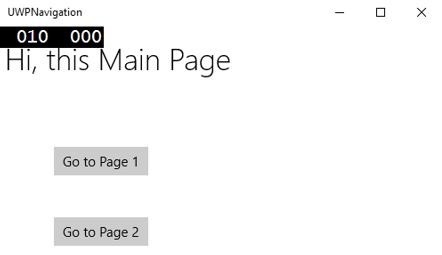
当您单击任何按钮时,它将引导您导航到相应的页面。让我们单击**转到页面 1**,将显示以下页面。
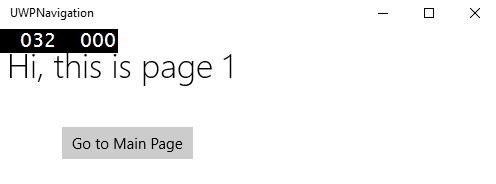
当您单击**“转到主页面”**按钮时,它将导航回主页面。
Windows 10 开发 - 网络
如今,您会看到许多应用程序,它们以某种方式与网络上的 Web 服务或其他设备集成。获取在线天气内容、最新新闻、聊天或点对点游戏是一些使用网络服务的示例。这些应用程序使用各种网络 API 构建。在 Windows 10 中,网络 API 在速度和内存性能以及它们为开发人员提供的功能和灵活性方面得到了改进。
功能
为了联网,您必须将相应的权限元素添加到应用程序清单中。如果应用程序清单中未指定任何网络权限,则应用程序将没有任何网络功能,任何尝试连接到网络的操作都将失败。
以下是最常用的网络功能。
| 序号 | 功能和说明 |
|---|---|
| 1 | internetClient 提供到 Internet 和公共场所(如机场和咖啡店)网络的出站访问。大多数需要 Internet 访问的应用程序都应使用此功能。 |
| 2 | internetClientServer 允许应用程序从 Internet 和公共场所(如机场和咖啡店)网络进行入站和出站网络访问。 |
| 3 | privateNetworkClientServer 允许应用程序在用户信任的位置(如家庭和工作场所)进行入站和出站网络访问。 |
要在应用程序清单文件中定义一个或多个功能,请查看下面给出的图像。
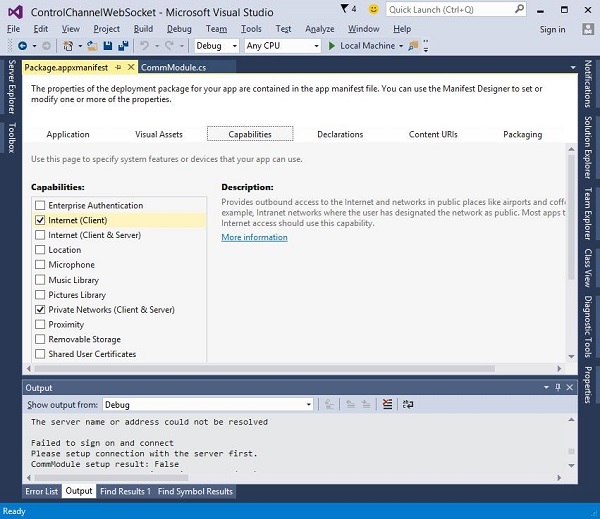
通用 Windows 平台 (UWP) 通过以下方式包含大量网络 API -
- 查询设备的连接状态并连接到对等设备。
- 与 REST Web 服务通信,以及
- 在后台下载大型媒体文件
网络技术
在通用 Windows 平台 (UWP) 中,开发人员可以使用以下网络技术,这些技术可以在许多不同的情况下使用。
套接字
当您希望使用自己的协议与另一台设备通信时,可以使用套接字。
作为通用 Windows 平台 (UWP) 应用程序开发人员,您可以同时使用 **Windows.Networking.Sockets** 和 **Winsock** 与其他设备通信。
**Windows.Networking.Sockets** 的优势在于它是一个现代 API,专为 UWP 开发人员使用而设计。
如果您使用跨平台网络库或其他现有的 Winsock 代码,则使用 **Winsock API**。
以下代码显示了如何创建套接字侦听器。
try {

//Create a StreamSocketListener to start listening for TCP connections.
   Windows.Networking.Sockets.StreamSocketListener socketListener = new
      Windows.Networking.Sockets.StreamSocketListener();

//Hook up an event handler to call when connections are received.
   socketListener.ConnectionReceived += SocketListener_ConnectionReceived;

//Start listening for incoming TCP connections on the specified port.
   You can specify any port that's not currently in use.

   await socketListener.BindServiceNameAsync("1337");
} catch (Exception e) {
   //Handle exception.
}
以下代码显示了 **SocketListener_ConnectionReceived** 事件处理程序的实现。
private async void SocketListener_ConnectionReceived(
   Windows.Networking.Sockets.StreamSocketListen er sender,
   Windows.Networking.Sockets.StreamSocketListenerConnectionReceivedEventArgs args){

   //Read line from the remote client.
   Stream inStream = args.Socket.InputStream.AsStreamForRead();
   StreamReader reader = new StreamReader(inStream);
   string request = await reader.ReadLineAsync();

   //Send the line back to the remote client.
   Stream outStream = args.Socket.OutputStream.AsStreamForWrite();
   StreamWriter writer = new StreamWriter(outStream);

   await writer.WriteLineAsync(request);
   await writer.FlushAsync();
}
WebSocket
**WebSockets** 协议提供了一种在客户端和服务器之间通过网络进行快速且安全的双向通信的方法。通用 Windows 平台 (UWP) 开发人员可以使用 **MessageWebSocket** 和 **StreamWebSocket** 类连接到支持 Websocket 协议的服务器。
重要功能包括 -
在 WebSocket 协议下,数据会立即通过全双工单套接字连接传输。
它允许实时从两个端点发送和接收消息。
**WebSockets** 非常适合用于实时游戏,在实时游戏应用中需要安全且使用快速数据传输来实现即时的社交网络通知和信息的最新显示(游戏统计数据)。
以下代码显示了如何在安全连接上发送和接收消息。
MessageWebSocket webSock = new MessageWebSocket();

//In this case we will be sending/receiving a string so we need to
   set the MessageType to Utf8.
webSock.Control.MessageType = SocketMessageType.Utf8;

//Add the MessageReceived event handler.
webSock.MessageReceived += WebSock_MessageReceived;

//Add the Closed event handler.
webSock.Closed += WebSock_Closed;

Uri serverUri = new Uri("wss://echo.websocket.org");

try {
   //Connect to the server.
   await webSock.ConnectAsync(serverUri);

   //Send a message to the server.
   await WebSock_SendMessage(webSock, "Hello, world!");
} catch (Exception ex) {
   //Add code here to handle any exceptions
}
以下代码显示了事件实现,该实现将从已连接的 **WebSocket** 接收字符串。
//The MessageReceived event handler.
private void WebSock_MessageReceived(MessageWebSocket sender,
   MessageWebSocketMessageReceivedEventArgs args){

   DataReader messageReader = args.GetDataReader();
   messageReader.UnicodeEncoding = UnicodeEncoding.Utf8;
   string messageString = messageReader.ReadString(
      messageReader.UnconsumedBufferLength);
   //Add code here to do something with the string that is received.
}
HttpClient
**HttpClient** 和 **Windows.Web.Http** 命名空间 API 使开发人员能够使用 HTTP 2.0 和 HTTP 1.1 协议发送和接收信息。
它可以用于 -
- 与 Web 服务或 Web 服务器通信。
- 上传或下载大量小文件。
- 通过网络流式传输内容。
以下代码显示了如何使用 **Windows.Web.Http.HttpClient** 和 **Windows.Web.Http.HttpResponseMessage** 发送 GET 请求。
//Create an HTTP client object
Windows.Web.Http.HttpClient httpClient = new Windows.Web.Http.HttpClient();

//Add a user-agent header to the GET request.
var headers = httpClient.DefaultRequestHeaders;

//The safe way to add a header value is to use the TryParseAdd method
   and verify the return value is true,

//especially if the header value is coming from user input.
string header = "ie";

if (!headers.UserAgent.TryParseAdd(header)) {
   throw new Exception("Invalid header value: " + header);
}

header = "Mozilla/5.0 (compatible; MSIE 10.0; Windows NT 6.2; WOW64; Trident/6.0)";

if (!headers.UserAgent.TryParseAdd(header)) {
   throw new Exception("Invalid header value: " + header);
}

Uri requestUri = new Uri("http://www.contoso.com");

//Send the GET request asynchronously and retrieve the response as a string.
Windows.Web.Http.HttpResponseMessage httpResponse = new
   Windows.Web.Http.HttpResponseMessage();
string httpResponseBody = "";

try {
   //Send the GET request
   httpResponse = await httpClient.GetAsync(requestUri);
   httpResponse.EnsureSuccessStatusCode();
   httpResponseBody = await httpResponse.Content.ReadAsStringAsync();
} catch (Exception ex) {
   httpResponseBody = "Error: " + ex.HResult.ToString("X") + " Message: " + ex.Message;
}
Windows 10 开发 - 云服务
作为开发者,您可能需要访问桌面以外的数据。云服务可以帮助您访问这些数据。本章将更深入地了解您可能需要的云服务。
微软提供了一个云计算平台和基础设施,称为Microsoft Azure,您可以在其中构建、部署和管理所有应用程序和服务。
Azure 最初于 2010 年 2 月 1 日作为 Windows Azure 发布。后来于 2014 年 3 月 25 日更名为 Microsoft Azure。
它提供PaaS 和 IaaS服务,并支持多种不同的编程语言、工具和框架,包括微软专有和第三方软件及系统。
微软使用 Windows 10 升级了云服务。虽然OneDrive自 2007 年就已存在,但在 Windows 8 中引入了 Microsoft 帐户集成。对于 Windows 10,这两项服务都进行了更新,增加了集成和新功能,吸引了更多用户。
Microsoft 帐户
您可以使用您的 Microsoft 帐户使用 Microsoft 的 Azure 云服务。当然,它不是免费的,但您可以使用 30 天免费试用。
首次使用 Windows 10 设置机器并使用 Microsoft 帐户登录时,您可以使用同一帐户订阅 Microsoft Azure。要注册 Microsoft Azure,请点击此处 https://azure.microsoft.com/.
订阅 Microsoft Azure 后,转到 Azure 门户 https://portal.azure.com/。您将看到以下页面。

您可以在数据库中存储数据,使用虚拟机等。您还可以构建和托管移动应用程序的后端。
让我们通过以下步骤,用一个示例来尝试一下。
点击左侧窗格中的新建选项。
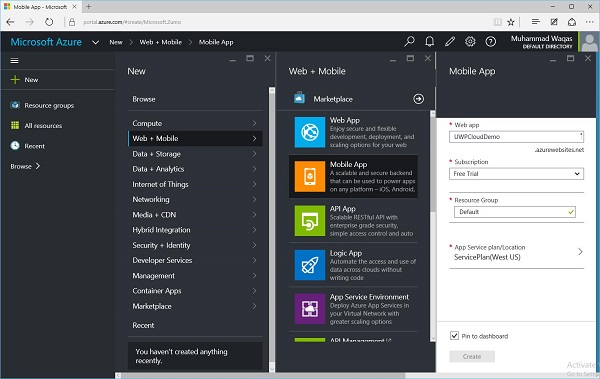
选择Web + 移动 > 移动应用,并为您的 Web 应用命名。
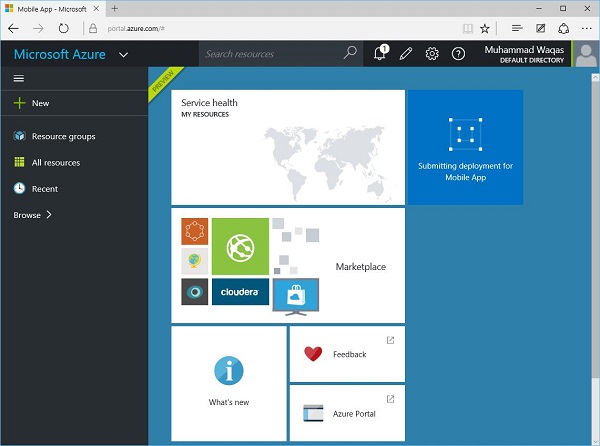
提交和部署您的应用需要一些时间。此过程完成后,您将看到以下页面。在这里,您可以选择不同类型的移动应用,例如 Windows(C#)、iOS Android 等。
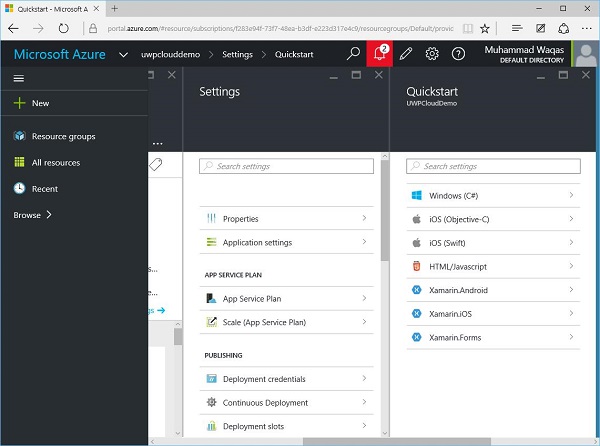
由于我们正在讨论 Windows 10,因此选择 Windows (C#),这将打开以下页面。
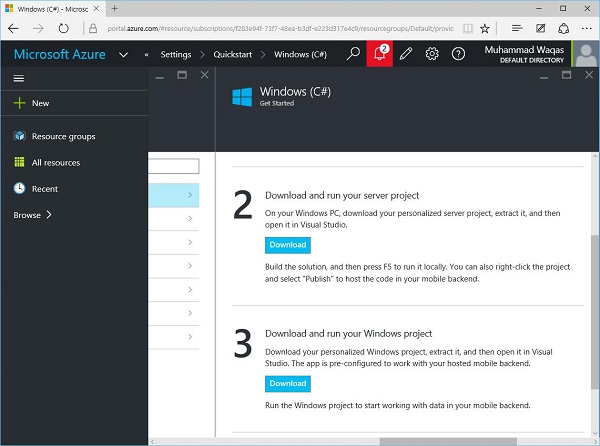
在这里,您可以看到两个下载选项。这些是示例项目,您可以简单地下载并在 Visual Studio 中构建,然后可以轻松发布到 Microsoft Azure。
让我们下载第一个,它是一个服务器项目。它是一个 zip 文件。
下载完成后,解压缩并打开 Visual Studio。
现在,构建此应用程序。如果列出了某些错误,则再次构建它。
运行应用程序。您将看到以下网页,它现在位于本地主机上。
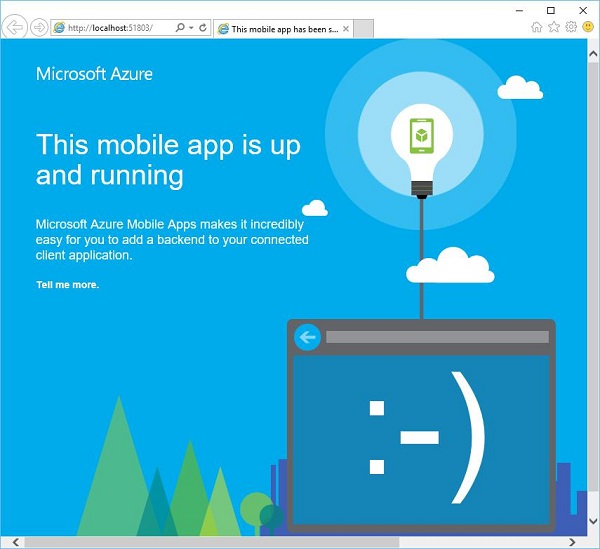
现在,要将此应用程序托管在云端,请右键单击解决方案资源管理器中所示的项目选项。
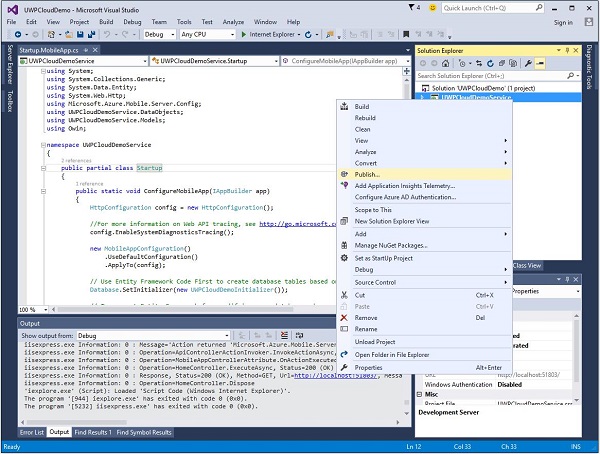
从菜单中选择发布选项。您将看到以下对话框。

选择第一个选项 - Microsoft Azure Web 应用。将打开以下对话框。
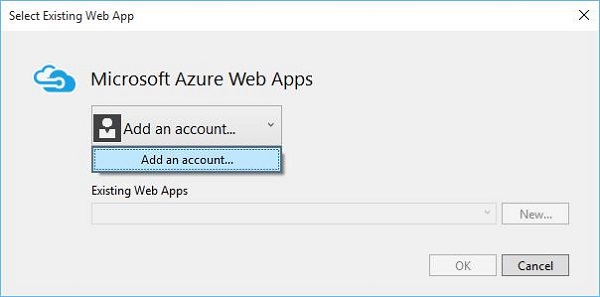
现在,从菜单中点击添加帐户选项以添加 Microsoft Azure 帐户。
指定您的凭据并点击登录。将打开以下对话框窗口。
登录后,从菜单现有 Web 应用中选择您的应用程序,然后点击确定。
下面显示的对话框显示了一些与您的应用程序相关的信息,例如名称、服务器名称、URL 等。
现在,点击验证连接按钮。验证后,点击发布按钮,您将看到您的应用程序现在已托管在Microsoft Azure上。
Windows 10 开发 - 实时磁贴
在本章中,我们将讨论通过磁贴与用户的交互。它是 Windows 10 的标志性部分。磁贴显示在开始屏幕以及开始菜单上。换句话说,它是在整个 Windows 10 操作系统中以各种形式出现的应用程序图标资产。它们是通用 Windows 平台 (UWP) 应用的名片。
磁贴结构
磁贴有三种状态。
基本状态 - 开始磁贴的基本组件包括背板、图标和应用标题。
半实时状态 - 它与基本磁贴相同,唯一的区别是徽章(一个数字)可以显示 0-99 的数字。

实时状态 - 此磁贴包含半实时状态磁贴的所有元素,还显示其他内容板,您可以在其中放置任何内容,例如照片、文本等。
更新磁贴
有四种方法可以更新磁贴。
计划 - 您可以使用ScheduledTileNotification设置模板和时间。
周期性 - 当从 URI 检索信息时,您可以指定一段时间后拉取信息的时间,例如 30 分钟、1 小时、6 小时等。
本地 - 本地磁贴可以从您的应用程序更新;可以来自前台或后台应用程序。
推送 - 它通过从服务器推送信息来更新。
要创建磁贴,请遵循以下代码。
var tileXml =
   TileUpdateManager.GetTemplateContent(TileTemplateType.TileSquare150x150Text01);

var tileAttributes = tileXml.GetElementsByTagName("text");
tileAttributes[0].AppendChild(tileXml.CreateTextNode("Hello"));

var tileNotification = new TileNotification(tileXml);
TileUpdateManager.CreateTileUpdaterForApplication().Update(tileNotification);
更新徽章非常简单,因为它只是一个数字,您可以设置徽章的值,如下所示。
var type = BadgeTemplateType.BadgeNumber;
var xml = BadgeUpdateManager.GetTemplateContent(type);

var elements = xml.GetElementsByTagName("badge");
var element = elements[0] as Windows.Data.Xml.Dom.XmlElement;
element.SetAttribute("value", "7");

var updator = BadgeUpdateManager.CreateBadgeUpdaterForApplication();
var notification = new BadgeNotification(xml);
updator.Update(notification);
让我们在 Visual Studio 中创建一个新的 UWP 项目。
您将在解决方案资源管理器中的Assets文件夹下看到不同的 png 文件。
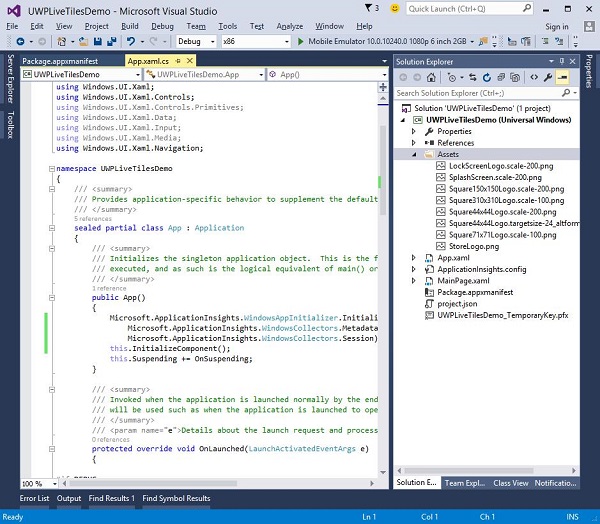
让我们在包清单中定义默认磁贴及其图像。
双击package.appxmanifest。这将打开清单编辑器窗口。
您可以为应用程序磁贴选择任何指定尺寸的图像和图标。在磁贴图像和徽标下,为所有徽标提供了默认图像,例如
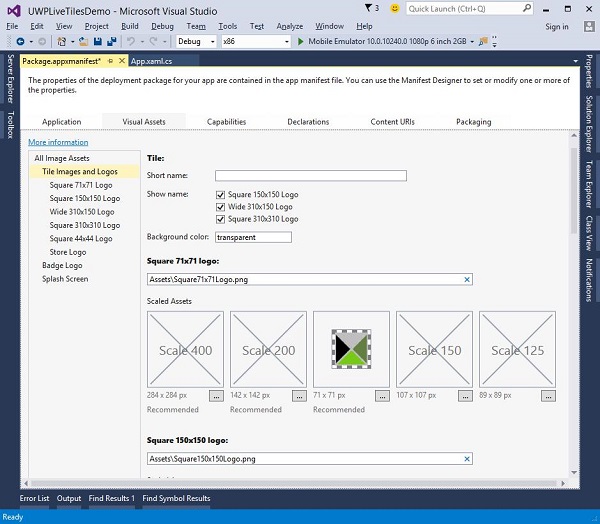
选择视觉资产选项卡。
- 方形 71x71 徽标
- 方形 150x150 徽标
- 方形 310x310 徽标
- 商店徽标
执行应用程序,然后转到开始屏幕,您将看到应用程序的磁贴。
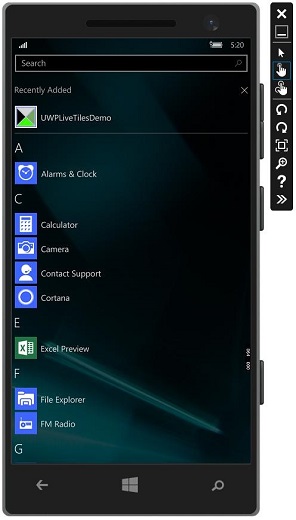
Windows 10 开发 - 共享契约
在本章中,我们将学习如何在应用程序之间共享数据。用户经常会遇到他们很想与他人分享或在另一个应用程序中使用信息。如今,用户希望使用技术与他人联系和共享。
用户可能希望共享 -
- 与他们的社交网络分享链接
- 将图片复制到报告中
- 将文件上传到云存储
如今,应用程序需要确保它们使用的数据也可供用户共享和交换。共享是一个轻量级功能,易于添加到您的 UWP 应用程序中。应用程序有多种方法可以与其他应用程序交换数据。
在 UWP 应用程序中,可以通过以下方式支持共享功能;
首先,应用程序可以是源应用程序,提供用户想要共享的内容。
其次,应用程序可以是目标应用程序,用户将其选择为共享内容的目标。
应用程序也可以同时是源应用程序和目标应用程序。
共享内容
从应用程序(即源应用程序)共享内容非常简单。要执行任何共享操作,您将需要DataPackage类对象。此对象包含用户想要共享的数据。
DataPackage对象可以包含以下类型的内容 -
- 纯文本
- 统一资源标识符 (URI)
- HTML
- 格式化文本
- 位图
- 文件
- 开发者定义的数据
共享数据时,您可以包含上述格式中的一种或多种。要在应用程序中支持共享,您首先需要获取DataTransferManager类的实例。
然后,它将注册一个事件处理程序,该处理程序在每次发生DataRequested事件时调用。
DataTransferManager dataTransferManager = DataTransferManager.GetForCurrentView();
dataTransferManager.DataRequested += new TypedEventHandler<DataTransferManager,
   DataRequestedEventArgs>(this.ShareTextHandler);
当您的应用收到DataRequest对象时,您的应用程序就可以添加用户想要共享的内容了。
private void ShareTextHandler(DataTransferManager sender, DataRequestedEventArgs e){
   DataRequest request = e.Request;

   // The Title is mandatory
   request.Data.Properties.Title = "Share Text Example";
   request.Data.Properties.Description = "A demonstration that shows how to share text.";
   request.Data.SetText("Hello World!");
}
您的应用程序共享的任何内容都必须包含两个属性 -
- 标题属性,它是必需的,必须设置。
- 内容本身。
接收共享内容
如果您希望您的应用程序能够接收共享内容,那么您需要做的第一件事就是声明它支持共享契约。声明后,系统将允许您的应用程序接收内容。
要添加共享契约的支持 -
双击package.appmanifest文件。
转到声明选项卡。从可用声明列表中选择共享目标,然后点击添加按钮。
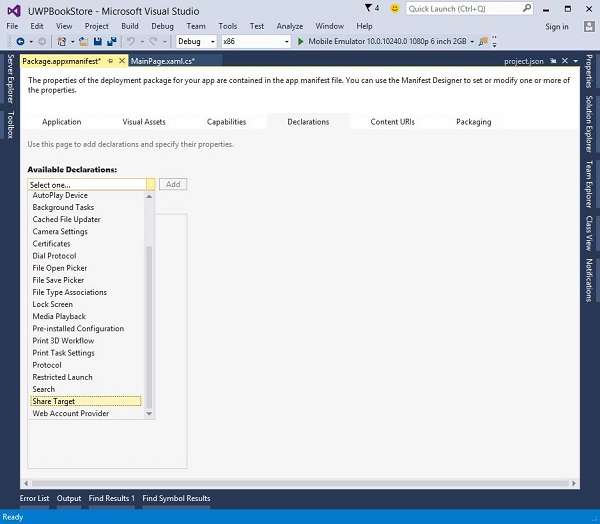
如果您希望您的应用程序接收任何类型的文件作为共享内容,则可以指定文件类型和数据格式。
要指定您支持的数据格式,请转到声明页面的数据格式部分,然后点击添加新。
键入您支持的数据格式的名称。例如,“文本”。
要指定您支持的文件类型,请在声明页面的支持的文件类型部分点击添加新。
键入您要支持的文件名扩展名,例如.pdf
如果您希望支持所有文件类型,请选中支持任何文件类型复选框。
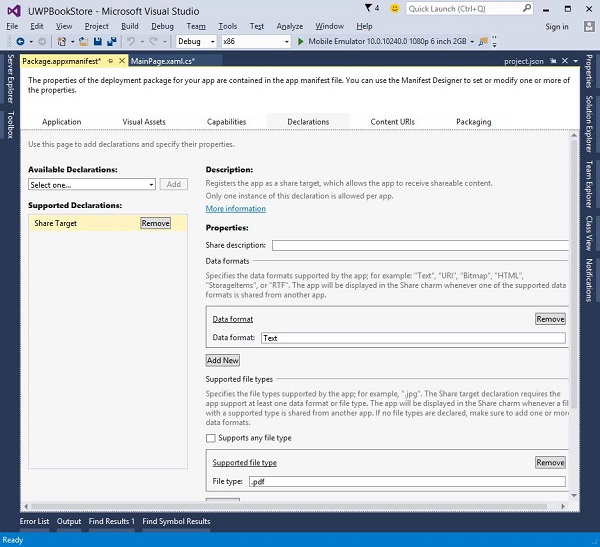
当用户选择您的应用程序作为共享数据的目标应用程序时,将触发OnShareTargetActivated事件。
您的应用程序需要处理此事件以处理用户想要共享的数据。
protected override async void OnShareTargetActivated(ShareTargetActivatedEventArgs args) {
   // Code to handle activation goes here.
}
用户想要与任何应用程序共享的所有数据都包含在ShareOperation对象中。您还可以检查它包含的数据的格式。
下面是处理以纯文本格式共享内容的代码片段。
ShareOperation shareOperation = args.ShareOperation;

if (shareOperation.Data.Contains(StandardDataFormats.Text)) {
   string text = await shareOperation.Data.GetTextAsync();

   // To output the text from this example, you need a TextBlock control
   // with a name of "sharedContent".
   sharedContent.Text = "Text: " + text;
}
让我们通过创建一个新的 UWP 项目来查看一个简单的示例,该项目将共享一个网页链接。
下面是 XAML 代码,其中创建了一个具有某些属性的按钮。
<Page
   x:Class = "UWPSharingDemo.MainPage"
   xmlns = "http://schemas.microsoft.com/winfx/2006/xaml/presentation"
   xmlns:x = "http://schemas.microsoft.com/winfx/2006/xaml"
   xmlns:local = "using:UWPSharingDemo"
   xmlns:d = "http://schemas.microsoft.com/expression/blend/2008"
   xmlns:mc = "http://schemas.openxmlformats.org/markup-compatibility/2006"
   mc:Ignorable = "d">

   <Grid Background = "{ThemeResource ApplicationPageBackgroundThemeBrush}">

      <StackPanel Orientation = "Vertical">
         <TextBlock Text = "Share Web Link" Style = "{StaticResource
            HeaderTextBlockStyle}" Margin = "30"></TextBlock>

         <Button Content = "Invoke share contract" Margin = "10"
            Name = "InvokeShareContractButton" Click = "InvokeShareContractButton_Click"
            ></Button>
      </StackPanel>

   </Grid>

</Page>
下面是 C# 代码,其中实现了按钮点击事件,并给出了 URI 共享代码。
using System;

using Windows.ApplicationModel.DataTransfer;
using Windows.UI.Xaml;
using Windows.UI.Xaml.Controls;

// The Blank Page item template is documented at
   http://go.microsoft.com/fwlink/?LinkId=402352&clcid=0x409

namespace UWPSharingDemo {

   /// <summary>
      /// An empty page that can be used on its own or navigated to within a Frame.
   /// </summary>

   public sealed partial class MainPage : Page {

      DataTransferManager dataTransferManager;

      public MainPage() {
         this.InitializeComponent();
         dataTransferManager = DataTransferManager.GetForCurrentView();
         dataTransferManager.DataRequested += dataTransferManager_DataRequested;
      }

      void dataTransferManager_DataRequested(DataTransferManager sender,
         DataRequestedEventArgs args) {
            Uri sharedWebLink = new Uri("https://msdn.microsoft.com");

            if (sharedWebLink != null) {
               DataPackage dataPackage = args.Request.Data;
               dataPackage.Properties.Title = "Sharing MSDN link";

               dataPackage.Properties.Description = "The Microsoft Developer Network (MSDN)
                  is designed to help developers write applications using Microsoft
                  products and technologies.";

               dataPackage.SetWebLink(sharedWebLink);
            }
      }

      private void InvokeShareContractButton_Click(object sender, RoutedEventArgs e) {
         DataTransferManager.ShowShareUI();
      }

   }
}
编译并执行上述代码后,您将在模拟器上看到以下页面。
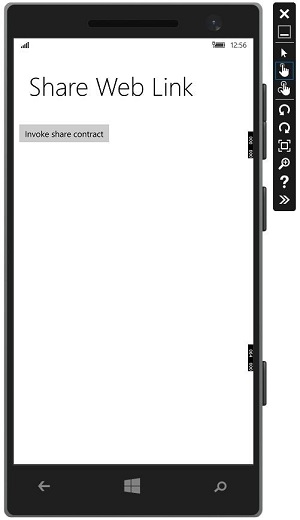
点击按钮后,它将提供在哪个应用程序上共享的选项。
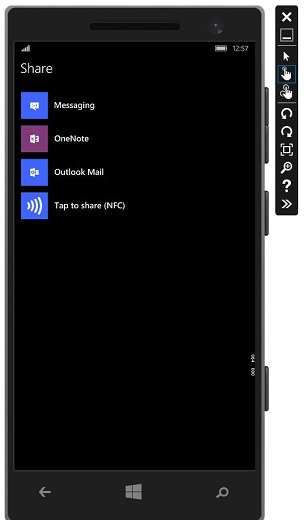
点击消息,将显示以下窗口,您可以从中将链接发送给任何人。
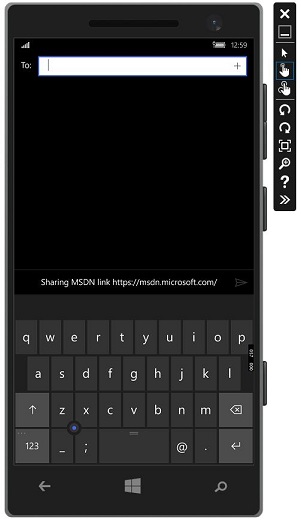
Windows 10 开发 - 移植到 Windows
在本章中,我们将学习如何将您现有的 Windows 8.1 应用程序移植到通用 Windows 平台 (UWP)。您可以创建一个单个 Windows 10 应用包,您的客户可以将其安装到所有类型的设备上。
将您的应用程序移植到 Windows 10 UWP 后,您的应用程序将受益于 -
- 令人兴奋的新硬件
- 巨大的获利机会
- 一套现代化的 API 集,
- 自适应 UI 控件,
- 自适应设计和代码
- 一系列的输入方式,例如鼠标、键盘、触摸和语音。
将 Windows 8.x 项目移植到 UWP 项目
有两种方法可以将现有的 Windows 8.x 应用程序移植到通用 Windows 平台 (UWP)。
选项 1 − 一种是在 Visual Studio 中创建一个新的 Windows 10 项目,并将您的文件复制到其中。
选项 2 − 另一种方法是编辑现有项目文件的副本,包括应用包清单。
以下是使用第一种选项时的主要步骤。
启动 Microsoft Visual Studio 2015 并创建一个名为 UWPBookStore 的新的空白应用程序 (Windows 通用) 项目。
您的新项目构建一个应用包(一个 appx 文件),该文件将在所有设备系列上运行。
在您的通用 8.1 应用项目中,识别您想要重用的所有源代码文件和视觉资产文件。下面显示了一个示例应用程序,它有三个项目。一个用于 Windows,第二个用于移动设备,第三个是 Windows 和移动设备的共享项目。
在手机上运行此应用程序后,您将看到以下窗口。
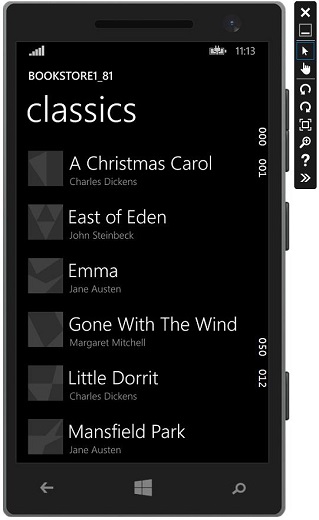
运行 Windows 应用程序后,您将看到以下应用程序。
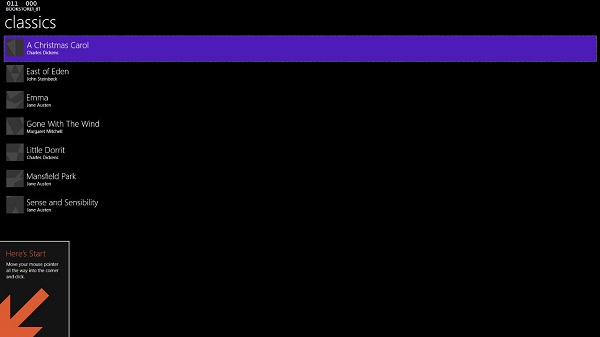
- 现在,打开新创建的 UWP 项目应用程序
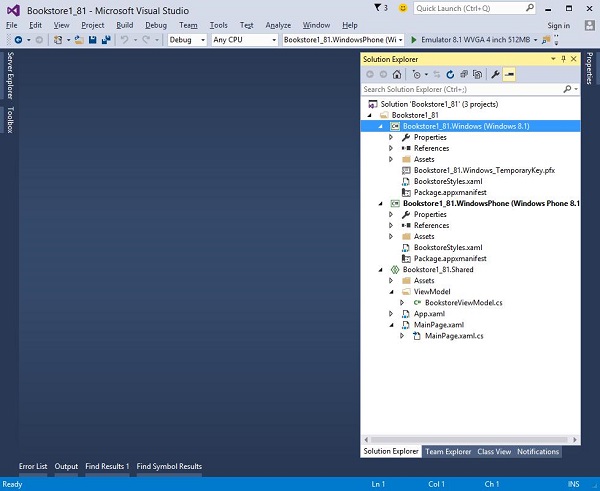
从共享项目中,复制包含书籍封面图像 (.png) 文件的文件夹 Assets\CoverImages。还复制 ViewModel 文件夹和 MainPage.xaml 并替换目标文件。
从 Windows 项目中,复制 BookstoreStyles.xaml。此文件中的所有资源键都将在 Windows 10 应用中解析。等效的 WindowsPhone 文件中的一些资源键将无法解析。
在 解决方案资源管理器 中,确保 显示所有文件 切换为 开启。
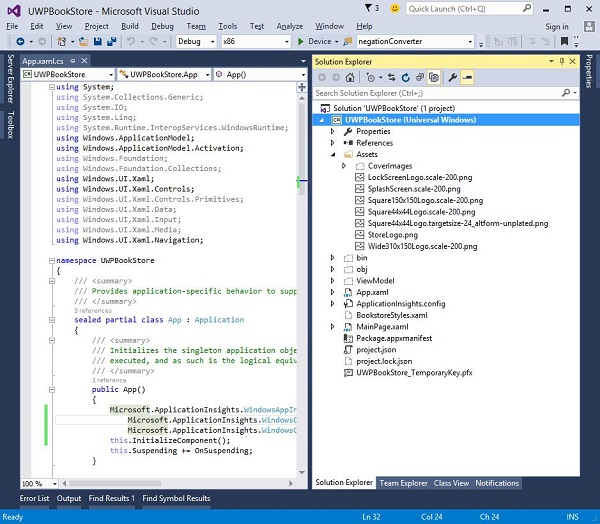
选择您复制的文件,右键单击它们,然后单击 包含在项目中,如下所示。
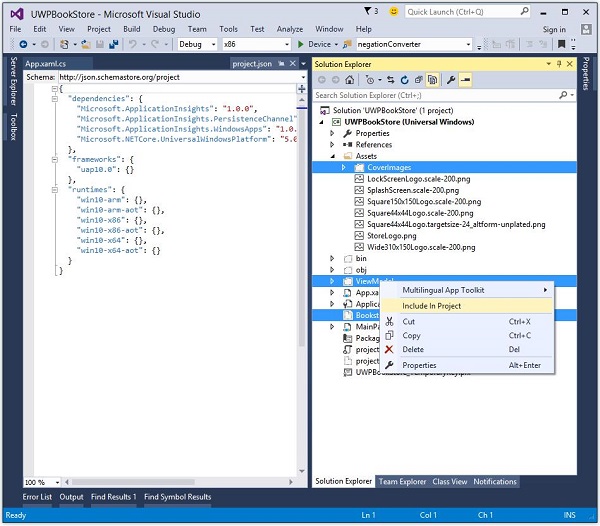
这将自动包含它们包含的文件夹。然后,如果需要,您可以将 显示所有文件 切换为 关闭。
现在,您的项目结构将在 解决方案资源管理器 中如下所示。
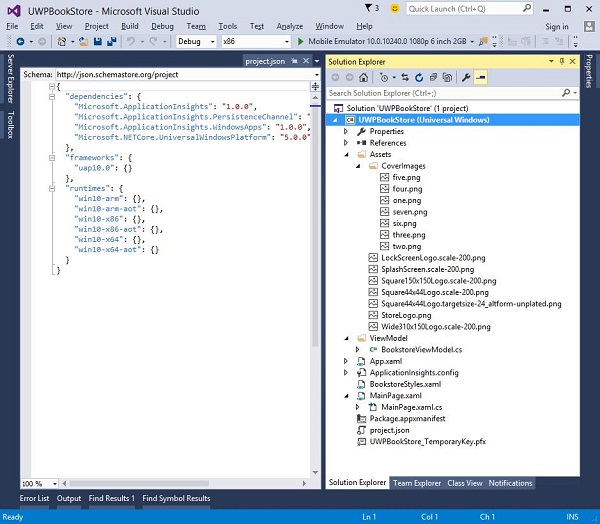
编辑您刚刚复制的源代码和标记文件,并将对 Bookstore1_81 命名空间的任何引用更改为 UWPBookStore 命名空间。
最简单的方法是使用 在文件中替换 功能替换命名空间。视图模型中不需要进行任何代码更改。
现在,执行上述代码后,您可以在本地计算机上运行它,也可以在移动设备上运行它,如下所示。
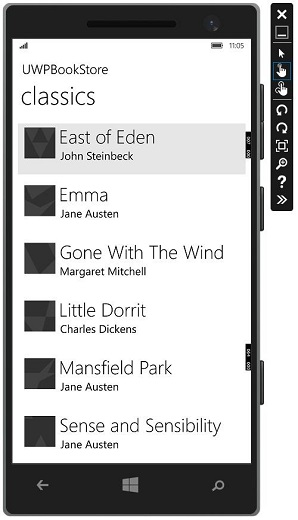
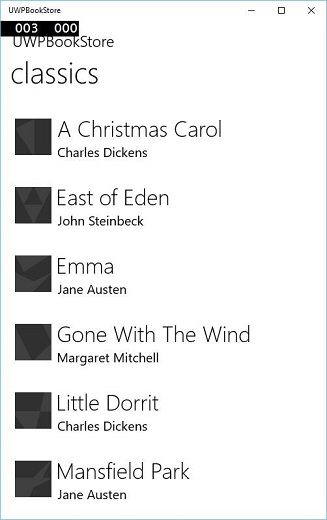
现在,第二个选项是编辑现有项目文件的副本,包括应用包清单。将 Windows/phone 8.x 移植到 Windows 10 时,项目文件和 package.appmanifest 文件需要进行一些修改。
Microsoft 提供了 UWP 项目升级实用程序,在移植现有应用程序时非常有用。该实用程序可以从 github.com 下载。
我们建议您逐步按照上述示例操作,以便更好地理解。