
- Windows 10 开发教程
- Windows 10 - 首页
- Windows 10 - 简介
- Windows 10 – UWP
- Windows 10 – 第一个应用
- Windows 10 - 应用商店
- Windows 10 - XAML 控件
- Windows 10 - 数据绑定
- Windows 10 - XAML 性能
- Windows 10 - 自适应设计
- Windows 10 - 自适应 UI
- Windows 10 - 自适应代码
- Windows 10 - 文件管理
- Windows 10 - SQLite 数据库
- Windows 10 – 通信
- Windows 10 - 应用本地化
- Windows 10 - 应用生命周期
- Windows 10 - 后台执行
- Windows 10 - 应用服务
- Windows 10 - Web 平台
- Windows 10 - 连接体验
- Windows 10 - 导航
- Windows 10 - 网络
- Windows 10 - 云服务
- Windows 10 - 实时磁贴
- Windows 10 - 共享契约
- Windows 10 - 移植到 Windows
- Windows 10 有用资源
- Windows 10 - 快速指南
- Windows 10 - 有用资源
- Windows 10 - 讨论
Windows 10 开发 - 导航
在通用 Windows 平台 (UWP) 应用程序中,导航是一种灵活的导航结构、导航元素和系统级功能模型。它能够为在应用、页面和内容之间移动提供各种直观的用户体验。
在某些情况下和场景中,所有内容和功能都可以轻松地放入单个页面中,开发人员无需创建多个页面。但是,在大多数应用程序中,多个页面用于不同内容和功能之间的交互。
当应用程序具有多个页面时,开发人员提供正确的导航体验非常重要。
页面模型
通常,在通用 Windows 平台 (UWP) 应用程序中,使用单页面导航模型。
重要功能包括:
单页面导航模型维护应用程序的所有上下文以及其他内容和数据到中央框架中。
您可以将应用程序的内容划分为多个页面。但是,当从一个页面移动到另一个页面时,您的应用程序会将页面加载到主页面表单中。
应用程序的主页面不会被卸载,代码和数据也不会被卸载,这使得管理状态更容易,并在页面之间提供更流畅的过渡动画。
多页面导航也用于在不同页面或屏幕之间导航,而无需担心应用程序上下文。在多页面导航中,每个页面都有自己的一组功能、用户界面和数据等。
多页面导航通常用于网站内的网页。
导航结构
在多页面导航中,每个页面都有自己的一组功能、用户界面和数据等。例如,照片应用程序可能有一个页面用于捕捉照片,然后当用户想要编辑照片时,它会导航到另一个页面,并且为了维护图像库,它还有另一个页面。
应用程序的导航结构由这些页面的组织方式定义。
以下是构建应用程序导航的方式:
层次结构
在这种类型的导航结构中:
页面被组织成树状结构。
每个子页面只有一个父页面,但父页面可以拥有一个或多个子页面。
要到达子页面,您必须经过父页面。
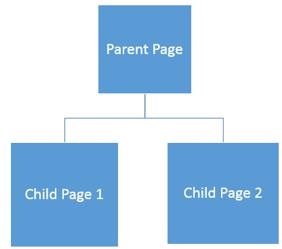
同级
在这种类型的导航中:
- 页面并排存在。
- 您可以按任何顺序从一个页面转到另一个页面。
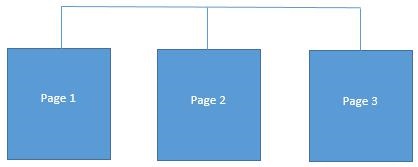
在大多数多页面应用程序中,这两种结构同时使用。某些页面被组织成同级,而某些页面被组织成层次结构。
让我们举一个包含三个页面的例子。
创建一个名为UWPNavigation的空白 UWP 应用程序。
通过在解决方案资源管理器中右键单击项目并从菜单中选择添加 > 新建项选项,添加另外两个空白页面,这将打开以下对话框窗口。
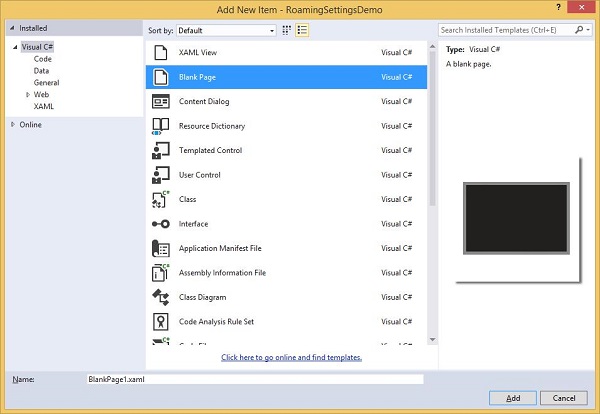
从中间窗格中选择空白页面,然后单击添加按钮。
现在按照上述步骤再添加一个页面。
您将在解决方案资源管理器中看到三个页面:MainPage、BlankPage1和BlankPage2。
下面是MainPage的 XAML 代码,其中添加了两个按钮。
<Page
   x:Class = "UWPNavigation.MainPage"
   xmlns = "http://schemas.microsoft.com/winfx/2006/xaml/presentation"
   xmlns:x = "http://schemas.microsoft.com/winfx/2006/xaml"
   xmlns:local = "using:UWPNavigation"
   xmlns:d = "http://schemas.microsoft.com/expression/blend/2008"
   xmlns:mc = "http://schemas.openxmlformats.org/markup-compatibility/2006"
   mc:Ignorable = "d">

   <Grid Background = "{ThemeResource ApplicationPageBackgroundThemeBrush}">
      <Hub Header = "Hi, this Main Page"/>
      <Button Content = "Go to Page 1" Margin = "64,131,0,477" Click = "Button_Click"/>
      <Button Content = "Go to Page 2" Margin = "64,210,0,398" Click = "Button_Click_1"/>
   </Grid>

</Page>
下面是MainPage上两个按钮的 C# 代码,它将导航到其他两个页面。
using Windows.UI.Xaml;
using Windows.UI.Xaml.Controls;

// The Blank Page item template is documented at
   http://go.microsoft.com/fwlink/?LinkId=402352&clcid=0x409

namespace UWPNavigation {

   /// <summary>
      /// An empty page that can be used on its own or navigated to within a Frame.
   /// </summary>

   public sealed partial class MainPage : Page {
      public MainPage() {
         this.InitializeComponent();
      }

      private void Button_Click(object sender, RoutedEventArgs e){
         this.Frame.Navigate(typeof(BlankPage1));
      }

      private void Button_Click_1(object sender, RoutedEventArgs e) {
         this.Frame.Navigate(typeof(BlankPage2));
      }

   }
}
下面显示了空白页面 1的 XAML 代码。
<Page
   x:Class = "UWPNavigation.BlankPage1"
   xmlns = "http://schemas.microsoft.com/winfx/2006/xaml/presentation"
   xmlns:x = "http://schemas.microsoft.com/winfx/2006/xaml"
   xmlns:local = "using:UWPNavigation"
   xmlns:d = "http://schemas.microsoft.com/expression/blend/2008"
   xmlns:mc = "http://schemas.openxmlformats.org/markup-compatibility/2006"
   mc:Ignorable = "d">

   <Grid Background = "{ThemeResource ApplicationPageBackgroundThemeBrush}">
      <Hub Header = "Hi, this is page 1"/>
      <Button Content = "Go to Main Page" Margin = "64,94,0,514" Click = "Button_Click"/>
   </Grid>

</Page>
下面显示了空白页面 1上按钮 - 点击事件的 C# 代码,它将导航到主页面。
using System;
using Windows.UI.Xaml;
using Windows.UI.Xaml.Controls;

// The Blank Page item template is documented at
   http://go.microsoft.com/fwlink/?LinkId=234238

namespace UWPNavigation {

   /// <summary>
      /// An empty page that can be used on its own or navigated to within a Frame.
   /// </summary>

   public sealed partial class BlankPage1 : Page {

      public BlankPage1() {
         this.InitializeComponent();
      }

      private void Button_Click(object sender, RoutedEventArgs e) {
         this.Frame.Navigate(typeof(MainPage));
      }

   }
}
下面显示了空白页面 2的 XAML 代码。
<Page
   x:Class = "UWPNavigation.BlankPage2"
   xmlns = "http://schemas.microsoft.com/winfx/2006/xaml/presentation"
   xmlns:x = "http://schemas.microsoft.com/winfx/2006/xaml"
   xmlns:local = "using:UWPNavigation"
   xmlns:d = "http://schemas.microsoft.com/expression/blend/2008"
   xmlns:mc = "http://schemas.openxmlformats.org/markup-compatibility/2006"
   mc:Ignorable = "d">

   <Grid Background = "{ThemeResource ApplicationPageBackgroundThemeBrush}">
      <Hub Header = "Hi, this is page 2"/>
      <Button Content = "Go to Main Page" Margin = "64,94,0,514" Click = "Button_Click"/>
   </Grid>

</Page>
下面显示了空白页面 2上按钮点击事件的 C# 代码,它将导航到主页面。
using Windows.UI.Xaml;
using Windows.UI.Xaml.Controls;

// The Blank Page item template is documented at
   http://go.microsoft.com/fwlink/?LinkId=234238

namespace UWPNavigation {

   /// <summary>
      /// An empty page that can be used on its own or navigated to within a Frame.
   /// </summary>

   public sealed partial class BlankPage2 : Page {

      public BlankPage2(){
         this.InitializeComponent();
      }

      private void Button_Click(object sender, RoutedEventArgs e) {
         this.Frame.Navigate(typeof(MainPage));
      }

   }
}
编译并执行上述代码后,您将看到以下窗口。
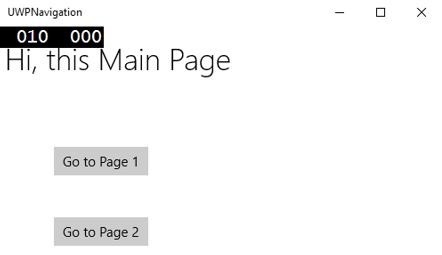
单击任何按钮时,它将导航到相应的页面。让我们点击“转到页面 1”,然后将显示以下页面。
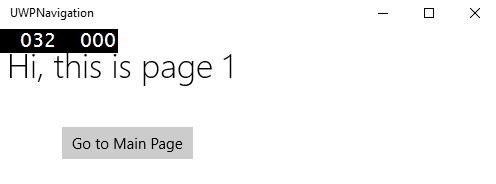
单击“转到主页面”按钮时,它将导航回主页面。