- Adobe Flex 教程
- Flex - 首页
- Flex - 概述
- Flex - 环境
- Flex - 应用程序
- Flex - 创建应用程序
- Flex - 部署应用程序
- Flex - 生命周期阶段
- Flex - 使用 CSS 样式化
- Flex - 使用皮肤样式化
- Flex - 数据绑定
- Flex - 基本控件
- Flex - 表单控件
- Flex - 复杂控件
- Flex - 布局面板
- Flex - 视觉效果
- Flex - 事件处理
- Flex - 自定义控件
- Flex - RPC 服务
- Flex - FlexUnit 集成
- Flex - 调试应用程序
- Flex - 国际化
- Flex - 打印支持
- Adobe Flex 资源
- Flex - 快速指南
- Flex - 有用资源
- Flex - 讨论
Flex - 日期选择器控件
日期选择器控件用于显示月份名称、年份以及月份日期网格,其中列标有星期几。
日期选择器控件允许用户选择日期、日期范围或多个日期。该控件包含用于更改月份和年份的前后箭头按钮。
类声明
以下是mx.controls.DateChooser类的声明:
public class DateChooser
   extends UIComponent
      implements IFocusManagerComponent, IFontContextComponent
公共属性
| 序号 | 属性 & 描述 |
|---|---|
| 1 | allowDisjointSelection : 布尔值 如果为真,则指定在 DateChooser 控件中允许非连续(不连续)选择。 |
| 2 | allowMultipleSelection : 布尔值 如果为真,则指定在 DateChooser 控件中允许多选。 |
| 3 | dayNames : 数组 DateChooser 控件的星期名称。 |
| 4 | disabledDays : 数组 一周中要禁用的日期。 |
| 5 | disabledRanges : 数组 禁用单个和多个日期。 |
| 6 | displayedMonth : 整数 与 displayedYear 属性一起使用,displayedMonth 属性指定在 DateChooser 控件中显示的月份。 |
| 7 | displayedYear : 整数 与 displayedMonth 属性一起使用,displayedYear 属性指定在 DateChooser 控件中显示的年份。 |
| 8 | firstDayOfWeek : 对象 表示一周中要显示在 DateChooser 控件第一列的日期的数字。 |
| 9 | maxYear : 整数 控件中可选择的最后一年。 |
| 10 | minYear : 整数 控件中可选择的第一个年份。 |
| 11 | monthNames : 数组 在 DateChooser 控件顶部显示的月份名称。 |
| 12 | monthSymbol : 字符串 此属性附加到 monthNames 属性指定的值的末尾,以定义在 DateChooser 控件顶部显示的月份名称。 |
| 13 | selectableRange : 对象 可选择日期之间的日期范围。 |
| 14 | selectedDate : 日期 在 DateChooser 控件中选择的日期。 |
| 15 | selectedRanges : 数组 选定的日期范围。 |
| 16 | showToday : 布尔值 如果为真,则指定今天在 DateChooser 控件中突出显示。 |
| 17 | yearNavigationEnabled : 布尔值 启用年份导航。 |
| 18 | yearSymbol : 字符串 此属性附加到在 DateChooser 控件顶部显示的年份的末尾。 |
受保护的属性
| 序号 | 属性 & 描述 |
|---|---|
| 1 | calendarLayoutStyleFilters : 对象 [只读] 要从 DateChooser 传递到日历布局的样式集。 |
| 2 | nextMonthStyleFilters : 对象 [只读] 要从 DateChooser 传递到下个月按钮的样式集。 |
| 3 | nextYearStyleFilters : 对象 [只读] 要从 DateChooser 传递到下一年按钮的样式集。 |
| 4 | prevMonthStyleFilters : 对象 [只读] 要从 DateChooser 传递到上个月按钮的样式集。 |
| 5 | prevYearStyleFilters : 对象 [只读] 要从 DateChooser 传递到上一年按钮的样式集。 |
公共方法
| 序号 | 方法 & 描述 |
|---|---|
| 1 | DateChooser() 构造函数。 |
事件
| 序号 | 事件 & 描述 |
|---|---|
| 1 | change 选择或更改日期时调度。 |
| 2 | scroll 由于用户交互导致月份更改时调度。 |
继承的方法
此类继承自以下类:
- mx.core.UIComponent
- mx.core.FlexSprite
- flash.display.Sprite
- flash.display.DisplayObjectContainer
- flash.display.InteractiveObject
- flash.display.DisplayObject
- flash.events.EventDispatcher
- Object
Flex 日期选择器控件示例
让我们按照以下步骤在 Flex 应用程序中检查 DateChooser 控件的使用,方法是创建一个测试应用程序:
| 步骤 | 描述 |
|---|---|
| 1 | 在包com.tutorialspoint.client下创建一个名为HelloWorld的项目,如Flex - 创建应用程序章节中所述。 |
| 2 | 修改HelloWorld.mxml,如下所述。保持其余文件不变。 |
| 3 | 编译并运行应用程序以确保业务逻辑按要求工作。 |
以下是修改后的 mxml 文件src/com.tutorialspoint/HelloWorld.mxml的内容。
<?xml version = "1.0" encoding = "utf-8"?>
<s:Application xmlns:fx = "http://ns.adobe.com/mxml/2009"
   xmlns:s = "library://ns.adobe.com/flex/spark"
   xmlns:mx = "library://ns.adobe.com/flex/mx"
   width = "100%" height = "100%" minWidth = "500" minHeight = "500"
   applicationComplete = "application_applicationCompleteHandler(event)">

   <fx:Style source = "/com/tutorialspoint/client/Style.css" />
   <fx:Script>
      <![CDATA[
         import mx.events.CalendarLayoutChangeEvent;
         import mx.events.FlexEvent;

         [Bindable]
         private var selectedDate:String = "";
         protected function dateChooser_changeHandler
            event:CalendarLayoutChangeEvent):void {
            var date:Date = DateChooser(event.target).selectedDate;
            selectedDate = dateFormatter.format(date);
         }

         protected function application_applicationCompleteHandler
            (event:FlexEvent):void {
            selectedDate = dateFormatter.format(new Date());
         }
      ]]>
   </fx:Script>

   <s:BorderContainer width = "550" height = "400" id = "mainContainer"
      styleName = "container">
      <s:VGroup width = "100%" height = "100%" gap = "50"
         horizontalAlign = "center" verticalAlign = "middle">
         <s:Label id = "lblHeader" text = "Form Controls Demonstration"
            fontSize = "40" color = "0x777777" styleName = "heading" />

         <s:Panel id = "dateChooserPanel" title = "Using DateChooser" width = "400"
            height = "300" includeInLayout = "true" visible = "true">
            <s:layout>
               <s:HorizontalLayout  gap = "10" verticalAlign = "middle"
                  horizontalAlign = "center" />
            </s:layout>

            <mx:DateChooser id = "dateChooser" yearNavigationEnabled = "true"
               change = "dateChooser_changeHandler(event)" />
            <s:Label id = "selection" fontWeight = "bold"
               text = "Date selected: {selectedDate}" />
         </s:Panel>
      </s:VGroup>
   </s:BorderContainer>
</s:Application>
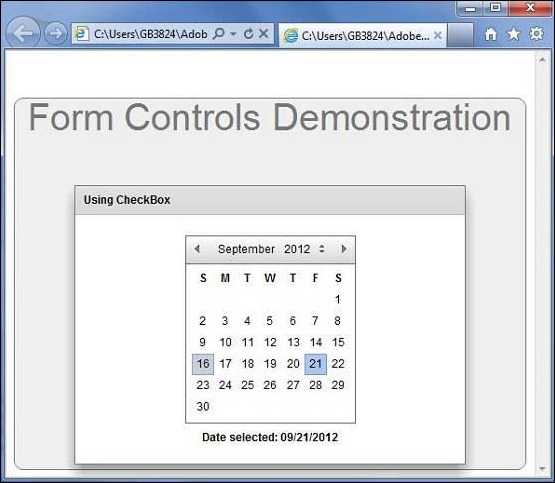
完成所有更改后,让我们像在Flex - 创建应用程序章节中一样,以普通模式编译并运行应用程序。如果应用程序一切正常,它将产生以下结果:[ 在线尝试 ]