
- Microsoft Expression Web 教程
- MS Expression Web - 首页
- MS Expression Web - 概述
- 环境设置
- MS Expression Web - 新建网站
- 空白网页
- 网页布局
- MS Expression Web - HTML 布局
- 水平导航
- 垂直导航
- MS Expression Web - 验证页面
- 动态网页模板
- MS Expression Web - 搜索页面
- MS Expression Web - 图片
- MS Expression Web - 超链接
- MS Expression Web - 视频
- SQL 数据源
- MS Expression Web - MS Word
- MS Expression Web - 网格视图
- MS Expression Web - 主页
- MS Expression Web - 数据表
- MS Expression Web - 发布
- 备份网站
- MS Expression Web - 附加组件
- MS Expression Web 资源
- MS Expression Web - 快速指南
- MS Expression Web - 资源
- MS Expression Web - 讨论
Microsoft Expression Web - 搜索页面
本章将学习如何在网站中添加搜索选项或搜索框。对于大型网站,需要在网站中添加搜索框,以便用户可以轻松找到任何数据。有很多免费的搜索引擎可用,例如 Windows Live、Google 等。
Windows Live 搜索
以下步骤将向您展示如何将 Windows Live 搜索框添加到您的网页,然后设置搜索表单以搜索整个网络或仅搜索您的网站。
步骤 1 - 创建一个新的 HTML 页面并将其命名为 SearchPage。
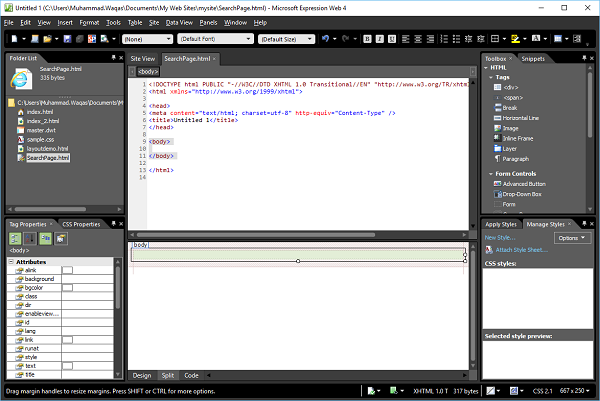
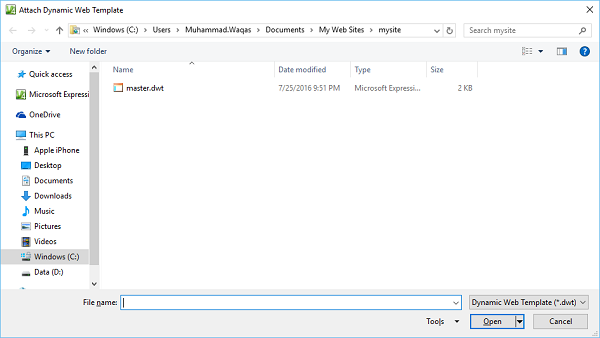
步骤 2 - 转到“格式”菜单,然后选择动态网页模板 → 附加动态网页模板…选项。选择 master.dwt 文件并单击“打开”按钮。
步骤 3 - 让我们在可编辑区域内添加以下代码。
<form method = "get" action = "http://search.live.com/results.aspx">
   <input type = "hidden" name = "cp" value = "1252"/>
   <input type = "hidden" name = "FORM" value = "FREESS"/>
   <table style = "background-color: #ffffff;">
      <tr>
         <td>
            <a href = "http://search.live.com/">
               <img src = "http://search.live.com/s/affillogoLive.gif"
                  style = "border:0px;" alt = "Live Search"/>
            </a>
         </td>
         <td>
            <input type = "text" name = "q" size = "30" />
            <input type = "submit" value = "Search Site"/>
            <input type = "hidden" name = "q1"
               value = "site:http://www.microsoft.com/expression"/>
         </td>
      </tr>
   </table>
</form>
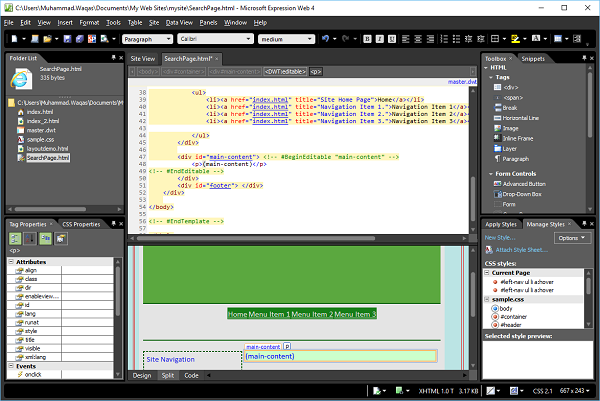
步骤 4 - 保存页面。转到“文件”菜单,然后选择“在浏览器中预览”。
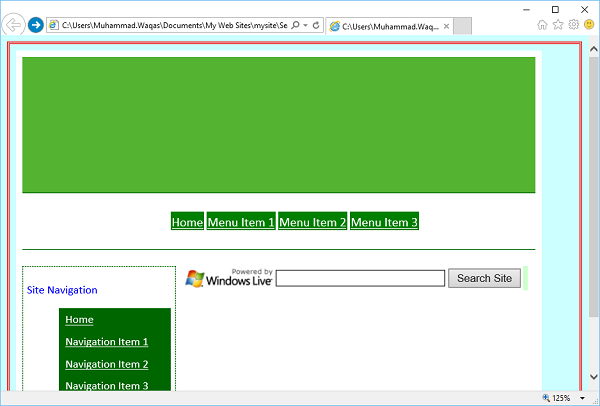
步骤 5 - 您将在网页中看到 Windows Live 搜索。让我们在搜索中输入一些内容,然后单击“搜索网站”按钮。
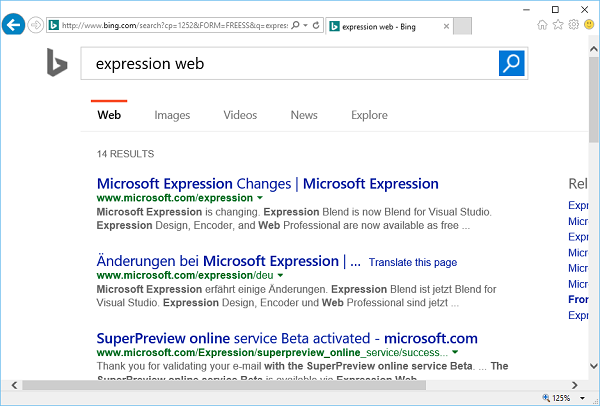
步骤 6 - 您会看到它将在网络上进行搜索。如果您想将搜索限制在您的网站上,则必须在以下名称中指定您的网站域名,而不是 www.microsoft.com/expression
<input type = "hidden" name = "q1" value = "site:http://www.microsoft.com/expression"/>
步骤 7 - 同样,您可以通过在可编辑区域中添加以下代码来添加 Google 搜索选项。
<form method = "get" action = "http://www.google.com/search">
   <div style = "border: 1px solid black; padding: 4px; width: 20em; margin: 0px auto 0px auto">
      <table border = "0" cellpadding = "0">
         <tr>
            <td class = "center">
               <input type = "text" name = "q" size = "25" maxlength = "255" value = "" />
               <input type = "submit" value = "Google Search" />
            </td>
         </tr>
         <tr>
            <td align = "center" style = "font-size: 75%">
               <input type = "checkbox" name = "sitesearch"
                  value = " http://www.microsoft.com/expression" checked = "checked" />
               Only search this website<br />
            </td>
         </tr>
      </table>
   </div>
</form>
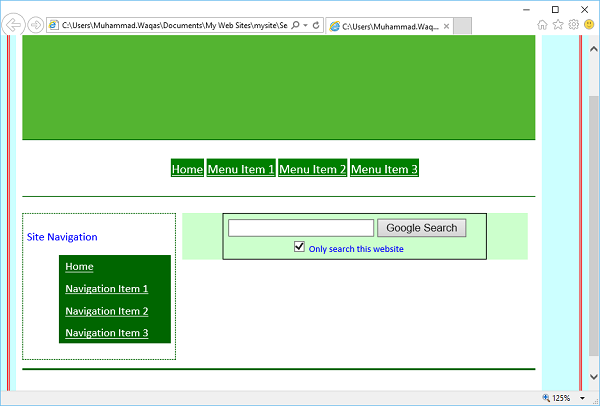
步骤 8 - 保存您的 HTML 页面,您将看到一个搜索框、搜索按钮、复选框和复选框标签。
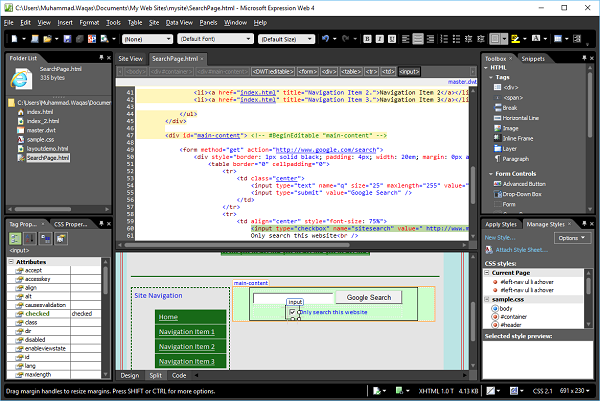
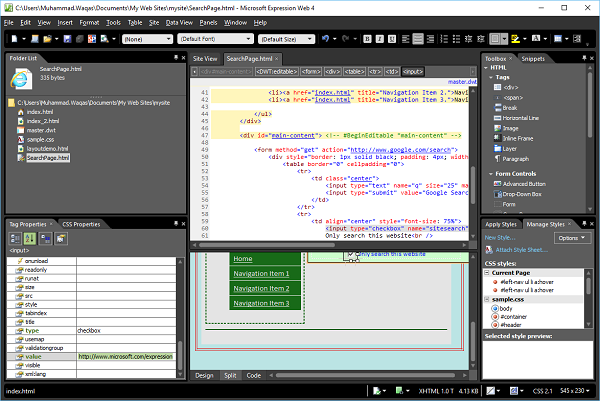
步骤 9 - 要限制用户只搜索您的网站,请选择复选框,然后转到“标签属性”面板并将“值”属性设置为您的网站 URL,例如 www.microsoft.com/expression。
步骤 10 - 保存您的页面并在浏览器中预览。现在您将在网页中看到 Google 搜索选项。
广告