

- Windows 10 教程
- Windows 10 - 家庭版
- Windows 10 - 概述
- Windows 10 - 安装
- Windows 10 - 入门指南
- Windows 10 - 图形界面基础
- Windows 10 - 导航
- Windows 10 - 开始菜单
- Windows 10 - 任务栏
- Windows 10 - 平板电脑模式
- Windows 10 - 文件资源管理器
- Windows 10 - Cortana
- Windows 10 - 通知
- Windows 10 - 快速操作
- Windows 10 - 云
- Windows 10 - 通用应用
- Windows 10 - 多个桌面
- Windows 10 - 用户管理
- Windows 10 - 安全
- Windows 10 - 家长控制
- Windows 10 - 应用程序
- Windows 10 - 浏览网页
- Windows 10 - 网络
- Windows 10 - 虚拟化
- Windows 10 - 远程访问
- Windows 10 - 备份和恢复
- Windows 10 - Project Spartan(现已更名为Microsoft Edge)
- Windows 10 - 应用管理
- Windows 10 - 邮件管理
- Windows 10 - 键盘快捷键
- Windows 10 - 系统托盘
- Windows 10 - 媒体管理
- Windows 10 - 常用设置
- Windows 10 - 快捷方式
- Windows 10 - 手机
- Windows 10 有用资源
- Windows 10 - 快速指南
- Windows 10 - 有用资源
- Windows 10 - 讨论
Windows 10 - 媒体管理
Windows 10 提供多种方式来处理您的媒体文件(音乐和视频)。一些处理这些文件所需的功能已集成到 Windows 中,以便于您访问它们。例如,如果您选择一个音乐文件,您将在文件夹窗口顶部看到以下功能区。
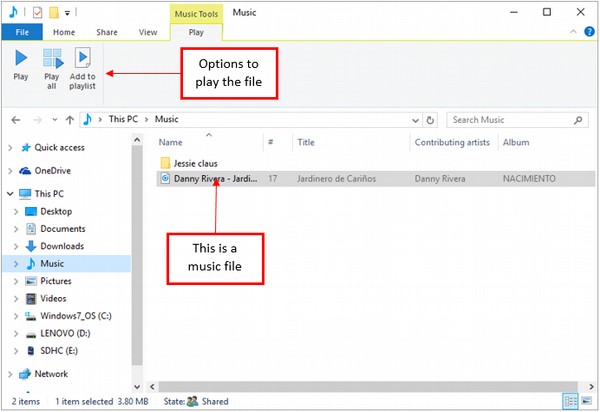
选择视频文件时,您会看到类似的选项。
媒体应用程序
尽管您可以在计算机中安装多个媒体程序,但 Windows 10 包括几个可供您使用的选项。
对于音乐文件,Windows 包括传统的 Windows Media Player。但是,新的 Windows 版本还包括 **Groove 音乐** 应用(以前称为 Xbox 音乐)。
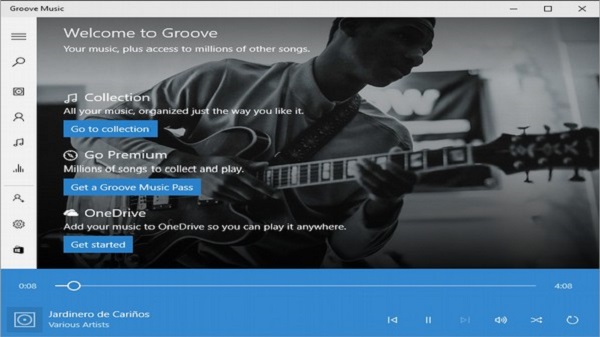
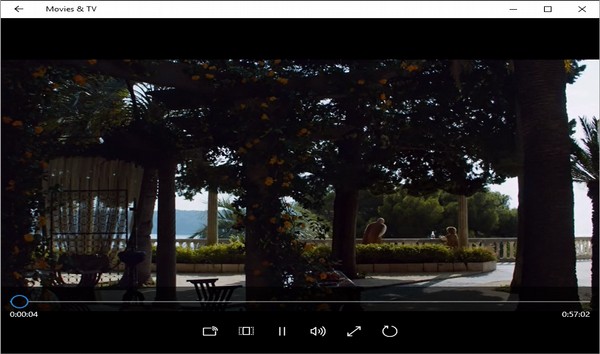
对于视频文件,Windows 也使用 Windows Media Player,但现在还包括 **电影和电视** 应用。
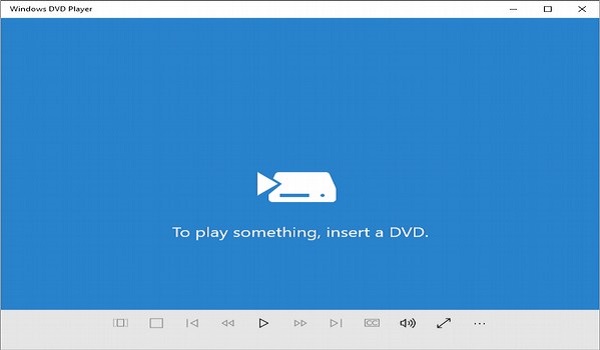
Windows 10 还包括 **Windows DVD 播放器** 应用,用于在您的计算机上播放 DVD。
您还可以按照以下步骤选择要用于打开媒体文件的应用程序:
**步骤 1** - 右键单击任何媒体文件(音乐或视频)。
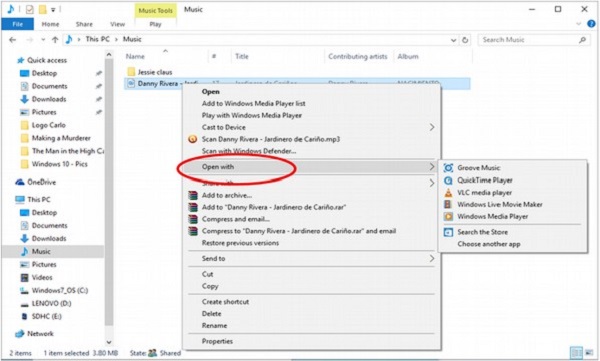
**步骤 2** - 选择“**打开方式**”选项。
**步骤 3** - 选择要用于打开媒体文件的应用程序。
广告