

- Windows 10 教程
- Windows 10 - 家庭版
- Windows 10 - 概述
- Windows 10 - 安装
- Windows 10 - 开始使用
- Windows 10 - 图形界面基础
- Windows 10 - 导航
- Windows 10 - 开始菜单
- Windows 10 - 任务栏
- Windows 10 - 平板电脑模式
- Windows 10 - 文件资源管理器
- Windows 10 - Cortana 语音助手
- Windows 10 - 通知
- Windows 10 - 快速操作
- Windows 10 - 云服务
- Windows 10 - 通用应用
- Windows 10 - 多个桌面
- Windows 10 - 用户管理
- Windows 10 - 安全
- Windows 10 - 家长控制
- Windows 10 - 应用
- Windows 10 - 浏览器
- Windows 10 - 网络
- Windows 10 - 虚拟化
- Windows 10 - 远程访问
- Windows 10 - 备份和恢复
- Windows 10 - Spartan 项目 (Project Spartan, 应根据上下文考虑是否需要翻译成中文名称,例如“Spartan浏览器”或直接保留英文)
- Windows 10 - 应用管理
- Windows 10 - 邮件管理
- Windows 10 - 快捷键
- Windows 10 - 系统托盘
- Windows 10 - 媒体管理
- Windows 10 - 常用设置
- Windows 10 - 快捷方式
- Windows 10 - 手机
- Windows 10 有用资源
- Windows 10 - 快速指南
- Windows 10 - 有用资源
- Windows 10 - 讨论
Windows 10 - 网络
与之前的 Windows 版本一样,Windows 10 会在通知区域显示您的网络连接状态。
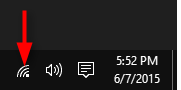
如果连接是无线的,您将看到此图标。
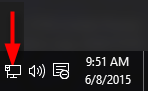
如果连接是有线的,您将看到此图标。
有线连接(以太网)
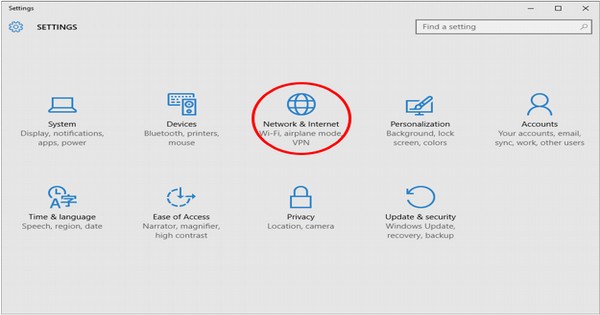
如果您的网络连接通过网线,您可以通过转到**设置**窗口并选择**网络和 Internet**来访问其设置。
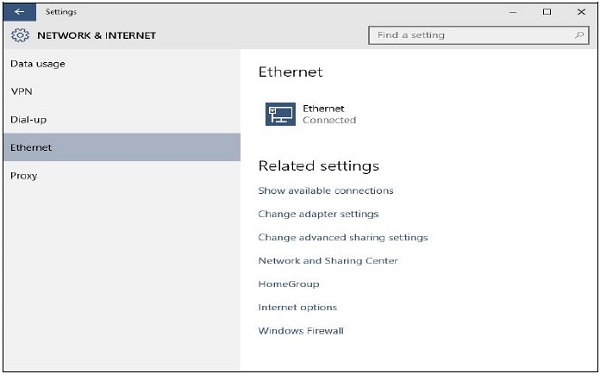
在**网络和 Internet**窗口中,单击**以太网**以查看连接的设置。
无线连接(Wi-Fi)
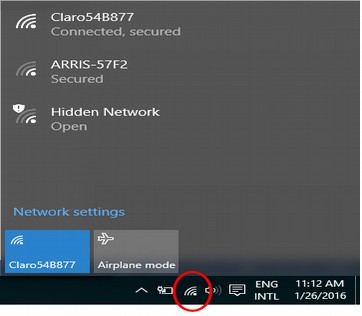
如果您的连接是无线的,单击无线图标将显示您的连接详细信息以及其他可用的无线网络。
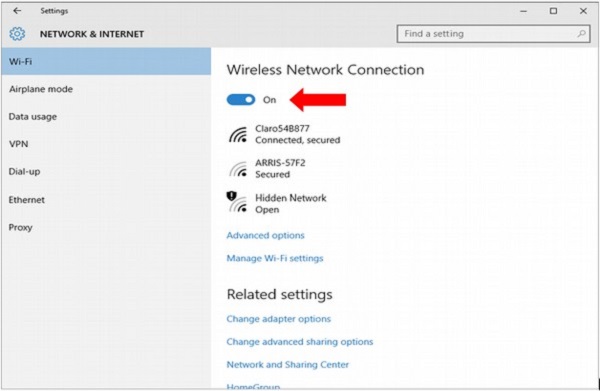
单击**网络设置**将带您进入网络和 Internet 窗口,该窗口显示有关您的连接的更具体详细信息以及配置它的选项。
在**网络和 Internet**窗口中,您可以启用或禁用您的**无线网络连接**。
广告