- Angular 教程
- Angular - 首页
- Angular - 概述
- Angular - 特性
- Angular - 优点与缺点
- Angular 基础
- Angular - 环境搭建
- Angular - 第一个应用
- Angular - MVC 架构
- Angular 组件
- Angular - 组件
- Angular - 组件生命周期
- Angular - 视图封装
- Angular - 组件交互
- Angular - 组件样式
- Angular - 嵌套组件
- Angular - 内容投影
- Angular - 动态组件
- Angular - 元素
- Angular 模板
- Angular - 模板
- Angular - 文本插值
- Angular - 模板语句
- Angular - 模板中的变量
- Angular - SVG 作为模板
- Angular 数据绑定
- Angular - 数据绑定及类型
- Angular - 数据绑定
- Angular - 事件绑定
- Angular - 属性绑定
- Angular - 属性绑定
- Angular - 类与样式绑定
- Angular 指令
- Angular - 指令
- Angular - 内置指令
- Angular 管道
- Angular - 管道
- Angular - 使用管道转换数据
- Angular 依赖注入
- Angular - 依赖注入
- Angular HTTP 客户端编程
- Angular - 服务
- Angular - HTTP 客户端
- Angular - 请求
- Angular - 响应
- Angular - GET 请求
- Angular - PUT 请求
- Angular - DELETE 请求
- Angular - JSON-P
- Angular - 使用 HTTP 进行 CRUD 操作
- Angular 路由
- Angular - 路由
- Angular - 导航
- Angular - Angular Material
- Angular 动画
- Angular - 动画
- Angular 表单
- Angular - 表单
- Angular - 表单验证
- Angular Service Workers & PWA
- Angular - Service Workers & PWA
- Angular 测试
- Angular - 测试概述
- Angular NgModule
- Angular - 模块介绍
- Angular 高级
- Angular - 身份验证与授权
- Angular - 国际化
- Angular - 可访问性
- Angular - Web Workers
- Angular - 服务器端渲染
- Angular - Ivy 编译器
- Angular - 使用 Bazel 构建
- Angular - 向后兼容性
- Angular - 响应式编程
- Angular - 指令和组件之间共享数据
- Angular 工具
- Angular - CLI
- Angular 其他
- Angular - 第三方控件
- Angular - 配置
- Angular - 显示数据
- Angular - 装饰器与元数据
- Angular - 基本示例
- Angular - 错误处理
- Angular - 测试和项目构建
- Angular - 生命周期钩子
- Angular - 用户输入
- Angular - 最新动态?
- Angular 资源推荐
- Angular - 快速指南
- Angular - 资源推荐
- Angular - 讨论
Angular - 指令
Angular 提供了指令的概念,以增强 Web 应用中 HTML 元素/组件的功能。使用指令,我们可以向元素添加任何新功能。它们以 `ng-` 开头,其中 `ng` 代表 Angular,并使用 `@directive` 装饰器扩展 HTML 标签。指令使逻辑能够包含在 Angular 模板中。
指令类型
指令根据其为 HTML 元素/组件提供的功能类型进行分类。指令类型及其用途如下:
组件:组件基本上是一种指令。众所周知,它们可以在内存中生成 HTML 文档片段(DOM 结构),称为视图。视图将同时具有基于设计和事件的动态功能。
属性指令:属性指令根据外观和行为为 HTML 元素/组件(宿主)提供附加功能。例如,附加到属性指令的菜单组件可以在悬停组件时显示下一级菜单。
结构指令:结构指令可以通过添加/删除组件的 DOM 元素来更改宿主 HTML 元素/组件的整个布局。
DOM 概述
让我们简要了解一下 DOM 模型。DOM 用于定义访问文档的标准。通常,HTML DOM 模型被构建为对象的树。它是一个访问 HTML 元素的标准对象模型。
出于以下原因,我们可以在 Angular 中使用 DOM 模型:
- 我们可以轻松地使用 DOM 元素导航文档结构。
- 我们可以轻松地添加 HTML 元素。
- 我们可以轻松地更新元素及其内容。
结构指令
结构指令通过添加或删除元素来更改DOM的结构。它用 `*` 符号表示,并带有三个预定义指令 `NgIf、NgFor` 和 `NgSwitch`。让我们简要了解一下它们。
NgIf 指令
NgIf 指令用于根据条件为真或假来显示或隐藏应用程序中的数据。我们可以将其添加到模板中的任何标签中。
让我们在我们的 `directive-app` 应用程序中尝试 `ngIf` 指令。
在 `test.component.html` 中添加以下标签。
<p>test works!</p>
<div *ngIf="true">Display data</div>
在你的 `app.component.html` 文件中添加测试组件,如下所示:
<app-test></app-test>
使用以下命令启动你的服务器(如果尚未启动):
ng serve
现在,运行你的应用程序,你将看到以下响应:
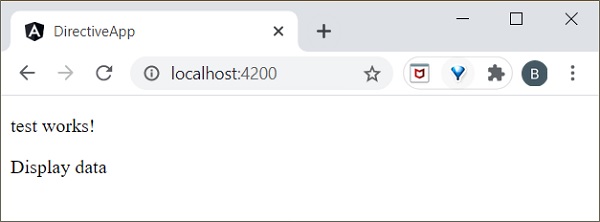
如果将条件设置为 `ngIf="false"`,则内容将被隐藏。
ngIfElse 指令
ngIfElse 与 `ngIf` 类似,只是它还提供了一个在失败情况下渲染内容的选项。
让我们通过一个示例来了解 `ngIfElse` 的工作原理。
在 `test.component.ts` 文件中添加以下代码。
export class TestComponent implements OnInit {
   isLogIn : boolean = false;
   isLogOut : boolean = true;
}
在 `test.component.html` 文件中添加以下代码:
<p>ngIfElse example!</p>
<div *ngIf="isLogIn; else isLogOut">
   Hello you are logged in
</div>
<ng-template #isLogOut>
   You're logged out..
</ng-template>
最后,使用以下命令启动你的应用程序(如果尚未完成):
ng serve
现在,运行你的应用程序,你将看到以下响应:
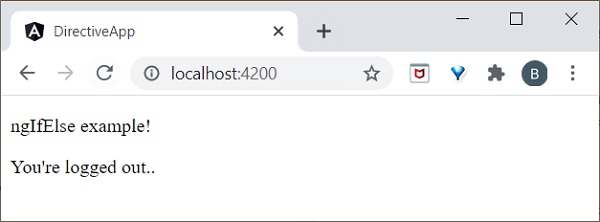
这里,
`isLogOut`
值被赋值为 `true`,因此它进入 `else` 块并渲染 `ng-template`。我们将在本章后面学习 `ng-template`。ngFor 指令
ngFor 用于重复项目列表中的部分元素。
让我们通过一个示例来了解 ngFor 的工作原理。
在 `test.component.ts` 文件中添加列表,如下所示:
list = [1,2,3,4,5];
在 `test.component.html` 中添加 `ngFor` 指令,如下所示:
<h2>ngFor directive</h2>
<ul>
   <li *ngFor="let l of list">
      {{l}}
   </li>
</ul>
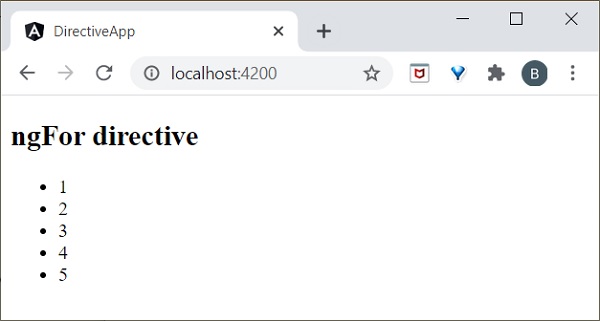
这里,`let` 关键字创建一个局部变量,可以在模板中的任何位置引用它。`let l` 创建一个模板局部变量来获取列表元素。最后,使用以下命令启动你的应用程序(如果尚未完成):
ng serve
现在,运行你的应用程序,你将看到以下响应:
trackBy
有时,`ngFor` 在大型列表中的性能较低。例如,当在列表中添加新项目或删除任何项目时,可能会触发多个 DOM 操作。为了迭代大型对象集合,我们使用 `trackBy`。
它用于跟踪何时添加或删除元素。它由 `trackBy` 方法执行。它有两个参数:索引和元素。索引用于唯一标识每个元素。下面定义了一个简单的示例。
让我们通过一个示例来了解 `trackBy` 与 `ngFor` 的工作原理。
在 `test.component.ts` 文件中添加以下代码。
export class TestComponent {
   studentArr: any[] = [ {
      "id": 1,
      "name": "student1"
   },
   {
      "id": 2,
      "name": "student2"
   },
   {
      "id": 3, "name": "student3"
   },
   {
      "id": 4,
      "name": "student4"
   }
   ];
   trackByData(index:number, studentArr:any): number {
      return studentArr.id;
   }
这里,
我们创建了,
`trackByData()`
方法以基于 ID 的唯一方式访问每个学生元素。在 `test.component.html` 文件中添加以下代码,以在 `ngFor` 内定义 `trackBy` 方法。
<ul>
   <li *ngFor="let std of studentArr; trackBy: trackByData">
      {{std.name}}
   </li>
</ul>
最后,使用以下命令启动你的应用程序(如果尚未完成):
ng serve
现在,运行你的应用程序,你将看到以下响应:
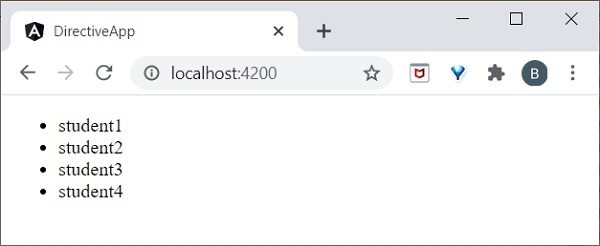
这里,应用程序将打印学生姓名。现在,应用程序使用学生 ID 而不是对象引用来跟踪学生对象。因此,DOM 元素不受影响。
NgSwitch 指令
NgSWitch 用于检查多个条件,并使 DOM 结构保持简单易懂。
让我们在我们的 `directive-app` 应用程序中尝试 `ngSwitch` 指令。
在 `test.component.ts` 文件中添加以下代码。
export class TestComponent implements OnInit {
   logInName = 'admin';
}
在 `test.component.html` 文件中添加以下代码:
<h2>ngSwitch directive</h2>
<ul [ngSwitch]="logInName">
   <li *ngSwitchCase="'user'">
      <p>User is logged in..</p>
   </li>
   <li *ngSwitchCase="'admin'">
      <p>admin is logged in</p>
   </li>
   <li *ngSwitchDefault>
      <p>Please choose login name</p>
   </li>
</ul>
最后,使用以下命令启动你的应用程序(如果尚未完成):
ng serve
现在,运行你的应用程序,你将看到以下响应:
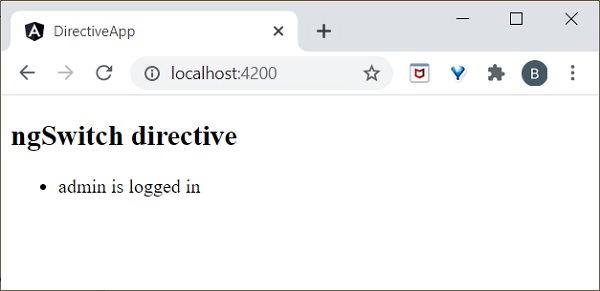
这里,我们将 `logInName` 定义为 `admin`。因此,它匹配第二个 SwitchCase 并打印上面与管理员相关的消息。
属性指令
属性指令执行 DOM 元素或组件的外观或行为。一些示例包括 NgStyle、NgClass 和 NgModel。而 NgModel 是上一章中解释的双向属性数据绑定。
ngStyle
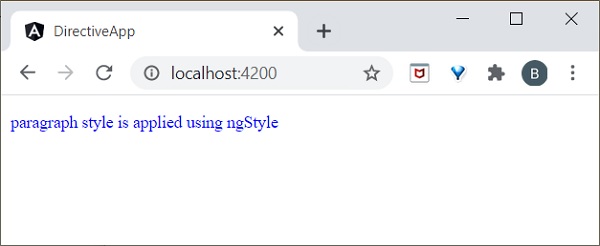
ngStyle 指令用于添加动态样式。以下示例用于将蓝色应用于段落。
让我们在我们的 `directive-app` 应用程序中尝试 `ngStyle` 指令。
在 `test.component.html` 文件中添加以下内容。
<p [ngStyle]="{'color': 'blue', 'font-size': '14px'}">
   paragraph style is applied using ngStyle
</p>
使用以下命令启动你的应用程序(如果尚未完成):
ng serve
现在,运行你的应用程序,你将看到以下响应:
ngClass
ngClass 用于在 HTML 元素中添加或删除 CSS 类。
让我们在我们的 `directive-app` 应用程序中尝试 `ngClass` 指令。
使用以下命令创建一个 `User` 类:
ng g class User
你将看到以下响应:
CREATE src/app/user.spec.ts (146 bytes)
CREATE src/app/user.ts (22 bytes)
转到 `src/app/user.ts` 文件并添加以下代码:
export class User {
   userId : number; userName : string;
}
这里,我们在 `User` 类中创建了两个属性 `userId` 和 `userName`。
打开 `test.component.ts` 文件并添加以下更改:
import { User } from '../user';
export class TestComponent implements OnInit {
   users: User[] = [
      {
         "userId": 1,
         "userName": 'User1'
      },
      {
         "userId": 2,
         "userName": 'User2'
      },
   ];
}
这里,我们声明了一个局部变量 `users` 并用 2 个用户对象进行初始化。
打开 `test.component.css` 文件并添加以下代码:
.highlight {
   color: red;
}
打开你的 `test.component.html` 文件并添加以下代码:
<div class="container">
   <br/>
   <div *ngFor="let user of users" [ngClass]="{
      'highlight':user.userName === 'User1'
   }">
      {{ user.userName }}
   </div>
</div>
这里,
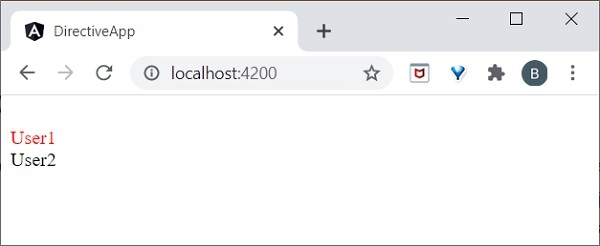
我们为 `User1` 应用了 `ngClass`,因此它将突出显示 `User1`。
最后,使用以下命令启动你的应用程序(如果尚未完成):
ng serve
现在,运行你的应用程序,你将看到以下响应:
自定义指令
Angular 提供了使用用户定义的指令扩展 Angular 指令的选项,这称为 `自定义指令`。让我们在本节中学习如何创建自定义指令。
让我们尝试在我们的 `directive-app` 应用程序中创建自定义指令。
Angular CLI 提供以下命令来创建自定义指令:
ng generate directive customstyle
执行此命令后,你将看到以下响应:
CREATE src/app/customstyle.directive.spec.ts (244 bytes)
CREATE src/app/customstyle.directive.ts (151 bytes) UPDATE src/app/app.module.ts (1115 bytes)
打开 `app.module.ts`。指令将通过 `declarations` 元数据在 `AppModule` 中进行配置。
import { CustomstyleDirective } from './customstyle.directive';
@NgModule({
   declarations: [
      AppComponent,
      TestComponent,
      CustomstyleDirective
   ]
})
打开 `customstyle.directive.ts` 文件并添加以下代码:
import { Directive, ElementRef } from '@angular/core';
@Directive({
   selector: '[appCustomstyle]'
})
export class CustomstyleDirective {
   constructor(el: ElementRef) {
      el.nativeElement.style.fontSize = '24px';
   }
}
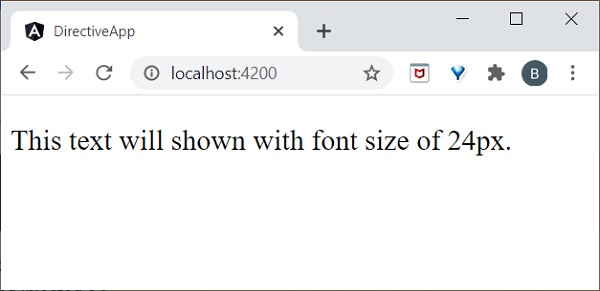
这里,`constructor` 方法使用 `CustomStyleDirective` 获取元素作为 `el`。然后,它访问 `el` 的样式并使用 CSS 属性将其字体大小设置为 `24px`。
最后,使用以下命令启动你的应用程序(如果尚未完成):
ng serve
现在,运行你的应用程序,你将看到以下响应:
ng-template
ng-template 用于创建动态和可重用的模板。它是一个虚拟元素。如果你使用 `ng-template` 编译代码,它会在 DOM 中转换为注释。
例如:
让我们在 `test.component.html` 页面中添加以下代码。
<h3>ng-template</h3>
<ng-template>ng-template tag is a virtual element</ng-template>
如果运行应用程序,它将只打印 `h3` 元素。检查你的页面源代码,模板显示在注释部分,因为它是一个虚拟元素,所以它不会渲染任何内容。我们需要将 `ng-template` 与 Angular 指令一起使用。
通常,指令会发出与其关联的 HTML 标签。有时,我们不需要标签,只需要内容。例如,在下面的示例中,将发出 `li`。
<li *ngFor="let item in list">{{ item }}</li>
我们可以使用 `ng-template` 安全地跳过 `li` 标签。
ng-template 与结构指令
ng-template 应始终用于 `ngIf、ngFor` 或 `ngSwitch` 指令内部以渲染结果。
让我们假设一个简单的代码。
<ng-template [ngIf]=true>
   <div><h2>ng-template works!</h2></div>
</ng-template>
这里,如果 `ngIf` 条件为真,它将打印 div 元素内部的数据。类似地,你也可以使用 `ngFor` 和 `ngSwitch` 指令。
NgForOf 指令
ngForOf 也是一个结构指令,用于渲染集合中的项目。以下示例用于显示 `ng-template` 内的 `ngForOf` 指令。
import { Component, OnInit } from '@angular/core';
@Component({
   selector: 'app-test',
   template: `
   <div>
   <ng-template ngFor let-item [ngForOf]="Fruits" let-i="index">
   <p>{{i}}</p>
   </ng-template>
   </div>`
   ,
   styleUrls: ['./test.component.css']
})
export class TestComponent implements OnInit {
   Fruits = ["mango","apple","orange","grapes"];
   ngOnInit()
   {
   }
}
如果运行应用程序,它将显示每个元素的索引,如下所示:
0
1
2
3
组件指令
组件指令基于组件。实际上,每个组件都可以用作指令。组件提供 `@Input` 和 `@Output` 装饰器来发送和接收父组件和子组件之间的信息。
让我们尝试在我们的 `directive-app` 应用程序中使用组件作为指令。
使用以下命令创建一个新的 `ChildComponent`:
ng generate component child
CREATE src/app/child/child.component.html (20 bytes) CREATE src/app/child/child.component.spec.ts (621 bytes)
CREATE src/app/child/child.component.ts (265 bytes) CREATE src/app/child/child.component.css (0 bytes) UPDATE src/app/app.module.ts (466 bytes)
打开 `child.component.ts` 并添加以下代码:
@Input() userName: string;
此处,我们正在为ChildComponent设置一个输入属性。
打开child.component.html并添加以下代码:
<p>child works!</p>
<p>Hi {{ userName }}</p>
在这里,我们使用userName的值来欢迎用户。
打开test.component.ts并添加以下代码:
name: string = 'Peter';
打开test.component.html并添加以下代码:
<h1>Test component</h1>
<app-child [userName]="name"><app-child>
这里,我们使用AppComponent作为指令,带有输入属性,在TestComponent内部。
最后,使用以下命令启动你的应用程序(如果尚未完成):
ng serve
现在,运行你的应用程序,你将看到以下响应:
[](images/directive-app/component_as_directive.PNG)
运行示例
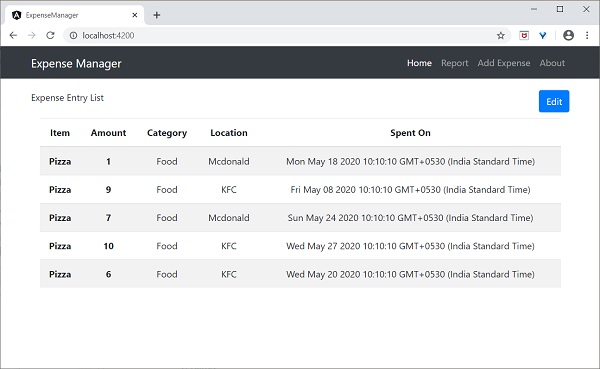
让我们在ExpenseManager应用程序中添加一个新的组件来列出支出条目。
打开命令提示符并进入项目根文件夹。
cd /go/to/expense-manager
启动应用程序。
ng serve
使用以下命令创建一个新的组件,ExpenseEntryListComponent:
ng generate component ExpenseEntryList
输出
输出如下:
CREATE src/app/expense-entry-list/expense-entry-list.component.html (33 bytes)
CREATE src/app/expense-entry-list/expense-entry-list.component.spec.ts (700 bytes)
CREATE src/app/expense-entry-list/expense-entry-list.component.ts (315 bytes)
CREATE src/app/expense-entry-list/expense-entry-list.component.css (0 bytes)
UPDATE src/app/app.module.ts (548 bytes)
此命令创建了ExpenseEntryList组件并在AppModule中更新了必要的代码。
将ExpenseEntry导入到ExpenseEntryListComponent组件(src/app/expense-entry-list/expense-entry-list.component)中
import { ExpenseEntry } from '../expense-entry';
添加一个方法getExpenseEntries(),在ExpenseEntryListComponent (src/app/expense-entry-list/expense-entry-list.component)中返回支出条目的列表(模拟项)。
getExpenseEntries() : ExpenseEntry[] {
   let mockExpenseEntries : ExpenseEntry[] = [
      { id: 1,
         item: "Pizza",
         amount: Math.floor((Math.random() * 10) + 1),
         category: "Food",
         location: "Mcdonald",
         spendOn: new Date(2020, 4, Math.floor((Math.random() * 30) + 1), 10, 10, 10),
         createdOn: new Date(2020, 4, Math.floor((Math.random() * 30) + 1), 10, 10, 10) },
      { id: 1,
         item: "Pizza",
         amount: Math.floor((Math.random() * 10) + 1),
         category: "Food",
         location: "KFC",
         spendOn: new Date(2020, 4, Math.floor((Math.random() * 30) + 1), 10, 10, 10),
         createdOn: new Date(2020, 4, Math.floor((Math.random() * 30) + 1), 10, 10, 10) },
      { id: 1,
         item: "Pizza",
         amount: Math.floor((Math.random() * 10) + 1),
         category: "Food",
         location: "Mcdonald",
         spendOn: new Date(2020, 4, Math.floor((Math.random() * 30) + 1), 10, 10, 10),
         createdOn: new Date(2020, 4, Math.floor((Math.random() * 30) + 1), 10, 10, 10) },
      { id: 1,
         item: "Pizza",
         amount: Math.floor((Math.random() * 10) + 1),
         category: "Food",
         location: "KFC",
         spendOn: new Date(2020, 4, Math.floor((Math.random() * 30) + 1), 10, 10, 10),
         createdOn: new Date(2020, 4, Math.floor((Math.random() * 30) + 1), 10, 10, 10) },
      { id: 1,
         item: "Pizza",
         amount: Math.floor((Math.random() * 10) + 1),
         category: "Food",
         location: "KFC",
         spendOn: new Date(2020, 4, Math.floor((Math.random() * 30) + 1), 10, 10, 10),
         createdOn: new Date(2020, 4, Math.floor((Math.random() * 30) + 1), 10, 10, 10)
      },
   ];
   return mockExpenseEntries;
}
声明一个局部变量expenseEntries,并加载如下所示的模拟支出条目列表:
title: string;
expenseEntries: ExpenseEntry[];
constructor() { }
ngOnInit() {
   this.title = "Expense Entry List";
   this.expenseEntries = this.getExpenseEntries();
}
打开模板文件(src/app/expense-entry-list/expense-entry-list.component.html),并在表格中显示模拟条目。
<!-- Page Content -->
<div class="container">
   <div class="row">
      <div class="col-lg-12 text-center" style="padding-top: 20px;">
         <div class="container" style="padding-left: 0px; padding-right: 0px;">
            <div class="row">
               <div class="col-sm" style="text-align: left;">
                  {{ title }}
               </div>
               <div class="col-sm" style="text-align: right;">
                  <button type="button" class="btn btn-primary">Edit</button>
               </div>
            </div>
         </div>
         <div class="container box" style="margin-top: 10px;">
            <table class="table table-striped">
               <thead>
                  <tr>
                     <th>Item</th>
                     <th>Amount</th>
                     <th>Category</th>
                     <th>Location</th>
                     <th>Spent On</th>
                  </tr>
               </thead>
               <tbody>
                  <tr *ngFor="let entry of expenseEntries">
                     <th scope="row">{{ entry.item }}</th>
                     <th>{{ entry.amount }}</th>
                     <td>{{ entry.category }}</td>
                     <td>{{ entry.location }}</td>
                     <td>{{ entry.spendOn | date: 'short' }}</td>
                  </tr>
               </tbody>
            </table>
         </div>
      </div>
   </div>
</div>
这里,
使用了Bootstrap表格。table和table-striped将根据Bootstrap样式标准设置表格样式。
使用ngFor循环遍历expenseEntries并生成表格行。
打开AppComponent模板src/app/app.component.html,包含ExpenseEntryListComponent并删除ExpenseEntryComponent,如下所示:
...
<app-expense-entry-list></app-expense-entry-list>
最后,应用程序的输出如下所示。