
- Python Pillow 教程
- Python Pillow - 首页
- Python Pillow - 概述
- Python Pillow - 环境设置
- 基本图像操作
- Python Pillow - 处理图像
- Python Pillow - 调整图像大小
- Python Pillow - 翻转和旋转图像
- Python Pillow - 裁剪图像
- Python Pillow - 为图像添加边框
- Python Pillow - 识别图像文件
- Python Pillow - 合并图像
- Python Pillow - 剪切和粘贴图像
- Python Pillow - 滚动图像
- Python Pillow - 在图像上写入文本
- Python Pillow - ImageDraw 模块
- Python Pillow - 连接两张图像
- Python Pillow - 创建缩略图
- Python Pillow - 创建水印
- Python Pillow - 图像序列
- Python Pillow 颜色转换
- Python Pillow - 图像上的颜色
- Python Pillow - 使用颜色创建图像
- Python Pillow - 将颜色字符串转换为 RGB 颜色值
- Python Pillow - 将颜色字符串转换为灰度值
- Python Pillow - 通过更改像素值来更改颜色
- 图像处理
- Python Pillow - 降噪
- Python Pillow - 更改图像模式
- Python Pillow - 图像合成
- Python Pillow - 使用 Alpha 通道
- Python Pillow - 应用透视变换
- 图像滤镜
- Python Pillow - 为图像添加滤镜
- Python Pillow - 卷积滤镜
- Python Pillow - 模糊图像
- Python Pillow - 边缘检测
- Python Pillow - 浮雕图像
- Python Pillow - 增强边缘
- Python Pillow - 锐化蒙版滤镜
- 图像增强和校正
- Python Pillow - 增强对比度
- Python Pillow - 增强锐度
- Python Pillow - 增强色彩
- Python Pillow - 校正色彩平衡
- Python Pillow - 去噪
- 图像分析
- Python Pillow - 提取图像元数据
- Python Pillow - 识别颜色
- 高级主题
- Python Pillow - 创建动画 GIF
- Python Pillow - 批量处理图像
- Python Pillow - 转换图像文件格式
- Python Pillow - 为图像添加填充
- Python Pillow - 颜色反转
- Python Pillow - 使用 NumPy 进行机器学习
- Python Pillow 与 Tkinter BitmapImage 和 PhotoImage 对象
- Image 模块
- Python Pillow - 图像混合
- Python Pillow 有用资源
- Python Pillow - 快速指南
- Python Pillow - 函数参考
- Python Pillow - 有用资源
- Python Pillow - 讨论
Python Pillow - ImageDraw.multiline_text() 函数
Pillow 库中的 ImageDraw.multiline_text() 方法用于在图像上的指定位置绘制多行文本。
语法
以下是函数的语法:
ImageDraw.multiline_text(xy, text, fill=None, font=None, anchor=None, spacing=4, align='left', direction=None, features=None, language=None, stroke_width=0, stroke_fill=None, embedded_color=False, font_size=None)
参数
以下是此函数参数的详细信息:
xy - 文本的锚点坐标。它指定锚点与文本对齐的位置。
text - 要绘制的字符串,包含多行文本。
fill - 用于文本的颜色。
font - 一个 ImageFont 实例,表示用于文本的字体。
anchor - 文本锚点对齐方式。它确定锚点相对于文本的位置。默认对齐方式为左上角。
spacing - 行之间的像素数。
align - 多行文本中行的对齐方式。可以是“left”(左对齐)、“center”(居中对齐)或“right”(右对齐)。
direction - 文本的方向。可以是“rtl”(从右到左)、“ltr”(从左到右)或“ttb”(从上到下)。
features - 在文本布局期间要使用的 OpenType 字体功能列表。它用于启用或禁用可选字体功能。
language - 文本的语言。它应该是 BCP 47 语言代码。
stroke_width - 文本笔划的宽度。
stroke_fill - 用于文本笔划的颜色。如果未给出,则默认为 fill 参数。
embedded_color - 是否使用字体嵌入颜色字形 (COLR、CBDT、SBIX)。
font_size - 如果未提供 font 参数,则指定用于默认字体的尺寸。
示例
示例 1
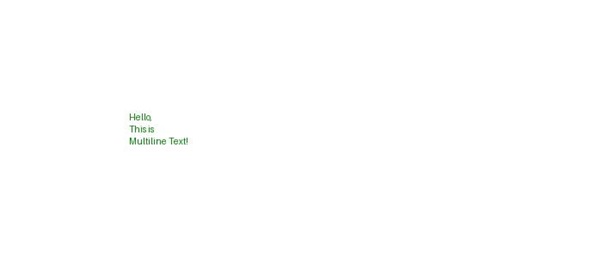
在此示例中,multiline_text() 方法用于使用默认参数在图像上绘制多行文本。
from PIL import Image, ImageDraw, ImageFont

# Create an image
image = Image.new("RGB", (700, 300), "white")

# Get a drawing context
draw = ImageDraw.Draw(image)

# Define the multiline text
text = "Hello,\nThis is\nMultiline Text!"

# Set the fill color for the text
fill_color = 'green'

# Draw multiline text on the image with default parameters
draw.multiline_text((150, 130), text, fill=fill_color)

# Display the image
image.show()
print('The multiline text is drawn successfully...')
输出
The multiline text is drawn successfully...
输出图像
示例 2
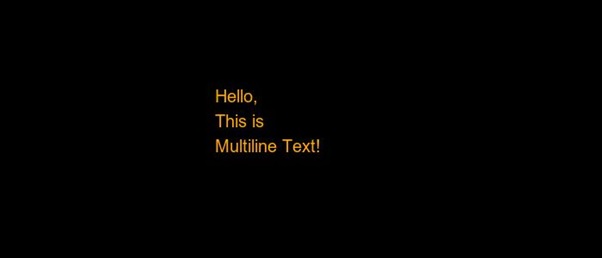
在此示例中,多行文本使用不同的参数绘制在图像上。
from PIL import Image, ImageDraw, ImageFont

# Create a new image with a white background
image = Image.new("RGB", (700, 300), "black")
draw = ImageDraw.Draw(image)

# Define the multiline text
text = "Hello,\nThis is\nMultiline Text!"

# Set the font and size
font = ImageFont.truetype("arial.ttf", size=20)

# Set fill color for the text
fill_color = "orange"

# Draw multiline text on the image
draw.multiline_text((250, 100), text, fill=fill_color, font=font, spacing=10, align="left")

# Display the image
image.show()
print('The multiline text is drawn successfully...')
输出
The multiline text is drawn successfully...
输出图像
示例 3
以下示例演示了如何在现有图像上使用不同的参数绘制多行文本。
from PIL import Image, ImageDraw, ImageFont

# Open an Image
image = Image.open('Images/TP-W.jpg')

# Create the draw object
draw = ImageDraw.Draw(image)

# Define the multiline text
multiline_text = "Tutorialspoint,\nSimple Easy Learning At Your Fingertips"

# Set the font and size
font = ImageFont.load_default()

# Set fill color for the text
fill_color = "darkgreen"

# Draw multiline text on the image
draw.multiline_text((240, 310), multiline_text, fill=fill_color, font=font, spacing=10, align="left")

# Display the image
image.show()

print('Multiline text is drawn successfully...')
输出
Multiline text is drawn successfully...

python_pillow_function_reference.htm
广告