
- Android 基础
- Android - 首页
- Android - 概述
- Android - 环境设置
- Android - 架构
- Android - 应用组件
- Android - Hello World 示例
- Android - 资源
- Android - 活动
- Android - 服务
- Android - 广播接收器
- Android - 内容提供商
- Android - 碎片
- Android - 意图/过滤器
- Android - 用户界面
- Android - UI 布局
- Android - UI 控件
- Android - 事件处理
- Android - 样式和主题
- Android - 自定义组件
- Android 高级概念
- Android - 拖放
- Android - 通知
- 基于位置的服务
- Android - 发送电子邮件
- Android - 发送短信
- Android - 电话呼叫
- 发布 Android 应用
- Android 实用示例
- Android - 警报对话框
- Android - 动画
- Android - 音频捕获
- Android - AudioManager
- Android - 自动完成
- Android - 最佳实践
- Android - 蓝牙
- Android - 相机
- Android - 剪贴板
- Android - 自定义字体
- Android - 数据备份
- Android - 开发者工具
- Android - 模拟器
- Android - Facebook 集成
- Android - 手势
- Android - Google 地图
- Android - 图片效果
- Android - ImageSwitcher
- Android - 内部存储
- Android - JetPlayer
- Android - JSON 解析器
- Android - Linkedin 集成
- Android - 加载旋转器
- Android - 本地化
- Android - 登录屏幕
- Android - MediaPlayer
- Android - 多点触控
- Android - 导航
- Android - 网络连接
- Android - NFC 指南
- Android - PHP/MySQL
- Android - 进度圆圈
- Android - ProgressBar
- Android - 推送通知
- Android - RenderScript
- Android - RSS 阅读器
- Android - 屏幕录制
- Android - SDK 管理器
- Android - 传感器
- Android - 会话管理
- Android - 共享首选项
- Android - SIP 协议
- Android - 拼写检查器
- Android - SQLite 数据库
- Android - 支持库
- Android - 测试
- Android - 文本转语音
- Android - TextureView
- Android - Twitter 集成
- Android - UI 设计
- Android - UI 模式
- Android - UI 测试
- Android - WebView 布局
- Android - Wi-Fi
- Android - 小部件
- Android - XML 解析器
- Android 实用资源
- Android - 问答
- Android - 实用资源
- Android - 讨论
Android - 警报对话框
对话框是一个小型窗口,提示用户做出决定或输入更多信息。
有时,在您的应用程序中,如果您想询问用户是否对用户采取的任何特定操作做出是或否的决定,同时停留在同一活动中而无需更改屏幕,则可以使用警报对话框。
为了创建警报对话框,您需要创建一个 AlertDialogBuilder 对象,它是 AlertDialog 的内部类。其语法如下所示
AlertDialog.Builder alertDialogBuilder = new AlertDialog.Builder(this);
现在,您必须使用 AlertDialogBuilder 类对象设置肯定(是)或否定(否)按钮。其语法如下
alertDialogBuilder.setPositiveButton(CharSequence text,
   DialogInterface.OnClickListener listener)
alertDialogBuilder.setNegativeButton(CharSequence text,
   DialogInterface.OnClickListener listener)
除此之外,您可以使用构建器类提供的其他函数来自定义警报对话框。这些列在下面
| 序号 | 方法类型和描述 |
|---|---|
| 1 |
setIcon(Drawable icon) 此方法设置警报对话框框的图标。 |
| 2 |
setCancelable(boolean cancelable) 此方法设置对话框是否可以取消的属性 |
| 3 |
setMessage(CharSequence message) 此方法设置要在警报对话框中显示的消息 |
| 4 |
setMultiChoiceItems(CharSequence[] items, boolean[] checkedItems, DialogInterface.OnMultiChoiceClickListener listener) 此方法设置要在对话框中显示为内容的项目列表。所选选项将由侦听器通知 |
| 5 |
setOnCancelListener(DialogInterface.OnCancelListener onCancelListener) 此方法设置如果对话框被取消将调用的回调。 |
| 6 |
setTitle(CharSequence title) 此方法设置要在对话框中显示的标题 |
创建和设置对话框构建器后,您将通过调用构建器类的 create() 方法来创建警报对话框。其语法如下
AlertDialog alertDialog = alertDialogBuilder.create();
alertDialog.show();
这将创建警报对话框,并将其显示在屏幕上。
对话框片段
在进入示例之前,我们需要了解对话框片段。对话框片段是一个可以在对话框框中显示片段的片段
public class DialogFragment extends DialogFragment {
   @Override
   public Dialog onCreateDialog(Bundle savedInstanceState) {
      // Use the Builder class for convenient dialog construction
      AlertDialog.Builder builder = new AlertDialog.Builder(getActivity());
      builder.setPositiveButton(R.string.fire, new DialogInterface.OnClickListener() {
         public void onClick(DialogInterface dialog, int id) {
            toast.makeText(this,"enter a text here",Toast.LENTH_SHORT).show();
         }
      })
      .setNegativeButton(R.string.cancel, new DialogInterface.OnClickListener() {
         public void onClick(DialogInterface dialog, int id) {
            finish();
         });
         // Create the AlertDialog object and return it
         return builder.create();
      }
   }
}
列表对话框
它用于在对话框框中显示项目列表。例如,用户需要选择项目列表,或者需要从多个项目列表中点击一个项目。在这种情况下,我们可以使用列表对话框。
public Dialog onCreateDialog(Bundle savedInstanceState) {
   AlertDialog.Builder builder = new AlertDialog.Builder(getActivity());
   builder.setTitle(Pick a Color)

   .setItems(R.array.colors_array, new DialogInterface.OnClickListener() {
      public void onClick(DialogInterface dialog, int which) {
         // The 'which' argument contains the index position
         // of the selected item
      }
   });
   return builder.create();
}
单选列表对话框
它用于向对话框框添加单选列表。我们可以根据用户的选择进行选中或取消选中。
public Dialog onCreateDialog(Bundle savedInstanceState) {
   mSelectedItems = new ArrayList();
   AlertDialog.Builder builder = new AlertDialog.Builder(getActivity());

   builder.setTitle("This is list choice dialog box");
   .setMultiChoiceItems(R.array.toppings, null,
      new DialogInterface.OnMultiChoiceClickListener() {
      @Override
      public void onClick(DialogInterface dialog, int which, boolean isChecked) {

         if (isChecked) {
            // If the user checked the item, add it to the selected items
            mSelectedItems.add(which);
         }

         else if (mSelectedItems.contains(which)) {
            // Else, if the item is already in the array, remove it
            mSelectedItems.remove(Integer.valueOf(which));
         }
      }
   })

   // Set the action buttons
   .setPositiveButton(R.string.ok, new DialogInterface.OnClickListener() {
      @Override
      public void onClick(DialogInterface dialog, int id) {
         // User clicked OK, so save the mSelectedItems results somewhere
         // or return them to the component that opened the dialog
         ...
      }
   })

   .setNegativeButton(R.string.cancel, new DialogInterface.OnClickListener() {
      @Override
      public void onClick(DialogInterface dialog, int id) {
         ...
      }
   });
   return builder.create();
}
示例
以下示例演示了在 Android 中使用 AlertDialog 的方法。
要试验此示例,您需要在模拟器或实际设备上运行它。
| 步骤 | 描述 |
|---|---|
| 1 | 您将使用 Android Studio 创建一个 Android 应用程序,并将其命名为 My Application,位于 com.example.sairamkrishna.myapplication 包下。 |
| 2 | 修改 src/MainActivity.java 文件以添加警报对话框代码以启动对话框。 |
| 3 | 修改布局 XML 文件 res/layout/activity_main.xml,如果需要,添加任何 GUI 组件。 |
| 4 | 无需更改默认字符串常量。Android Studio 会处理 values/string.xml 中的默认字符串。 |
| 5 | 运行应用程序,选择正在运行的 Android 设备,将应用程序安装到该设备上,并验证结果。 |
这是修改后的 src/MainActivity.java 代码
package com.example.sairamkrishna.myapplication;

import android.app.AlertDialog;
import android.content.DialogInterface;
import android.support.v7.app.ActionBarActivity;
import android.os.Bundle;
import android.view.View;
import android.widget.Toast;

public class MainActivity extends ActionBarActivity {
   @Override
   protected void onCreate(Bundle savedInstanceState) {
      super.onCreate(savedInstanceState);
      setContentView(R.layout.activity_main);
   }

   public void open(View view){
      AlertDialog.Builder alertDialogBuilder = new AlertDialog.Builder(this);
      alertDialogBuilder.setMessage("Are you sure,
         You wanted to make decision");
      alertDialogBuilder.setPositiveButton("yes",
         new DialogInterface.OnClickListener() {
         @Override
         public void onClick(DialogInterface arg0, int arg1) {
            Toast.makeText(MainActivity.this,"You clicked yes
               button",Toast.LENGTH_LONG).show();
         }
      });

      alertDialogBuilder.setNegativeButton("No",new DialogInterface.OnClickListener() {
         Override
         public void onClick(DialogInterface dialog, int which) {
            finish();
         }
      });

      AlertDialog alertDialog = alertDialogBuilder.create();
      alertDialog.show();
   }
}
这是修改后的 res/layout/activity_main.xml 代码
在下面的代码中,abc 表示 tutorialspoint.com 的徽标
<?xml version="1.0" encoding="utf-8"?>
<RelativeLayout
   xmlns:android="http://schemas.android.com/apk/res/android"
   xmlns:tools="http://schemas.android.com/tools" android:layout_width="match_parent"
   android:layout_height="match_parent"
   android:paddingLeft="@dimen/activity_horizontal_margin"
   android:paddingRight="@dimen/activity_horizontal_margin"
   android:paddingTop="@dimen/activity_vertical_margin"
   android:paddingBottom="@dimen/activity_vertical_margin"
   tools:context=".MainActivity">

   <TextView
      android:layout_width="wrap_content"
      android:layout_height="wrap_content"
      android:text="Alert Dialog"
      android:id="@+id/textView"
      android:textSize="35dp"
      android:layout_alignParentTop="true"
      android:layout_centerHorizontal="true" />

   <TextView
      android:layout_width="wrap_content"
      android:layout_height="wrap_content"
      android:text="Tutorialspoint"
      android:id="@+id/textView2"
      android:textColor="#ff3eff0f"
      android:textSize="35dp"
      android:layout_below="@+id/textView"
      android:layout_centerHorizontal="true" />

   <ImageView
      android:layout_width="wrap_content"
      android:layout_height="wrap_content"
      android:id="@+id/imageView"
      android:src="@drawable/abc"
      android:layout_below="@+id/textView2"
      android:layout_alignRight="@+id/textView2"
      android:layout_alignEnd="@+id/textView2"
      android:layout_alignLeft="@+id/textView"
      android:layout_alignStart="@+id/textView" />
   <Button
      android:layout_width="wrap_content"
      android:layout_height="wrap_content"
      android:text="Alert dialog"
      android:id="@+id/button"
      android:layout_below="@+id/imageView"
      android:layout_alignRight="@+id/textView2"
      android:layout_alignEnd="@+id/textView2"
      android:layout_marginTop="42dp"
      android:onClick="open"
      android:layout_alignLeft="@+id/imageView"
      android:layout_alignStart="@+id/imageView" />

</RelativeLayout>
这是 Strings.xml 的代码
<resources>
    <string name="app_name">My Application</string>
</resources>
这是 AndroidManifest.xml 的默认代码
<?xml version="1.0" encoding="utf-8"?>
<manifest xmlns:android="http://schemas.android.com/apk/res/android"
   package="com.example.sairamkrishna.myapplication" >

   <application
      android:allowBackup="true"
      android:icon="@drawable/ic_launcher"
      android:label="@string/app_name"
      android:theme="@style/AppTheme" >

      <activity
         android:name="com.example.sairamkrishna.myapplication.MainActivity"
         android:label="@string/app_name" >

         <intent-filter>
            <action android:name="android.intent.action.MAIN" />
            <category android:name="android.intent.category.LAUNCHER" />
         </intent-filter>

      </activity>

   </application>
</manifest>
让我们尝试运行您的应用程序。我假设您已将您的实际 Android 移动设备连接到您的计算机。要从 Android Studio 运行应用程序,请打开您的项目之一的活动文件,然后单击工具栏中的运行  图标。在启动应用程序之前,Android Studio 将显示以下窗口,供您选择要在其中运行 Android 应用程序的选项。
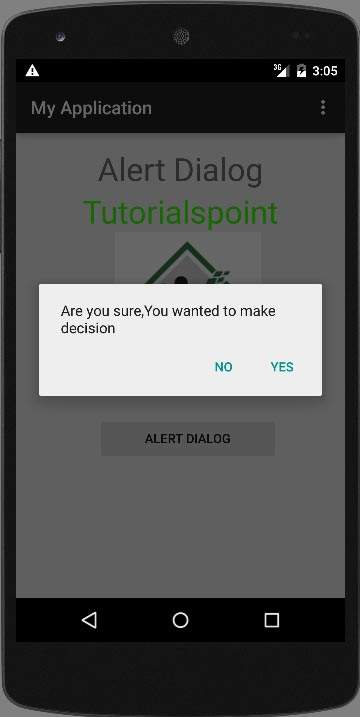
选择一个选项,然后单击它。例如,如果您单击“是”按钮,则结果如下所示
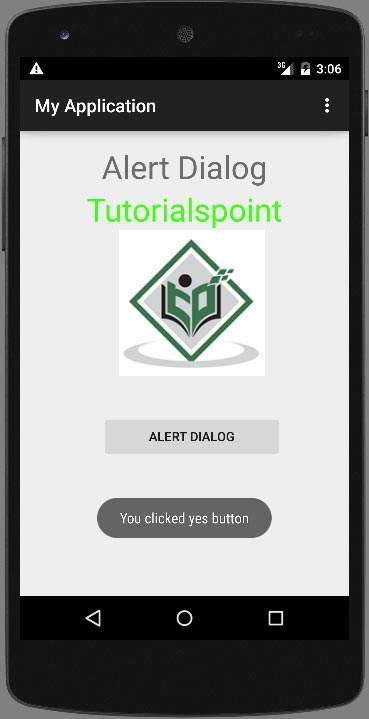
如果您单击“否”按钮,它将调用 finish() 并关闭您的应用程序。