

- Android 基础
- Android - 首页
- Android - 概述
- Android - 环境设置
- Android - 架构
- Android - 应用程序组件
- Android - Hello World 示例
- Android - 资源
- Android - 活动
- Android - 服务
- Android - 广播接收器
- Android - 内容提供程序
- Android - 碎片
- Android - 意图/过滤器
- Android - 用户界面
- Android - UI 布局
- Android - UI 控件
- Android - 事件处理
- Android - 样式和主题
- Android - 自定义组件
- Android 高级概念
- Android - 拖放
- Android - 通知
- 基于位置的服务
- Android - 发送电子邮件
- Android - 发送短信
- Android - 电话呼叫
- 发布 Android 应用程序
- Android 有用示例
- Android - 警报对话框
- Android - 动画
- Android - 音频捕获
- Android - AudioManager
- Android - 自动完成
- Android - 最佳实践
- Android - 蓝牙
- Android - 相机
- Android - 剪贴板
- Android - 自定义字体
- Android - 数据备份
- Android - 开发人员工具
- Android - 模拟器
- Android - Facebook 集成
- Android - 手势
- Android - Google 地图
- Android - 图像效果
- Android - ImageSwitcher
- Android - 内部存储
- Android - JetPlayer
- Android - JSON 解析器
- Android - Linkedin 集成
- Android - 加载微调器
- Android - 本地化
- Android - 登录屏幕
- Android - MediaPlayer
- Android - 多点触控
- Android - 导航
- Android - 网络连接
- Android - NFC 指南
- Android - PHP/MySQL
- Android - 进度圆圈
- Android - 进度条
- Android - 推送通知
- Android - RenderScript
- Android - RSS 阅读器
- Android - 屏幕录制
- Android - SDK 管理器
- Android - 传感器
- Android - 会话管理
- Android - 共享首选项
- Android - SIP 协议
- Android - 拼写检查器
- Android - SQLite 数据库
- Android - 支持库
- Android - 测试
- Android - 文字转语音
- Android - TextureView
- Android - Twitter 集成
- Android - UI 设计
- Android - UI 模式
- Android - UI 测试
- Android - WebView 布局
- Android - Wi-Fi
- Android - 小部件
- Android - XML 解析器
- Android 有用资源
- Android - 常见问题解答
- Android - 有用资源
- Android - 讨论
Android 网格视图
Android 的GridView以二维滚动网格(行和列)显示项目,并且网格项目不一定是预先确定的,而是使用ListAdapter自动插入布局。
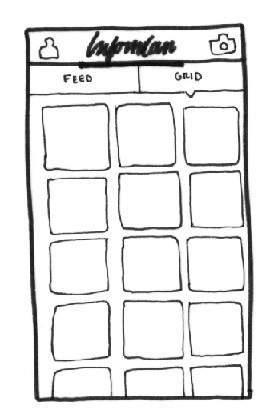
网格视图
适配器实际上在 UI 组件和填充 UI 组件数据的源数据之间架起桥梁。适配器可用于向诸如微调器、列表视图、网格视图等提供数据。
ListView和GridView是AdapterView的子类,它们可以通过将其绑定到Adapter来填充,该适配器从外部源检索数据并创建表示每个数据条目的视图。
GridView 属性
以下是特定于 GridView 的重要属性:
| 序号 | 属性和描述 |
|---|---|
| 1 | android:id 这是唯一标识布局的 ID。 |
| 2 | android:columnWidth 这指定每列的固定宽度。这可以是 px、dp、sp、in 或 mm。 |
| 3 | android:gravity 指定每个单元格内的重力。可能的值包括顶部、底部、左侧、右侧、中心、垂直居中、水平居中等等。 |
| 4 | android:horizontalSpacing 定义列之间的默认水平间距。这可以是 px、dp、sp、in 或 mm。 |
| 5 | android:numColumns 定义要显示多少列。可以是整数,例如“100”,也可以是 auto_fit,这意味着显示尽可能多的列以填充可用空间。 |
| 6 | android:stretchMode 定义列如何拉伸以填充任何可用的空闲空间(如果有)。这必须是以下值之一:
|
| 7 | android:verticalSpacing 定义行之间的默认垂直间距。这可以是 px、dp、sp、in 或 mm。 |
示例
此示例将引导您完成简单的步骤,以说明如何使用 GridView 创建自己的 Android 应用程序。按照以下步骤修改我们在Hello World 示例章节中创建的 Android 应用程序:
| 步骤 | 描述 |
|---|---|
| 1 | 您将使用 Android Studio IDE 创建一个 Android 应用程序,并在包com.example.helloworld下将其命名为HelloWorld,如Hello World 示例章节中所述。 |
| 2 | 修改res/layout/activity_main.xml文件的默认内容,以包含具有自解释属性的 GridView 内容。 |
| 3 | 无需更改 string.xml,Android Studio 会处理放置在 string.xml 中的默认字符串。 |
| 4 | 让我们将一些图片放在res/drawable-hdpi文件夹中。我放入了 sample0.jpg、sample1.jpg、sample2.jpg、sample3.jpg、sample4.jpg、sample5.jpg、sample6.jpg 和 sample7.jpg。 |
| 5 | 在包 com.example.helloworld 下创建一个名为ImageAdapter的新类,该类扩展 BaseAdapter。此类将实现适配器的功能,用于填充视图。 |
| 6 | 运行应用程序以启动 Android 模拟器并验证对应用程序所做的更改的结果。 |
以下是修改后的主活动文件src/com.example.helloworld/MainActivity.java的内容。此文件可以包含每个基本生命周期方法。
package com.example.helloworld;

import android.os.Bundle;
import android.app.Activity;
import android.view.Menu;
import android.widget.GridView;

public class MainActivity extends Activity {
   @Override
   protected void onCreate(Bundle savedInstanceState) {
      super.onCreate(savedInstanceState);
      setContentView(R.layout.activity_main);

      GridView gridview = (GridView) findViewById(R.id.gridview);
      gridview.setAdapter(new ImageAdapter(this));
   }
}
以下是res/layout/activity_main.xml文件的内容:
<?xml version="1.0" encoding="utf-8"?>
<GridView xmlns:android="http://schemas.android.com/apk/res/android"
   android:id="@+id/gridview"
   android:layout_width="fill_parent"
   android:layout_height="fill_parent"
   android:columnWidth="90dp"
   android:numColumns="auto_fit"
   android:verticalSpacing="10dp"
   android:horizontalSpacing="10dp"
   android:stretchMode="columnWidth"
   android:gravity="center"
/>
以下是res/values/strings.xml文件的内容,用于定义两个新常量:
<?xml version="1.0" encoding="utf-8"?>
<resources>
   <string name="app_name">HelloWorld</string>
   <string name="action_settings">Settings</string>
</resources>
以下是src/com.example.helloworld/ImageAdapter.java文件的内容:
package com.example.helloworld;

import android.content.Context;

import android.view.View;
import android.view.ViewGroup;

import android.widget.BaseAdapter;
import android.widget.GridView;
import android.widget.ImageView;

public class ImageAdapter extends BaseAdapter {
   private Context mContext;

   // Constructor
   public ImageAdapter(Context c) {
      mContext = c;
   }

   public int getCount() {
      return mThumbIds.length;
   }

   public Object getItem(int position) {
      return null;
   }

   public long getItemId(int position) {
      return 0;
   }

   // create a new ImageView for each item referenced by the Adapter
   public View getView(int position, View convertView, ViewGroup parent) {
      ImageView imageView;

      if (convertView == null) {
         imageView = new ImageView(mContext);
         imageView.setLayoutParams(new GridView.LayoutParams(85, 85));
         imageView.setScaleType(ImageView.ScaleType.CENTER_CROP);
         imageView.setPadding(8, 8, 8, 8);
      }
      else
      {
         imageView = (ImageView) convertView;
      }
      imageView.setImageResource(mThumbIds[position]);
      return imageView;
   }

   // Keep all Images in array
   public Integer[] mThumbIds = {
      R.drawable.sample_2, R.drawable.sample_3,
      R.drawable.sample_4, R.drawable.sample_5,
      R.drawable.sample_6, R.drawable.sample_7,
      R.drawable.sample_0, R.drawable.sample_1,
      R.drawable.sample_2, R.drawable.sample_3,
      R.drawable.sample_4, R.drawable.sample_5,
      R.drawable.sample_6, R.drawable.sample_7,
      R.drawable.sample_0, R.drawable.sample_1,
      R.drawable.sample_2, R.drawable.sample_3,
      R.drawable.sample_4, R.drawable.sample_5,
      R.drawable.sample_6, R.drawable.sample_7
   };
}
让我们尝试运行我们刚刚修改的修改后的Hello World!应用程序。我假设您在进行环境设置时创建了AVD。要从 Android Studio 运行应用程序,请打开项目的一个活动文件,然后单击工具栏中的运行 图标。Android Studio 将应用程序安装到您的 AVD 并启动它,如果您的设置和应用程序一切正常,它将显示以下模拟器窗口:
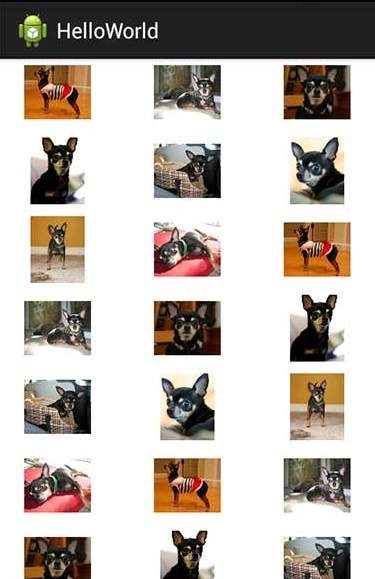
子活动示例
让我们扩展上面示例的功能,我们将以全屏显示选定的网格图像。为此,我们需要引入一个新活动。请记住,对于任何活动,我们都需要执行所有步骤,例如,我们必须实现一个活动类,在 AndroidManifest.xml 文件中定义该活动,定义相关的布局,最后通过在主活动类中使用该子活动将其链接到主活动。因此,让我们按照以下步骤修改上面的示例:
| 步骤 | 描述 |
|---|---|
| 1 | 您将使用 Android Studio IDE 创建一个 Android 应用程序,并在包com.example.helloworld下将其命名为HelloWorld,如Hello World 示例章节中所述。 |
| 2 | 在包com.example.helloworld下创建一个名为SingleViewActivity.java的新活动类,如下所示。 |
| 3 | 在res/layout/文件夹下为新活动创建新的布局文件。让我们将此 XML 文件命名为 single_view.xml。 |
| 4 | 使用<activity.../>标签在AndroidManifest.xml文件中定义您的新活动。应用程序可以拥有一个或多个活动,没有任何限制。 |
| 5 | 运行应用程序以启动 Android 模拟器并验证对应用程序所做的更改的结果。 |
以下是修改后的主活动文件src/com.example.helloworld/MainActivity.java的内容。此文件可以包含每个基本生命周期方法。
package com.example.helloworld;

import android.app.Activity;
import android.content.Intent;
import android.os.Bundle;

import android.view.Menu;
import android.view.View;

import android.widget.AdapterView;
import android.widget.AdapterView.OnItemClickListener;
import android.widget.GridView;

public class MainActivity extends Activity {
   @Override
   protected void onCreate(Bundle savedInstanceState) {
      super.onCreate(savedInstanceState);
      setContentView(R.layout.activity_main);

      GridView gridview = (GridView) findViewById(R.id.gridview);
      gridview.setAdapter(new ImageAdapter(this));

      gridview.setOnItemClickListener(new OnItemClickListener() {
         public void onItemClick(AdapterView<?> parent,
            View v, int position, long id){
            // Send intent to SingleViewActivity
            Intent i = new Intent(getApplicationContext(), SingleViewActivity.class);
            // Pass image index
            i.putExtra("id", position);
            startActivity(i);
         }
      });
   }
}
以下是新活动文件src/com.example.helloworld/SingleViewActivity.java文件的内容:
package com.example.helloworld;

import android.app.Activity;
import android.content.Intent;
import android.os.Bundle;
import android.widget.ImageView;

public class SingleViewActivity extends Activity {
   @Override
   public void onCreate(Bundle savedInstanceState) {
      super.onCreate(savedInstanceState);
      setContentView(R.layout.single_view);

      // Get intent data
      Intent i = getIntent();

      // Selected image id
      int position = i.getExtras().getInt("id");
      ImageAdapter imageAdapter = new ImageAdapter(this);

      ImageView imageView = (ImageView) findViewById(R.id.SingleView);
      imageView.setImageResource(imageAdapter.mThumbIds[position]);
   }
}
以下是res/layout/single_view.xml文件的内容:
<?xml version="1.0" encoding="utf-8"?>
<LinearLayout
   xmlns:android="http://schemas.android.com/apk/res/android"
   android:layout_width="match_parent"
   android:layout_height="match_parent"
   android:orientation="vertical" >

<ImageView android:id="@+id/SingleView"
   android:layout_width="fill_parent"
   android:layout_height="fill_parent"/>

</LinearLayout>
以下是AndroidManifest.xml文件的内容,用于定义两个新常量:
<?xml version="1.0" encoding="utf-8"?>
<manifest xmlns:android="http://schemas.android.com/apk/res/android"
   package="com.example.helloworld">

   <application
      android:allowBackup="true"
      android:icon="@drawable/ic_launcher"
      android:label="@string/app_name"
      android:theme="@style/AppTheme" >

      <activity
         android:name="com.example.helloworld.MainActivity"
         android:label="@string/app_name" >

         <intent-filter>
            <action android:name="android.intent.action.MAIN" />
            <category android:name="android.intent.category.LAUNCHER" />
         </intent-filter>

      </activity>

      <activity android:name=".SingleViewActivity"></activity>

   </application>
</manifest>
让我们尝试运行我们刚刚修改的修改后的Hello World!应用程序。我假设您在进行环境设置时创建了AVD。要从 Android Studio 运行应用程序,请打开项目的一个活动文件,然后单击工具栏中的运行图标。Android Studio 将应用程序安装到您的 AVD 并启动它,如果您的设置和应用程序一切正常,它将显示以下模拟器窗口:
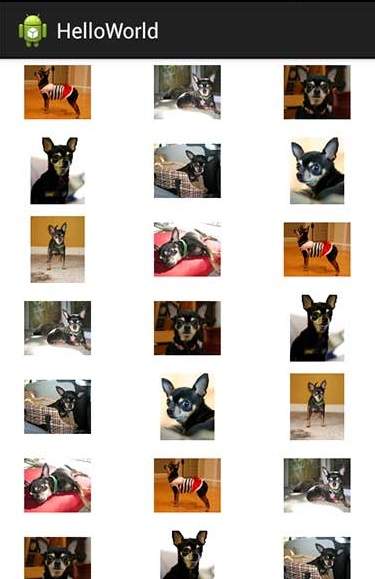
现在,如果您单击任何图像,它将显示为单个图像,例如:
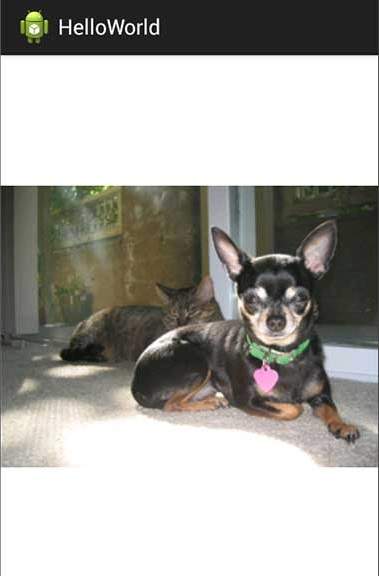
请注意,上面提到的图片来自 Android 官方网站。