
- Matplotlib 基础
- Matplotlib - 首页
- Matplotlib - 简介
- Matplotlib - 与 Seaborn 的比较
- Matplotlib - 环境搭建
- Matplotlib - Anaconda 发行版
- Matplotlib - Jupyter Notebook
- Matplotlib - Pyplot API
- Matplotlib - 简单绘图
- Matplotlib - 保存图片
- Matplotlib - 标记
- Matplotlib - 图形
- Matplotlib - 风格
- Matplotlib - 图例
- Matplotlib - 颜色
- Matplotlib - 颜色图
- Matplotlib - 颜色图归一化
- Matplotlib - 选择颜色图
- Matplotlib - 颜色条
- Matplotlib - 文本
- Matplotlib - 文本属性
- Matplotlib - 子图标题
- Matplotlib - 图片
- Matplotlib - 图片蒙版
- Matplotlib - 注释
- Matplotlib - 箭头
- Matplotlib - 字体
- Matplotlib - 什么是字体?
- 全局设置字体属性
- Matplotlib - 字体索引
- Matplotlib - 字体属性
- Matplotlib - 比例尺
- Matplotlib - 线性和对数比例尺
- Matplotlib - 对称对数和 Logit 比例尺
- Matplotlib - LaTeX
- Matplotlib - 什么是 LaTeX?
- Matplotlib - LaTeX 用于数学表达式
- Matplotlib - 在注释中使用 LaTeX 文本格式
- Matplotlib - PostScript
- 启用注释中的 LaTeX 渲染
- Matplotlib - 数学表达式
- Matplotlib - 动画
- Matplotlib - 图形对象
- Matplotlib - 使用 Cycler 进行样式设置
- Matplotlib - 路径
- Matplotlib - 路径效果
- Matplotlib - 变换
- Matplotlib - 刻度和刻度标签
- Matplotlib - 弧度刻度
- Matplotlib - 日期刻度
- Matplotlib - 刻度格式化器
- Matplotlib - 刻度定位器
- Matplotlib - 基本单位
- Matplotlib - 自动缩放
- Matplotlib - 反转坐标轴
- Matplotlib - 对数坐标轴
- Matplotlib - Symlog
- Matplotlib - 单位处理
- Matplotlib - 带有单位的椭圆
- Matplotlib - 脊柱
- Matplotlib - 坐标轴范围
- Matplotlib - 坐标轴比例尺
- Matplotlib - 坐标轴刻度
- Matplotlib - 坐标轴格式化
- Matplotlib - Axes 类
- Matplotlib - 双坐标轴
- Matplotlib - Figure 类
- Matplotlib - 多图
- Matplotlib - 网格
- Matplotlib - 面向对象接口
- Matplotlib - PyLab 模块
- Matplotlib - Subplots() 函数
- Matplotlib - Subplot2grid() 函数
- Matplotlib - 锚定图形对象
- Matplotlib - 手动等高线
- Matplotlib - 坐标报告
- Matplotlib - AGG 滤镜
- Matplotlib - 矩形带
- Matplotlib - 填充螺旋线
- Matplotlib - Findobj 演示
- Matplotlib - 超链接
- Matplotlib - 图片缩略图
- Matplotlib - 使用关键字绘图
- Matplotlib - 创建 Logo
- Matplotlib - 多页 PDF
- Matplotlib - 多进程
- Matplotlib - 打印标准输出
- Matplotlib - 复合路径
- Matplotlib - Sankey 类
- Matplotlib - MRI 与 EEG
- Matplotlib - 样式表
- Matplotlib - 背景颜色
- Matplotlib - Basemap
- Matplotlib 事件处理
- Matplotlib - 事件处理
- Matplotlib - 关闭事件
- Matplotlib - 鼠标移动
- Matplotlib - 点击事件
- Matplotlib - 滚动事件
- Matplotlib - 按键事件
- Matplotlib - 选择事件
- Matplotlib - 透镜
- Matplotlib - 路径编辑器
- Matplotlib - 多边形编辑器
- Matplotlib - 定时器
- Matplotlib - Viewlims
- Matplotlib - 缩放窗口
- Matplotlib 小部件
- Matplotlib - 光标小部件
- Matplotlib - 带注释的光标
- Matplotlib - 按钮小部件
- Matplotlib - 复选框
- Matplotlib - 套索选择器
- Matplotlib - 菜单小部件
- Matplotlib - 鼠标光标
- Matplotlib - 多光标
- Matplotlib - 多边形选择器
- Matplotlib - 单选按钮
- Matplotlib - 范围滑块
- Matplotlib - 矩形选择器
- Matplotlib - 椭圆选择器
- Matplotlib - 滑块小部件
- Matplotlib - 区间选择器
- Matplotlib - 文本框
- Matplotlib 绘图
- Matplotlib - 条形图
- Matplotlib - 直方图
- Matplotlib - 饼图
- Matplotlib - 散点图
- Matplotlib - 箱线图
- Matplotlib - 小提琴图
- Matplotlib - 等高线图
- Matplotlib - 3D 绘图
- Matplotlib - 3D 等高线
- Matplotlib - 3D 线框图
- Matplotlib - 3D 表面图
- Matplotlib - 矢羽图
- Matplotlib 有用资源
- Matplotlib - 快速指南
- Matplotlib - 有用资源
- Matplotlib - 讨论
Matplotlib - 多边形选择器
简介
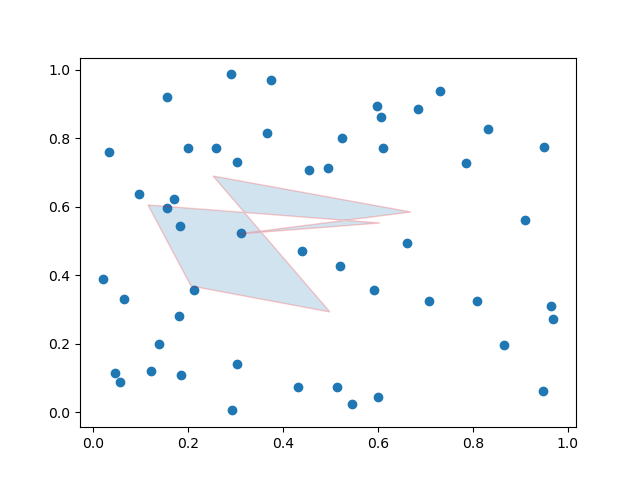
Matplotlib 没有专用的多边形选择器小部件。但是,Matplotlib 提供了一种处理鼠标事件的机制,我们可以使用这些事件处理功能来实现自定义多边形选择功能。
Matplotlib 允许我们捕获鼠标事件,例如按钮点击、鼠标移动和释放。我们可以利用这些事件来实现多边形选择工具,用户可以交互式地围绕所需数据点绘制多边形。
关键概念
以下是多边形选择器小部件的关键概念。
Matplotlib 中的事件处理
Matplotlib 提供了一个灵活的事件处理系统,允许我们捕获用户与绘图的交互。常见的事件包括鼠标点击、按键和移动。
Path 类
matplotlib.path 模块中的 Path 类表示一系列连接的线段和曲线段,可用于定义形状,例如多边形。我们将使用它来定义并检查点是否在选定的多边形内。
用例和扩展
以下是多边形选择器小部件的用例和扩展。
- 区域选择 - 自定义多边形选择器可用于通过允许用户关注特定数据区域来定义和选择绘图中的特定感兴趣区域。
- 数据过滤 - 选定的多边形点可用于过滤和分析已绘制数据集中的特定数据子集。
- 与回调函数的集成 - 我们可以通过集成响应多边形选择的回调函数来扩展功能,从而允许根据选定区域执行自定义操作或分析。
- 动态可视化 - 实现动态可视化更新,例如突出显示多边形内的点,可以增强用户体验。
自定义
我们可以根据特定需求增强和自定义多边形选择器。例如,我们可以添加清除当前多边形的功能,根据所选区域动态更新绘图,或将其集成到更大的交互式应用程序中。
实现步骤
现在让我们一起了解在 Matplotlib 中创建自定义多边形选择器的基本示例的步骤。
导入必要的库
首先,我们必须导入 Matplotlib 和 NumPy 库,用于绘图和数组操作。
import matplotlib.pyplot as plt
import numpy as np
定义多边形选择器类
导入必要的库后,我们必须创建一个类来处理鼠标事件,并允许用户绘制多边形。
class PolygonSelector:
   def __init__(self, ax):
      self.ax = ax
      self.polygon = None
      self.vertices = []
      self.cid_press = ax.figure.canvas.mpl_connect('button_press_event', self.on_press)
      self.cid_release = ax.figure.canvas.mpl_connect('button_release_event', self.on_release)
      self.cid_motion = ax.figure.canvas.mpl_connect('motion_notify_event', self.on_motion)
定义事件回调
我们必须定义事件回调来实现处理鼠标按下、释放和移动事件的方法。
示例
def on_press(self, event):
   if event.inaxes != self.ax:
      return

   if event.button == 1:  # Left mouse button
      if self.polygon is None:
         self.polygon = plt.Polygon([event.xdata, event.ydata], closed=False, fill=None, edgecolor='r')
         self.ax.add_patch(self.polygon)
         self.vertices.append((event.xdata, event.ydata))
   else:
      self.vertices.append((event.xdata, event.ydata))

def on_release(self, event):
   if event.inaxes != self.ax:
      return

   if event.button == 1:  # Left mouse button
      if len(self.vertices) > 2:
         self.vertices.append(self.vertices[0])  # Closing the polygon
         self.polygon.set_xy(np.array(self.vertices))
         plt.draw()

   def on_motion(self, event):
      if event.inaxes != self.ax:
         return

   if event.button == 1 and self.polygon is not None:
      self.vertices[-1] = (event.xdata, event.ydata)
      self.polygon.set_xy(np.array(self.vertices))
      plt.draw()
创建绘图
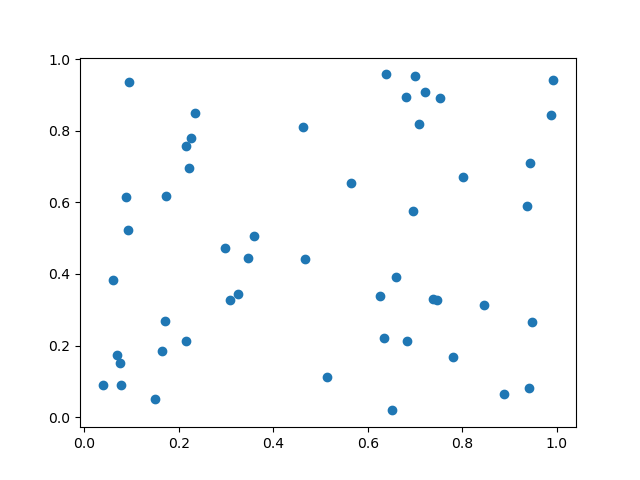
接下来,我们必须生成样本数据并为该生成的数创建绘图。
x = np.random.rand(50)
y = np.random.rand(50)
fig, ax = plt.subplots()
ax.scatter(x, y)
初始化多边形选择器并显示绘图
现在用绘图的坐标轴实例化PolygonSelector类,然后显示绘图。
polygon_selector = PolygonSelector(ax)
plt.show()
现在让我们将上述所有步骤组合在一起。
输出
示例
import matplotlib.pyplot as plt
from matplotlib.patches import Polygon
from matplotlib.backend_bases import PickEvent
import numpy as np

class PolygonSelector:
   def __init__(self, ax):
      self.ax = ax
      self.points = []
      self.polygon = None
      self.cid_click = ax.figure.canvas.mpl_connect('button_press_event', self.on_click)
      self.cid_key = ax.figure.canvas.mpl_connect('key_press_event', self.on_key_press)

   def on_click(self, event):
      if event.inaxes == self.ax:
         if event.button == 1:  # Left mouse button
            self.points.append((event.xdata, event.ydata))
            self.update_polygon()

   def on_key_press(self, event):
      if event.key == 'enter':
         print("Polygon points:", self.points)
         self.reset_polygon()

   def update_polygon(self):
      if self.polygon:
         self.polygon.remove()
      if len(self.points) > 2:
         self.polygon = Polygon(self.points, edgecolor='red', alpha=0.2, closed=True)
         self.ax.add_patch(self.polygon)
         self.ax.figure.canvas.draw()

   def reset_polygon(self):
      self.points = []
      if self.polygon:
         self.polygon.remove()
         self.ax.figure.canvas.draw()

# Create a scatter plot with random data
np.random.seed(42)
x_data = np.random.rand(50)
y_data = np.random.rand(50)
fig, ax = plt.subplots()
ax.scatter(x_data, y_data)
# Initialize the PolygonSelector
polygon_selector = PolygonSelector(ax)
plt.show()
输出
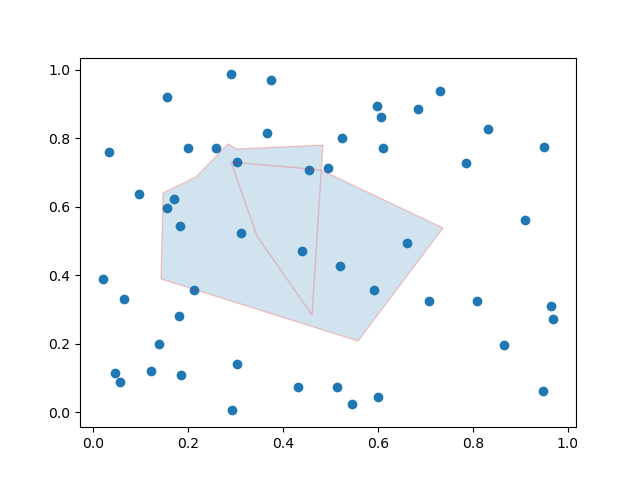
示例
这是一个在 matpltlib 绘图上创建多边形选择器的另一个示例。
import matplotlib.pyplot as plt
from matplotlib.patches import Polygon
from matplotlib.backend_bases import PickEvent
import numpy as np
class PolygonSelector:
   def __init__(self, ax):
      self.ax = ax
      self.points = []
      self.polygon = None
      self.highlighted_points = None
      self.cid_click = ax.figure.canvas.mpl_connect('button_press_event', self.on_click)
      self.cid_key = ax.figure.canvas.mpl_connect('key_press_event', self.on_key_press)
   def on_click(self, event):
      if event.inaxes == self.ax:
         if event.button == 1:  # Left mouse button
            self.points.append((event.xdata, event.ydata))
            self.update_polygon()
   def on_key_press(self, event):
      if event.key == 'enter':
         self.highlight_points_inside_polygon()
         self.reset_polygon()
   def update_polygon(self):
      if self.polygon:
         self.polygon.remove()
         if len(self.points) > 2:
            self.polygon = Polygon(self.points, edgecolor='red', alpha=0.2, closed=True)
            self.ax.add_patch(self.polygon)
            self.ax.figure.canvas.draw()
   def reset_polygon(self):
      self.points = []
      if self.polygon:
         self.polygon.remove()
         self.ax.figure.canvas.draw()
   def highlight_points_inside_polygon(self):
      if self.highlighted_points:
         for point in self.highlighted_points:
            point.set_markersize(5)
         self.highlighted_points = []
      if self.polygon:
         path = self.polygon.get_path()
         points_inside_polygon = self.ax.plot([], [], 'o', markersize=8, markerfacecolor='yellow')[0]
         for i in range(len(self.ax.collections)):
            if isinstance(self.ax.collections[i], PickEvent):
               xs, ys = self.ax.collections[i].get_offsets().T
               points_inside = path.contains_points(np.column_stack((xs, ys)))
               self.highlighted_points.extend(
                  self.ax.plot(
                     xs[points_inside], ys[points_inside], 'o', markersize=8, markerfacecolor='yellow'))
               self.ax.figure.canvas.draw()

# Create a scatter plot with random data
np.random.seed(42)
x_data = np.random.rand(50)
y_data = np.random.rand(50)
fig, ax = plt.subplots()
ax.scatter(x_data, y_data)
# Initialize the PolygonSelector
polygon_selector = PolygonSelector(ax)
plt.show()
输出
填充多边形内的区域
在这个例子中,我们使用 matplotlib 库填充多边形内的区域。
示例
import matplotlib.pyplot as plt
from matplotlib.collections import PatchCollection
from matplotlib.patches import Polygon
import numpy as np
plt.rcParams["figure.figsize"] = [7.50, 3.50]
plt.rcParams["figure.autolayout"] = True
fig, ax = plt.subplots(1)
polygon = Polygon(np.random.rand(6, 2), closed=True, alpha=1)
collection = PatchCollection([polygon])
ax.add_collection(collection)
plt.show()
输出
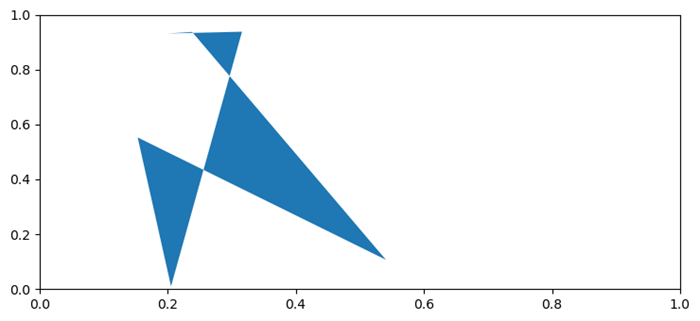
注意 - 要在绘图上绘制多边形,请拖动光标,坐标值将根据用户选择而变化。
广告